

Your First Community
Jetonomy overviewFree + ProGet Jetonomy →
Your community is installed and the wizard is complete. This guide walks you through what to do next, from organizing your spaces to inviting your first members, so your community is genuinely ready for people on day one.
What You Will Learn
Section titled “What You Will Learn”- How to organize spaces with categories
- How to create your first real space and choose the right type
- How to send a test email before you invite anyone
- How to invite members with a shareable link
- How to customize the look and feel
- How to import from bbPress or wpForo if you are migrating
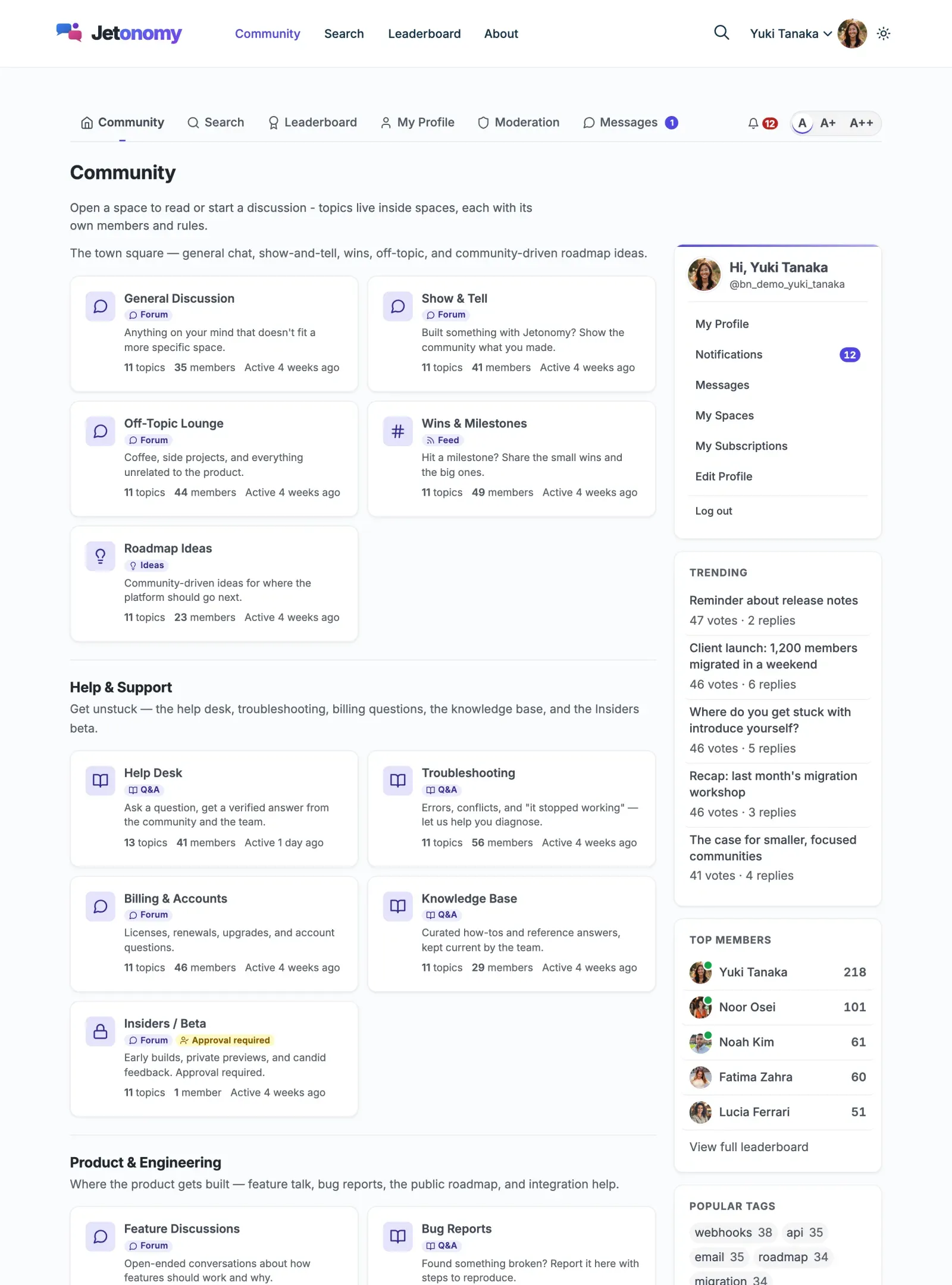
- What the community frontend looks like for your members
Create Categories to Organize Your Spaces
Section titled “Create Categories to Organize Your Spaces”Categories are the top-level groupings in your community. Every space belongs to a category. Before you create more spaces, take a moment to plan your category structure - it is much easier to do now than to reorganize later.
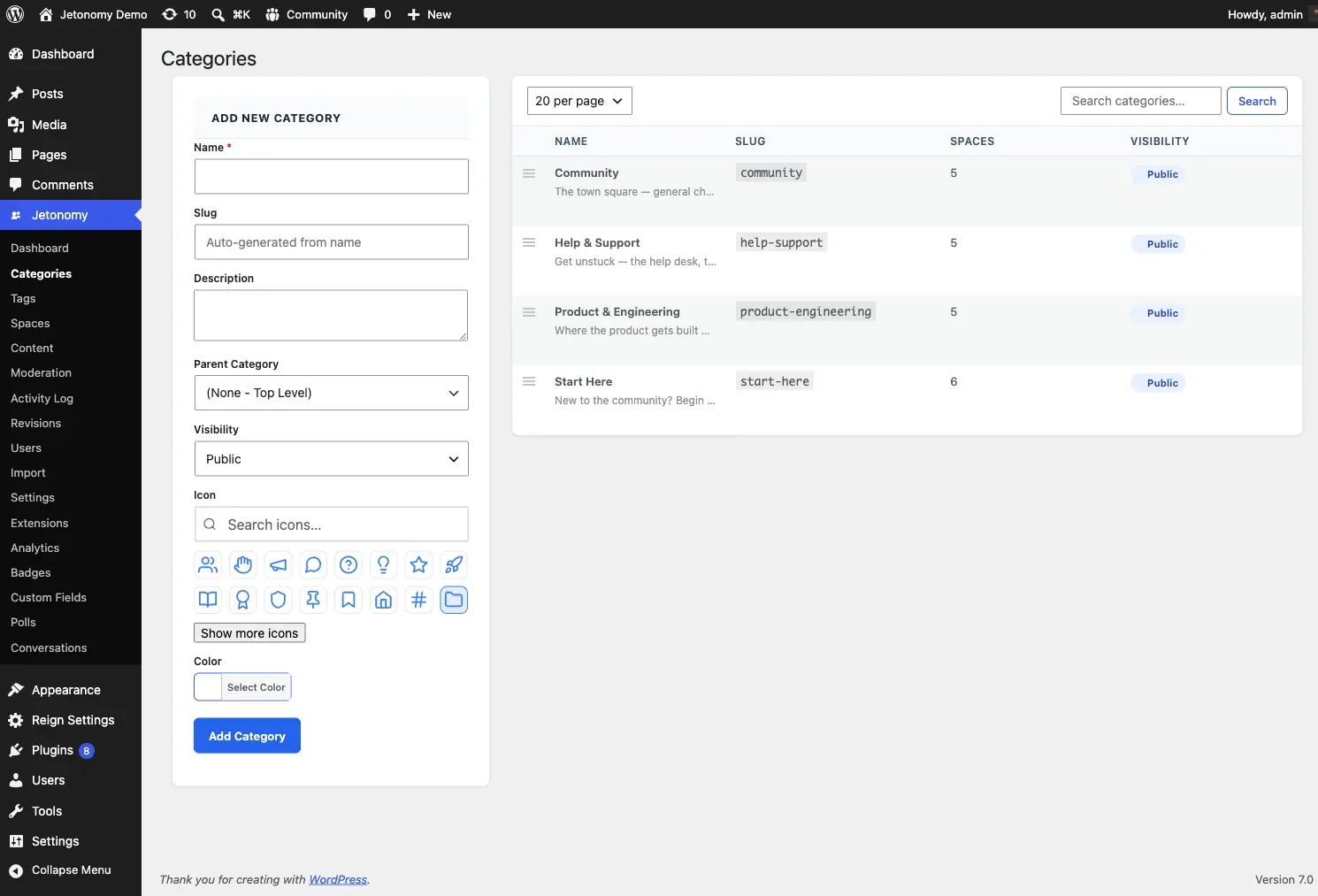
To create a category:
- Go to Jetonomy → Categories.
- Enter a name and optional description in the form on the left.
- Click Add Category.
Your category appears in the table on the right. Drag rows to reorder them. The order here is the order your members see on the community home page.
Tip: Start with two to four broad categories. You can always add more later. Common patterns: “Support / General / Announcements” for a product community, or “Ideas / Questions / Showcase” for a creator community.
Create Your First Real Space
Section titled “Create Your First Real Space”A space is where discussions happen. Each space has a type that shapes how members interact with content.
Choosing a Space Type
Section titled “Choosing a Space Type”| Type | Best for | Key feature |
|---|---|---|
| Forum | General discussion, announcements, support | Threaded replies, newest/popular sort |
| Q&A | Technical help, knowledge bases | Votable answers, accepted answer highlight |
| Ideas | Feature requests, roadmaps | Status lanes (Planned, In Progress, Shipped, Declined) with roadmap view |
| Feed | Status updates, introductions, sharing work | Card feed with optional title and votes |
To create a space, you can use either the wp-admin form or the front-end Create Space page. Both produce the same result.
From wp-admin:
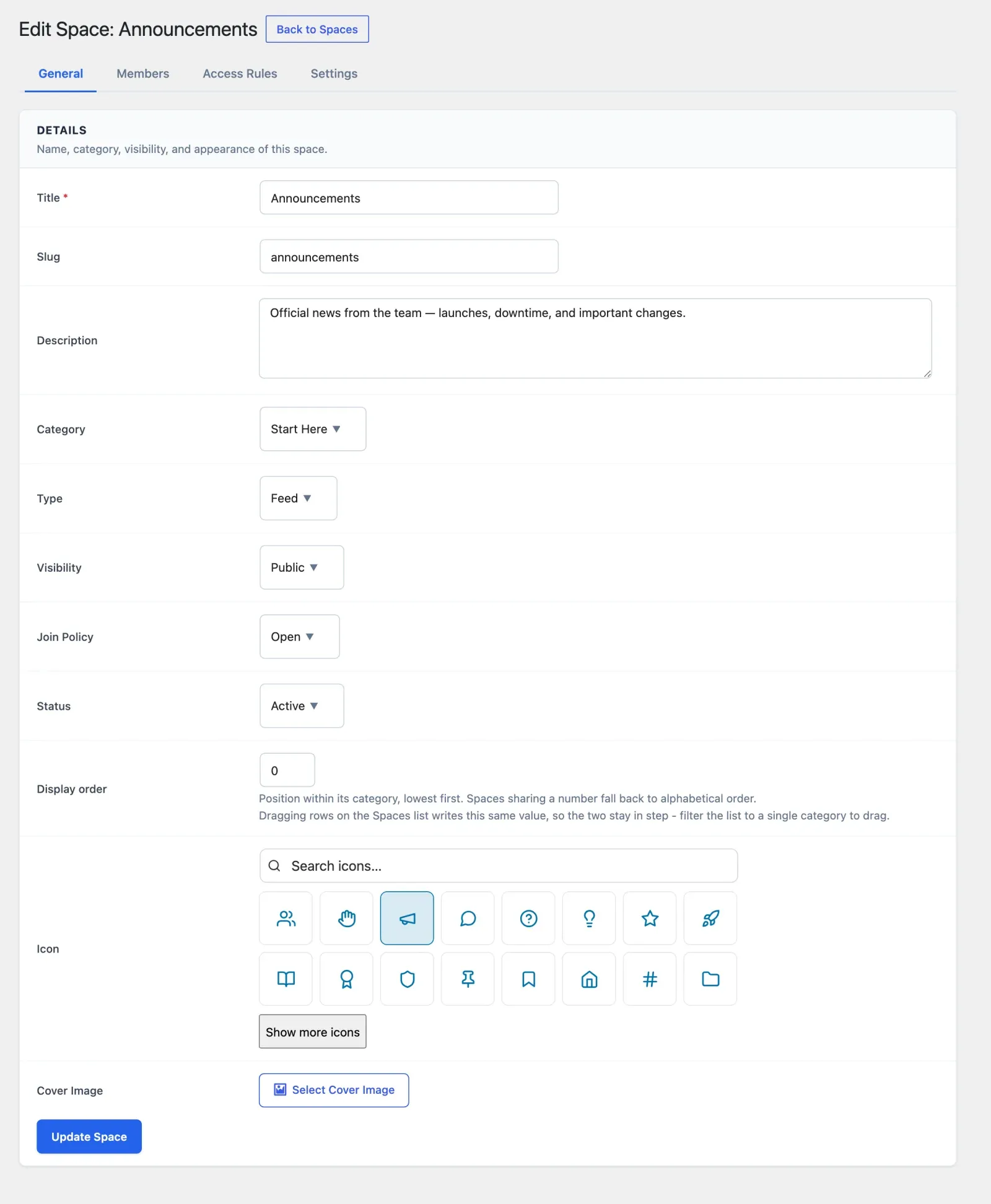
- Go to Jetonomy → Spaces and click Add New.
- Enter a Title and optional Description.
- Pick a Category and the space Type.
- Set Visibility: Public (anyone can find and read it), Private (anyone signed in can find it, only members can read it), or Hidden (only members can find it, invite only).
- Set the Join Policy: Open, Requires Approval, or Invite Only.
- Pick an icon from the visual Lucide picker (16 defaults plus a search field).
- Click Create Space. When you edit a space later, the button is Update Space.
From the front end (so non-admin owners can create spaces too): visit /community/new-space/ while signed in. The form is identical and is available to any role you’ve enabled under Jetonomy → Settings → General, in the Front-end space creation field.
Your space is immediately available on the community frontend under its category.
Send a Test Email Before You Invite Anyone
Section titled “Send a Test Email Before You Invite Anyone”Jetonomy emails members for verification, replies, mentions, join approvals and more, all sent through WordPress’s own wp_mail(). Before you invite anyone, confirm mail actually leaves your server:
- Go to Jetonomy → Settings → Email.
- Scroll to the bottom and click Send Test Email. It sends a test message to your WordPress admin email address, confirming
wp_mail()works and that your From name and address apply correctly. - While you’re on that screen, click Preview next to any notification template to see it rendered with sample data before a member ever receives it.
If the test email does not arrive within a few minutes, install an SMTP plugin (WP Mail SMTP, FluentSMTP, or similar) - most shared hosting cannot reliably send mail without one. See Email Settings for the full reference.
Invite Members
Section titled “Invite Members”You do not need to wait for members to discover your community organically. Jetonomy gives you a direct invite link you can share anywhere.
Generate an Invite Link
Section titled “Generate an Invite Link”- Go to Jetonomy → Spaces and edit your space.
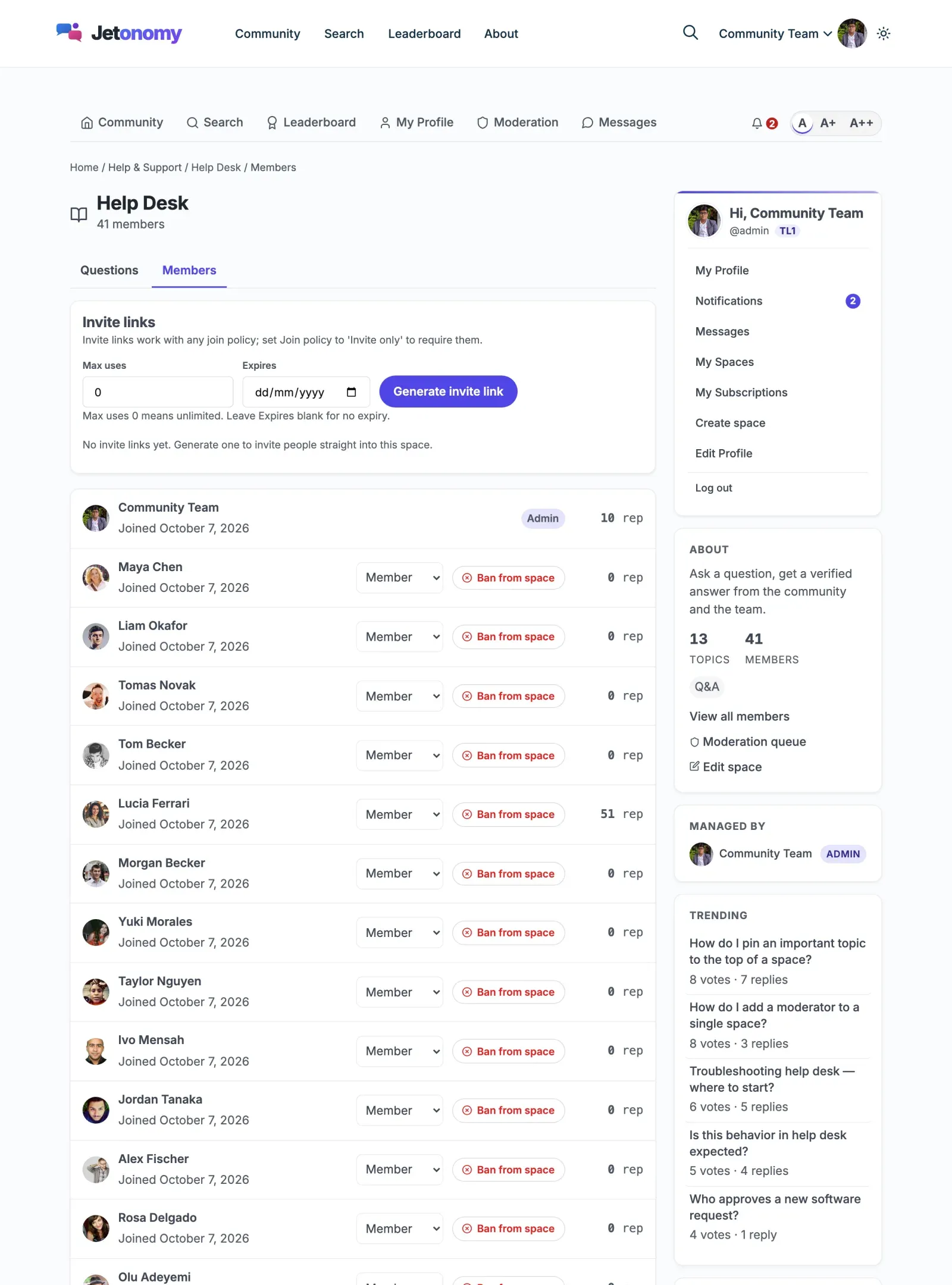
- Open the Members tab and find the Invite Links section.
- Set Max uses (0 means unlimited) and an Expires date, or leave Expires blank for no expiry.
- Click Generate invite link.
- Copy the link and share it via email, Slack, social media, or anywhere else.
Space admins can also do this from the space’s Members page on the community front end.
When someone visits the link, they are added to the space immediately after logging in or creating a WordPress account.
Note: Invite links work for any WordPress user registration flow you have configured. If you allow open registration, new members can sign up and join in one step.
Existing WordPress Users
Section titled “Existing WordPress Users”Anyone who already has an account on your WordPress site can visit yoursite.com/community/ and join public spaces by clicking Join Space. Their existing avatar, display name, and email are used automatically.
Customize the Appearance
Section titled “Customize the Appearance”Jetonomy inherits your theme’s fonts, colors, and border radius automatically via WordPress theme tokens. If you are using BuddyX, this integration is immediate. Jetonomy reads BuddyX’s design tokens and matches your brand without any manual work.
To adjust further:
- Go to Jetonomy → Settings and open the General and Advanced tabs.
- To override specific templates, create a
jetonomy/folder inside your active theme directory and drop in any template file fromwp-content/plugins/jetonomy/templates/. Jetonomy always checks your theme folder first.
Tip: You do not need to copy all templates. Only override the ones you want to change. Unmodified templates are served directly from the plugin.
Importing from bbPress, wpForo, or Asgaros
Section titled “Importing from bbPress, wpForo, or Asgaros”If you are migrating an existing community, Jetonomy includes a built-in importer for three sources.
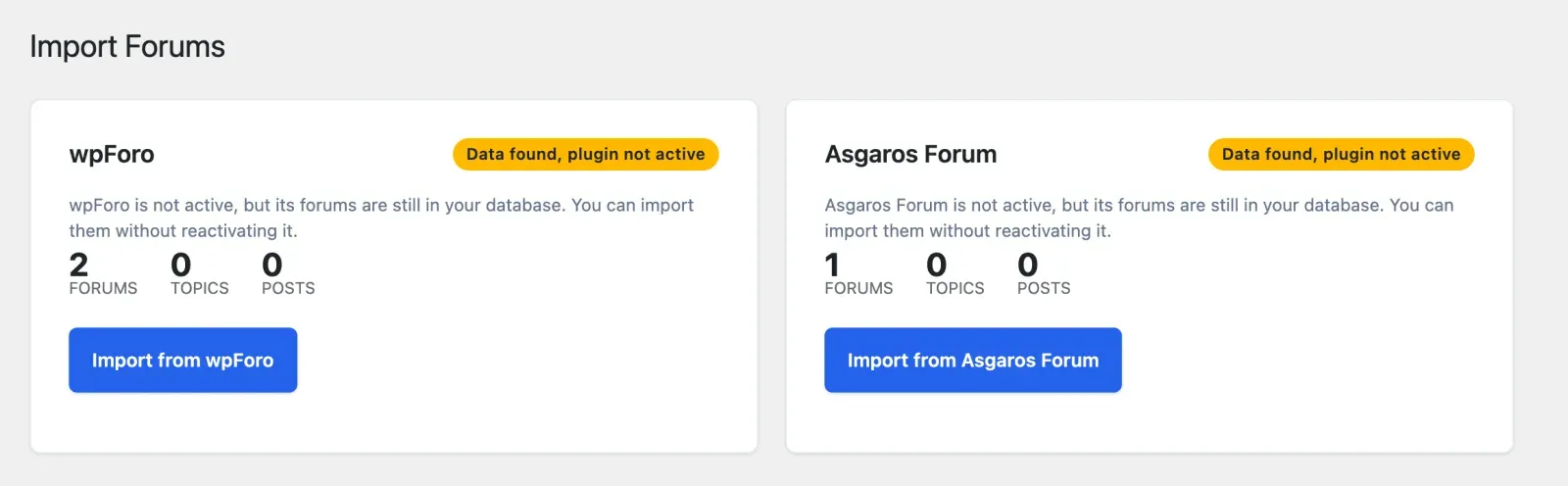
- Go to Jetonomy → Import.
- Jetonomy auto-detects your existing data and shows a card for each source it finds, with the number of forums, topics, and replies.
- Back up your database. The import cannot be automatically reversed.
- Click Import from bbPress, Import from wpForo, or Import from Asgaros Forum.
The import runs in batches from your browser, with a progress bar. Keep the tab open until it finishes. If it is interrupted, return to Jetonomy → Import and click Resume Import to continue from where it stopped.
The browser import has no preview mode. Only the bbPress importer can preview, using WP-CLI: wp jetonomy import bbpress --dry-run. See bbPress import for details.
What gets migrated:
| Source | Jetonomy |
|---|---|
| Forums | Categories + Spaces |
| Topics | Posts |
| Replies | Replies |
| Users | WordPress users + Jetonomy profiles |
| Inline images and attachments (1.8.0+) | Media library + Jetonomy attachments |
The Community Frontend: A Quick Tour
Section titled “The Community Frontend: A Quick Tour”Once you have content, here is what your members will see.
Community Home (/community/)
Section titled “Community Home (/community/)”The home page lists all categories with their spaces. Each space card shows the post count, member count, and a recent activity indicator. Badges on the card show the space type and whether it is private or hidden. For a space you belong to, a badge shows your own role there (Member, Moderator or Admin) instead of how others join. Members can sort by activity or browse by category.
Space Listing (/community/s/space-slug/)
Section titled “Space Listing (/community/s/space-slug/)”Inside a space, members see a topic list with vote scores, reply counts, author avatars, tags, and time. They can filter by Latest, Popular, or Unanswered. A New Post button appears in the top right for members who have permission to post.
Single Topic (/community/s/space-slug/t/topic-slug/)
Section titled “Single Topic (/community/s/space-slug/t/topic-slug/)”The topic view shows the full post, vote buttons, and all replies. Replies are threaded up to three levels deep. For busy topics with many replies, Jetonomy loads the first 10 and last 10 replies by default, with a gap-loader button in between to fetch more. This keeps page load fast regardless of reply count.
In Q&A spaces, the accepted answer is pinned to the top and highlighted with a green checkmark.
Sidebar
Section titled “Sidebar”The community sidebar (where the theme layout places it) shows active members, trending tags, and recent activity. The exact sidebar layout depends on your theme.
Note: All community pages are server-side rendered. There are no JavaScript-only pages, so every URL is indexable by search engines out of the box.
What’s Next?
Section titled “What’s Next?”Now that your community is live and populated, learn how to organize it further with spaces and categories, including visibility rules and per-space permissions.
Have a specific goal in mind? The How-To Guides walk through the most common ones step by step: launching a support forum, running a members-only community, restricting a space to paying members, collecting feature requests, adding moderators, and more.