

Admin Dashboard
Jetonomy overviewFree + ProGet Jetonomy →
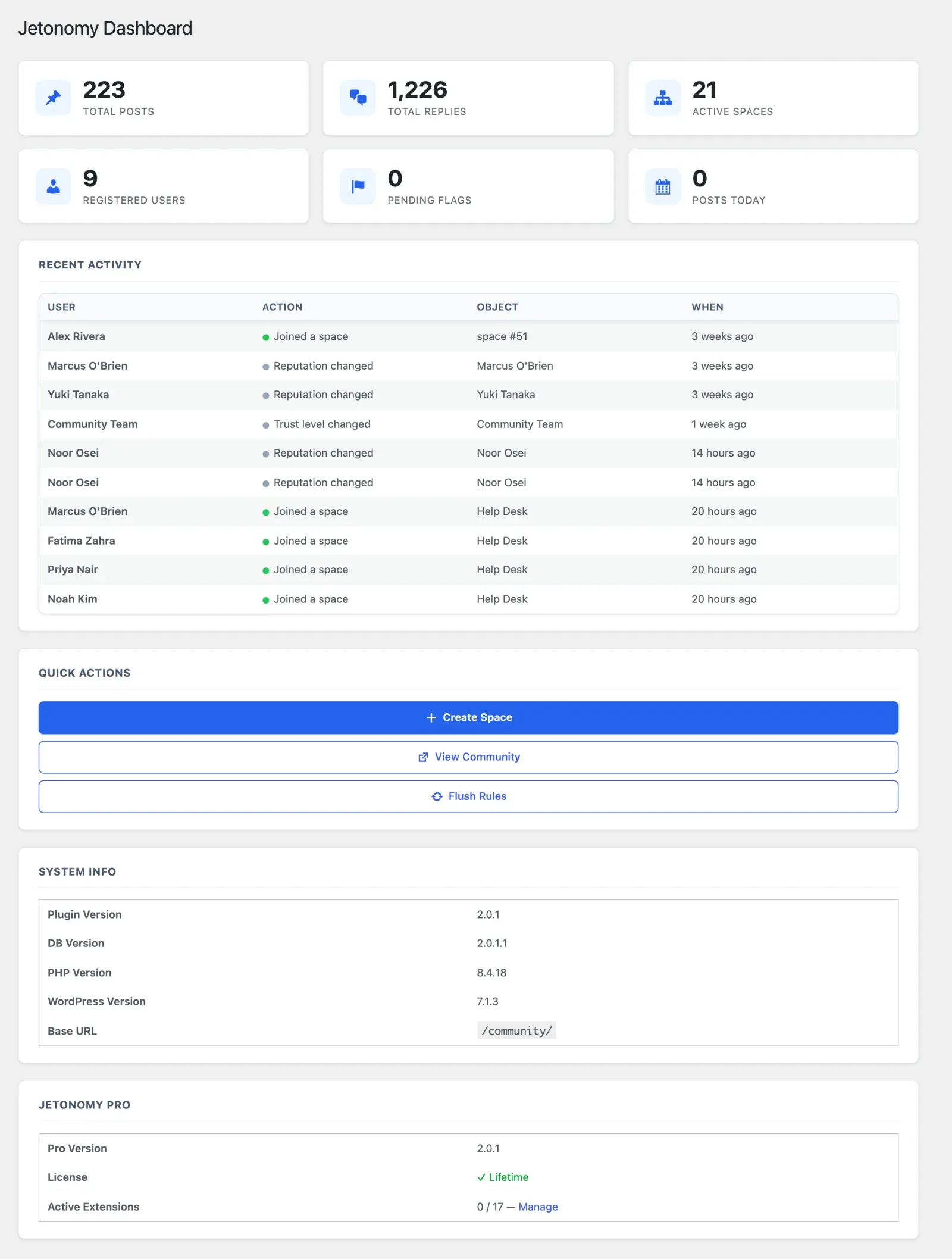
The Jetonomy admin dashboard is your first stop after logging in to wp-admin. It shows a live snapshot of community health and gives you one-click access to the most common management tasks.
What You Will Learn
Section titled “What You Will Learn”- What each stat card measures
- How to use the Quick Actions panel
- What the Recent Activity feed shows
- Where to find System Info
Go to Jetonomy → Dashboard to access this screen. It is also the landing page when you click Jetonomy in the wp-admin sidebar.
Setup Wizard Notice
Section titled “Setup Wizard Notice”On a fresh install where the setup wizard has not been completed, a blue notice appears at the top of the dashboard asking you to run the wizard. The wizard creates your first space and seeds optional demo content. Once you complete it, the notice disappears and does not return.
Stat Cards
Section titled “Stat Cards”Six cards show current counts for the most important community metrics. Counts update in real time - refreshing the page fetches the latest values.
| Card | What It Counts |
|---|---|
| Total Posts | All published posts across every space |
| Total Replies | All published replies across every post |
| Active Spaces | Spaces with status “active” |
| Registered Users | Total WordPress users with at least one Jetonomy profile row |
| Pending Flags | Flags in the moderation queue that have not been resolved |
| Posts Today | Posts created in the current calendar day (UTC) |
When the Pending Flags count is greater than zero, the card turns orange and shows a Review flags → link that takes you straight to the moderation queue - so the count is a one-click action, not just a visual signal. On the moderation queue itself, the “N pending” badge updates live as you resolve each flag, without a page reload.
Recent Activity Feed
Section titled “Recent Activity Feed”The Recent Activity table on the left side of the dashboard shows the most recent member actions logged in the activity system. Columns:
| Column | Description |
|---|---|
| User | Display name of the member who took the action |
| Action | What they did (colored dot indicates category: green = create, blue = vote, orange = moderation) |
| Object | The post, reply, space, or user the action involved, with a link to the relevant admin page |
| When | Relative time (e.g. “3 minutes ago”) |
If no activity has been logged yet, a placeholder message appears. The feed is read-only - use it for monitoring, not for taking action on specific items.
Quick Actions Panel
Section titled “Quick Actions Panel”The right sidebar has a Quick Actions card with these buttons:
| Button | What It Does |
|---|---|
| Create Space | Opens the new-space form at Jetonomy → Spaces → Add New |
| View Community | Opens the community home in a new browser tab |
| Flush Rules | Triggers flush_rewrite_rules() to rebuild WordPress permalink rules |
| Recount counters (2.0.3+) | Rebuilds topic, reply, member and vote counts from your content. Shown to administrators only |
Use Flush Rules any time your community URLs return 404s after changing the base slug, activating a new plugin, or running a migration.
Use Recount counters when a count looks wrong, for example after an import, a database restore or editing rows directly. It asks you to confirm, can take a minute on a large community, and then shows “Counters rebuilt from your content.” It runs the same job as POST /jetonomy/v1/admin/recount.
Demo Data
Section titled “Demo Data”The Demo Data card below Quick Actions works in both directions:
- Import Demo Data appears when no demo content is loaded - for example, if you skipped sample data in the setup wizard or removed it earlier. It adds sample members, categories, spaces and topics so you can try the community out. Importing again replaces the previous demo set rather than adding a second one.
- Remove All Demo Data appears while demo content is loaded (the card is yellow and titled Demo Data Active). It deletes only the demo members, categories, spaces, posts and replies; your own content is not affected.
Both actions ask you to confirm first, then reload the Dashboard with a confirmation notice. The same actions are available from WP-CLI (wp jetonomy demo-seed, wp jetonomy demo-cleanup) and the REST API (/jetonomy/v1/admin/demo-data).
System Info
Section titled “System Info”A small table at the bottom of the sidebar shows:
| Row | Value |
|---|---|
| Plugin Version | Current Jetonomy version constant |
| DB Version | The database schema version currently applied |
| PHP Version | Server PHP version |
| WordPress Version | WordPress core version |
| Base URL | The configured community base slug (e.g. /community/) |
Use this table when filing a support request or diagnosing compatibility issues. Copy the values rather than describing them from memory.
Pro Analytics Widget (Jetonomy Pro)
Section titled “Pro Analytics Widget (Jetonomy Pro)”When Jetonomy Pro is active and the Analytics extension is enabled, Pro adds an analytics mini-widget to the sidebar showing recent engagement trends. A full analytics dashboard is available at Jetonomy → Analytics.
When Pro is not active, a small card in the sidebar describes what the Analytics extension adds and links to the Jetonomy Pro store page.
What’s Next?
Section titled “What’s Next?”Give members a sign-in experience that matches your community by adding in-page login and registration.