

Stop Spam and Low-Quality Posts
Jetonomy overviewFree + ProGet Jetonomy →
This guide is for community owners who want to keep bots and drive-by junk out. You will turn on a bot check, slow down brand-new accounts, and hold posts for review where it matters.
What you will set up
Section titled “What you will set up”- An invisible bot check on the post and reply forms
- Daily limits for brand-new members
- Approval for new posts in the spaces you choose
- Stricter entry for sensitive spaces
- (Pro) A rule that holds posts from low-trust members
Before you start
Section titled “Before you start”- You need to be a WordPress administrator.
- For the bot check, a free account with Google reCAPTCHA or Cloudflare Turnstile.
- For approval, at least one person who can review the queue. See Add a Moderator and Handle Reports.
Step 1: Turn on the bot check
Section titled “Step 1: Turn on the bot check”- Go to Jetonomy → Settings → Anti-Spam.
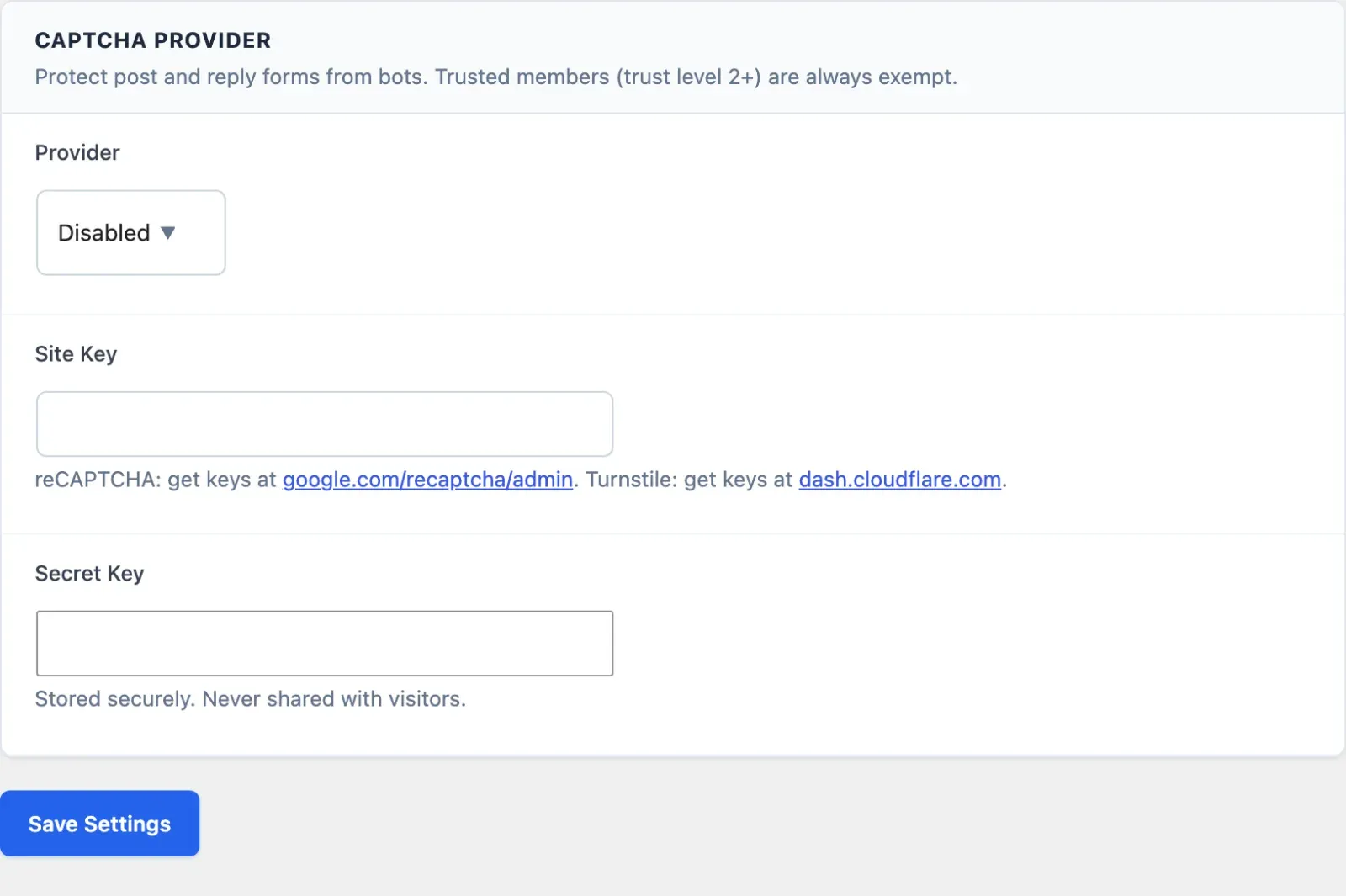
- In the CAPTCHA Provider card, set Provider to Cloudflare Turnstile (privacy-friendly) or Google reCAPTCHA v3 (invisible).
- Create a site with your provider and copy its keys. The card links to both dashboards.
- Paste them into Site Key and Secret Key.
- For reCAPTCHA only, leave Score Threshold at 0.5. Raise it to be stricter. Lower it if real members get blocked.
- Click Save Settings.
If the keys and the provider do not match, a “Heads up:” notice appears at the top of the card. Fix it and save again.
Members at trust level 2 or above, and administrators, skip this check. See Anti-Spam Settings for every field.
Step 2: Slow down brand-new members
Section titled “Step 2: Slow down brand-new members”New accounts start at trust level 0 (Newcomer). You can cap what they do each day.
- Go to Jetonomy → Settings → Permissions.
- In Rate Limits for New Users (Level 0), set Posts per Day, Replies per Day and Votes per Day. The defaults are 3, 10 and 5.
- Click Save Settings.
Members move up on their own as they take part. In the Trust Level Thresholds card, each earned level has Posts Required, Days Active, Reputation and Replies Received. By default, level 1 (Member) needs 5 posts, 3 days active and 10 replies received. Level 1 and above have no daily limits.
Administrators and anyone with the Moderate capability are never limited. Each field accepts 1 or more.
Tip: Lower thresholds let good members out of the limits sooner. Higher ones keep new accounts on a short leash for longer.
Step 3: Hold new posts for approval in a space
Section titled “Step 3: Hold new posts for approval in a space”Jetonomy has no single switch that holds every new member’s first post across the whole community. You choose it space by space.
- Go to Jetonomy → Spaces and click Edit on the space.
- Open the Settings tab.
- Tick New posts require moderator approval before publishing (the Require Approval row).
- Click Save Settings.
From now on, topics and replies from regular members wait as pending. Space moderators, space admins and WordPress administrators post straight through.
Held items appear under Jetonomy → Moderation on the Pending Posts and Pending Replies tabs. The Approve, Spam and Trash buttons are there. On the community pages, held items show under Awaiting approval.
Tip: Use this for spaces like Introductions or Support, where first posts attract the most spam. Leave busy social spaces open.
Step 4: Make sensitive spaces harder to enter
Section titled “Step 4: Make sensitive spaces harder to enter”On the same space screen, General tab, you can narrow who gets in.
- Visibility: Public, Private or Hidden.
- Join Policy: Open, Requires Approval or Invite Only.
With Requires Approval, a Join Requests tab appears on the space screen. Approve or decline people there before they can post.
You can also go to Jetonomy → Settings → General and tick Require new members to confirm their email before they can sign in (the Email verification row). This stops throwaway addresses from getting in.
Step 5 (Pro): Hold posts from low-trust members
Section titled “Step 5 (Pro): Hold posts from low-trust members”If you have Jetonomy Pro, a rule can hold posts everywhere.
- Go to Jetonomy → Extensions and switch on Advanced Moderation.
- Go to Jetonomy → Moderation and open the Auto-Rules tab.
- Under Add Auto-Moderation Rule, enter a Name.
- Set Type to New User Restriction. In Pattern, enter the minimum trust level, for example 1.
- Set Action to Hold for Approval and Scope to Global (all spaces).
- Click Save Rule.
Posts from members below that trust level now wait for approval. Other types are Keyword Filter, Regex Pattern, Link Limit and Spam Score. The other actions are Flag for Review, Block (reject) and Mark as Spam. See Advanced Moderation.
Tip: Rules do not skip staff accounts. Test with a regular member, not your admin login.
Check that it works
Section titled “Check that it works”- Open a private browser window and sign up as a new test member.
- Post in the space where you turned on Require Approval. The post should not appear publicly.
- In your admin window, open Jetonomy → Moderation → Pending Posts. Your test post should be there.
- Click Approve and refresh the private window. The post now shows.
- Post four times in a row as the test member. The fourth topic should be refused until the daily limit resets.
Common questions
Section titled “Common questions”Where does Akismet-caught spam go? If the Akismet plugin is active and connected, flagged content is saved with a Spam status and is not published. Find it under Jetonomy → Content using the Spam filter.
Do trust levels block uploads or links? Not by themselves. The working effects are the daily limits for new members and the CAPTCHA exemption at level 2. Everything else comes from capabilities, which you set under Role Capability Mapping.
A real member says they are blocked. What now? Lower the reCAPTCHA Score Threshold, or switch to Turnstile. You can also raise their level from Jetonomy → Users with Change Trust Level.
Can I ban a spammer for good? Yes. See Banning Members.