

Demo Data
WB Member Wiki includes a demo data wizard that generates realistic Wikipedia-style wiki pages to help you test and evaluate the plugin before adding your own content.
Generating Demo Data
Section titled “Generating Demo Data”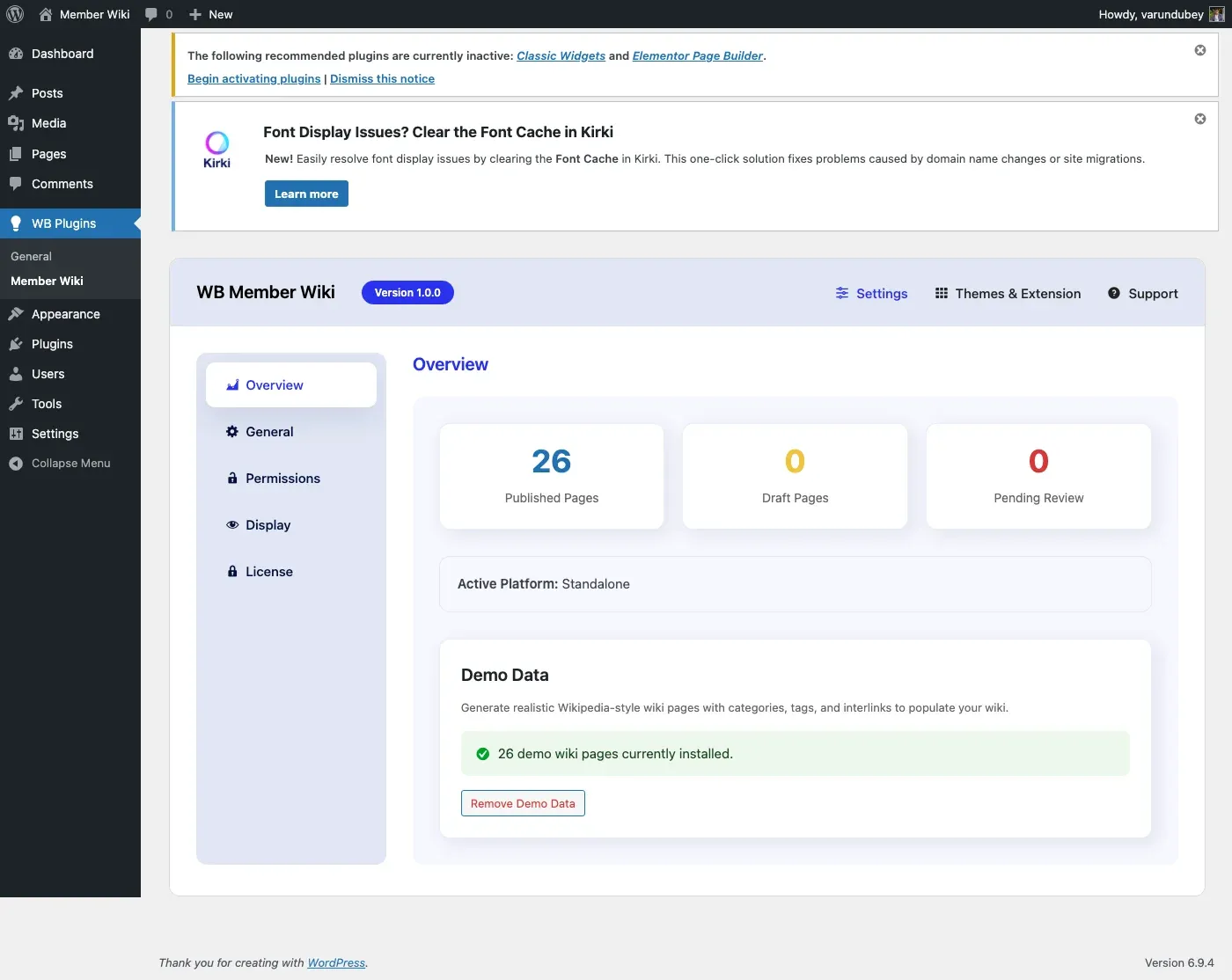
- Go to WB Plugins > Member Wiki > Overview
- Scroll to the Demo Data section at the bottom
- Choose the number of pages to generate: 10 or 25
- Click Generate Demo Data
- Wait for the progress indicator to complete
The wizard creates:
- 5 categories - Science & Technology, History & Society, Arts & Culture, Geography & Nature, Health & Medicine
- 29 tags - Relevant topic tags across all categories
- 50 wiki pages - Full-length articles with hierarchical parent/child relationships
What Gets Created
Section titled “What Gets Created”Page Content
Section titled “Page Content”Each generated page includes:
- A descriptive title (e.g., “Quantum Computing”, “The Renaissance”, “Coral Reefs”)
- 400-800 words of Wikipedia-style content with multiple H2/H3 sections
- Bullet lists, bold terms, and structured information
- Wiki interlinks using
[[Page Title]]syntax linking to other generated pages - Proper category and tag assignments
Hierarchical Structure
Section titled “Hierarchical Structure”Some pages are created with parent/child relationships to demonstrate the wiki’s hierarchical capabilities:
- Quantum Computing > Quantum Entanglement, Quantum Algorithms
- The Solar System > Mars, Jupiter
- Ancient Rome > Roman Architecture, Roman Military
- DNA and Genetics > CRISPR Gene Editing
- Ancient Egypt > The Great Pyramids
Contributor Tracking
Section titled “Contributor Tracking”Demo pages are created with the current admin user as the author and contributor, demonstrating the contributor tracking feature.
Removing Demo Data
Section titled “Removing Demo Data”All demo content is tracked with a _wbmw_demo_data meta flag for clean removal:
- Go to WB Plugins > Member Wiki > Overview
- In the Demo Data section, click Remove Demo Data
- Confirm the removal when prompted
- The wizard deletes all demo pages and cleans up empty terms
Removing demo data only deletes content created by the wizard. Your manually created wiki pages, categories, and tags are never affected.
Status Indicator
Section titled “Status Indicator”When demo data is active, the Overview tab shows a green status badge indicating how many demo pages are currently installed. This makes it easy to distinguish demo content from real content.
- Generate demo data on a staging site first to evaluate the plugin
- Use demo pages to test your theme’s wiki page styling
- Check that
[[wiki links]]render correctly between demo pages - Test the revision history and diff viewer with demo content
- Remove demo data before launching your wiki to the public