

General Settings
The General Settings tab controls the core behavior of your wiki, including the URL structure, dashboard page, editor configuration, and collaboration features.
Access these settings at WB Plugins > Member Wiki > General.
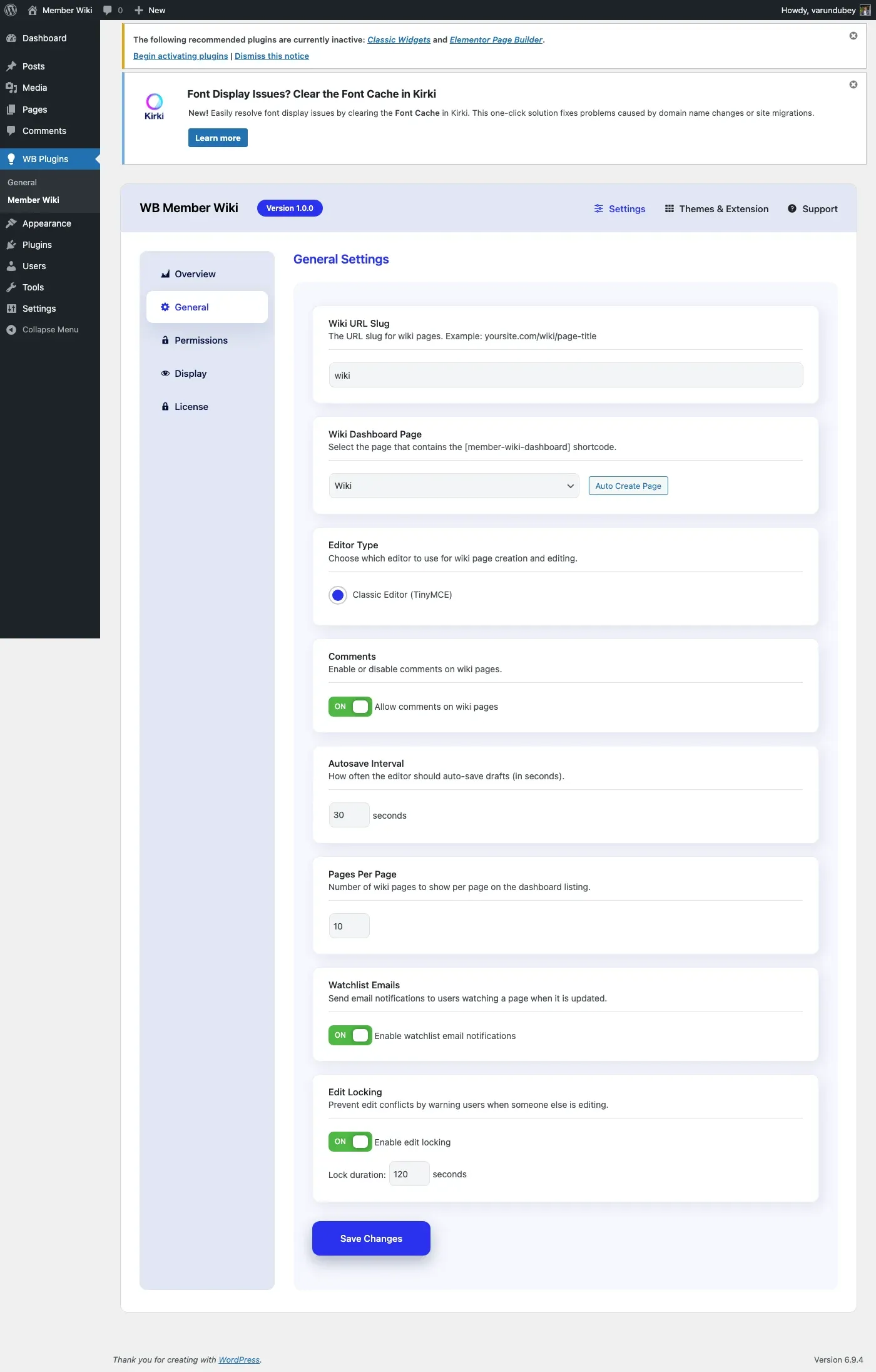
Wiki URL Slug
Section titled “Wiki URL Slug”Setting: Wiki Slug
Default: wiki
The URL slug determines the base URL for all wiki pages:
yourdomain.com/{wiki-slug}/{page-slug}/For example, with the default slug wiki, a page titled “Getting Started” would be accessible at:
yourdomain.com/wiki/getting-started/Changing the slug automatically triggers a rewrite rule flush on the next page load.
Note: Choose your slug before publishing wiki content. Changing it later will break existing links unless you set up redirects.
Dashboard Page
Section titled “Dashboard Page”Setting: Dashboard Page Default: None (must be configured)
Select the WordPress page that serves as your wiki dashboard. This page should contain the [member-wiki-dashboard] shortcode.
Auto Create Page
Section titled “Auto Create Page”Click the Auto Create Page button to automatically:
- Create a new WordPress page titled “Wiki Dashboard”
- Add the
[member-wiki-dashboard]shortcode to its content - Publish the page
- Select it as the dashboard page
Editor Type
Section titled “Editor Type”Setting: Editor Type Default: Classic (TinyMCE)
Choose the editor interface for creating and editing wiki pages:
| Editor | Description |
|---|---|
| Classic | TinyMCE visual editor with familiar word-processor toolbar |
The Classic editor provides a reliable, familiar editing experience suitable for most wiki content.
Comments
Section titled “Comments”Setting: Allow Comments Default: Enabled
Toggle whether comments are allowed on wiki pages. When enabled, visitors can leave comments on published wiki pages using WordPress’s built-in commenting system.
Auto-Save
Section titled “Auto-Save”Setting: Auto-Save Interval Default: 30 seconds Range: 10 to 300 seconds
How frequently the editor auto-saves draft content while a user is editing. Lower values save more frequently but generate more server requests.
Auto-save behavior:
- Draft pages - Content is updated directly
- Published pages - An autosave revision is created without modifying the live content
Pages Per Page
Section titled “Pages Per Page”Setting: Pages Per Page Default: 10 Range: 5 to 100
The number of wiki pages displayed per page on the dashboard listing. Adjust based on your content volume and page layout.
Revision Limit
Section titled “Revision Limit”Setting: Revision Limit Default: 50 Range: 5 to 200
The maximum number of revisions to keep per wiki page. When a page exceeds this limit, the oldest revision is automatically pruned on each save.
Choosing the right limit:
| Scenario | Recommended limit |
|---|---|
| Low-traffic wiki, minimal history needed | 10–20 |
| Standard use | 50 (default) |
| High-activity wiki, full audit trail required | 100–200 |
Lowering this limit frees up database storage on large wikis. Raising it preserves more history for accountability and rollback.
Pending Review Email
Section titled “Pending Review Email”Setting: Pending Review Email Default: Site admin email
When a moderated-role user submits a wiki page that lands in Pending status, the plugin sends an HTML notification email to this address.
Leave the field blank to use the WordPress admin email (Settings > General > Administration Email Address). Enter a specific email address to route notifications to a dedicated moderator inbox.
Example use cases:
- Route notifications to a moderation team address (
wiki-mods@yoursite.com) - Send to a department lead instead of the site admin
- Leave blank on single-admin sites to use the admin email automatically
Note: This email only fires when a page is newly created with pending status (i.e., submitted by a moderated role). It does not fire when an admin manually changes a published page to pending.
You can also override this address programmatically:
add_filter( 'wbmw_pending_notify_email', function( $email ) { return 'wiki-team@yoursite.com';} );Watchlist Emails
Section titled “Watchlist Emails”Setting: Enable Watchlist Emails Default: Disabled
When enabled, users who have added a wiki page to their watchlist receive an email notification whenever that page is updated.
Email notifications are sent via WordPress’s standard wp_mail() function and include the page title, the editor’s name, their edit summary (if provided), and a direct link to the updated page.
Note: Requires your WordPress site to have a properly configured outbound email. Use a plugin like WP Mail SMTP if emails are not sending reliably.
Edit Lock
Section titled “Edit Lock”Enable Edit Lock
Section titled “Enable Edit Lock”Setting: Enable Edit Lock Default: Enabled
When enabled, the plugin creates a soft lock when a user opens a page for editing. Other users see a warning that the page is currently being edited.
When disabled, multiple users can edit the same page simultaneously. The last save wins.
Edit Lock Duration
Section titled “Edit Lock Duration”Setting: Edit Lock Duration Default: 120 seconds Range: 30 to 600 seconds
How long the edit lock persists after the last heartbeat. The lock auto-refreshes every 30 seconds while the editor is open. If the user closes their browser or loses connection, the lock expires after this duration.
Recommended values:
| Scenario | Duration |
|---|---|
| Quick edits, small team | 60 seconds |
| Standard use | 120 seconds (default) |
| Long-form editing | 300 seconds |
| Unreliable connections | 600 seconds |
Saving Settings
Section titled “Saving Settings”Click Save Changes at the bottom of the page. Settings are saved per-tab, so changes to other tabs are preserved when saving General settings.