

Installation & Setup
WB Member Wiki adds a collaborative wiki system to your WordPress site. Members can create, edit, and manage a shared knowledge base with revision tracking, interlinking, and role-based access control.
Requirements
Section titled “Requirements”- WordPress 5.8 or higher
- PHP 7.4 or higher
- Optional: BuddyPress, BuddyBoss, or PeepSo for community profile integration
Installation
Section titled “Installation”- Download the plugin ZIP file from your account
- Go to Plugins > Add New > Upload Plugin in your WordPress admin
- Select the ZIP file and click Install Now
- Click Activate after installation completes
The plugin will appear under WB Plugins > Member Wiki in your admin menu.
Initial Configuration
Section titled “Initial Configuration”After activation, follow these steps to get your wiki running:
Step 1: Create the Dashboard Page
Section titled “Step 1: Create the Dashboard Page”The wiki dashboard is a regular WordPress page that uses a shortcode to display the wiki interface.
- Go to WB Plugins > Member Wiki
- Click the General tab
- Under Dashboard Page, click Auto Create Page
- The plugin creates a page titled “Wiki Dashboard” with the
[member-wiki-dashboard]shortcode
Alternatively, create a page manually and add the [member-wiki-dashboard] shortcode to its content.
Step 2: Configure User Roles
Section titled “Step 2: Configure User Roles”- Go to the Permissions tab
- Select which roles can create wiki pages
- Select which roles can edit others’ pages (the core wiki feature)
- Select which roles can delete pages
- Select which roles can protect pages from editing
- Click Save Changes
Step 3: Verify Setup
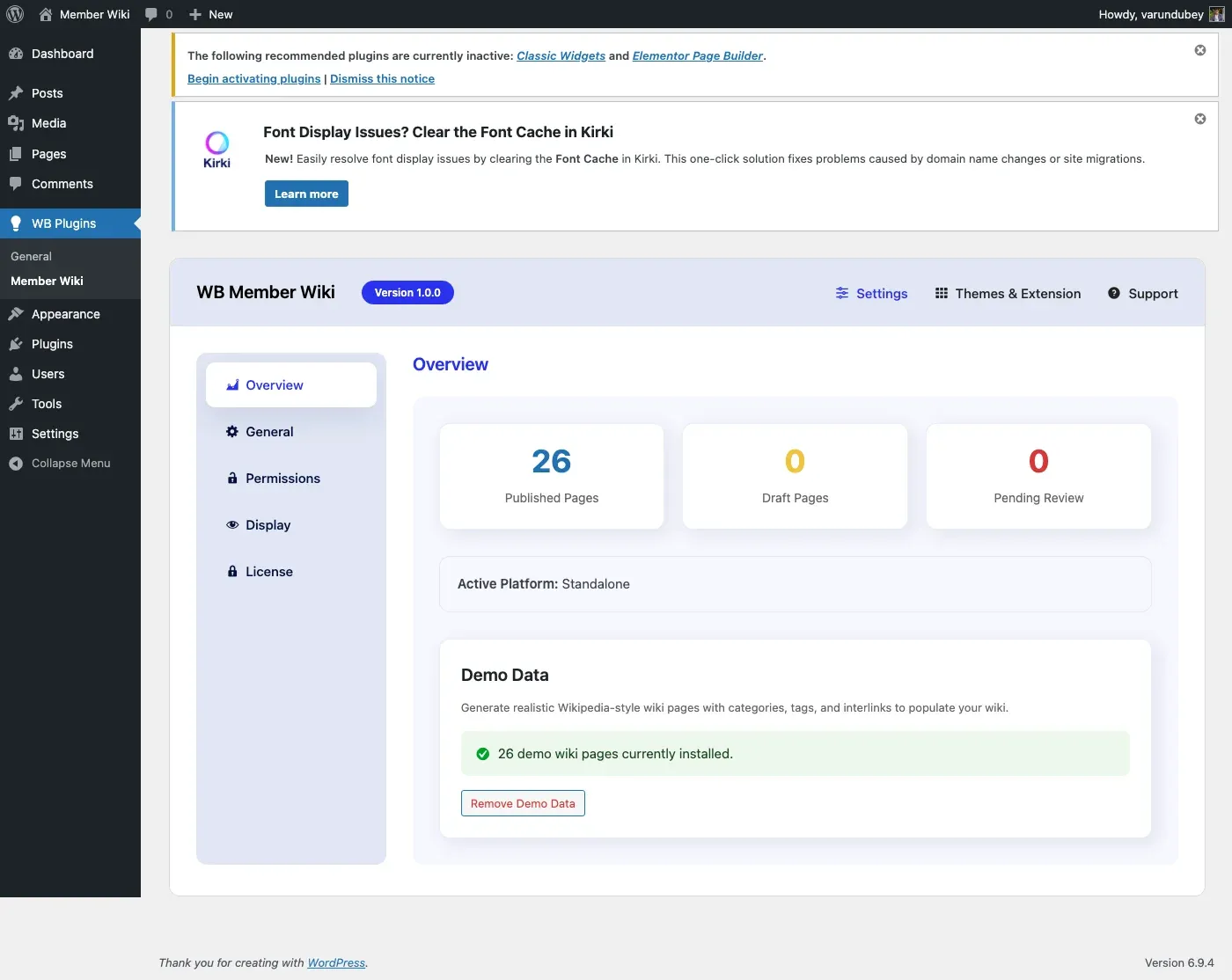
Section titled “Step 3: Verify Setup”Return to the Overview tab to see quick stats showing your published, draft, and pending page counts, along with the detected community platform.
Shortcodes
Section titled “Shortcodes”The plugin provides two shortcodes:
| Shortcode | Purpose |
|---|---|
[member-wiki-dashboard] |
Full wiki hub with listing, search, create, edit, and revision history |
[member-wiki] |
Standalone editor form for creating or editing a single wiki page |
[wiki-page id="123"] |
Embed a single wiki page inline by post ID |
[wiki-page slug="my-page"] |
Embed a single wiki page inline by slug |
What’s Next
Section titled “What’s Next”- Generate demo data to see the wiki in action (see Demo Data)
- Configure display options like Table of Contents and contributor lists
- Set up platform integration if using BuddyPress or PeepSo