

Import Wiki Pages
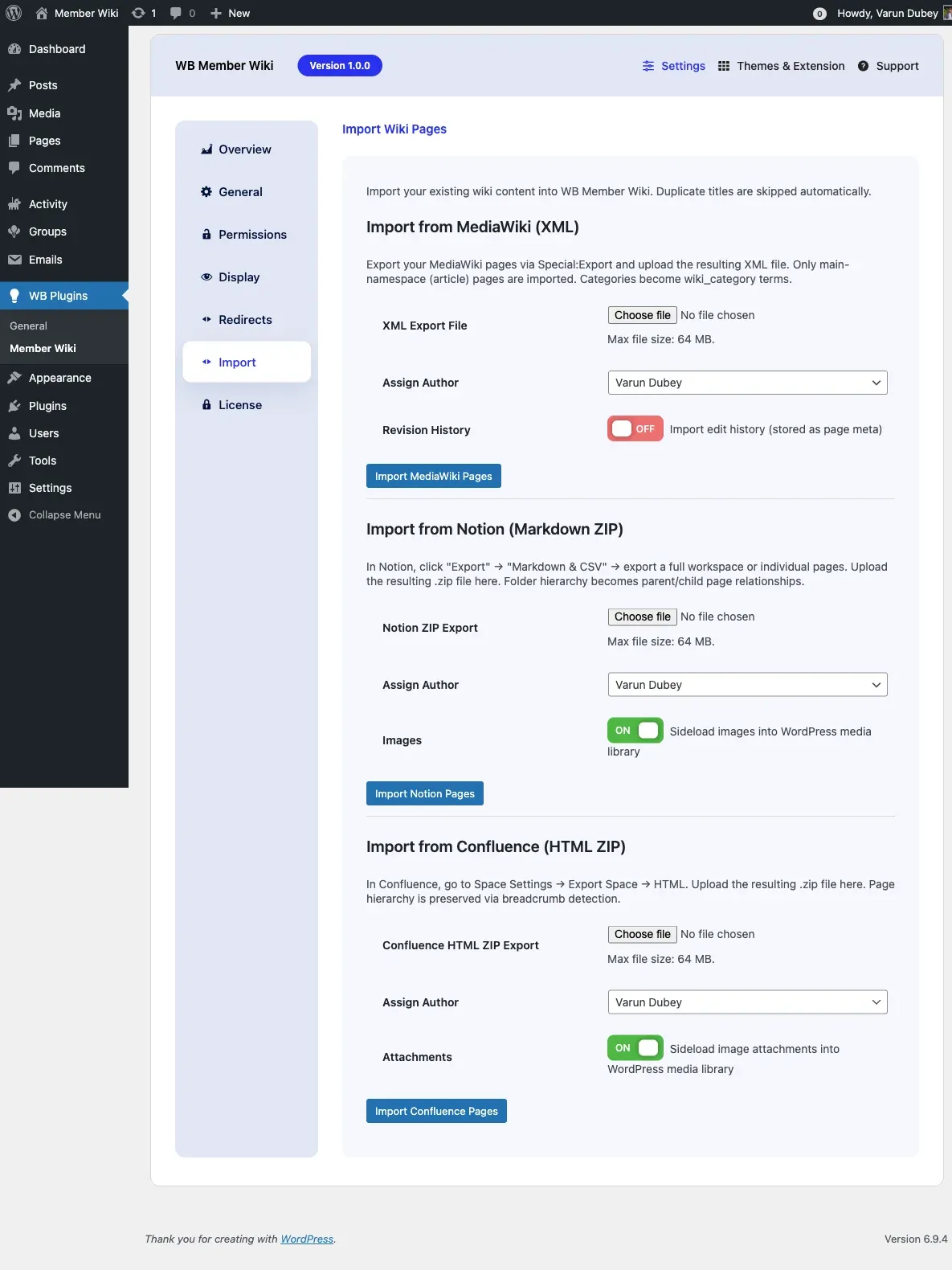
WB Member Wiki can import content from three external platforms: MediaWiki, Notion, and Confluence. This lets you migrate an existing knowledge base without rebuilding pages manually.
Access the import tools at WB Plugins > Member Wiki > Import.
Before You Import
Section titled “Before You Import”- Back up your site before running any large import
- Duplicate page titles are automatically skipped - existing wiki pages are not overwritten
- Imports run in the browser tab - keep it open until complete. Large imports may take several minutes
- Set a reasonable PHP memory limit (
128Mor higher recommended) and execution time (the plugin setsmax_execution_timeto 300 seconds automatically)
Import from MediaWiki (XML)
Section titled “Import from MediaWiki (XML)”Migrate content from any MediaWiki installation (Wikipedia, Fandom, self-hosted wikis).
Export from MediaWiki
Section titled “Export from MediaWiki”- Go to
Special:Exporton your MediaWiki site - Enter the page titles you want to export, or use Add pages from category to bulk-select
- Check Include only the current revision, not the full history (unless you want revision notes imported)
- Click Export to download an
.xmlfile
For large wikis, use the MediaWiki XML export script to export all pages at once.
Import Options
Section titled “Import Options”| Option | Description |
|---|---|
| XML Export File | The .xml file downloaded from MediaWiki (Special:Export) |
| Assign Author | WordPress user to set as the post author for imported pages |
| Revision History | When checked, imports edit summaries from the XML and stores them as page meta (_wbmw_import_history) |
What Gets Imported
Section titled “What Gets Imported”- Pages in the main namespace (namespace 0) - talk pages, user pages, and template pages are skipped
- Page content - wikitext is converted to HTML (headings, bold/italic, links, lists, tables, horizontal rules)
- Categories -
[[Category:Name]]tags becomewiki_categoryterms [[WikiLink]]syntax - preserved and will resolve to other imported pages- Revision notes - if “Revision History” is checked, editor summaries are stored as post meta
What Is Not Imported
Section titled “What Is Not Imported”- Images and file uploads (these need to be re-uploaded manually)
- Templates and transclusions
- Talk pages and user pages
- Infoboxes (converted to plain text)
Import from Notion (Markdown ZIP)
Section titled “Import from Notion (Markdown ZIP)”Migrate content from Notion workspaces exported as Markdown.
Export from Notion
Section titled “Export from Notion”- In Notion, click Settings & Members (or your workspace name)
- Go to Settings > Export content
- Choose Export format: Markdown & CSV
- For full workspace: export everything. For specific pages: open the page →
···menu → Export → Markdown - Download and save the resulting
.zipfile
Import Options
Section titled “Import Options”| Option | Description |
|---|---|
| Notion ZIP Export | The .zip file downloaded from Notion |
| Assign Author | WordPress user to set as the post author for imported pages |
| Images | When checked, local images in the ZIP are uploaded to your WordPress media library and embedded in the page |
What Gets Imported
Section titled “What Gets Imported”- All
.mdfiles in the ZIP become wiki pages - Folder hierarchy - nested folders become parent/child page relationships
- Markdown formatting - headings, bold, italic, code, tables, blockquotes, lists
- Images - sideloaded into WordPress media library (when Images option is checked)
- Internal links -
.mdfile links are converted to[[Page Title]]wiki links - Notion property blocks - stripped (the
Key: Valueheader block Notion adds to exported pages)
Notion File Naming
Section titled “Notion File Naming”Notion appends a 32-character hex ID to all exported filenames (e.g., Getting Started 1a2b3c4d5e6f...md). The importer automatically strips this ID suffix so page titles are clean.
Import from Confluence (HTML ZIP)
Section titled “Import from Confluence (HTML ZIP)”Migrate content from Confluence spaces exported as HTML.
Export from Confluence
Section titled “Export from Confluence”- Go to your Confluence space
- Click Space Settings (gear icon in the left sidebar)
- Select Export Space
- Choose HTML as the export format
- Select Normal Export (includes all pages)
- Click Export and download the resulting
.zipfile
Import Options
Section titled “Import Options”| Option | Description |
|---|---|
| Confluence HTML ZIP Export | The .zip file downloaded from Confluence |
| Assign Author | WordPress user to set as the post author for imported pages |
| Attachments | When checked, image attachments are uploaded to your WordPress media library and embedded in pages |
What Gets Imported
Section titled “What Gets Imported”- All HTML pages in the ZIP (excluding the index file and non-page files)
- Page hierarchy - breadcrumb navigation in Confluence HTML exports is used to reconstruct parent/child relationships
- Confluence links (
<ac:link>) - converted to[[Page Title]]wiki links - Confluence images (
<ac:image>) - sideloaded into WordPress media library (when Attachments option is checked) - Page content - cleaned of Confluence-specific tags (
<ac:*>,<ri:*>, structured macros)
What Is Not Imported
Section titled “What Is Not Imported”- Confluence macros (Jira issues, status macros, code macros that render as widgets)
- User @mentions
- Comments and inline annotations
- Page permissions and restrictions
Import Results
Section titled “Import Results”After each import, a results summary appears below the import button:
✓ Import complete: 47 imported, 3 skipped.- Imported - pages successfully created as wiki pages
- Skipped - pages with titles that already existed as wiki pages (no overwrite)
- Errors - individual page errors are listed below the summary if any occurred
Frequently Asked Questions
Section titled “Frequently Asked Questions”Can I run the importer multiple times? Yes. Duplicate titles are always skipped, so re-running an import is safe. Only new pages (titles not already in your wiki) will be created.
My import timed out halfway through. What do I do?
Increase your PHP max_execution_time in php.ini or .htaccess. For very large imports (500+ pages), consider splitting the export into multiple smaller files. Pages already imported will be skipped if you retry.
Images are not appearing after a MediaWiki import. Why? MediaWiki XML exports do not include image files - only page text. You’ll need to download images separately from the MediaWiki file namespace and upload them manually to WordPress.
My Notion pages have broken formatting. Why? Notion’s Markdown export sometimes produces inconsistent formatting for complex pages (databases, linked views, embeds). The importer converts standard Markdown faithfully, but Notion-specific features are stripped.
Do imported pages appear in the wiki immediately? Yes. Imported pages are published immediately with the assigned author. To review them first, you can either import as a non-admin user (which forces pending status if moderated roles are enabled) or change the post status in WordPress admin after import.
Can I undo an import? Not automatically. Each imported page is a regular wiki page and can be deleted individually. For bulk removal, use the WordPress admin: Wiki Pages > All Wiki Pages, select all, and trash.