

Search Settings
Listora overviewFree + ProGet Listora →
There is no Search tab in Listora > Settings. The options that shape search live in four other places. This page lists each one.
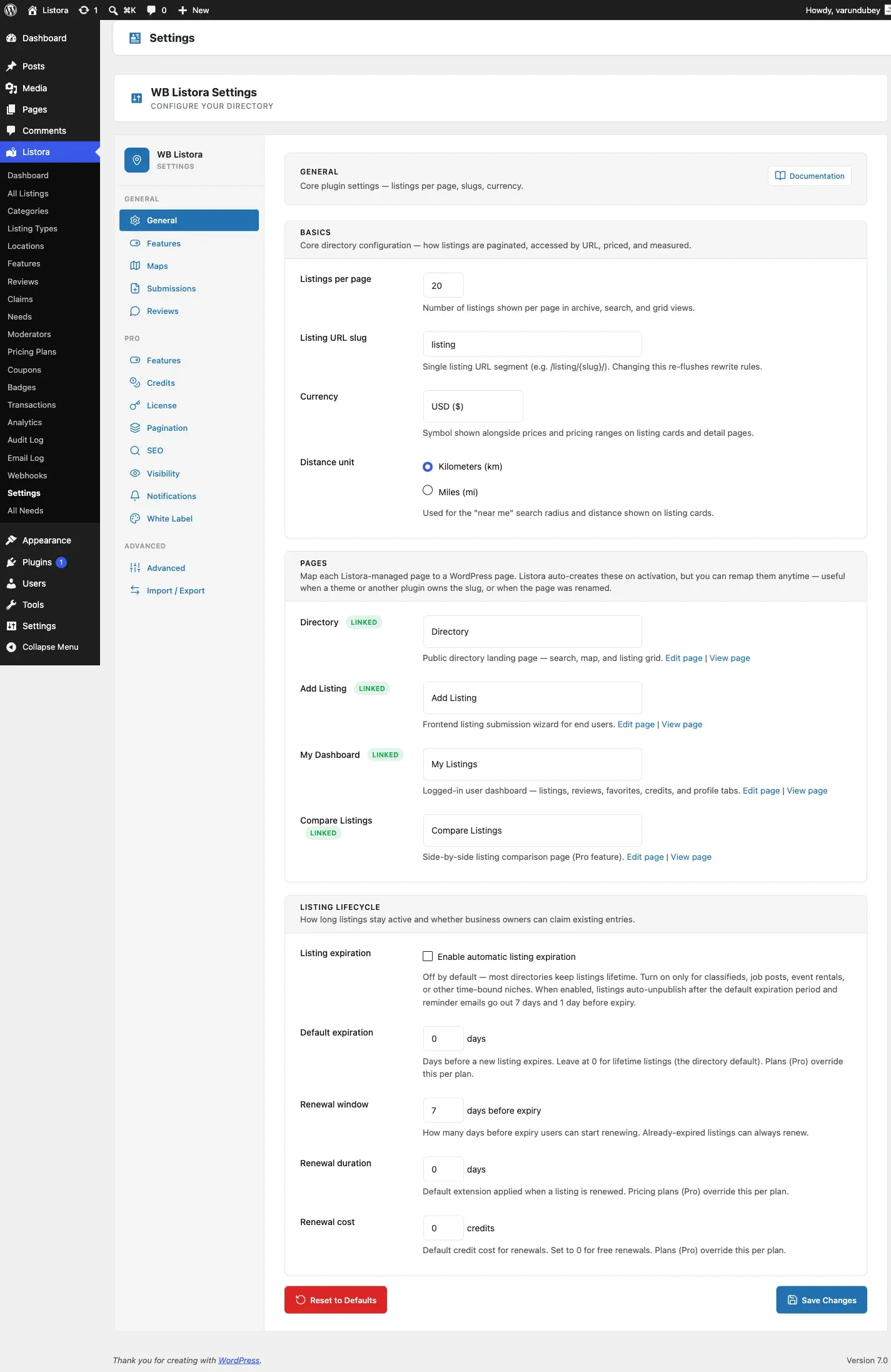
Listings per page
Section titled “Listings per page”- Go to Listora > Settings > General.
- In Basics, set Listings per page. It can be 1 to 100. The default is 20.
- Click Save Changes.
This is the page size for archive, search and grid views. A Listing Grid block can override it with its own Per Page value. Leave that empty to follow this setting.
Distance unit
Section titled “Distance unit”- Go to Listora > Settings > General.
- In Basics, choose Kilometers (km) or Miles (mi) under Distance unit.
- Click Save Changes.
It sets the unit for the distance shown on listing cards and in search results.
Default sort
Section titled “Default sort”Default sort is set on the block, not in Settings.
- Open the page with the Listing Search block in the block editor and select the block.
- In the sidebar, open Search Settings.
- Choose Default Sort: Featured (the default), Newest, Rating, Distance or Relevance.
- Update the page.
Visitors can still change the order with the sort list above the grid. See Search and Filters.
Search index
Section titled “Search index”WB Listora keeps a separate search table so searches stay fast. It updates when a listing is created, edited or deleted. To rebuild it by hand:
- Go to Listora > Settings > Advanced.
- In Maintenance, click Rebuild Search Index.
You can also run wp listora reindex. Do this after a bulk import or after bulk edits. See Advanced Settings.
Search cache
Section titled “Search cache”Search results TTL and Facet counts TTL are on Listora > Settings > Advanced, under Cache. They set how many minutes search results and filter counts are kept. Set either to 0 to turn that cache off.
What you cannot set
Section titled “What you cannot set”These have no setting today:
- A default radius for Near Me searches. It is fixed.
- A switch for search suggestions. They show as visitors type.