

Installation & Activation
Listora overviewFree + ProGet Listora →
Requirements
Section titled “Requirements”- WordPress 6.9 or higher
- PHP 8.1 or higher
- MySQL 5.7+ or MariaDB 10.2+
Install the plugin
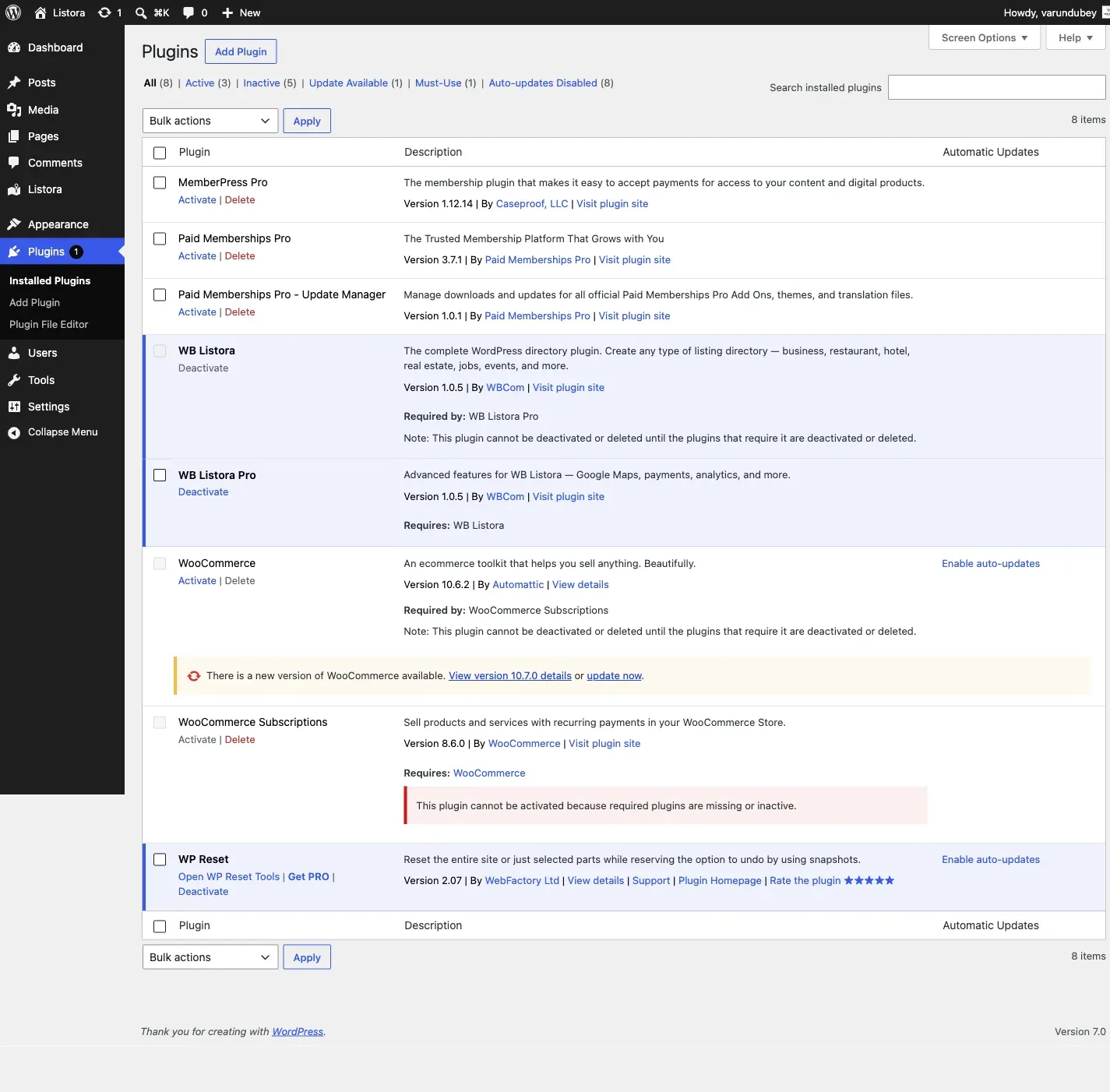
Section titled “Install the plugin”WB Listora is distributed from wbcomdesigns.com. Both the free plugin and Pro come from the same downloads page, so searching the plugin directory from inside WordPress will not find it.
- Download the plugin ZIP from the Listora downloads page
- Go to Plugins > Add New > Upload Plugin
- Choose the ZIP file and click Install Now
- Click Activate
After Activation
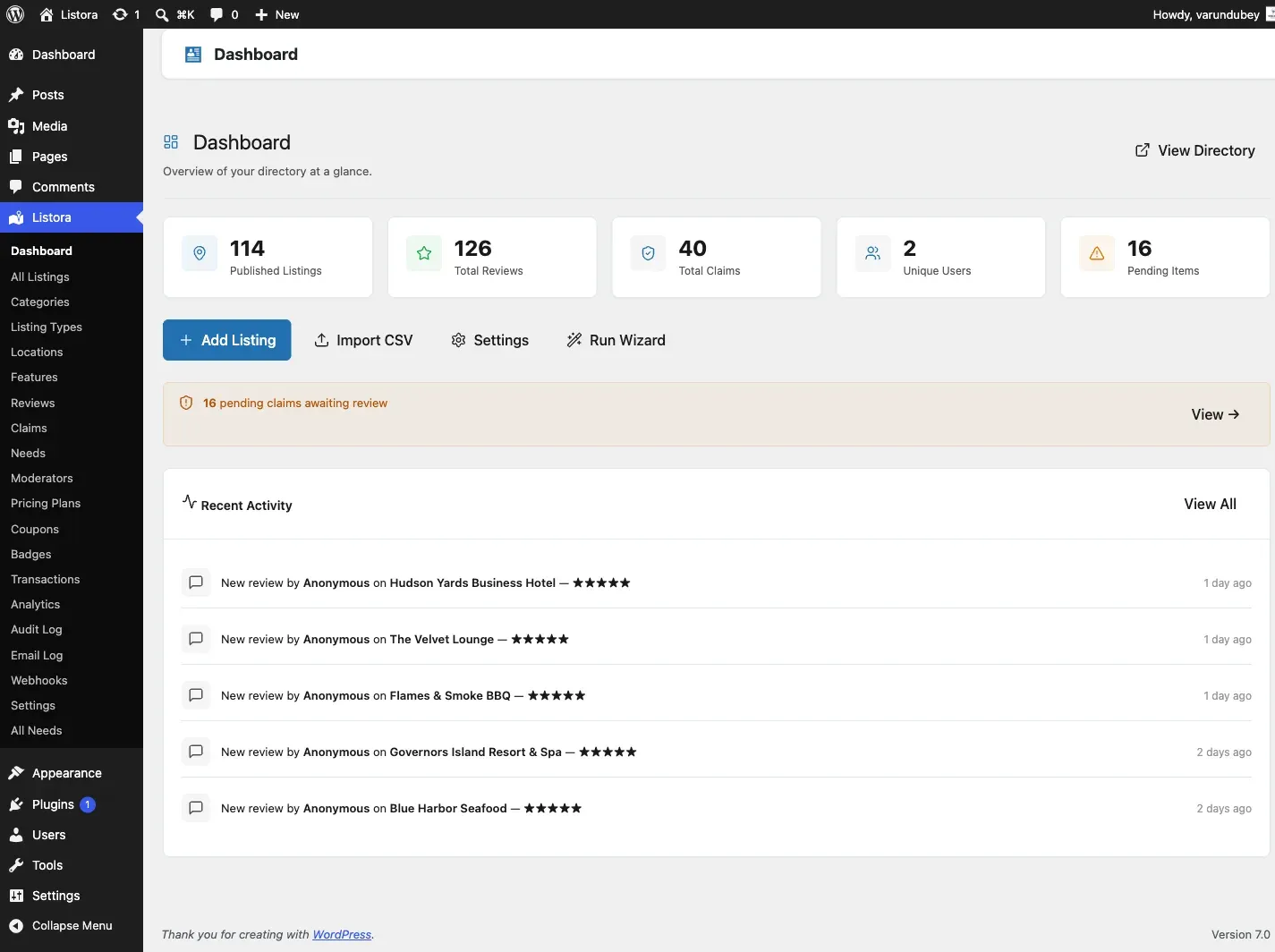
Section titled “After Activation”WB Listora automatically:
- Creates 13 custom database tables for fast queries
- Registers the
listora_listingpost type and taxonomies - Adds the Listora menu to your admin sidebar
- Redirects you to the Setup Wizard
Verify Installation
Section titled “Verify Installation”Check that everything is working:
- Go to Listora > Dashboard - you should see the main dashboard
- Go to Listora > Settings - verify settings are accessible
- Visit any page on your site - no errors should appear
Troubleshooting
Section titled “Troubleshooting”Plugin won’t activate:
- Ensure PHP 8.1+ is installed (
php -vin terminal) - Check for conflicts: deactivate other plugins temporarily
Database tables not created:
- Deactivate and reactivate the plugin
- Check your database user has CREATE TABLE permissions
Menu not appearing:
- Clear your browser cache
- Check your user role has the
view_listora_dashboardcapability. Users who can manage Listora settings or edit listings get it automatically.