

Google Maps
Listora overviewFree + ProGet Listora →
Availability: Pro only. Requires WB Listora Pro. Without Pro, maps use the tile source you choose under Listora > Settings > Maps. Listora ships no default tile server.
What it does
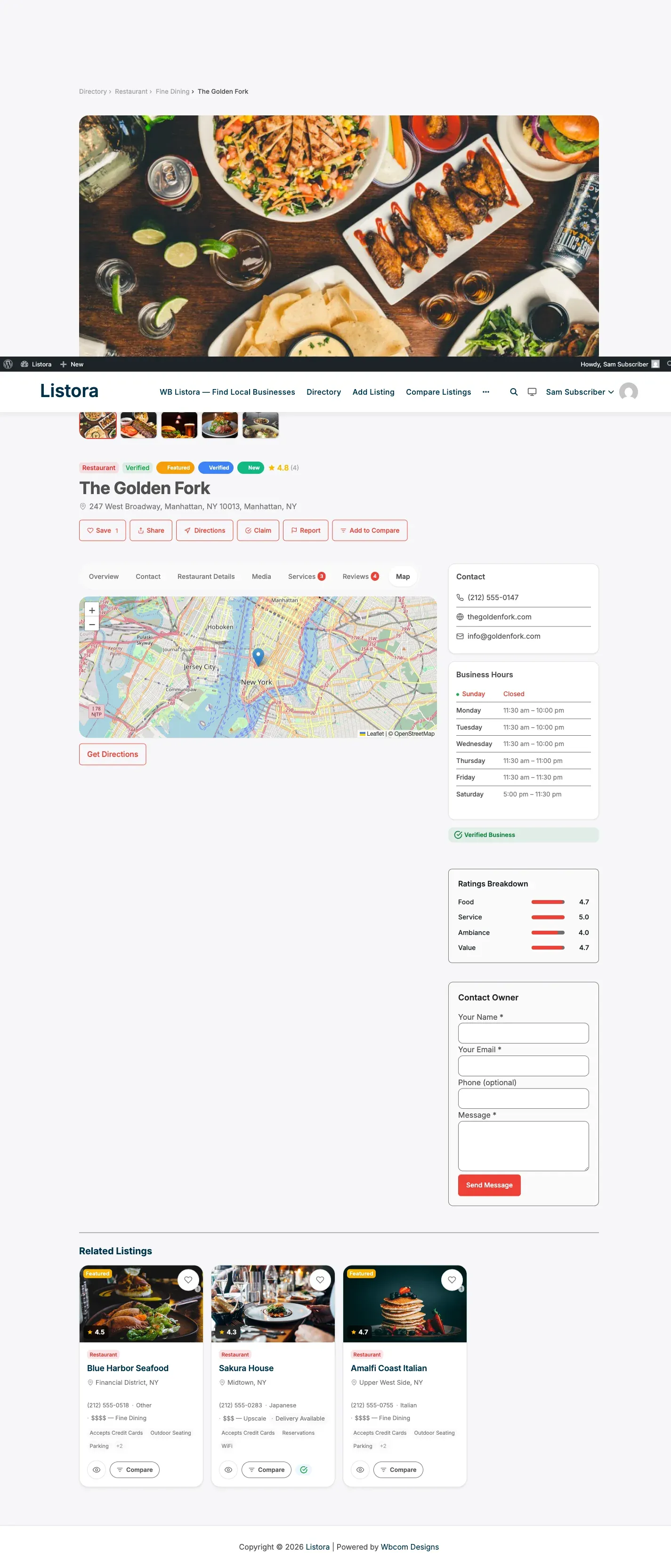
Section titled “What it does”WB Listora Pro replaces your Settings > Maps tile source with Google Maps. Every map block on your site - the directory map, the listing detail map, and address fields in the submission form - switches to Google Maps automatically once you add your API key.
Why you’d use it
Section titled “Why you’d use it”- Google Maps is the map most visitors recognize and trust.
- Marker clustering groups nearby listings into a single bubble, keeping the map readable when many listings are in the same area.
- Google Places autocomplete on address fields helps submitters enter accurate addresses with fewer errors.
- Custom map styles let you match the map’s color palette to your brand.
How to use it
Section titled “How to use it”For site owners (admin steps)
Section titled “For site owners (admin steps)”Step 1: Get a Google Maps API key
- Go to the Google Cloud Console.
- Create a project (or select an existing one).
- Under APIs & Services → Library, enable these APIs:
- Maps JavaScript API (required for the map blocks)
- Places API (required for address autocomplete in the submission form)
- Geocoding API (required for converting typed addresses to coordinates)
- Go to APIs & Services → Credentials, click Create Credentials → API Key, and copy the key.
- Restrict the key to your site’s domain under API key restrictions → HTTP referrers.
Step 2: Enter the key in WB Listora Pro
- Go to Listora → Settings → Map.
- Set Map Provider to Google Maps.
- Paste your API key into the Google Maps API Key field.
- Click Save Settings.
Step 3: Verify
Visit any page with a map block. The map should now show Google Maps tiles instead of your chosen tile source. The Listing Submission form’s address field should show a Google Places autocomplete dropdown as you type.
Marker clustering: Clustering is enabled by default. Zoom in on the map to expand clusters into individual markers.
Custom map styles: To apply a custom color style (e.g., a dark mode map or brand colors):
- Generate a style JSON array from snazzymaps.com or Google’s Map Styling Wizard.
- Go to Listora → Settings → Map and paste the JSON into the Custom Map Styles field.
- Save. The style applies to all maps on your site.
- Restrict your API key to your production domain only. Use a separate unrestricted key for local development.
- Google Maps usage is billed by Google after a monthly free tier. For most directories, the free tier is sufficient - check Google Maps Platform pricing to estimate costs before going live.
- If you don’t need Google Places autocomplete (e.g., you pre-fill addresses for all listings), you can disable the Places API to reduce API usage.
- Marker clustering is handled by the open-source
@googlemaps/markerclustererlibrary bundled with Pro - no additional API cost. - The map provider setting applies globally to all map blocks. You cannot mix Google Maps on one page and another tile source on another.
Common issues
Section titled “Common issues”| Symptom | Fix |
|---|---|
| Map shows a gray box with “For development purposes only” watermark | The API key is not entered or is incorrect - check Listora → Settings → Map |
| Address autocomplete not working in submission form | Ensure the Places API is enabled in Google Cloud Console for your key |
| Map loads but markers don’t appear | Geocoding may have failed on some listings; re-save those listings to trigger geocoding |
| Custom styles not applying | Validate your style JSON at jsonlint.com - invalid JSON is silently ignored |
Related features
Section titled “Related features”Country and geocoding
Section titled “Country and geocoding”Google geocoding passes the country’s ISO code, so listings in one country file under a single country term.