

Installing WB Listora Pro
Listora overviewFree + ProGet Listora →
Pro feature - This page covers the installation of WB Listora Pro, the premium add-on.
What it does
Section titled “What it does”WB Listora Pro is a premium add-on for WB Listora (Free). It adds Google Maps, a credit-based payment system, analytics, multi-criteria reviews, verification badges, and more. This guide covers installing Pro and verifying it is active.
Requirements
Section titled “Requirements”- WB Listora (Free) 1.9.0 or higher, installed and activated. Pro shows a notice if Free is older.
- WordPress 6.9 or higher.
- PHP 8.1 or higher.
- A valid WB Listora Pro license key (from wbcomdesigns.com).
How to install
Section titled “How to install”For site owners (admin steps)
Section titled “For site owners (admin steps)”- Log in to your wbcomdesigns.com account and download the latest
wb-listora-pro.zip. - In your WordPress admin, go to Plugins → Add New → Upload Plugin.
- Choose the ZIP file and click Install Now.
- Click Activate Plugin.
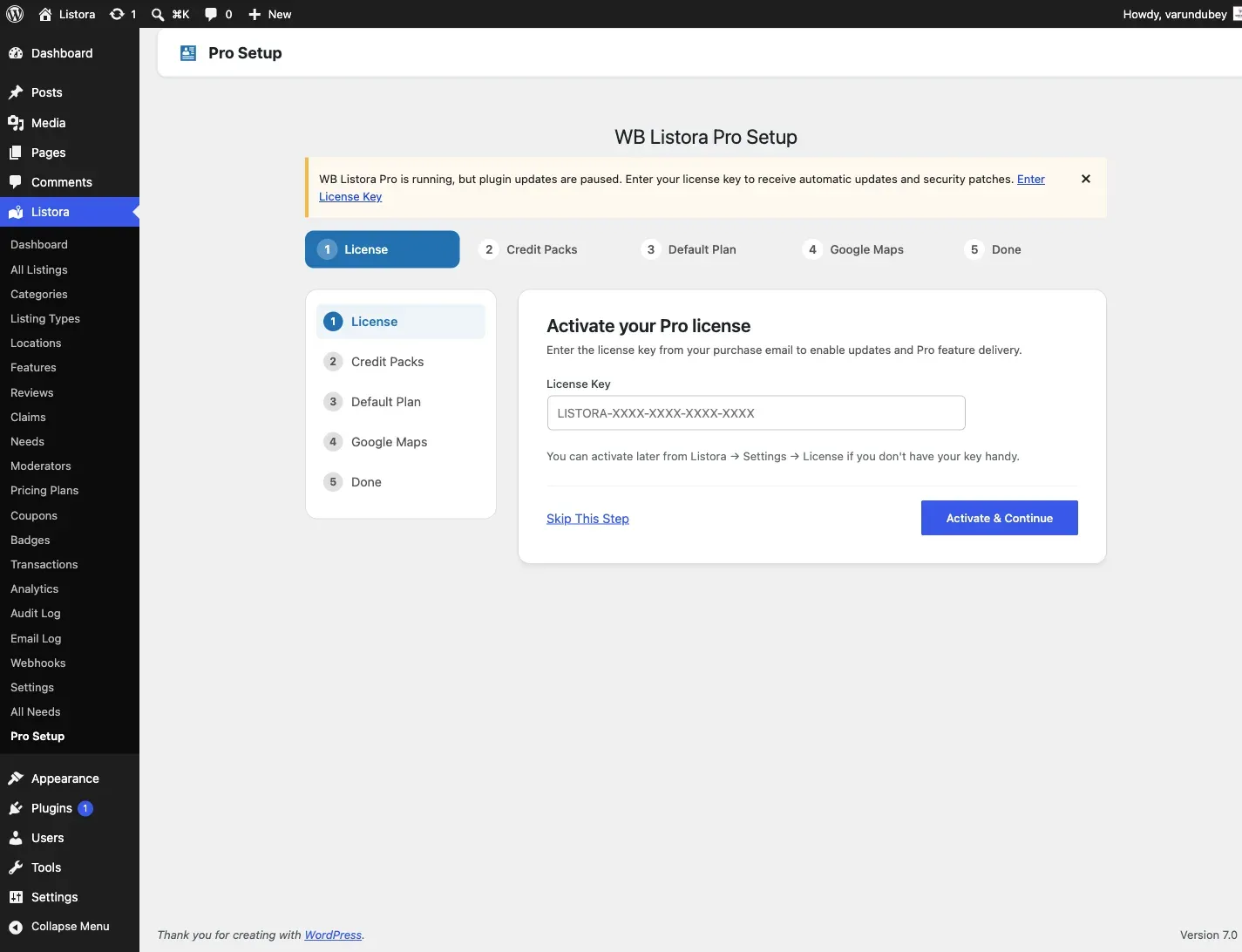
- Pro activates and sends you to the Pro Setup wizard. If you leave it, a Welcome to Listora Pro notice offers Start Setup or Dismiss.
Pro Setup wizard
Section titled “Pro Setup wizard”The wizard has these steps. Each one has a Skip This Step button.
- License: enter your key and click Activate & Continue.
- Credit Packs and Default Plan: these two steps appear only when the Monetization feature is on. It is off on a fresh install.
- Google Maps: paste a Google Maps API key and click Save Key & Continue, or skip to keep using OpenStreetMap.
- Done: a summary of what you set, with Finish & Go to Dashboard and Visit Settings.
Verify activation
Section titled “Verify activation”- Go to Listora → Settings → License.
- Enter your license key and click Activate License.
- A green “License activated” notice confirms success.
- Under Plugins, confirm both WB Listora and WB Listora Pro are listed as active.
- Go to Listora → Settings. Pro adds the Visibility tab, plus SEO and White Label when those features are on. The License tab is the one from step 1.
- Do not delete WB Listora (Free) after installing Pro - Pro is an add-on, not a replacement.
- Local development environments (Local by Flywheel, DevKinsta, etc.) skip remote license validation automatically. You’ll see a “local mode” notice instead of an error.
- If you manage multiple sites, each site requires a separate license activation. Deactivate on one site before activating on another if your license has a site limit.
- Auto-updates: once your license is active, Pro updates appear in Dashboard → Updates alongside your other plugins.
Common issues
Section titled “Common issues”| Symptom | Fix |
|---|---|
| Pro menu items not appearing | Ensure WB Listora (Free) is active - Pro requires it |
| “Invalid license key” error | Double-check the key from your account at wbcomdesigns.com; copy-paste rather than typing |
| ZIP upload fails | Check upload_max_filesize in your PHP settings; increase to at least 32MB |
| Pro settings tabs missing | Deactivate and reactivate WB Listora Pro. SEO and White Label show only while their feature is switched on under Settings → Features. |