

Business Claims
Listora overviewFree + ProGet Listora →
Availability: Free + Pro. The claim workflow is Free; Pro adds the Verification Badge that displays once a claim is approved.
What it does
Section titled “What it does”The claims system lets real business owners take ownership of a listing in your directory. Once a claim is approved, the owner can edit the listing, reply to reviews, and manage their services - all from their user dashboard.
Why you’d use it
Section titled “Why you’d use it”- Unclaimed listings get stale; claims give owners a reason to keep data accurate.
- Transfers listing management to the owner - reducing your admin workload.
- Creates trust signals: claimed listings can display a verification badge (Pro).
- No code required - the entire flow is handled by the plugin.
How to use it
Section titled “How to use it”For site owners (admin steps)
Section titled “For site owners (admin steps)”- Go to Listora → Settings → Features and make sure Business Claims is on (it is on by default). Only logged-in members can submit a claim, and every claim waits for your review; there is no auto-approve.
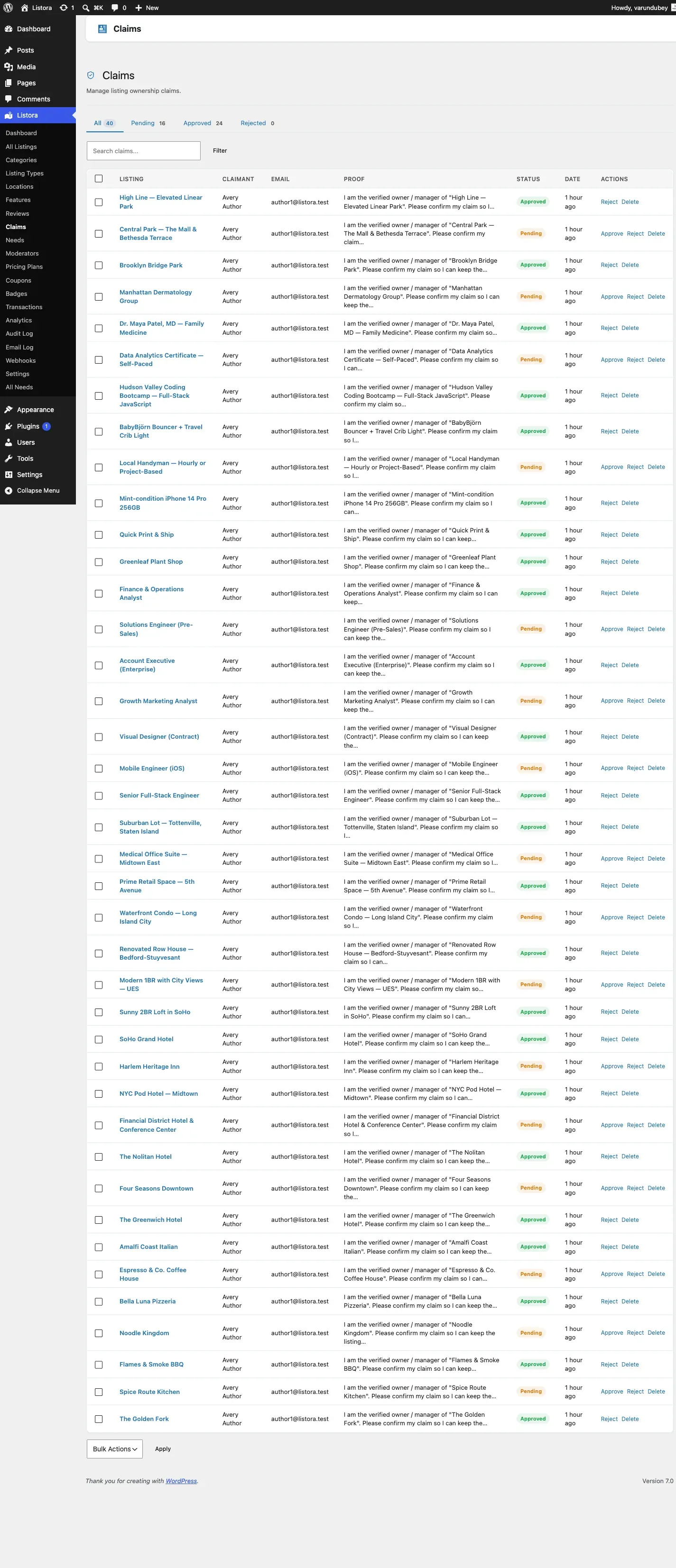
- When a claim is submitted, go to Listora → Moderation → Claims to review it:
- Use All, Pending, Approved and Rejected to filter by status. The list opens on Pending when something is waiting.
- Search by listing, name or email.
- Click Details to see the claimant, their proof of ownership, any documents they uploaded, and their other claims.
- Click Approve to transfer the listing to the claimant, or Reject to turn it down. An approved claim can be undone with Reverse approval in the … menu, which returns the listing to its previous owner after a confirmation and tells the claimant the claim was rejected.
- Tick several rows and use Bulk actions to approve, reject or delete them together.
- If another moderator already decided a claim, Listora tells you and leaves it as it was.
The list works like the other admin lists. See Admin Menu and Lists.
For end users (visitor/user-facing)
Section titled “For end users (visitor/user-facing)”- Find an unclaimed listing (it shows a Claim button on the detail page). Visitors who are not logged in are asked to log in first.
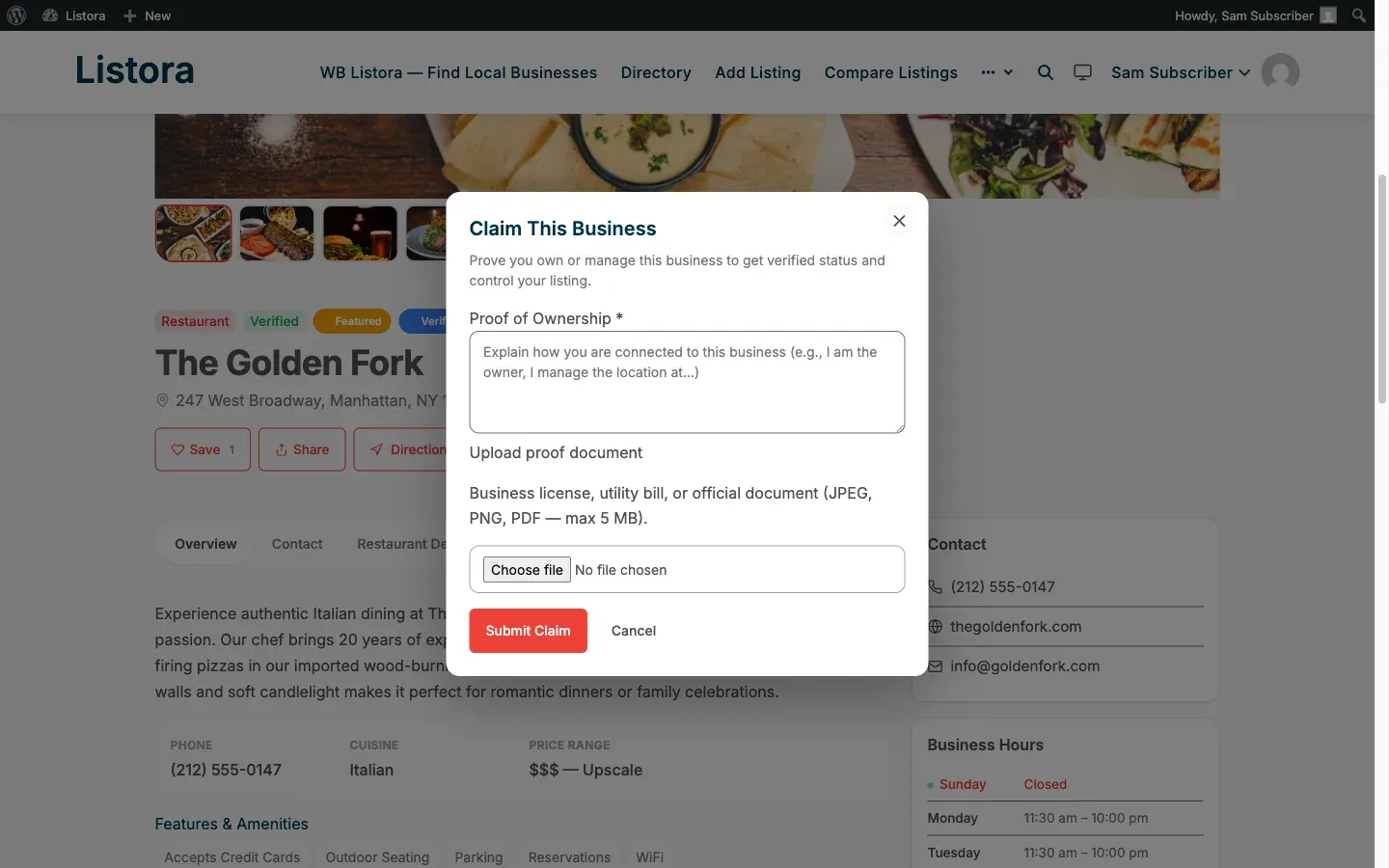
- Click the button and fill in the claim form:
- Proof of Ownership (required): how you can prove you own or manage the business, for example “I am listed on the company registration”.
- Upload proof document (optional): a business licence, utility bill or other official document (JPEG, PNG, GIF, WebP or PDF, up to 5 MB).
- Submit the claim. A success message appears with a “View my claims” link pointing to the My Claims tab on your dashboard.
- You’ll receive an email notification when the claim is approved. The email has a Go to Dashboard button and a View listing link, so you can start managing your listing straight away.
What happens on approval
Section titled “What happens on approval”- The listing’s author is changed to the claiming user, so they can edit it, reply to its reviews and manage its services like any listing they own.
- The listing is marked as claimed, so the Claim button no longer shows.
- Approval does not add a Verified badge. That is a separate, manual step (Pro).
- A verification badge can be added manually by the site owner (Pro - see Verification Badges).
- An approval email is sent to the claimant with a link to their dashboard and a link to the listing.
- Ask claimants to include a phone number in their proof - it makes it easier to contact them quickly.
- Reject a claim with a clear reason (e.g., “Please contact support with proof of ownership”) so claimants know what to provide.
- Use Listora → Moderation → Claims regularly - pending claims don’t expire, so review them on a schedule.
- The My Claims tab on the user dashboard shows claim status in real time. Direct claimants there after submission.
Common issues
Section titled “Common issues”| Symptom | Fix |
|---|---|
| Claim button not visible | Check Business Claims is on under Listora → Settings → Features, and that the listing is not already claimed |
| User doesn’t receive approval email | Check your WordPress mail configuration; test with a plugin like WP Mail SMTP |
| Approved claim user can’t edit the listing | Confirm the listing’s author was transferred correctly in Posts → All Posts |
| Claim status not updating on dashboard | Clear your site cache |