

Community Settings
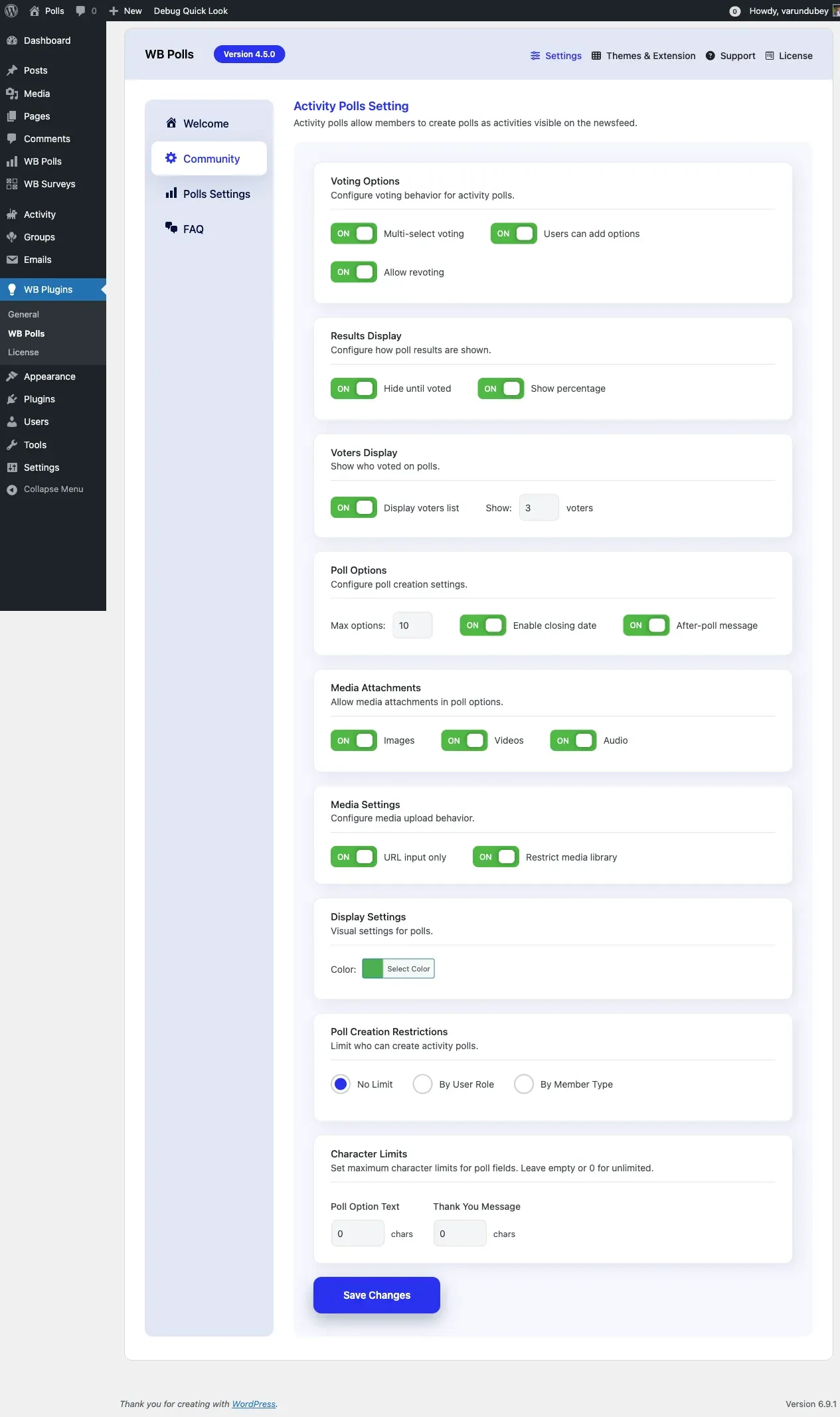
The Community tab controls all settings for activity stream polls. Configure poll creation options, result display, media attachments, access control, and appearance from this tab.
Accessing Community Settings
Section titled “Accessing Community Settings”Navigate to WP Admin > BuddyBoss > WB Polls and open the Community tab.
Poll Creation Settings
Section titled “Poll Creation Settings”Options Limit
Section titled “Options Limit”Set the maximum number of answer options allowed per poll. Use 2-4 for quick A/B decisions, 5-8 for standard surveys, and 10+ for comprehensive questionnaires.
Enable Multi-select
Section titled “Enable Multi-select”Allow voters to select multiple options. Enable this for “select all that apply” style questions.
Enable Close Date
Section titled “Enable Close Date”Let poll creators set expiration dates. Expired polls display results but stop accepting votes automatically.
Enable Re-voting
Section titled “Enable Re-voting”Allow users to change their vote after submitting. Enable this when opinions may evolve during an ongoing discussion.
Allow User Additional Options
Section titled “Allow User Additional Options”Let members add their own answer to a poll. When enabled, members who can see the poll get an “Add Option” field. The new answer joins the poll straight away, and the member who added it can delete it again. The server refuses new options when this setting is off.
Result Display Settings
Section titled “Result Display Settings”Hide Results Until Voted
Section titled “Hide Results Until Voted”Keep results hidden until the user casts their vote. This prevents bandwagon voting.
Show Percentage on Results
Section titled “Show Percentage on Results”Display vote percentages alongside counts. Shows “45% (9 votes)” instead of just “9 votes.”
Display voters list
Section titled “Display voters list”Display who voted for each option, with a “view all” list. Only logged-in members who can see the poll get the names; guests always see totals only.
Turn this off to keep votes private. Members then see only totals, and voter names are also left out of the BuddyPress REST API. As site owner you can still export who voted from the poll’s CSV export.
Limit Voters Display
Section titled “Limit Voters Display”Set how many voter avatars appear under each option (1 to 20) before the “+X others” link.
Thank You Message
Section titled “Thank You Message”Enable Thank You Message
Section titled “Enable Thank You Message”Show a custom message after someone votes. Use this to thank participants or share next steps.
Thank You Message Limit
Section titled “Thank You Message Limit”Set the maximum character count for thank you messages.
Media Settings
Section titled “Media Settings”Enable Images
Section titled “Enable Images”Allow image attachments on poll options for visual polls.
Enable Video
Section titled “Enable Video”Allow video attachments. Supports direct uploads, YouTube, and Vimeo URLs.
Enable Audio
Section titled “Enable Audio”Allow audio clips on poll options.
URL Input Only
Section titled “URL Input Only”Disable direct uploads and require users to provide URLs to externally hosted media instead. This reduces server storage usage.
Restrict Media Library
Section titled “Restrict Media Library”Limit users to viewing only their own uploaded media files when browsing the media library.
Upload size limits are controlled by your WordPress and server settings (the upload_max_filesize directive in php.ini), not by this plugin.
Access Control
Section titled “Access Control”Poll User Roles
Section titled “Poll User Roles”Select which WordPress roles can create activity polls. Choose from all roles, subscriber and above, contributor and above, or editor and above. Administrators can always create polls.
Poll Member Types
Section titled “Poll Member Types”Restrict poll creation to specific BuddyPress member types. This setting requires BuddyPress member types to be configured on your site.
Limit Poll Creation
Section titled “Limit Poll Creation”Prevent spam by limiting how often users can post polls. Options include no limit, limit by user role, or limit by member type.
Appearance
Section titled “Appearance”Poll Background Color
Section titled “Poll Background Color”Set a custom color for activity poll result progress bars.
Activity Option Character Limit
Section titled “Activity Option Character Limit”Set the maximum characters allowed for each answer option. Set to 0 for unlimited.