
Creating Your First Poll
Once WB Polls is installed and configured, create your first polls to see both systems in action. This guide walks through creating an activity poll, a standalone poll, and embedding polls on any page.
Your First Activity Poll
Section titled “Your First Activity Poll”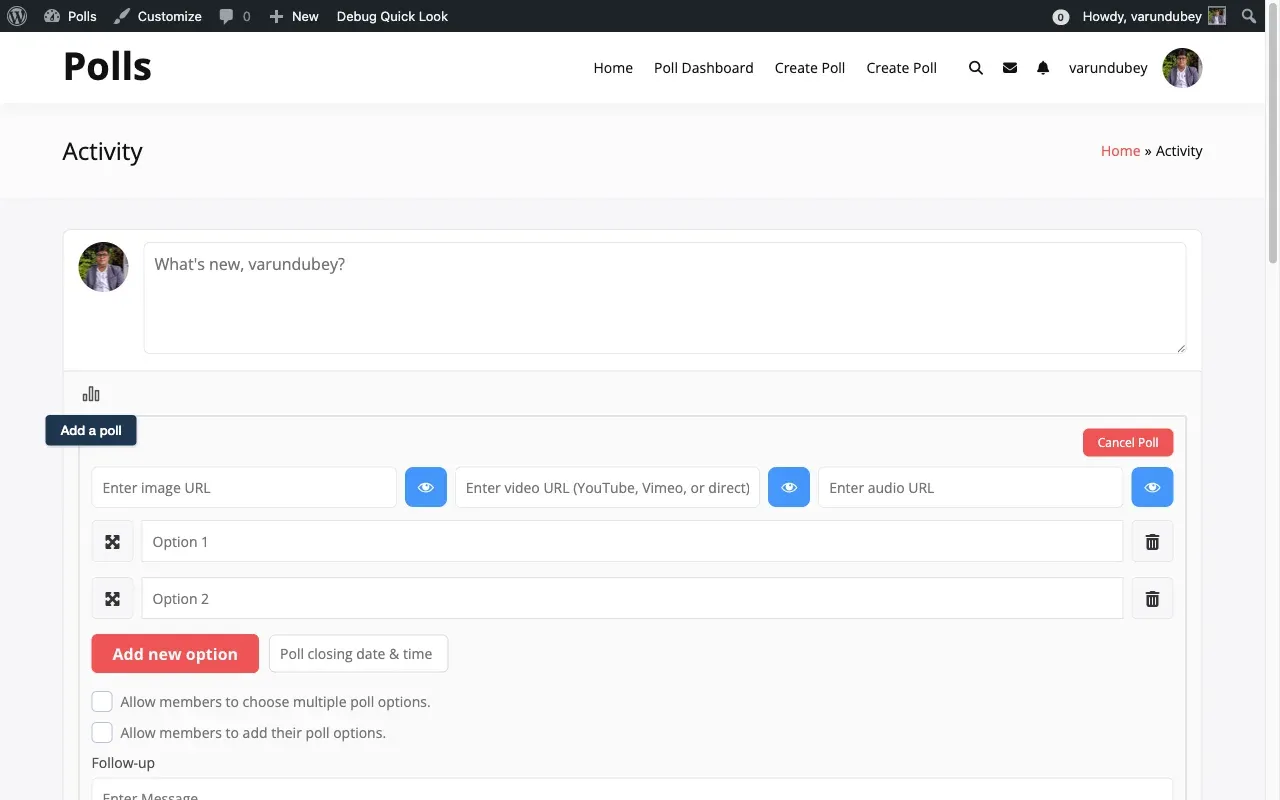
- Go to your BuddyPress activity stream
- Click the Poll icon in the activity composer toolbar
- Enter your poll question
- Add two or more answer options
- Optionally set a closing date (when closing dates are turned on)
- Click Post
Your poll appears in the activity feed immediately. Members can vote without leaving the page.
Your First Standalone Poll
Section titled “Your First Standalone Poll”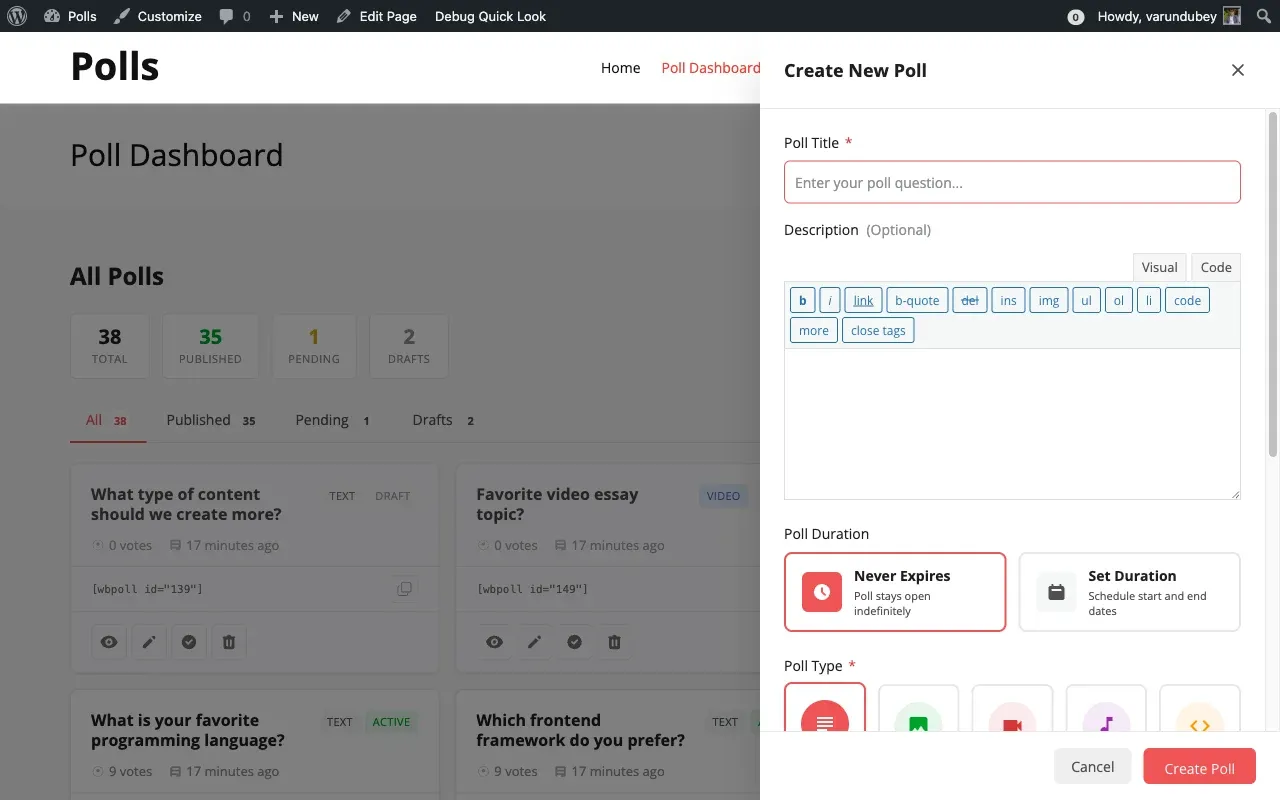
- Navigate to your Poll Dashboard page
- Click Create Poll to open the create panel
- Enter your poll question as the title
- Add a description to provide context
- Choose the poll duration (Never Expires or Set Duration)
- Select a poll type. Text Only is always available; the others must be switched on in Polls Settings
- Add your answer options
- Click Create Poll
Your poll gets its own page with a unique URL. Share the link directly or embed it anywhere using the shortcode shown on your dashboard.
Embedding Polls
Section titled “Embedding Polls”Use shortcodes to display polls on any page or post.
Display a Specific Poll
Section titled “Display a Specific Poll”[wbpoll id="36"]Replace 36 with your poll’s ID. Each poll card on the dashboard shows the ready-made shortcode with a Copy button.
Add a Poll Creation Form
Section titled “Add a Poll Creation Form”[wbpoll_create]Place this shortcode on any page to display a poll creation form for your members. The Poll Dashboard already has its own Create Poll button.
Next Steps
Section titled “Next Steps”Now that you have created your first polls, explore these guides:
- Activity Poll Settings covers all configuration options for feed polls
- Standalone Poll Settings explains dashboard management and advanced features
- Poll Types shows how to use image, video, and audio polls