

Adding Media Poll Options
Image, video, and audio poll options let voters compare choices visually or by sound instead of reading plain text. WB Polls 5.0 introduces a new built-in media uploader, so attaching media to an option no longer opens the WordPress media-library popup. This guide walks you through adding media to your options and shows what voters see when they cast a vote.
What Changed in 5.0
Section titled “What Changed in 5.0”In earlier versions, attaching media to a poll option opened the standard WordPress media-library window. In 5.0 this is replaced by a streamlined uploader built right into the poll forms. It opens as a small lightbox with two simple tabs:
- Upload - drag and drop a file, or click to browse your device. The file is uploaded and attached to the option.
- Paste link - paste a YouTube, Vimeo, Spotify, SoundCloud, or direct media URL, and the link is attached automatically.
The uploader does not include a “browse existing media library” tab. You either upload a fresh file or paste a link. The same uploader is used everywhere you add option media: the standalone poll dashboard create form and the BuddyPress activity composer, for image, video, and audio option types alike.
Adding Media to a Poll Option
Section titled “Adding Media to a Poll Option”Step 1: Start creating a poll
Section titled “Step 1: Start creating a poll”- Standalone poll: Open the Create Poll form (from your poll dashboard or a page using the create-poll form), then choose the image, video, or audio poll type.
- Activity poll: Click the Poll icon in the BuddyPress activity composer and select the image, video, or audio option type.
Step 2: Open the uploader for an option
Section titled “Step 2: Open the uploader for an option”Each poll option has a media button. Click it to open the uploader lightbox. The lightbox title reflects what you are adding (for example, “Add image”).
Step 3a: Upload a file
Section titled “Step 3a: Upload a file”- Make sure the Upload tab is selected (it opens on this tab by default).
- Drag a file onto the drop zone, or click the drop zone to browse your device.
- A progress bar shows the upload status.
- When the upload finishes, a preview of the media appears.
- Click Insert to attach it to the option.
The uploader only accepts the type that matches the option you are filling - image options accept image files, video options accept video files, and audio options accept audio files. It also respects your site’s maximum upload size and the media types enabled in your poll settings. If a file is too large, of the wrong type, or of a type your administrator has disabled, the uploader shows a clear message and the file is not attached.
Step 3b: Paste a link
Section titled “Step 3b: Paste a link”- Click the Paste link tab.
- Paste your URL into the field (for example, a YouTube video or a Spotify track).
- Click Add (or press Enter).
- A preview appears once the link is recognized.
- Click Insert to attach it to the option.
Supported link sources:
- Video links: YouTube, Vimeo, Dailymotion, Twitch, and Facebook video.
- Audio links: Spotify, SoundCloud, Mixcloud, and Bandcamp.
- Direct media URLs: a direct link to an image (JPG, PNG, GIF, WebP, SVG, AVIF), a video file (MP4, WebM, OGV, MOV, M4V), or an audio file (MP3, WAV, OGG, M4A, AAC, FLAC).
If you paste a link that is not a supported image, video, or audio source, the uploader tells you the link is not supported and nothing is attached.
Step 4: Repeat and publish
Section titled “Step 4: Repeat and publish”Add a text label and media for each option, then submit or post the poll as usual.
- Drag-and-drop and browse both work in the Upload tab - use whichever is faster for you.
- You can switch between the Upload and Paste link tabs at any time before clicking Insert.
- Press Escape, click Cancel, or click outside the lightbox to close it without attaching anything.
- Always add a short text label alongside the media so the option still makes sense to everyone.
How Media Options Look to Voters
Section titled “How Media Options Look to Voters”Once your poll is live, each media option becomes a card that voters interact with. Clicking the card selects that option to vote - but the media itself can be previewed or played without casting a vote.
Image options
Section titled “Image options”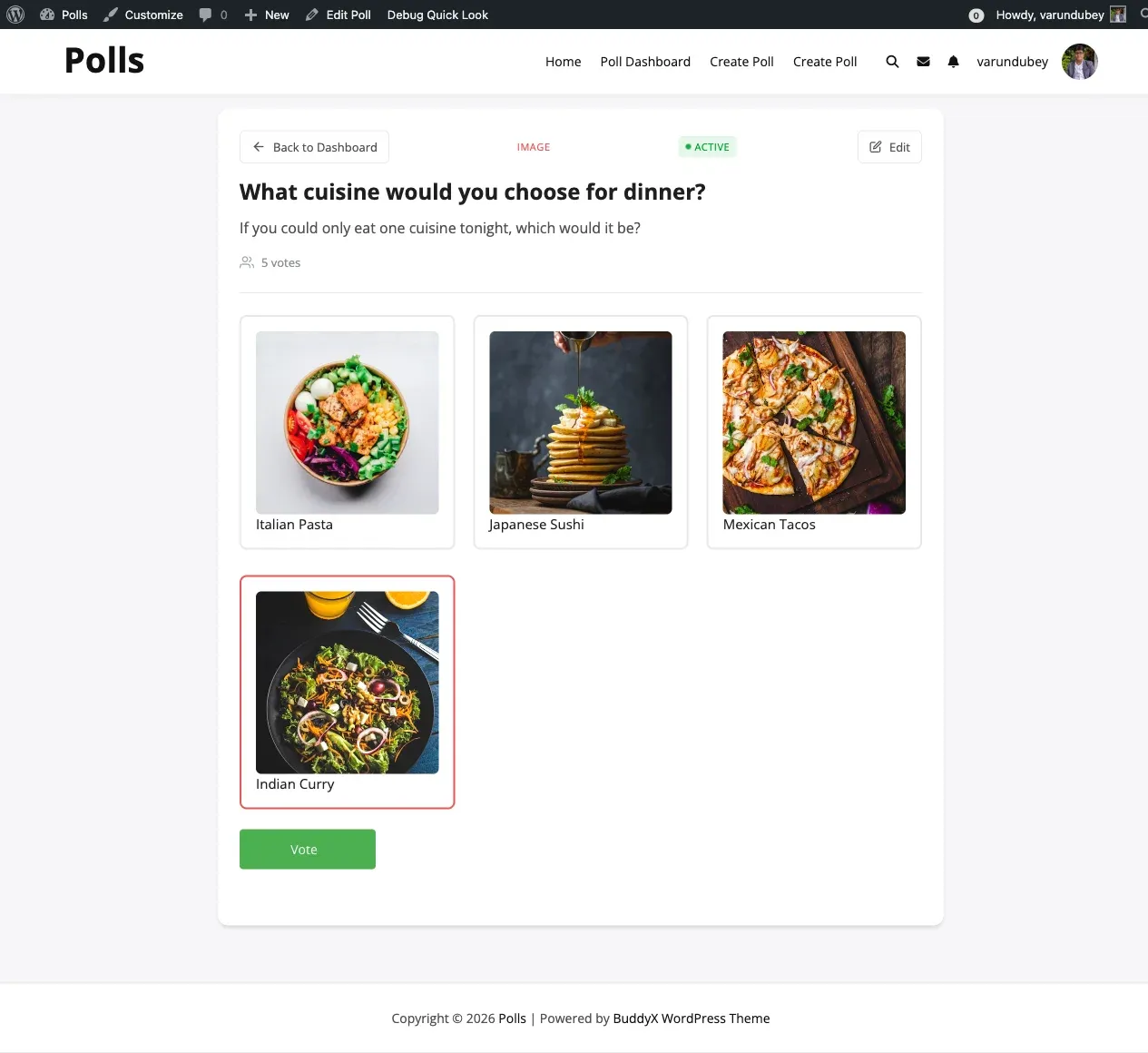
Image options appear as clickable cards showing the image. Clicking the card selects that option to vote.
Video options
Section titled “Video options”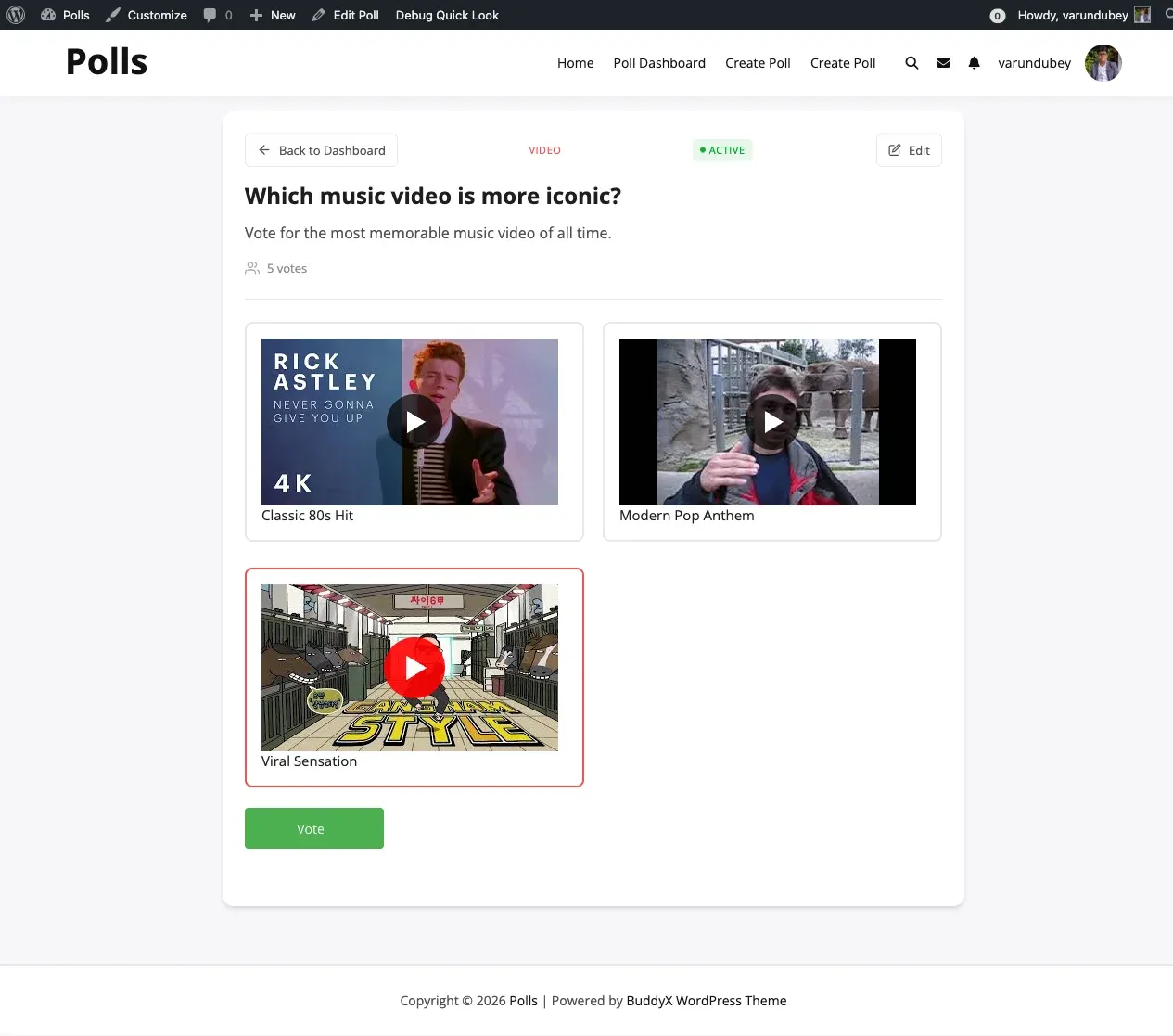
Video options show a thumbnail with a play (▶) button. Clicking the play button opens a player so the voter can watch the video first - previewing the video does not cast a vote. To vote, the voter clicks the rest of the card (anywhere outside the play button). The play button is also keyboard-accessible with Enter or Space.
Audio options
Section titled “Audio options”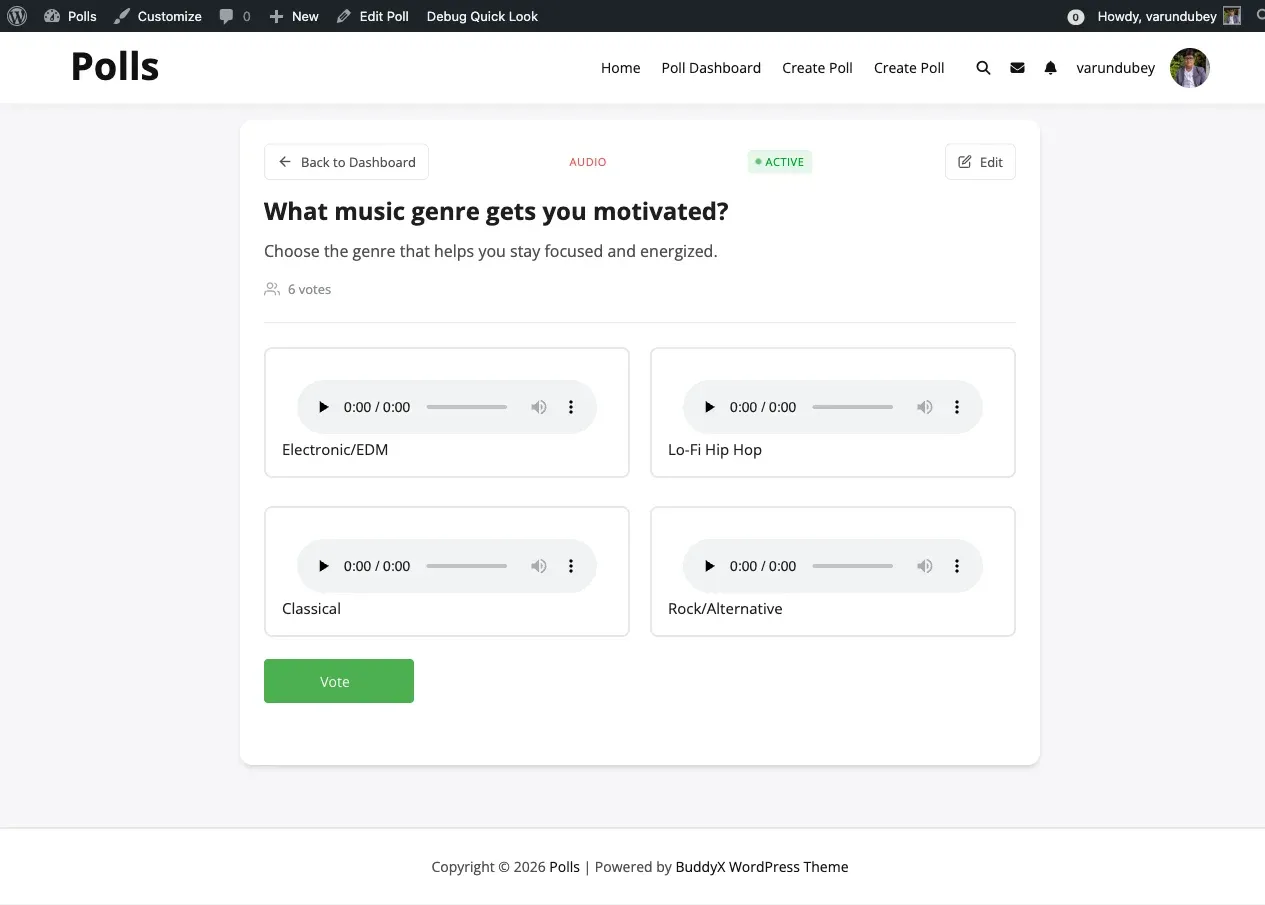
Audio options show an inline player the voter can play right inside the option. Spotify and SoundCloud links show their own embedded player; direct audio files use a standard play/pause control. Playing audio in place does not cast a vote - the voter can listen first, then click the rest of the card to vote.
“Show Results Before Voting” Behavior
Section titled ““Show Results Before Voting” Behavior”If your poll is configured to show results before voting (results are not hidden until a vote is cast), each option displays a live result bar inline on the option card. Voters can see how the vote is trending and still cast their own vote on the same card.
Who Can Upload Media
Section titled “Who Can Upload Media”The media uploader is available to logged-in users who have permission to create polls. Permission follows your “Who Can Create Polls?” role setting in the plugin settings. A visitor who is not logged in, or a logged-in user without poll-creation permission, will not be able to upload or attach media through the uploader.
Related Settings
Section titled “Related Settings”The media types you can attach are controlled by your poll settings. See the settings docs to enable or restrict image, video, and audio options:
- Activity polls: WB Polls > Community - enable Images, Video, and Audio, and optionally restrict to URL input only.
- Standalone polls: WB Polls > Polls Settings - enable Image, Video, and Audio polls.