

Installation and Setup
After purchasing WB Polls, activate your license and configure the essential settings to get polls running on your BuddyPress community.
License Activation
Section titled “License Activation”WB Polls requires a valid license key for updates and support.
- Navigate to WP Admin > WB Plugins > License
- Enter your license key in the WB Polls field
- Click Activate License
- Verify the status shows “Active”
Keep your license active to receive plugin updates and access to support.
Accessing Settings
Section titled “Accessing Settings”Navigate to WP Admin > WB Plugins > WB Polls to open the settings panel.
You will see two tabs:
- Community controls activity stream poll settings
- Polls Settings controls standalone poll settings
Configure Activity Polls
Section titled “Configure Activity Polls”Open the Community tab and configure these essential settings:
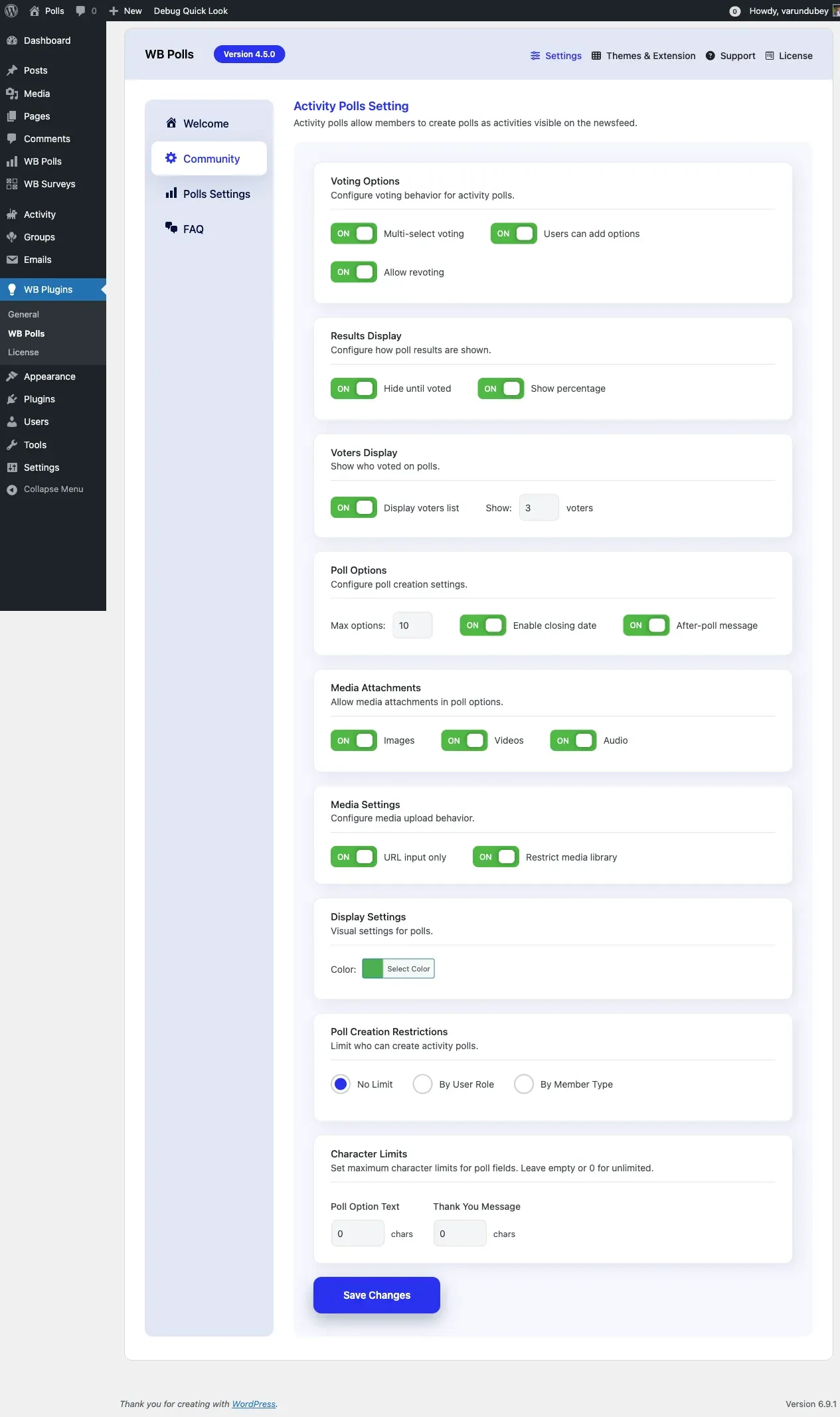
- Options Limit sets the maximum answer options per poll
- Enable Multi-select allows voters to choose multiple options
- Enable Close Date lets creators set poll expiration dates
- Enable Re-voting allows members to change their vote
- Poll User Roles determines which roles can create polls
- Media Settings enables image, video, or audio attachments
Click Save when finished.
Configure Standalone Polls
Section titled “Configure Standalone Polls”Open the Polls Settings tab and configure:
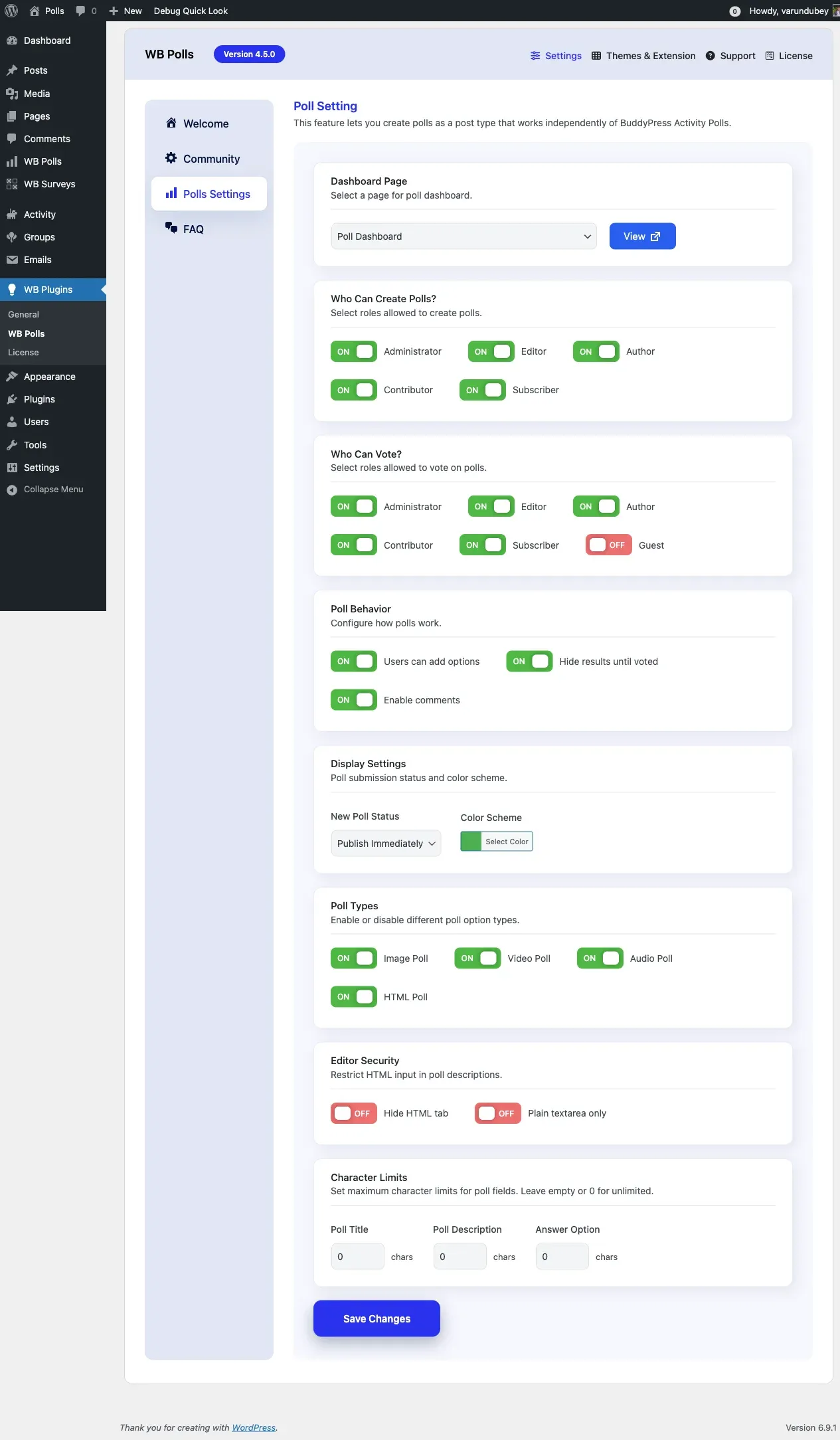
- Poll Dashboard Page selects the page displaying the poll dashboard (auto-created on activation)
- Create Poll Page selects the page with the poll creation form (auto-created on activation)
- Default Submit Status controls whether new polls publish immediately or require approval
- Who Can Create Polls sets which user roles can create standalone polls
- Who Can Vote includes a “Guest” option for allowing public voting
Click Save when finished.
Automatic Page Creation
Section titled “Automatic Page Creation”WB Polls automatically creates two pages when you activate the plugin:
- Poll Dashboard displays the poll management interface
- Create Poll displays the poll creation form
Both pages are template-based. The plugin injects content automatically, so no shortcode is needed. You can use these pages as-is or assign different pages in the settings.
What Happens on Activation
Section titled “What Happens on Activation”When you activate WB Polls:
- A Poll Dashboard page is created automatically
- A Create Poll page is created automatically
- Default settings are applied
- Database tables are created for poll vote tracking