

Creating and Voting on Activity Polls
Learn how to create activity polls, vote on them, change your vote, suggest new options, and view results. This guide covers everything end users need to participate in activity stream polls.
Creating an Activity Poll
Section titled “Creating an Activity Poll”Step 1: Open the Activity Composer
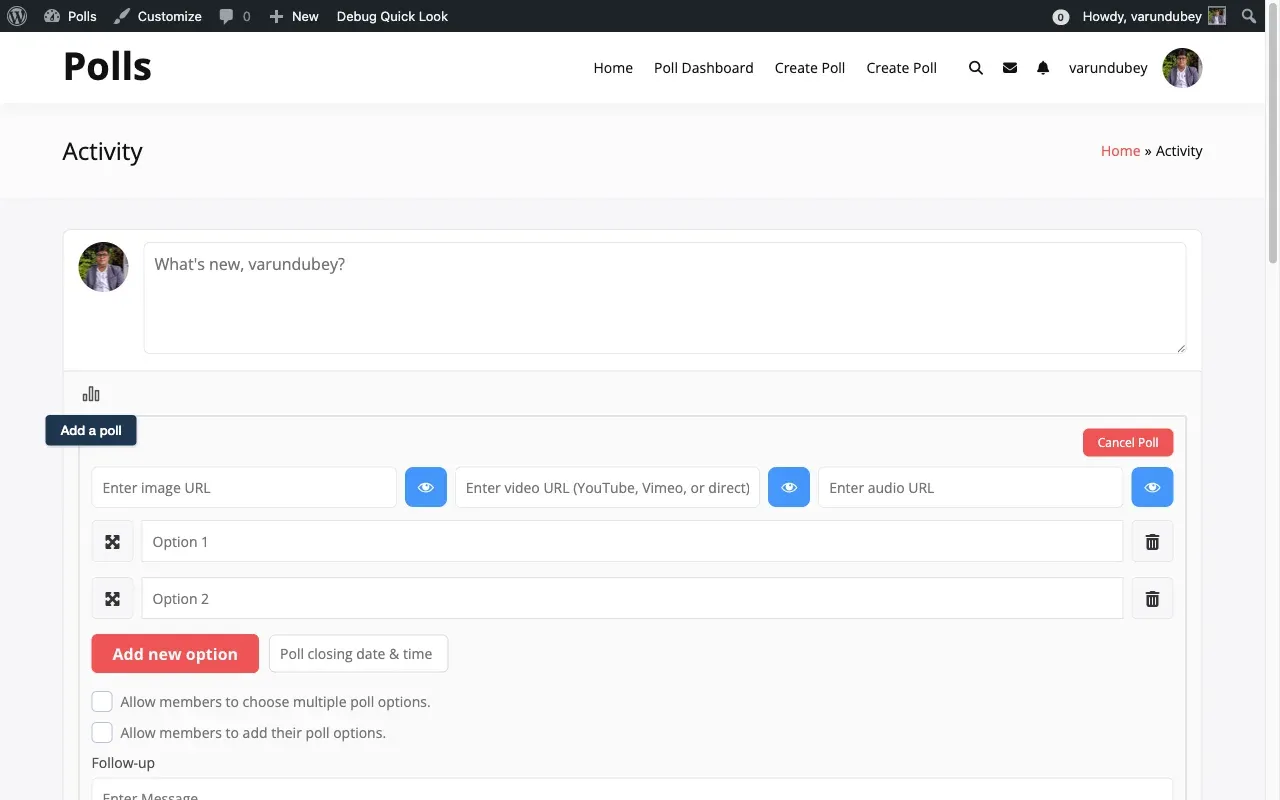
Section titled “Step 1: Open the Activity Composer”Go to your activity stream or a group’s activity section. Look for the poll icon (chart/graph icon) in the activity composer toolbar.
Step 2: Click the Poll Icon
Section titled “Step 2: Click the Poll Icon”Click the icon to expand the poll creation panel below the activity composer.
Step 3: Enter Your Poll Question
Section titled “Step 3: Enter Your Poll Question”Type your question in the main text area. Keep it clear and specific about what you are asking.
Step 4: Add Answer Options
Section titled “Step 4: Add Answer Options”The form starts with two option fields. Use these controls to manage your options:
- Click Add new option to create additional choices
- Click the trash icon on any option to remove it
- Drag the move handle to reorder options
- Stay within any character limit set by your site administrator
Step 5: Configure Poll Settings
Section titled “Step 5: Configure Poll Settings”The composer shows only the options your site owner has turned on in the Activity Polls settings:
- Allow members to choose multiple poll options lets voters choose more than one answer
- Allow members to add their poll options lets voters suggest new answers
- Hide poll results from members who have not voted yet keeps results hidden until members vote
- After-poll message shows a custom message after voting
- Poll closing date & time sets when voting ends
The number of options is capped by Max options. If you go over it, a notice says so and closes with Escape or Got it.
Step 6: Attach Media
Section titled “Step 6: Attach Media”Depending on your site settings, you can attach media to poll options:
- Images can be uploaded from your device or selected from the media library
- Videos support direct uploads and URLs from YouTube or Vimeo
- Audio files can be uploaded directly or linked by URL
Step 7: Post Your Poll
Section titled “Step 7: Post Your Poll”Click Post to publish. Your poll appears in the activity feed immediately.
How Polls Display in the Feed
Section titled “How Polls Display in the Feed”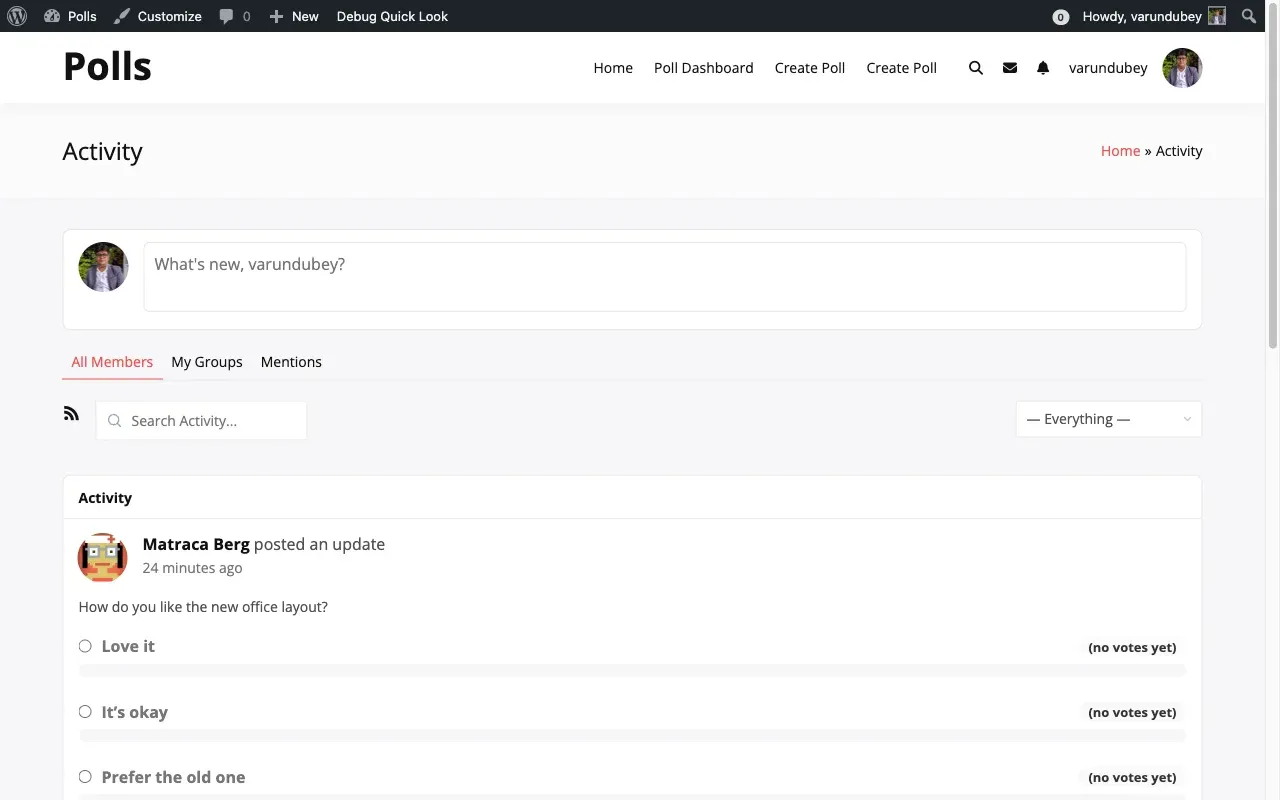
Once posted, your activity poll shows the poll question as the main content with the author name and timestamp. Media attachments display inline with lightbox support for images. Answer options appear as selectable choices with radio buttons for single-select and checkboxes for multi-select polls.
Results display as animated progress bars showing vote distribution, with percentages and vote counts like “(9 of 21).” Voter avatars appear next to each option if the site owner has enabled the voters list.
When results are shown without voting inputs (you have voted and changing votes is off, or the poll has closed), your own choice or choices are marked with a check and the words “Your vote”.
Voting on Activity Polls
Section titled “Voting on Activity Polls”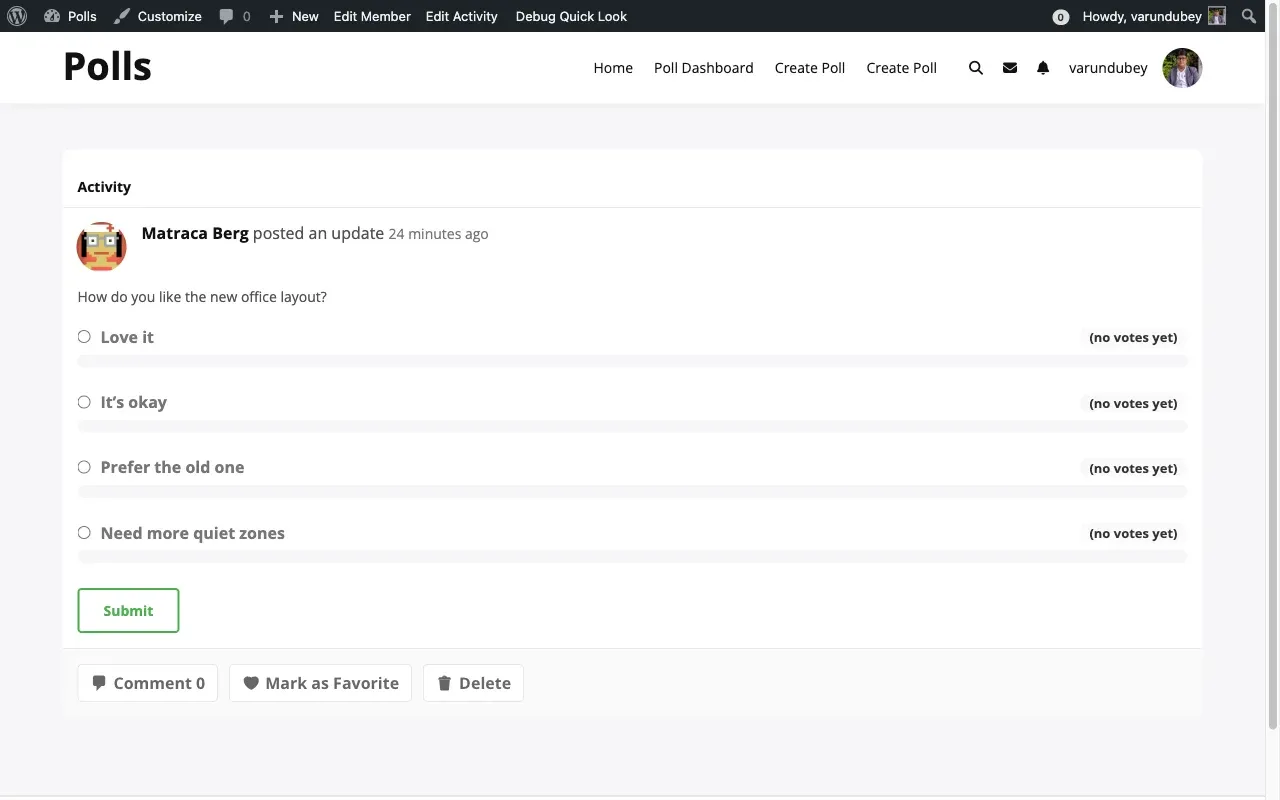
- Find a poll in your activity feed
- Click your preferred option (or multiple options for multi-select polls)
- Click Submit to cast your vote
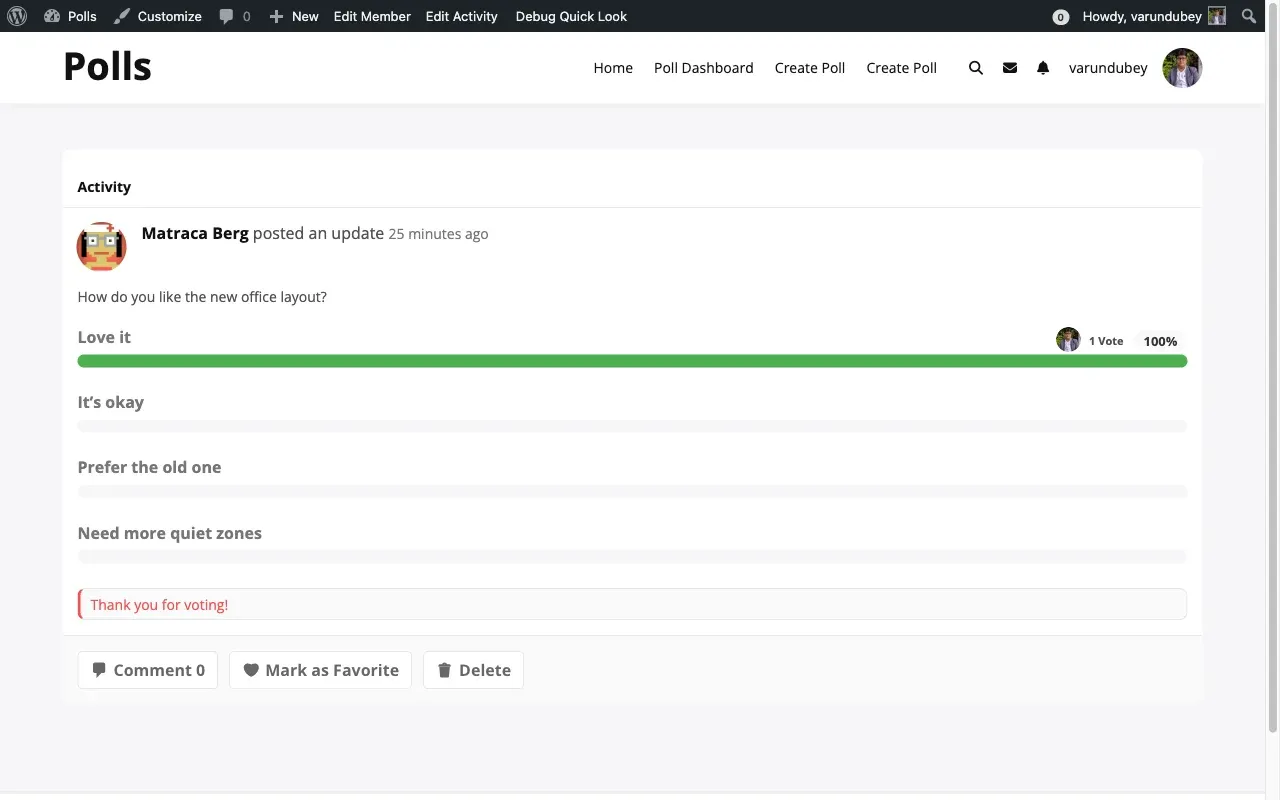
- View the thank you message if one is configured
- See the updated results
Changing Your Vote
Section titled “Changing Your Vote”If re-voting is enabled on your site:
- Click your current selection to deselect it
- Choose a new option
- Click Submit again
With revoting off, your vote is final and your own choice shows with a check and “Your vote”.
Suggesting New Options
Section titled “Suggesting New Options”If the poll creator enabled user-added options:
- Find the “Add poll option…” input field below the existing options
- Enter your suggested answer
- Click Add or press Enter
- Your option appears in the poll and others can vote for it
You cannot add options after the poll expires or if the maximum options limit has been reached. The poll creator can remove inappropriate suggestions.
Viewing Poll Results
Section titled “Viewing Poll Results”Results display depends on the poll configuration:
| Setting | What You See |
|---|---|
| Hide Results Until Voted enabled | You must vote first to see results |
| Hide Results Until Voted disabled | Results visible immediately |
| Show percentage on | Displays the percentage on each bar |
| Show percentage off | Displays vote counts only |
Click the +N button on an option to open the voter list. It is for logged-in members, shows names and avatars, and loads 20 voters at a time with a Load more button. Close it with Escape or a click outside it.