

Activity Moderation
Activity moderation lets members flag inappropriate activity updates. A flag button appears on each activity post alongside the usual actions, and every report is collected in the admin Moderation queue.
For members
Section titled “For members”- In the activity stream, click the flag button below a post. Its label is set on the General tab (default Flag).
- A report modal opens with a list of reasons. The default reasons are Sexually Inappropriate, Prohibited Content, Misleading or Scam, False News, Offensive, Violence, Spam, Nudity, Harassment, Hate Speech, Terrorism, and Other. Site admins edit this list under Categorize By Report.
- Pick a reason and submit. The button switches to the unflag label (default Unflag), and the post may be hidden from view depending on the Restrictions settings.
To retract a report, click the unflag button again. This removes the member’s report from the queue.
Only logged-in users whose role is allowed to report (set on the General tab) see the flag button. Members cannot flag their own posts.
For admins and moderators
Section titled “For admins and moderators”Reported activities appear under the Moderation menu in wp-admin.
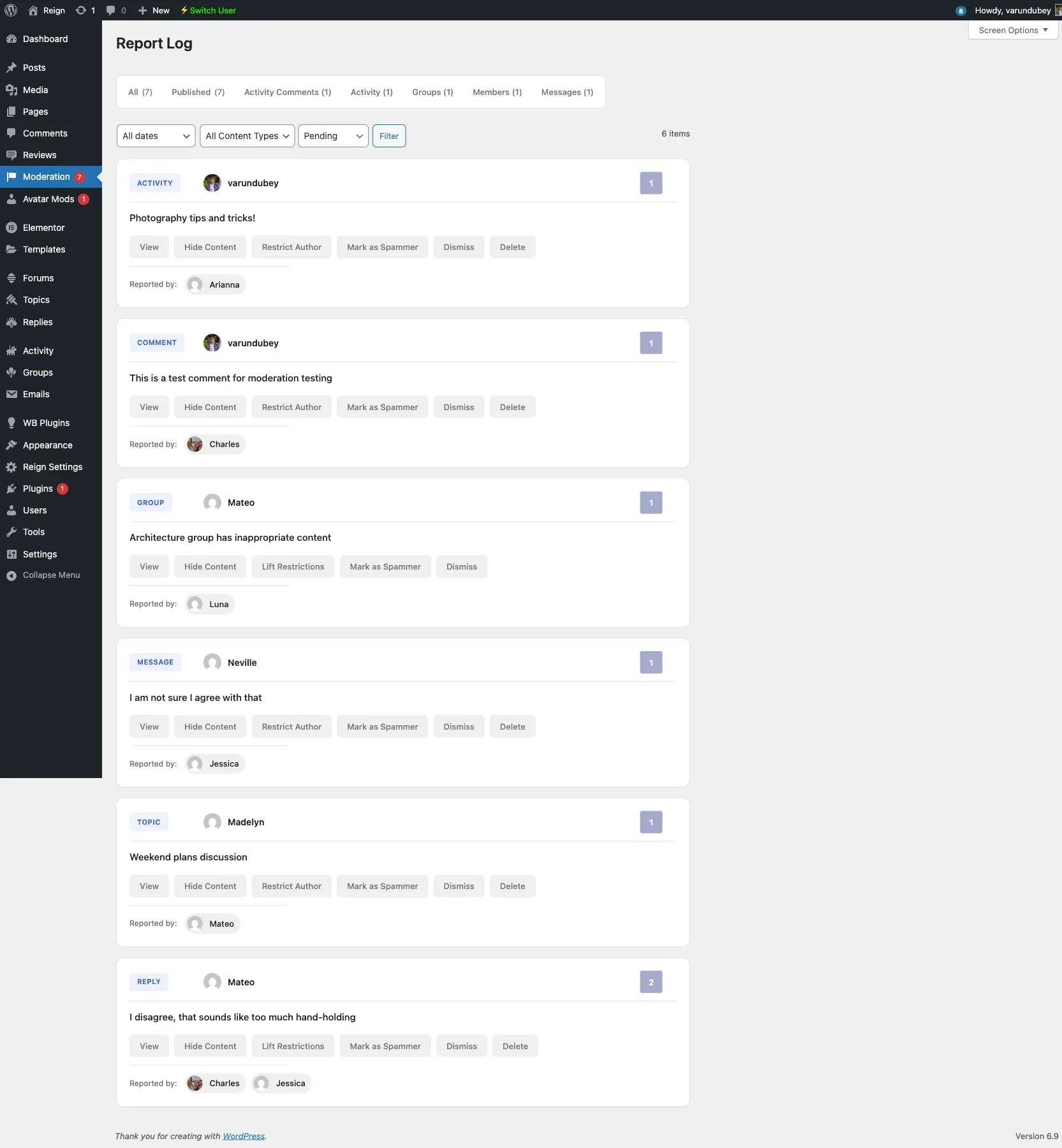
Each row shows the reported content, its author, the reporter(s), the report count, the chosen reason, and the date. From a report you can:
- View the original activity.
- Hide the content from members.
- Clean up the report, which restores the content and clears the flags.
- Delete the reported item permanently.
- Punish the author or lock the member to restrict further activity.
Auto-moderation
Section titled “Auto-moderation”On the Restrictions tab you can turn on automatic moderation so activities are hidden once they reach the report threshold (default 5) without waiting for manual review. See Auto-moderation for the full configuration.
Notifications
Section titled “Notifications”Admins and selected moderators can receive an email and a BuddyPress notification when content is flagged. Recipients and channels are configured under General → Email and Notification.