

Add Your First Video
MediaShield overviewFree + ProGet MediaShield →
After completing the setup wizard, you’re ready to register and embed your first protected video.
Step 1 - Create a video in the library
Section titled “Step 1 - Create a video in the library”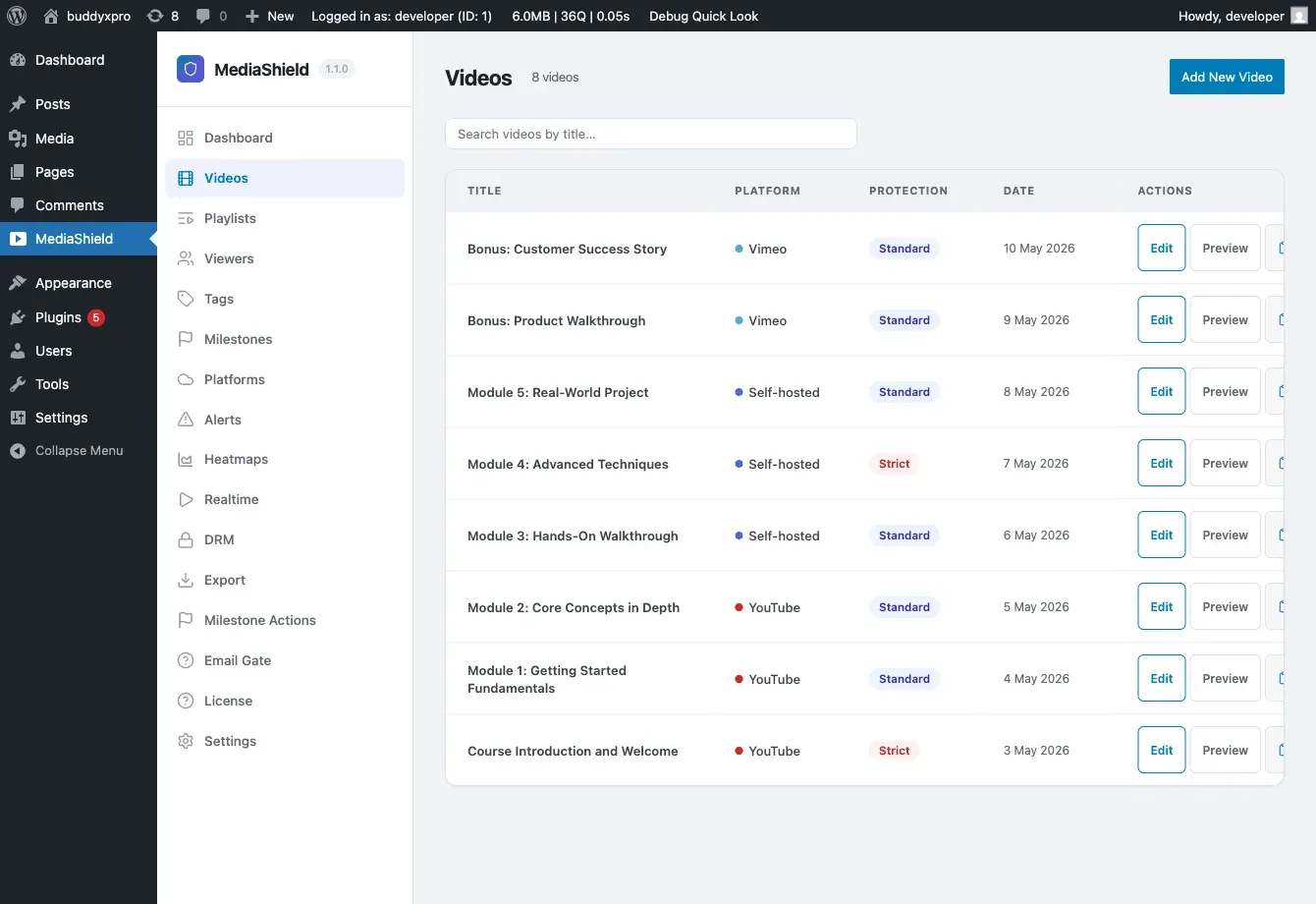
Go to MediaShield > Videos and click Add New Video. That opens the standard WordPress edit screen for a MediaShield video.
Fill in the fields:
Title - How the video appears in your library, in playlists, and in the “My Videos” grid.
Video URL - Paste the video URL. MediaShield works out the platform for you and shows what it detected below the field, along with the platform’s video ID. There is no platform picker: detection is driven by the URL. If a URL is not recognised as YouTube, Vimeo, Wistia, or Bunny, MediaShield says so and falls back to treating it as self-hosted, which only works if the URL serves the video file itself.
Or upload a file - New in 1.3.0. Choose a video file and click Upload to store it on this site. The file is saved outside the media library, under wp-content/uploads/mediashield/, and played back through a permission-checked URL. Save the video afterwards to keep the file. Upload size is limited by your server, not by MediaShield. The field appears for users with the upload_mediashield capability, which administrators have by default.
Duration - Length in seconds. Used to sanity-check watch progress. Leave 0 if you don’t know it.
Protection Level - Pick the level for this video. The dropdown starts on your site-wide default and always stores an explicit value once you save.
- None - Free preview. No gate, no watermark, no session tracking.
- Basic - Login gate and right-click blocking. No watermark, and no session tracking or milestones for this video.
- Standard - Login gate, watermark, session tracking, and milestones.
- Strict - Everything in Standard, and forces developer-tools detection and source-URL hiding on even if you have those switched off globally.
Restrict to Role (optional) - Restrict playback to one WordPress role. The match is exact: a video restricted to subscriber is not watchable by an author. Administrators always pass. Leave it on “Any logged-in user” to allow every signed-in viewer.
Player Options (sidebar) - Autoplay, Loop, Start muted, and Show player controls. These apply to self-hosted and Bunny videos; YouTube, Vimeo, and Wistia use their own player controls.
Feature Overrides (sidebar) - Set Speed Control, Keyboard Shortcuts, Resume Playback, Sticky Player, and End Screen to On or Off for this video, or leave them on “Default (global)”. End screen text and URL can also be set per video.
Milestone tags - Assign a tag to this video at 10%, 25%, 50%, 75%, or 100%. When a viewer crosses an enabled threshold, the tag is written to that viewer’s user profile.
Click Publish. The video is now in your library.
Note on platform API features: the free plugin plays embedded videos from YouTube, Vimeo, Wistia, and Bunny via their normal iframes, with the MediaShield wrapper around them. Browsing, importing, or uploading through a platform’s own API requires MediaShield Pro.
Step 2 - Embed the video
Section titled “Step 2 - Embed the video”Once the video is in your library, you have three ways to embed it on a page or post.
Block editor (Gutenberg)
Section titled “Block editor (Gutenberg)”In the block inserter, search for MediaShield Video. The block opens a video picker where you select the video you just created. You can also paste a fresh video URL directly into the block to create a library entry on the fly. The editor shows a preview, and the block sidebar lets you change the protection level and duration without leaving the page. The frontend output includes the player, watermark, session tracking, and the login overlay when required.
Shortcode
Section titled “Shortcode”Drop this into post content, a page builder widget, or any text area:
[mediashield id=42]Replace 42 with the ID number of your video. You can find the ID in the video list - it appears as the post ID in the edit URL - or use the copy-shortcode button on the video row. id is the only attribute.
If the ID is missing, wrong, or the video is not published, visitors see nothing at all. Users who can edit posts see a short message explaining which of those it was, so you can fix it without guessing.
“My Videos” shortcode
Section titled ““My Videos” shortcode”Build a member dashboard or course completion page with:
[mediashield_my_videos]This renders a grid of every video the current logged-in user has watched, with completion progress bars. Visitors who are not logged in see “Please log in to see your video history.”
Step 3 - Test the embed
Section titled “Step 3 - Test the embed”Open the page in a browser where you are logged in. You should see:
- The video player with the protection layer
- A watermark overlay showing your display name and IP address (protection level Standard or Strict only)
- The “Protected by MediaShield” badge (if enabled in Settings)
Watch the video for at least 30 seconds, then check MediaShield > Dashboard. You’ll see the session counted and the activity chart updated. If the video is set to Basic or None, no session is recorded by design - only Standard and Strict track watch sessions.
Setting a thumbnail
Section titled “Setting a thumbnail”Platform videos (YouTube, Vimeo, Wistia, Bunny) - when you save a video that has no Featured Image, MediaShield fetches the poster the platform generated and sets it as the WordPress Featured Image. Nothing to do. Set a Featured Image yourself if you would rather use your own.
Self-hosted videos - MediaShield does not generate a thumbnail from your uploaded file. Set the Featured Image on the video edit screen manually. That image is used as the poster frame in the player, video lists, blocks, and playlists.
Next steps
Section titled “Next steps”- Settings Overview - tune protection, player, and access control
- Shortcodes and Blocks - full embed reference
- Watermarks - how the watermark works
- Analytics and Milestones - reading the dashboard