User Publishing

Get Started

These options are given for the frontend story publishing form.
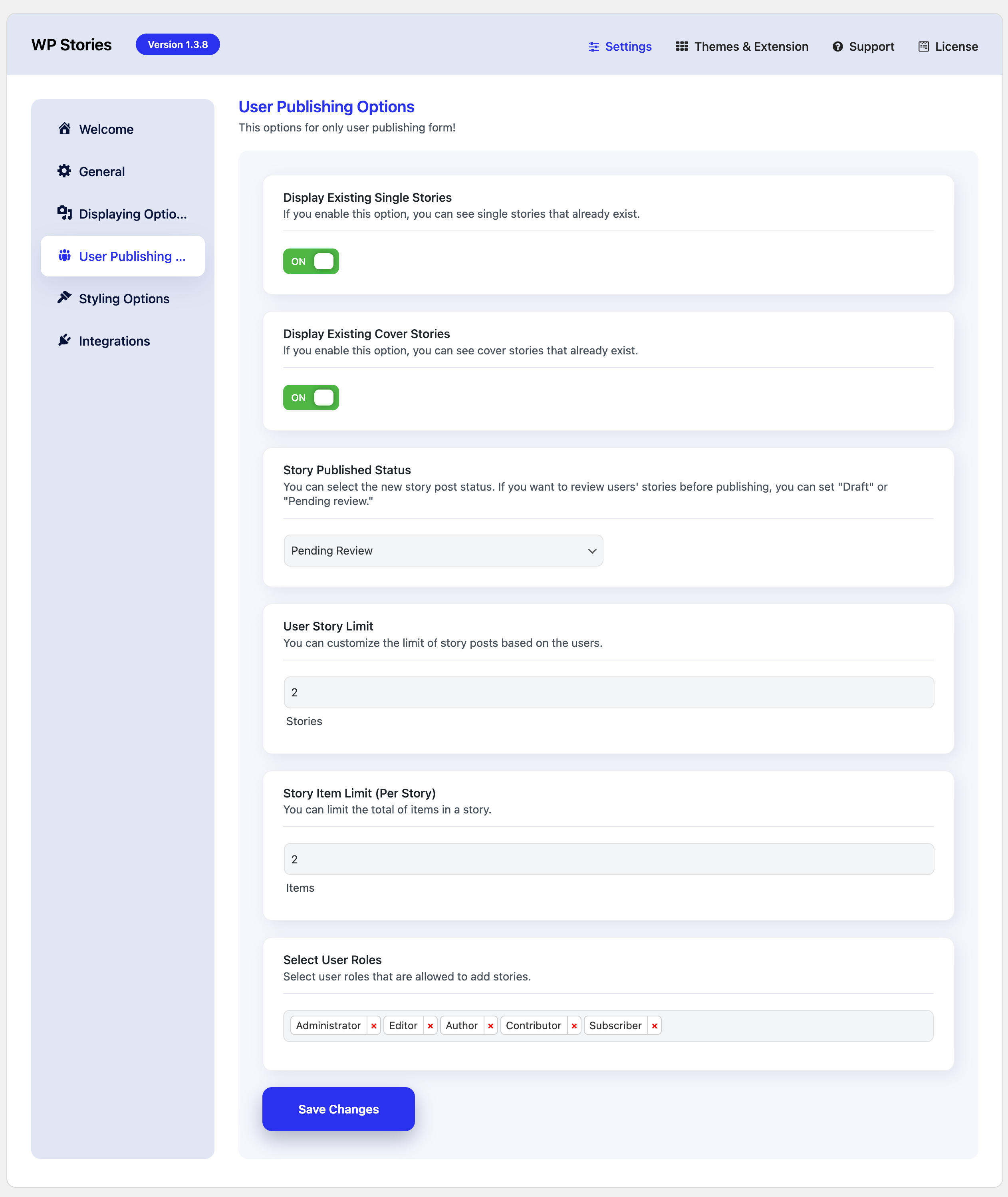
 

Display Existing Single Stories

When enabled, this option shows the user’s previously created single stories within the story publishing form, providing a reference or option to delete existing stories.


Story Published Status

    • This setting lets admins choose the default publishing status for newly created stories.
    • Options:
      • Published: Stories are immediately visible to other users after posting.
      • Draft: Stories are saved but not visible to others until reviewed and published by the user or admin.
      • Pending Review: Stories are submitted for moderation, allowing admins or designated reviewers to approve them before they go live.
    • Purpose: Enables content moderation and quality control.

User Story Limit

    • Sets the maximum number of stories that an individual user can post.
    • For example, setting the limit to 10 stories means a user can only have up to 10 active stories at a time.
    • Why it’s useful: Prevents excessive posting and ensures fairness in platform usage.

Story Item Limit (Per Story)

    • Defines the maximum number of individual items (e.g., photos, videos, or slides) that can be included within a single story.
    • For instance, setting it to 10 items means a user can add up to 10 segments in one story.
    • Why it’s useful: Maintains consistency and prevents overly lengthy stories.

Duration of the Story

    • Controls how long each individual story item (e.g., photo or video) is displayed when viewed.
    • For example, setting it to 6 seconds means each segment of the story will stay visible for 6 seconds before moving to the next.
    • Why it’s important: Ensures a smooth viewing experience and keeps the audience engaged.

Max Uploading File Size

    • Sets a limit on the size (in megabytes) of files that users can upload for their stories.
    • For instance, setting it to 10 MB restricts users from uploading files larger than 10 MB.
    • Setting it to 0: Allows unlimited file sizes, depending on server and platform capacity.
    • Why it’s useful: Helps manage server storage and ensures faster loading times.

Restrict Visibility Options

    • Lets users control who can view their stories. Common options include:
      • Everyone: Visible to all users, including non-logged-in visitors.
      • Only Me: Private; visible only to the creator.
      • All Members: Visible to all logged-in members of the platform.
      • My Friends: Visible only to the user’s friends.
    • Why it’s useful: Offers users privacy controls and flexibility in sharing their content.

Select User Roles

    • Allows site admins to define which user roles (e.g., Admins, Editors, Subscribers) are allowed to create and post stories.
    • For example, only Editors and Contributors might be granted permission to add stories, while Subscribers or Guests are restricted.
    • Why it’s useful: Enables role-based permissions, helping maintain content quality and manage platform activity.
Last updated: November 21, 2024