

Auto-Friendship Tab
BuddyPress Auto Friends overviewPremiumGet BuddyPress Auto Friends →
Go to WB Plugins → Auto Friends → Auto-Friendship to configure the core auto-friendship behavior. This single tab consolidates four related sections that were previously separate tabs: welcome-group rules, Global Friends, cleanup on role/type removal, and notification behavior.
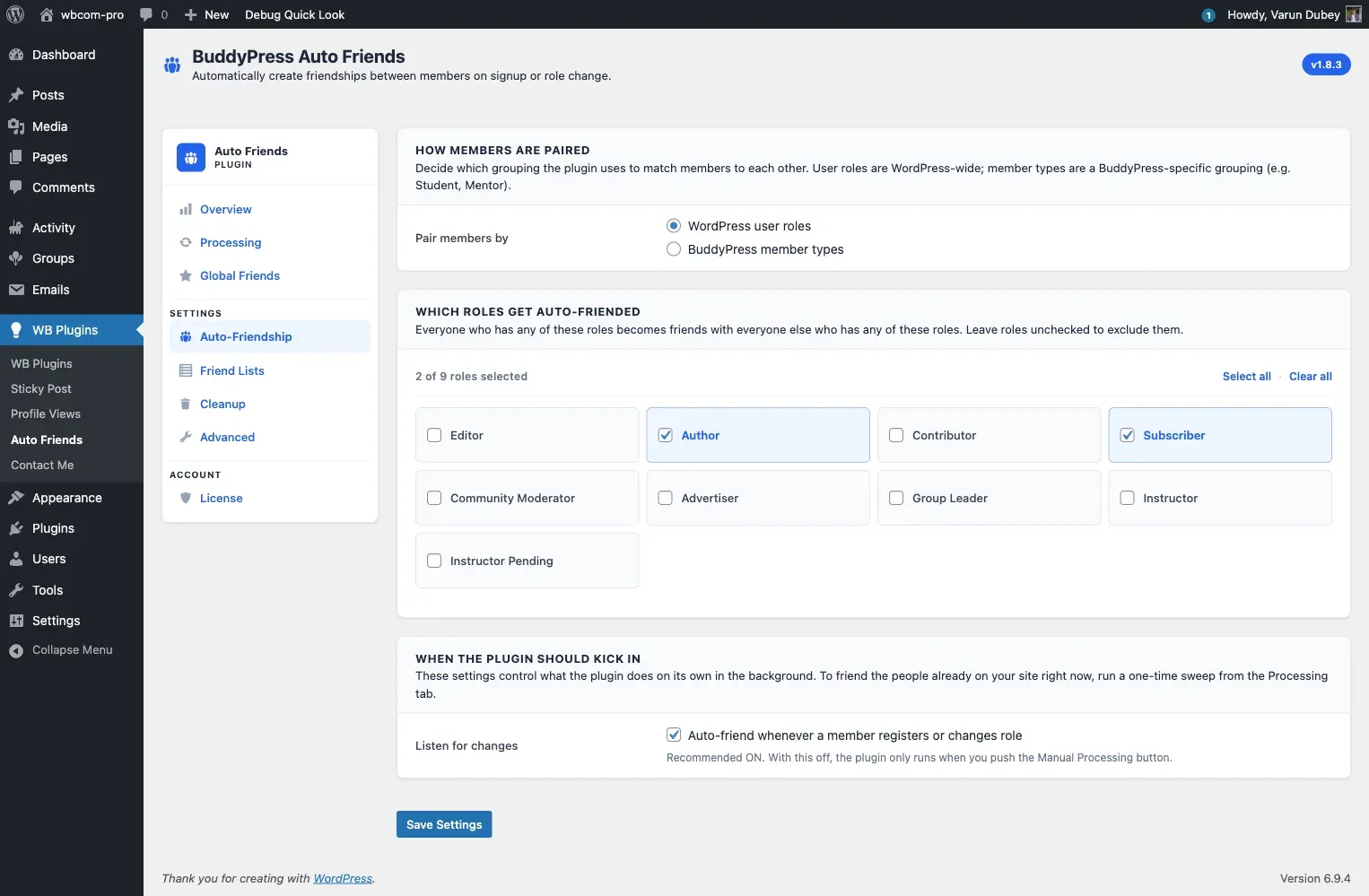
Who welcomes new signups
Section titled “Who welcomes new signups”The top card controls how the plugin identifies your welcome group - the existing members every new signup is auto-friended with.
Identify them by
Section titled “Identify them by”Choose one mode:
| Mode | How the welcome group is built |
|---|---|
| WordPress user roles | Every existing member who holds one of the ticked roles |
| BuddyPress member types | Every existing member who holds one of the ticked member types |
The BuddyPress member types option only appears when your site has at least one BuddyPress member type registered.
In both modes, the new member’s own role or type is not used as a filter. Selecting “Editor” does not mean “pair Editors with Editors” - it means “every new signup becomes friends with every existing Editor.”
Pick the roles
Section titled “Pick the roles”When WordPress user roles is selected, a chip grid of all non-administrator roles appears. Tick the roles whose members should act as welcomers. Use Select all or Clear all to manage the grid in one click.
The chip grid shows a live count of how many roles are selected.
Roles are stored as an array of role slugs in the bpaf_settings option under the key add_friends_user_roles.
Pick the member types
Section titled “Pick the member types”When BuddyPress member types is selected, a chip grid of your registered member types appears. Tick the types whose members should act as ambassadors.
Member types are stored as an array of positive integer term IDs (not slugs) in bpaf_settings.add_friends_member_types.
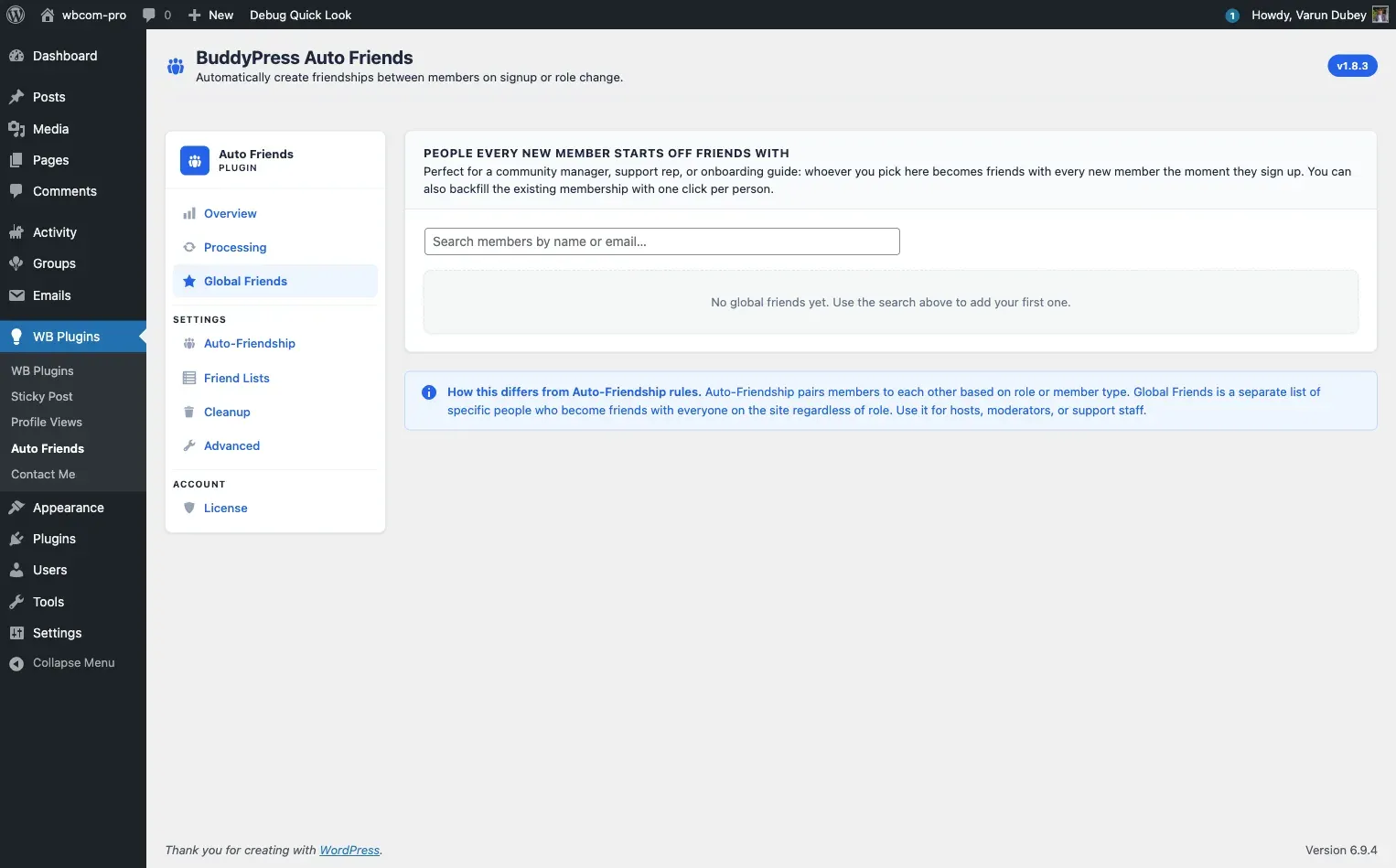
People Every New Member Starts Off Friends With
Section titled “People Every New Member Starts Off Friends With”This section (Global Friends) lets you hand-pick specific users that every new signup befriends, on top of the role/member-type pool.
Adding a Global Friend
Section titled “Adding a Global Friend”- Type a name or email in the search box.
- Click the user from the results list. They are added immediately.
Each Global Friend row shows two action buttons:
- Friend with existing members - triggers a background job to create friendships between this person and every existing member who is not yet connected to them. A live counter updates while the job runs.
- Remove from welcome group (X icon) - removes the person from the Global Friends list. This does not delete existing friendships.
How Global Friends differ from role-based rules
Section titled “How Global Friends differ from role-based rules”Role/member-type rules identify ambassadors by group membership. Global Friends lets you name specific individual accounts regardless of role. Both sources are merged - a new signup is friended with the role/type ambassador pool and every Global Friend.
For more detail, see Global Friends.
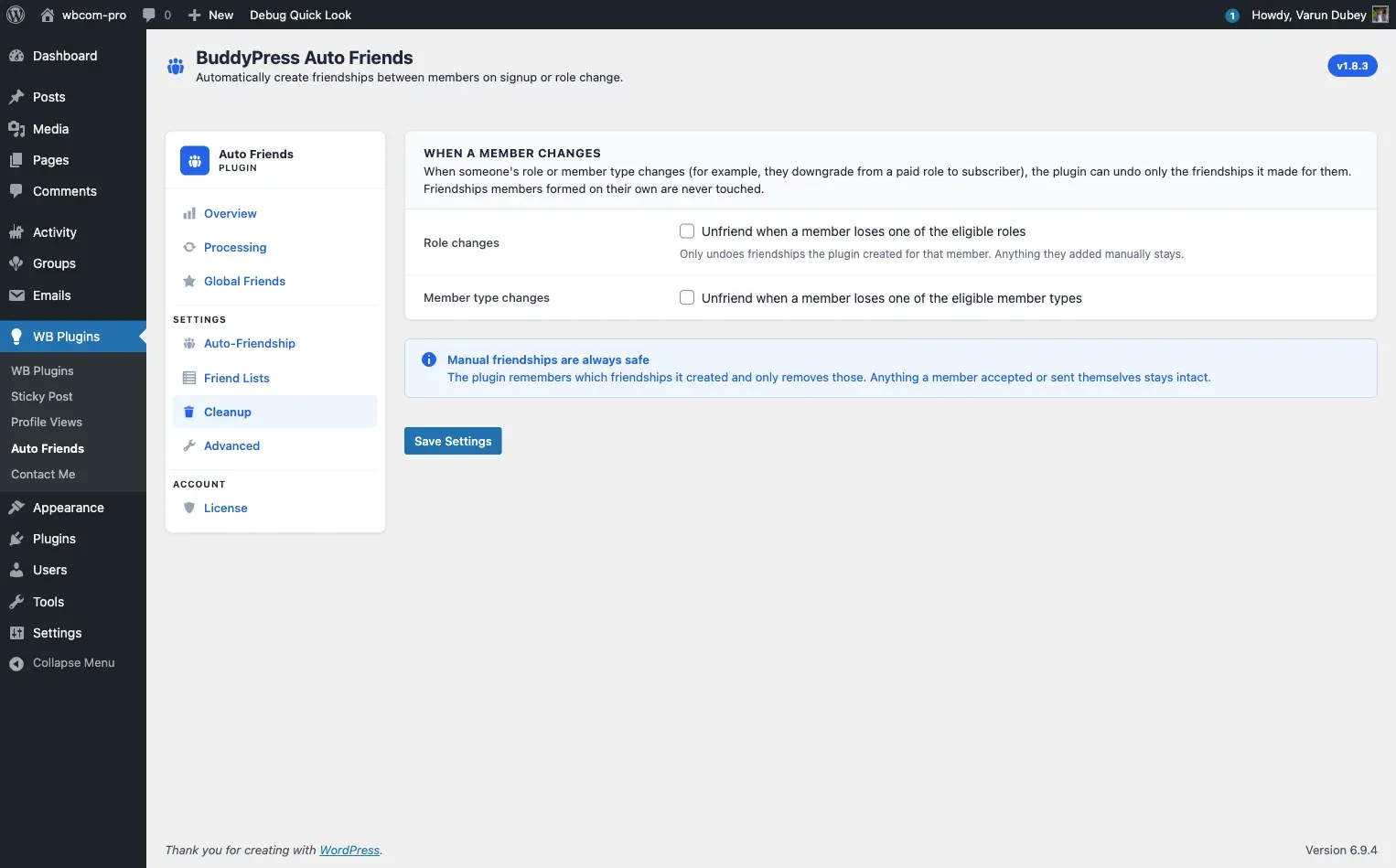
When a Member Changes
Section titled “When a Member Changes”This section controls whether the plugin removes auto-created friendships when a user loses a qualifying role or member type.
| Setting | Default | Effect |
|---|---|---|
| Unfriend when a member loses one of the eligible roles | Off | Removes plugin-created friendships when a user loses all qualifying roles |
| Unfriend when a member loses one of the eligible member types | Off | Removes plugin-created friendships when a user loses all qualifying member types |
Both settings only touch friendships the plugin itself created - tracked via the _bautof_auto_created_friends user meta key. Friendships members formed manually, and friendships with Global Friends, are always preserved.
Leave both off if you want auto-friendships to be permanent regardless of role changes (common for “graduate” flows).
For more detail and real-world examples, see Cleanup When Members Change Roles.
Notifications
Section titled “Notifications”Auto-created friendships are silent by design. No friend-request or accepted-request emails are sent during any auto-friendship operation - whether on registration, role change, or the manual backfill sweep.
Developers who need to override this for specific recipients can use the bautof_enable_notifications_for_user filter. See Hooks and Filters.
Saving
Section titled “Saving”Click Save Changes at the bottom of the form. All four sections on this tab save together in a single submit.