

Drip Sequences
BuddyNext overviewFree + ProGet BuddyNext →
A drip sequence is an automated series of emails that goes out to a member over time, on a schedule you set. You build the sequence once, choose what starts it, and BuddyNext sends each step at the right moment without any further work from you. Drip Sequences is a Pro feature.
Why use it
Section titled “Why use it”The first days after someone joins decide whether they stick around. A new member who hears nothing usually drifts away; a new member who gets a warm welcome, a nudge toward their first post, and a check-in a week later is far more likely to become active. Doing that by hand for every signup does not scale.
A drip sequence handles it for you. Write a welcome on day zero, a “here is how to get started” on day three, and a “you have been with us a week” on day seven, then turn the sequence on. Every new member walks through the same thoughtful onboarding automatically, and you keep your community warm without watching the registration list. Owners reach for this to onboard new members, re-engage quiet ones, and run any timed email journey (a course intro, an event countdown) where the timing matters more than the moment.
How it works (for members)
Section titled “How it works (for members)”Members do not set anything up. Once you enable a sequence with a matching trigger, the member is enrolled and starts receiving the steps:
- When a member registers (or finishes onboarding, depending on the sequence’s trigger), they are enrolled automatically.
- Each step has a day: the number of days after the member joined the sequence. Day 0 goes out at the next delivery run; day 3 goes out three days after joining, day 7 a week after.
- The emails are sent through BuddyNext’s normal email system, so they carry your community’s branding and From address.
Unsubscribing
Section titled “Unsubscribing”Members stay in control of their inbox:
- A member who unsubscribes from all broadcast email stops receiving drip steps. The sequence is paused for them rather than deleted, so if they ever opt back in, it can resume.
- A member can also unsubscribe from one specific sequence (every drip email carries a per-sequence unsubscribe link, “Unsubscribe from this sequence” unless your step body places its own
{{unsubscribe_url}}). Their opt-out is recorded and their enrollment is kept - it is skipped, not erased - so the history is preserved and it can resume if they re-subscribe.
Setting it up (for owners)
Section titled “Setting it up (for owners)”Drip sequences are managed in the BuddyNext admin under Campaigns > Drip sequences. They also have their own switch in the Features catalogue, Drip sequences, which is on by default.
Create a sequence
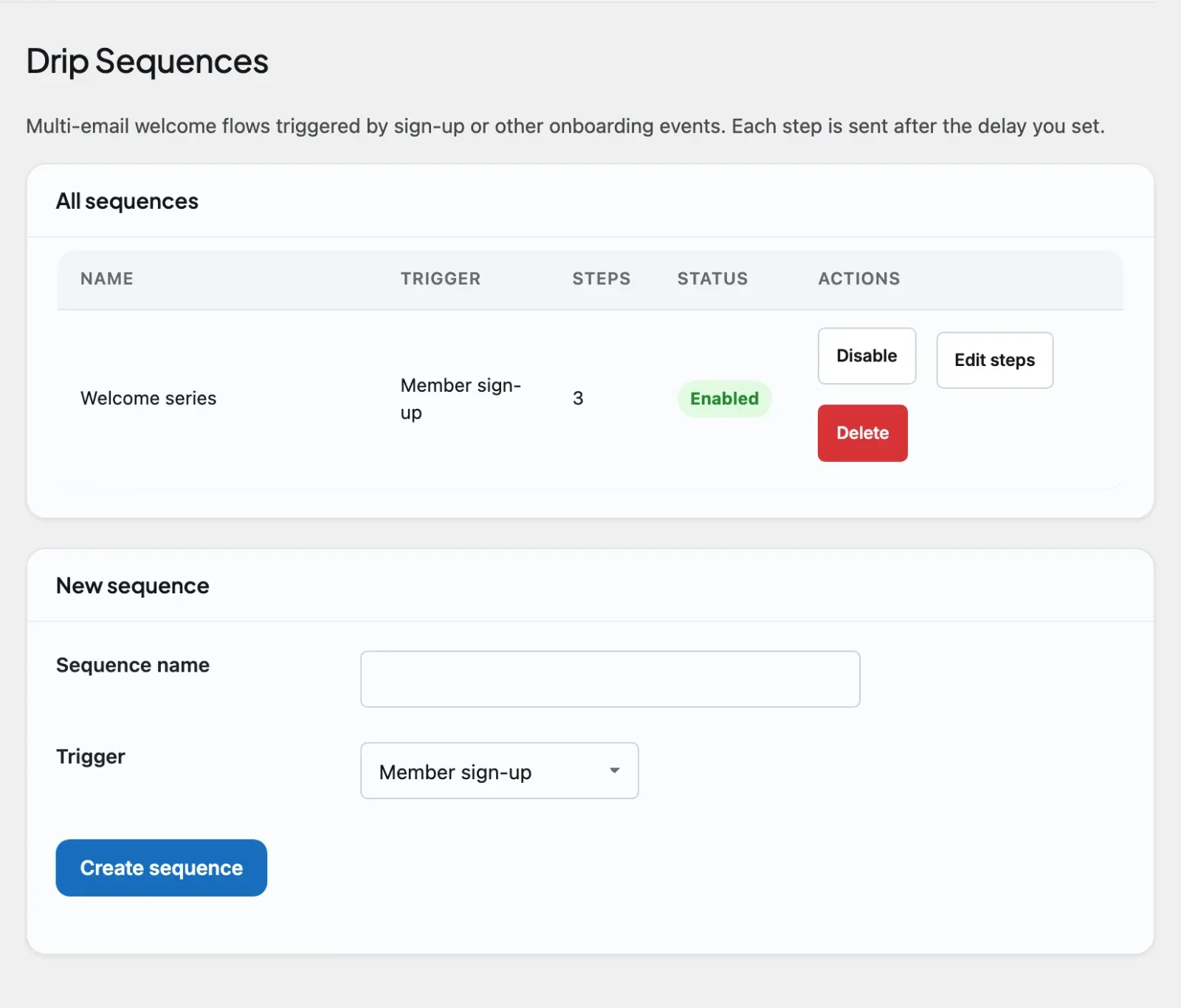
Section titled “Create a sequence”- Open Campaigns > Drip sequences. If you have none yet, you will see “No sequences yet”.
- In the New sequence form, give the sequence a name (for example, “Welcome Journey”) and choose a trigger.
- Select Create sequence. The new sequence starts disabled so you can build its steps first. Use Edit steps on its row to add them, then Enable it when it is ready to go live.
A sequence has these top-level settings:
| Setting | What it does | Default |
|---|---|---|
| Sequence name | A label so you can recognize the sequence in the list. Required. | Empty (you must set it) |
| Trigger | What starts the sequence for a member. See the trigger table below. | Member sign-up (first option in the list) |
| Enabled | Whether the sequence is live. While disabled, no new member is auto-enrolled and no step is sent to members already enrolled. | Disabled when created (turn it on from the list once your steps are ready) |
Triggers
Section titled “Triggers”| Trigger | When a member is enrolled |
|---|---|
| Member sign-up | The moment a new account is created. |
| Onboarding completed | When a member finishes the onboarding flow. |
| Manual (enroll via API) | Never automatically; members are enrolled through the REST API (see Manage enrollments). |
A developer can add more triggers with the buddynext_drip_triggers filter; they then appear in this list.
Add steps
Section titled “Add steps”Each step is one email in the sequence. Use the Add step form for each one. Add as many as you need. The step list shows each step’s day and subject, in the order they are delivered (earliest day first). What you see in the list is what members receive.
| Setting | What it does | Default |
|---|---|---|
| Days after joining | The day this step is sent, counted from when the member joined the sequence. Use 0 for the next delivery run, 3 for three days in, 7 for a week in. | 0 |
| Subject | The email subject line. Required and must not be empty. | Empty (you must set it) |
| Body | The email content. Accepts HTML and supports merge tags such as {{first_name}}. Required and must not be empty. |
Empty (you must set it) |
Note: A step will not save with a blank subject or body. This is deliberate - it stops the sequence from emailing members an empty message.
You can Edit or Delete a step from the step list. There is no manual reordering: steps are shown and delivered in order of their day, so to move a step, change its day. Members who are part-way through keep their place when you add, change or remove a step: they carry on after the last email they already received and are never sent the same one twice. A member who joined some time ago receives a newly added earlier step only if they have not yet passed it.
Enable, disable, and delete
Section titled “Enable, disable, and delete”- Use Enable or Disable on the sequence’s row in the list. Disabling pauses the sequence: no new member is enrolled and members already enrolled receive nothing, but everyone keeps their place. Enabling it again resumes each member with their next step; the steps that came due while it was paused are not sent all at once. Delete a sequence only when you want its enrollments gone.
- Delete removes a sequence permanently, after a confirmation, along with every enrollment tied to it. There is no separate delete for a single member’s enrollment from here - deleting the whole sequence is the only removal path.
Manage enrollments
Section titled “Manage enrollments”- Members who match a sequence’s trigger are enrolled automatically while the sequence is enabled.
- You can also enroll a member through the REST API (
POST /buddynext-pro/v1/drip-sequences/{id}/enroll). This is the only way members enter a “Manual” sequence, and it is useful for adding existing members to a sequence built after they joined. - If you enroll someone who is already in the sequence, their progress resets to the first step rather than creating a duplicate. A member is never enrolled twice in the same sequence.
Good to know
Section titled “Good to know”- One step per run. Delivery is handled by a background task that runs about once an hour while there are active enrollments, so a step goes out within roughly an hour after it is due. Each time it runs, it advances each active member by at most one step. After a step’s delay has passed, that member’s next step goes out on the following run - steps do not all fire at once. If the background task was paused for a while and several steps are overdue, members catch up one step per run rather than receiving a burst of emails.
- The schedule arms itself. The background task only runs while there are active enrollments. When the last enrollment finishes, it stops on its own, and it starts again the next time someone is enrolled. There is nothing to turn on.
- Duplicate enrollment is prevented. Re-triggering enrollment for a member who is already in a sequence resets their progress instead of adding a second copy.
- Global opt-out wins. A member who has unsubscribed from all broadcast email is skipped by the sequence without losing their place, so they resume if they re-subscribe.
- Completed sequences stop. Once a member receives the last step, their enrollment is marked complete and they get nothing further from that sequence unless you re-enroll them.
Free vs Pro
Section titled “Free vs Pro”Drip Sequences is a Pro feature in full - the sequence builder, triggers, step scheduling, automatic and manual enrollment, and the delivery engine. The free plugin sends transactional and notification email but does not offer timed, multi-step sequences. For one-off newsletters to a segment rather than a timed series, see Broadcast Email.
Related
Section titled “Related”- Broadcast Email - one-off campaigns rather than a timed series.
- Member Onboarding - the onboarding-completed trigger that can enroll members.
- Grow with Email - the email-growth recipe.