

Membership Plans
BuddyNext overviewFree + ProGet BuddyNext →
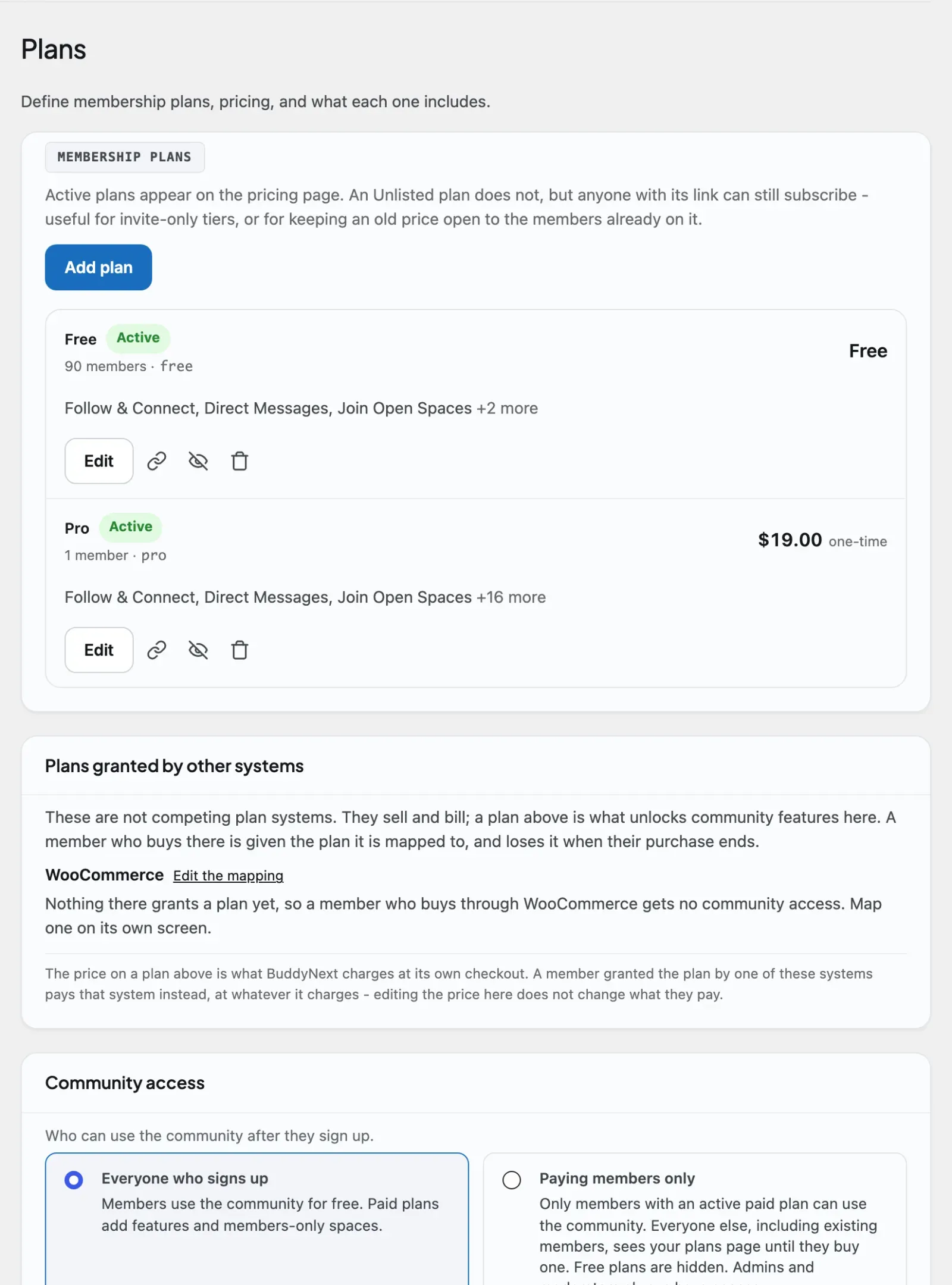
Membership plans are the plans, free or paid, that you offer your community. Each plan carries a price, a billing schedule, and a set of perks (the features and limits it unlocks), and members subscribe to a plan to get what it includes.
Before you start: Membership plans come with BuddyNext Pro. You need BuddyNext Pro active, and to take real payments you also need a payment gateway connected (see Requirements below). Even without a gateway you can still create plans and grant access by hand, which is handy while you set things up.
Why use it
Section titled “Why use it”Turning your community into a place people happily pay for is one of the most rewarding things you can do as an owner, and membership plans are how you do it without leaving WordPress. You define the offer once, members choose the plan that fits them, and everyone gets a clear deal: pay this, get that.
Use plans when you want to:
- Charge for access to premium areas of your community (see Gating Spaces).
- Offer a paid plan that lifts limits free members hit - more spaces they can create, more pinned posts, larger group messages.
- Run a free plan and one or more paid plans side by side, so members can self-upgrade when they need more.
- Sell a one-time pass or a recurring monthly or yearly subscription, with an optional free trial.
For the member, a plan is a clear promise. For you, it is a single place to define the offer, see who is subscribed, and step in when you need to extend or revoke access. The same plan definition drives the pricing page members see, the access checks across the community, and the reports you review.
How it works (for members)
Section titled “How it works (for members)”Members never touch the admin. They see two surfaces, and BuddyNext creates both for you automatically - you do not have to build them by hand. (Both were reworked in 1.0.4.)
- The pricing page - a normal, editable WordPress page at
/membership-plans/by default. It carries the pricing block, and because it is a real page you can add a hero, testimonials, an FAQ, anything, with the editor you already use. Since 1.2.4 it renders inside the community layout (same header, menu, light and dark mode and phone layout as every community page) instead of the theme’s page template, and it stays open to visitors when the community is private, so people can buy before they join. - Settings > Membership - the member’s own billing area, at
/settings/membership/, sitting alongside their notification settings.
You can rename the pricing slug, or point it at a different page, from Settings → Pages & URLs. The default slug avoids the bare /membership/ path, which other plugins sometimes claim. If the page is ever deleted, BuddyNext recreates it on the next admin screen load while Monetization is on. The billing area is a settings tab rather than a page, so it needs no Pages & URLs row.
View the plans and subscribe
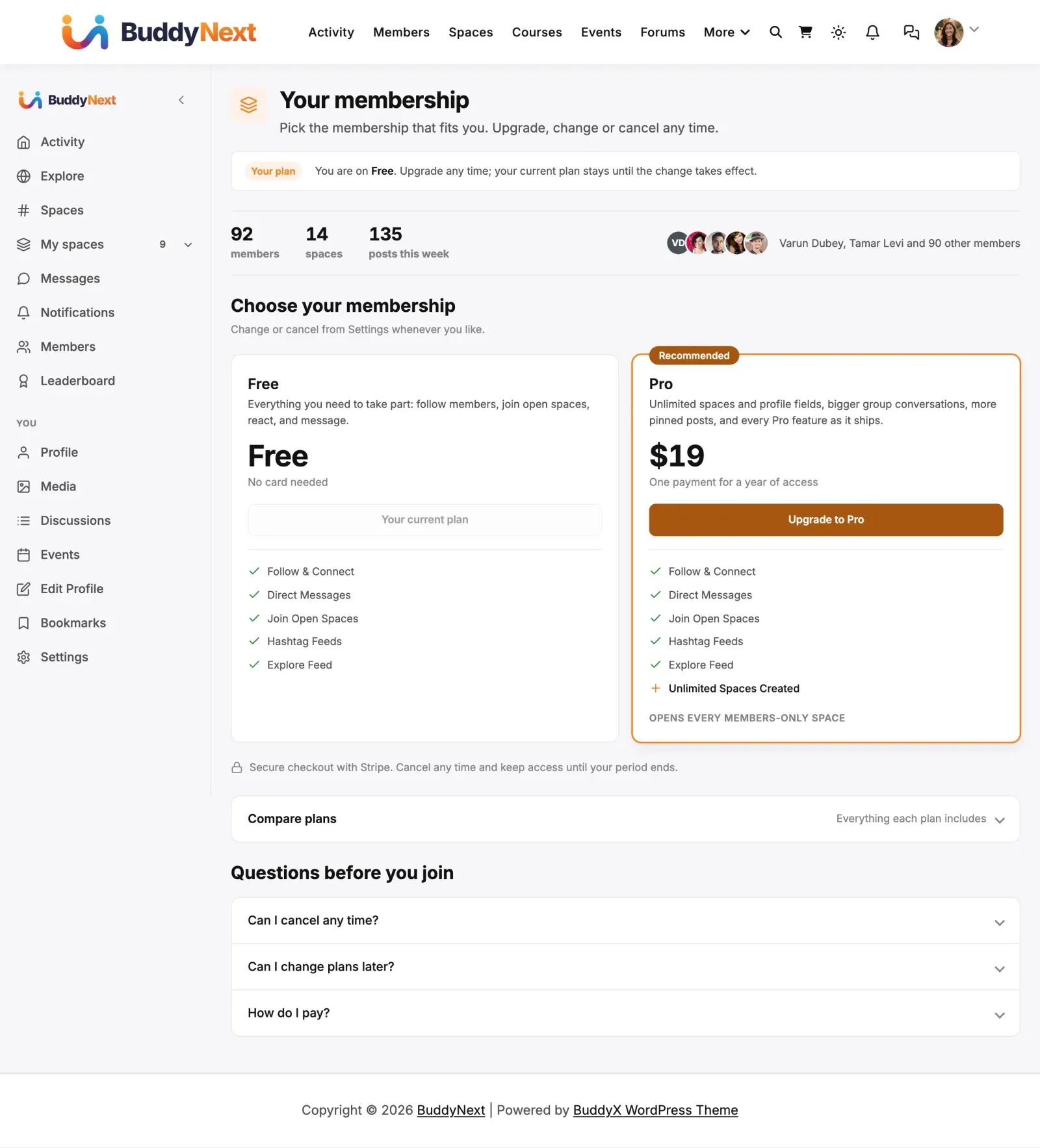
Section titled “View the plans and subscribe”The pricing page shows each plan as a card: name, description, price in your currency (“$19 / month”), what the plan includes, and the spaces it opens. When your plans are offered both monthly and yearly, a Monthly / Yearly switch at the top changes every price at once.
- A visitor sees an invitation on each card (“Get Supporter”, or “Start free trial” for a plan with a trial). Clicking it goes to sign-up with that plan chosen.
- When visitors cannot sign up (registration closed or invite-only), each card says “Sign in to get Supporter” instead. Signing in brings an existing member straight back to that plan. On an invite-only community the card adds “New members join by invitation.” Both lines can be reworded in the plans block’s Wording panel.
- When new accounts need approval, the sign-up screen says the visitor can finish joining once an admin approves the account. No payment is taken before approval; after approval the member can pick the plan from the welcome wizard or the pricing page.
- A signed-in member sees what each plan adds over the one they have: new features are marked, their own plan says “Your current plan”, and a cancelled plan says until when they keep it.
Choosing a paid plan opens a short order summary for that plan before anyone pays:
- a coupon field, only when your site has a coupon a buyer could use;
- a billing country, only when you set different tax rates for some countries;
- the price, any discount, tax and the total, updated as the buyer types;
- Continue to secure payment (or one Pay with … button per provider when several are on), and a Redeem … button showing the points price when the plan has one.
Card details are never typed on your site. The button hands the buyer to Stripe or PayPal with the final amount, and they come back to Settings > Membership with a confirmation. A member who signs up through a plan link lands on this summary when there is something to choose, and goes straight to payment when there is not.
A visitor who is not logged in and picks a paid plan is sent to registration first, carrying that plan with them. Once they create their account, they land straight in checkout for the plan they picked rather than back on the pricing table - so choosing a plan and signing up feels like one continuous step, not two separate ones.
To show the pricing table somewhere else as well - a marketing landing page, for example - drop this shortcode on any page:
[buddynext_membership_pricing]Manage their own plan (Settings > Membership)
Section titled “Manage their own plan (Settings > Membership)”The member’s billing area shows their current plan, price and interval, status, and renewal date - plus, since 1.0.4:
- Billing history with a Download link to the invoice for every charge, showing the 24 most recent.
- Update payment method - opens the payment provider’s own page to change the card. It shows only for a membership this site bills by card, and as the main button when the last payment failed.
- Cancel - protected by a proper confirmation dialog. Cancelling keeps access until the paid period ends; the plan shows as cancelling until then, and afterwards the member lands in a lapsed state (free plan) rather than being cut off mid-period. While a cancelled plan is still running, the member cannot buy that same plan again (it would charge them twice for days they already have); the pricing page and their billing area show the end date, and the plan can be bought again after it. Other plans can be bought at any time. Plans you grant to a member by hand are not affected.
- Move to another plan (1.1.6) - switch to a different paid plan without cancelling first. The page shows every other plan the member could move to, so they pick and confirm from their own billing area. A plan change that starts on a later date shows as “Your plan changes to … on …” with a Cancel this change button.
- Switch to annual / Switch to monthly - for a plan that offers both prices, the member changes cadence from the same screen. Time already paid for comes with them; nothing is refunded.
To surface a compact version of this plan summary on another page, the shortcode remains available:
[buddynext_my_membership]Setting it up (for owners)
Section titled “Setting it up (for owners)”Monetization is an optional layer and is off by default with Pro. You turn the whole layer on or off under Platform → Features (“Memberships & monetization”): while it is off, the pricing and My Membership pages, checkout, and gated content are all disabled; when you turn it on, the pages are created automatically.
All plan and subscription management lives in wp-admin under BuddyNext, in the Monetization section. You manage plans, review subscriptions, issue coupons, configure the upgrade prompt and connect gateways across five tabs: Plans, Subscriptions, Coupons, Paywall and Payment Gateways. (Paywall is covered in Gating Spaces, coupons and tax in Coupons and Tax, and gateways in Payment Gateways.)
Community access
Section titled “Community access”The Plans tab starts with Community access, which sets who can use the community after signing up (registration itself is set under Members > Registration & Login):
| Choice | What members get |
|---|---|
| Everyone who signs up (default) | Members join free and use the community. Paid plans unlock more features and members-only spaces. A member with no paid plan is on your default (free) plan. |
| Paying members only | Members need an active paid plan to use the community. Free plans are not offered. |
With Paying members only:
- Visitors see only paid plans. Picking one takes them through sign-up and payment, then into the community.
- A member without an active paid plan (signed up without paying, cancelled and past the end date, or a renewal that failed past its grace period) is sent to your plans page from every community page. The plans page tells them why: “Choose a plan to join the community”, or “Your membership has ended. Choose a plan to continue” for someone who paid before.
- What stays open to them: Settings (account, privacy, notifications and Membership billing), signing in and out, and any page of your own site that is not a community page (home, blog, landing pages). The mobile app keeps account, billing and plan screens working and shows the plans for everything else.
- Their content stays where it is, so conversations are not broken for paying members.
- Emails: they do not get community activity emails (follows, mentions, comments, digests). Account, billing, announcement and broadcast emails still go out, so you can invite them back.
- Never held: administrators and community moderators. A cancelled plan keeps working until its end date, and a plan you grant by hand counts as a paid plan.
The switch is refused until you have at least one active paid plan and a payment method switched on, so nobody is locked out with no way in. Switch back to Everyone who signs up at any time; members without a paid plan return to your default plan at once.
Developers can exempt more members with the buddynextpro_paid_access_exempt filter.
Monthly renewal day (1.2.4)
Section titled “Monthly renewal day (1.2.4)”Below Community access, Monthly renewal day puts every new monthly member on the same billing day, for example the 1st:
| Choice | What happens |
|---|---|
| The day each member joined (default) | A member who joins on the 14th renews on the 14th of each month. |
| Day N of every month (1-28) | A member who joins on the 2nd pays for the days up to the next renewal day, then the full monthly price on that day every month. |
The order summary shows the part-month total before the member pays (for example “Today covers you until November 1”), and the card is charged exactly that, tax included. If the part-month is too small to charge, those days are free.
- Applies to new monthly subscriptions paid by card (Stripe). PayPal cannot bill on a set day, so a member who picks PayPal is asked to pay by card instead.
- Yearly plans, plans with a free trial, one-time passes, points, and a plan that starts when the member’s current plan ends keep their own dates.
- Members who joined before keep their date. Move one with Change date on the Subscriptions tab (below).
Create a plan
Section titled “Create a plan”Open the Plans tab and choose Add plan. A plan is defined by three groups of settings: plan details, pricing and billing, and perks.
Plan details
Section titled “Plan details”| Setting | What it does | Default |
|---|---|---|
| Plan name | The display name members see on the pricing page. Up to 120 characters. | (empty - required) |
| Slug | A short, unique identifier for the plan, using lowercase letters, digits, and hyphens (up to 64 characters). It is fixed once the plan is created, so choose it with care. | (empty - required) |
| Description | A short summary shown under the plan name on the pricing page. | (empty) |
| Status | Controls whether the plan is live. Only Active plans appear on the pricing page. Options: Active, Unlisted, Inactive, Archived (see “The four statuses” below). | Inactive |
| Sort order | Orders plans on admin and pricing surfaces. Lower numbers appear first. | 0 |
Pricing and billing
Section titled “Pricing and billing”| Setting | What it does | Default |
|---|---|---|
| Price | The plan price. Set to 0 for a free plan. | 0.00 |
| Currency | The three-letter ISO 4217 currency code (for example USD, EUR, GBP). | USD |
| Trial days | Length of a free trial in days. Set to 0 to disable the trial. | 0 |
| Billing type | Whether the plan bills repeatedly or once. Options: Recurring, One-time. | Recurring |
| Billing interval | How often a recurring plan bills, or whether it is a single charge. Options: Monthly, Yearly, Once. | Monthly |
| Access lasts | Shown in place of Billing interval when Billing type is One-time: how long one payment gives access. Options: 1 month, 1 year, Forever. | 1 month |
| Also offer an annual price | For a recurring plan, lets members choose monthly or yearly at checkout. The plan grants the same access either way. The Price field above is then the monthly price. | Off |
| Annual price | The yearly recurring price, shown when the box above is ticked. | 0.00 |
| Points price | Gamification points that redeem the plan. Set to 0 to turn points redemption off for this plan. | 0 |
| This is a free plan (not purchasable via checkout) | Marks the plan as free and not purchasable through checkout. Use this for the base plan members start on. | Off |
Tip: Give your community one plan with the “free plan” box checked and name it “free”. BuddyNext treats the free plan as the baseline for every member who has not bought anything, so its perks define what unpaid members can do. Set it up deliberately - it shapes the experience for most of your community.
Perks are the features and limits a plan grants. They are listed under Entitlements in the form and grouped (Social, Limits, Content, Spaces, Messaging, Profile, Search, Analytics, Discovery), and each entry is either a toggle (on or off) or a numeric cap.
- A toggle perk turns a capability on or off for subscribers of that plan, for example View Protected Content or All gated spaces.
- A numeric perk sets a cap, for example how many spaces a member can create or how many posts they can pin. A value of 0 means unlimited.
Anything you leave unchecked or unset falls back to the standard default, so you only need to change the perks that differ from the baseline.
The full list of perks:
| Group | Perk | Type | Default |
|---|---|---|---|
| Social | Follow & Connect | Toggle | On |
| Social | Direct Messages | Toggle | On |
| Social | Join Open Spaces | Toggle | On |
| Social | Hashtag Feeds | Toggle | On |
| Social | Explore Feed | Toggle | On |
| Limits | Spaces Created | Number | 3 |
| Limits | Pinned Posts | Number | 1 |
| Limits | Group DM Size | Number | 1 |
| Limits | Reactions Set Size | Number | 6 |
| Content | Scheduled Posts | Toggle | Off |
| Content | View Protected Content | Toggle | Off |
| Spaces | All gated spaces | Toggle | Off |
| Messaging | Group Direct Messages | Toggle | Off |
| Messaging | Real-time Messaging | Toggle | Off |
| Messaging | Message Anyone (bypass relationship policy) | Toggle | Off |
| Profile | Advanced Profile Fields | Toggle | Off |
| Profile | Locked Profile Groups | Group list | Empty (no group locked) |
| Search | Saved & Advanced Searches | Toggle | Off |
| Analytics | Personal Analytics | Toggle | Off |
| Discovery | AI Discovery | Toggle | Off |
Note: The All gated spaces perk lets a subscriber into every space gated to a paid plan, regardless of which specific plan each space requires. To open only certain spaces, leave it off and use the Spaces this plan unlocks picker described below. See Gated Spaces.
Note: Locked Profile Groups lists the profile field groups a plan does not include. Leave it empty and every group is available.
Note: There is no perk for the activity feed itself, and there will not be one. The feed is the community: a member on a plan with the feed switched off would land on the home page of your site with nothing to read and no way to fix it. That is a dead end, not a paywall. Every perk above leaves the member with the community still in front of them and a clear upgrade path. If an old plan of yours still has a saved Activity Feed value from an earlier release, it is simply ignored - nobody’s feed is broken by it and there is nothing for you to clean up.
Choose the spaces a plan unlocks (1.2.1)
Section titled “Choose the spaces a plan unlocks (1.2.1)”The plan form has a Spaces this plan unlocks section. Search for a space by name to add it as a chip; remove a chip with the x. Members on the plan can enter those spaces, and other plans can unlock the same space. If the plan has the All gated spaces perk the section tells you the plan already opens every gated space. You can also gate a space from Monetization > Paywall.
Activate, edit, and remove a plan
Section titled “Activate, edit, and remove a plan”Each plan card on the Plans tab carries the controls you need:
- Activate / Deactivate - flips a plan between Active and Inactive without editing it. Only Active plans show on the pricing page. Archived plans cannot be toggled this way; edit them to change status.
- Edit - opens the full form to change name, description, pricing, status, sort order, and perks. The plan’s identifier is fixed and shown read-only.
- Delete - removes the plan permanently. Any active subscriptions on that plan end at the same time, so members lose access cleanly; cancelled and expired records are kept for your billing history. Deleting a plan does not stop billing at your payment provider, so cancel those memberships there first. The confirmation tells you how many members are on the plan.
The four statuses
Section titled “The four statuses”| Status | On the pricing page? | Can someone subscribe? |
|---|---|---|
| Active | Yes | Yes |
| Unlisted | No | Yes, with the link |
| Inactive | No | No |
| Archived | No | No |
Unlisted (1.1.5) is a live plan that is simply not advertised. It does not appear on the pricing page, but anyone who has its link can still subscribe and be charged - so treat the link as the offer. Use it for a negotiated rate, a legacy price you are honouring, a partner plan, or a plan you are testing before announcing.
The plan’s own edit screen shows the link to share. Members already on the plan keep it whether it is Active or Unlisted, so moving a plan to Unlisted quietly closes it to new sign-ups without disturbing anyone who already pays for it.
The pricing page will render an unlisted plan when the link names it explicitly (?plan=<id>), and only that one - every other unlisted plan stays hidden, and a visitor without the link sees nothing extra.
Your pricing page, block by block (1.2.4)
Section titled “Your pricing page, block by block (1.2.4)”The pricing page is made of five BuddyNext blocks. Each fills itself from your site, so the page is complete before you touch it, and each can be edited, moved or removed in the block editor like any block. Add them to any page; each also has a shortcode for page builders.
| Block | Shows | You can change |
|---|---|---|
Membership header ([buddynext_membership_header]) |
The page title and one line. Signed-in members also see the plan they are on. | Title and line. |
Community proof ([buddynext_membership_proof]) |
Your member count, space count, posts this week, and your newest members. | Which figures show, and the minimum a figure must reach before it appears (default 10). Newest members only show when your member directory is open to visitors. |
Membership plans ([buddynext_membership_pricing]) |
Your plans as cards, and the order summary. | See below. |
Plan comparison ([buddynext_membership_compare]) |
A table of what each plan includes, from the same features as the cards. | Start open or closed. Shows only with two or more plans. |
Membership FAQ ([buddynext_membership_faq]) |
Answers built from your settings: cancelling, free trials, how to pay. | Switch any answer off, add your own questions. |
All five are in the block inserter under BuddyNext (search “membership”). If you delete blocks by mistake, insert the Membership pricing page pattern (also under BuddyNext, or search “membership pricing page”) to put the whole layout back in one click, then remove any section you had already restored.
Pricing pages created before 1.2.4 that still have the original one-block layout are moved to these blocks on update. A pricing page you have edited is never rewritten; its original block keeps working and now shows the same sections.
Select the Membership plans block to shape the plans in the block settings:
- Recommended plan: one plan gets a highlighted card and a “Recommended” badge.
- Plans: tick the plans this block shows. Leave all unticked to show every listed plan. Three or four plans read best.
- Feature wording: each plan lists the features it actually enables by default. Type your own lines (one per line, up to six) to say it your way; leave a plan empty to keep the default.
- Heading: the title and line above the plans.
- Wording: your words for what members read around the plans: the buttons (“Get {plan}”, “Start free trial”, “Upgrade to {plan}”, “Join for free”), the Recommended badge, the line under the plans, the order summary’s title, intro and pay button, and the welcome wizard’s plan step. Leave a field empty to keep the default.
{plan}becomes the plan name and{providers}your payment providers. Because these are saved with the pricing page’s plans block, the same wording appears on the pricing page, in the welcome wizard and in Settings > Membership.
Every section block has fields for its own text too: the header’s member line, the community proof’s words (say “photographers” instead of “members”), the comparison’s title, and each automatic FAQ answer, which you can reword or switch off. Text that states what billing will actually do (prices, “Billed monthly”, renewal and trial terms) stays as BuddyNext writes it so it is always true; it can be translated like any other text.
The welcome wizard’s plan step and Settings > Membership show the same plan cards. In the wizard, choosing a paid plan completes the wizard and opens the order summary (or goes straight to payment when there is nothing to choose). In Settings > Membership, the other plans appear as cards with the switch action, showing how many days the member’s paid time becomes on that plan.
These settings are saved on the pricing page itself, and the app’s plan list reads the same ones.
Plan buy links (1.2.4)
Section titled “Plan buy links (1.2.4)”Every live plan has a buy link: your pricing page address with ?plan=<id> on the end. Copy it with Copy link on the plan’s card in Monetization > Plans, or from Direct link to this plan on its edit screen, and paste it into any button: a page-builder pricing table (Elementor, Divi, the block editor), an email, a menu item.
- A visitor who follows it goes straight to sign-up with that plan already chosen, and on to checkout once their account exists. They never have to find the plan on your pricing page.
- A signed-in member lands on that plan’s order summary. A plan they already have shows as theirs (with its end date if they cancelled), never a button checkout would refuse.
- An unknown or closed plan simply opens the full pricing page.
For a link inside page content, the shortcode [buddynext_plan_button plan="12" label="Go Pro"] renders a button to one plan. It renders nothing for an unknown, inactive, or archived plan.
Apps and other sites get the same link from the plan list API (url on GET /buddynext-pro/v1/membership/plans), along with each plan’s features, spaces and whether it is recommended. Links shared before 1.2.4 (with #bnpro-plan-<id> on the end) keep working.
It is not a way to hide a plan. An unlisted plan is live and taking money. If you want a plan to stop selling, set it Inactive.
Review and manage subscriptions
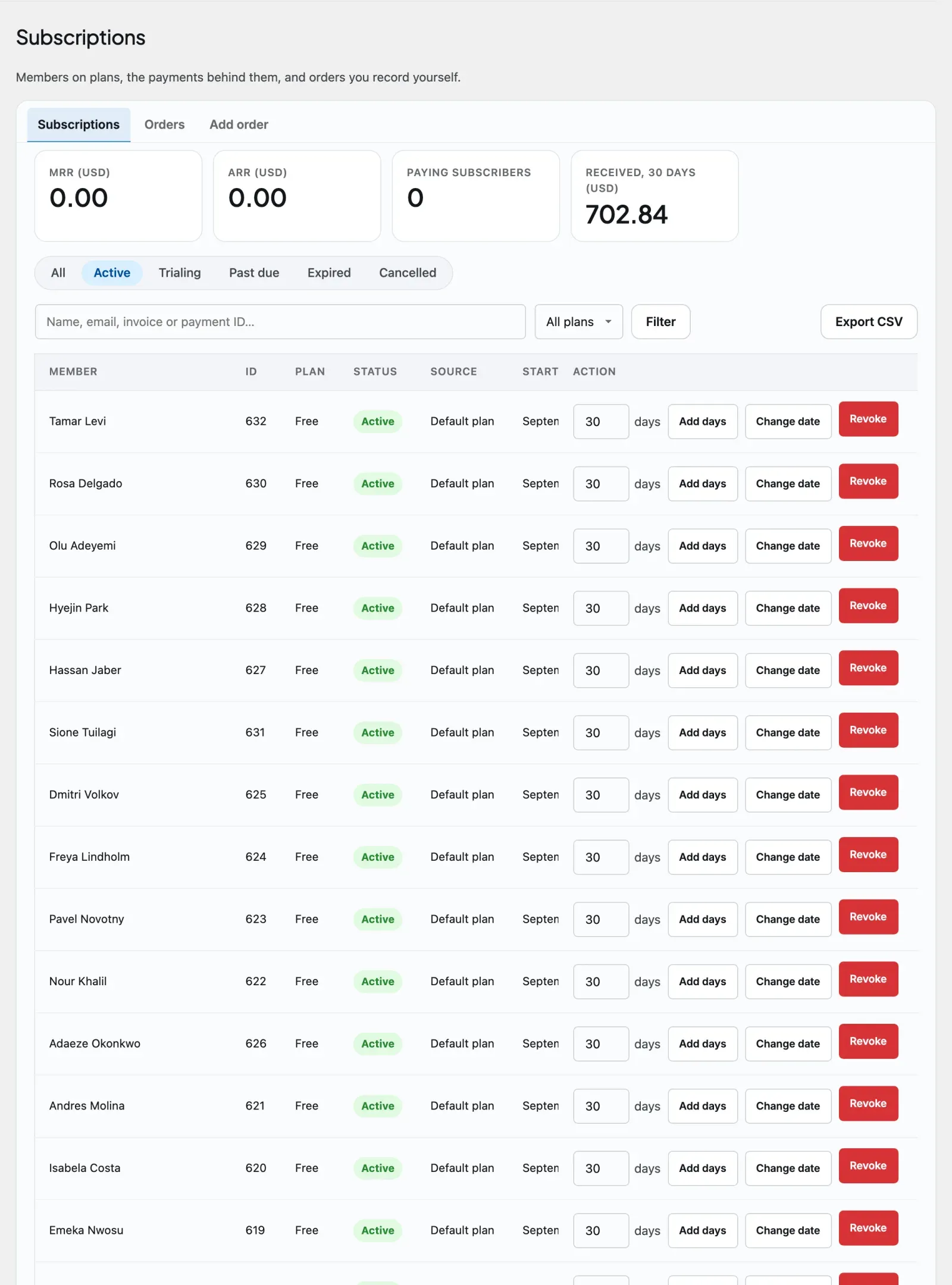
Section titled “Review and manage subscriptions”The Subscriptions tab is your record of who has access. It lists each subscription with the member, the plan, the status, the source (how it was created), the start date, and the expiry.
- Filter by status - switch between All, Active, Trialing, Past due, Expired, and Cancelled. The tab opens on Active.
- Filter by plan - narrow the list to one plan. A search box finds a member by name, email, invoice number, or payment reference.
- Revoke - on an active subscription, immediately ends access and cancels billing at the payment provider first. The record moves to Expired. If the provider refuses the cancellation, a notice on every admin screen names the memberships and the reference to cancel by hand in the provider’s dashboard.
- Reinstate - on an expired or cancelled row, makes it active again from today.
The tab has three views: Subscriptions, Orders, and Add order.
- Export to CSV (1.1.5) - downloads the list carrying whichever filters are on screen, so you export what you are looking at rather than everything. The Orders view has the same button.
A subscription’s source tells you how it was created: a gateway name (such as Stripe or PayPal) for a paid purchase, Granted by admin for access you granted outside checkout, Default plan for the plan every new member is placed on, or Test payment for a Test gateway purchase. A membership granted by another system - WooCommerce, Paid Memberships Pro, or any integration that uses the source contract - is named as that source and is deliberately not counted as revenue this site collected.
Money received, not just projected (1.1.5)
Section titled “Money received, not just projected (1.1.5)”The Subscriptions tab shows a Received, 30 days figure alongside MRR and ARR, one per currency. The distinction matters: MRR and ARR are projections of what recurring plans should bring in, while Received is money that actually arrived. A month with failed payments, refunds or a batch of externally-granted memberships will show the two diverging, and that gap is the number worth looking at.
Add order: record a payment received outside the site
Section titled “Add order: record a payment received outside the site”The Add order view records money that arrived some other way, such as a bank transfer, cheque, or cash. Search for and pick the member, choose the plan, enter the Amount received (prefilled from the plan price), and add a Payment reference (required, so the order can be reconciled and refunded later). Choose Record order: the member gets the plan and the invoice appears in the Orders list. This is the Offline gateway; members never see it at checkout.
One member’s payment history (1.1.5)
Section titled “One member’s payment history (1.1.5)”The edit-member screen carries that member’s recent payments and links through to their full order history, so a support question about a charge does not mean searching the Orders table by hand.
Note: Subscriptions expire automatically. A daily background job flips any subscription whose expiry date has passed to Expired and re-locks the content it unlocked. Subscriptions with no expiry date never time out.
Extending a subscription or changing its renewal date
Section titled “Extending a subscription or changing its renewal date”Each live subscription has two controls in the Subscriptions table:
- Add days - adds the number of days you type to the end date.
- Change date - sets the end date directly, for example to move a member onto the 1st of the month.
For a member who pays by card (Stripe), the next charge moves to the same date, and the extra time is free. The notice after saving says when Stripe will charge them next. PayPal subscriptions cannot be moved from here: the notice tells you to change the date in PayPal instead, and nothing is changed. Granted plans, the default plan and one-time passes simply get the new end date.
Changing plan mid-cycle (1.1.6)
Section titled “Changing plan mid-cycle (1.1.6)”A member does not have to cancel one plan and buy another to move between paid plans. From Settings > Membership they can use Move to another plan, and BuddyNext converts whatever time is left on their current plan into time on the new one - no money changes hands for the switch itself. Moving to a cheaper plan buys more days; moving to a pricier one buys fewer. This is deliberately not a refund-and-recharge: half of BuddyNext’s memberships are billed by another system entirely (WooCommerce, a plan granted through Learnomy, and so on), and a rule that only works when BuddyNext holds the card would mean two different products. Converting time works the same way no matter who took the original payment.
A change is refused, with a plain-language reason, when:
- The member is still in a free trial (nothing has been paid for yet to convert).
- Their current plan never expires (a lifetime grant) - there is no remaining time to move, so this needs a manual switch.
- Either plan is a one-time purchase with no billing term.
- Either plan is priced in points rather than money, or the two plans use different currencies.
- Their current plan has already expired - at that point it is a new purchase, not a conversion.
- The target is a free plan, since there is no price to convert the remaining time into.
- The membership is billed by another system, so its plan cannot be changed here.
Every other move is allowed instantly. The same conversion logic runs behind the member’s own Settings > Membership screen and the REST endpoints (GET /buddynext-pro/v1/me/plan-change/quote and POST /buddynext-pro/v1/me/plan-change) an app would use, so the website and a connected app can never disagree about what a switch is worth.
Granting access without a purchase
Section titled “Granting access without a purchase”Not every member ends up on a plan through checkout. An owner can put a member on any plan directly, using the same door a paid checkout uses, so the entitlements, the gated spaces it opens, and the one-active-plan rule all behave exactly as they would for a real subscription.
- Open the member’s edit screen (see Admin Editing a Member).
- In the Membership section, pick a plan under Assign a plan.
- Set Access until to an end date in the future, or tick Never expires.
- Save the profile. Any plan the member is on now ends, including its billing at the payment provider.
The same section shows the member’s Billing history and links to all their orders. Unlisted plans can be assigned this way. Apps and scripts use the cap-gated REST action POST /buddynext-pro/v1/users/{id}/subscriptions, with a matching .../subscriptions/{sub_id}/cancel to revoke it immediately. A subscription created this way is recorded with the source Granted by admin, as described above.
Selling through another checkout (1.2.5). A payment taken somewhere else, on a checkout page, in Make, Zapier or n8n, can give the buyer their plan without anyone opening wp-admin. The outside tool sends a signed request to your site’s access webhook to grant a plan, extend it when the buyer renews, or cancel it. A cancel lets the member keep access to the end of what they paid for, unless the tool asks for it to end now. If the tool sends the order reference and the amount paid, Monetization > Subscriptions shows them on that member’s row, for example “Order order-1002 · $19.00”, so you can match a plan to a payment. These amounts are not counted in your revenue figures, because BuddyNext did not take the money. Setup is on Platform > Webhooks: see Outbound Webhooks for the owner steps and Webhooks REST for the request format.
Separately, the Plans tab shows a Plans granted by other systems panel whenever a bridge to another Wbcom app or a supported third-party system (WooCommerce, Paid Memberships Pro, and the like) is active. It lists, read-only, which purchase or level on that system currently maps to which BuddyNext plan - so you can see at a glance that, say, a WooCommerce product grants your Premium plan, without visiting that system’s own screen. A mapping that points at a plan you have since deleted is called out so you can fix it. The mapping itself is configured on each system’s own screen, not here.
The printable invoice
Section titled “The printable invoice”Every charge in a member’s payment history has a printable invoice behind it. The member opens it from Settings > Membership and prints it or saves it as a PDF.
The invoice brands itself from settings you have probably already filled in:
- Your logo. It uses the logo from Settings > Appearance - the same one your community’s HTML emails use. Set it once and it appears on both. If you have not set a logo, the invoice prints your site name as a wordmark instead, so it never looks unfinished.
- Your brand colour. The accent on the invoice is your site’s brand colour, also from Settings > Appearance.
Two things about the invoice are worth knowing up front:
- It does not follow dark mode, on purpose. An invoice is a document headed for a printer or a PDF, not a screen you scroll. A dark invoice prints as a black page and wastes a cartridge. It is a deliberately light document on every theme, which is also why it looks identical no matter which theme your site runs.
- Company details are added by a developer, not in a settings field. Businesses need very different things on an invoice - a registered company address, a VAT or GST number, payment terms, a legal footer - and no two countries agree on the set. Rather than grow a settings screen full of fields most owners would leave blank, BuddyNext exposes the invoice’s logo, seller details, footer, colours, and title as filters your developer can set in a few lines. Copy-and-paste snippets for all five are in the developer guide, under Pro and Integration Hooks. Hand that page to whoever maintains your site and the job takes a couple of minutes.
How plans decide who gets which Pro features
Section titled “How plans decide who gets which Pro features”This is the part owners most often get surprised by, so it is worth reading once carefully.
Perks are not only about paid plans. Once you pick a default plan - the plan a member is on when they have not bought anything - that plan decides what a non-paying member gets. Any Pro perk the default plan does not grant becomes a paid perk.
That is the whole point of a membership system, but it has a consequence worth stating plainly: turning memberships on can take Pro features away from members who had them. Scheduled posts, advanced profile fields, saved searches, personal analytics, extra profile pins, and custom reactions are all perks. If your default plan does not include them, your free members no longer have them.
The three states, in plain terms:
| Your setup | What members get |
|---|---|
| Memberships off (the default) | Every Pro feature works for every member. No plan, no perks, no gates. |
| Memberships on, but you have not chosen a default plan | Still nothing is enforced. Plans exist but do not gate anything yet, and an admin notice tells you so. Nothing is taken away from anyone. |
| Memberships on, and you have chosen a default plan | The default plan is now the floor. Members with no subscription get exactly what it grants, and nothing else. |
The shipped Free plan is a starting point, not a neutral one. It grants the social basics and modest limits (3 spaces, 1 pinned post, 6 reactions), and it deliberately does not grant the premium perks. That is a sensible free plan if you are selling upgrades. It is the wrong choice if you only turned memberships on to gate one space and did not intend to take anything else away.
Tip: Before you choose a default plan, open its perk list and read it as your free members will experience it. If you want memberships purely to sell access to one thing, edit your default plan to grant everything except that thing, rather than accepting a free plan that quietly withdraws five features nobody asked you to withdraw. Site administrators are exempt from all of this, which is exactly why it is easy to miss - it will look perfect while you test it and be wrong for everyone else.
Settings reference
Section titled “Settings reference”Plan details are stored on the plan itself. Four site-wide settings sit on the Plans tab: Community access, Monthly renewal day, Default plan for new members, and the read-only Plans granted by other systems panel. The paywall prompt is documented in Gated Spaces, renewal reminder timing in Renewal Reminders, and coupons and tax in Coupons and Tax.
Entitlements that explain themselves (1.0.4)
Section titled “Entitlements that explain themselves (1.0.4)”Every entitlement row in the plan editor carries a one-line explanation of what granting it does - “Members can enter spaces gated to paying plans”, “How many spaces a member on this plan can create” - directly under its toggle or limit. You configure plans without a reference manual open in the next tab.
Good to know
Section titled “Good to know”- The plan’s identifier is permanent. Pick it carefully when you create a plan; you can rename the plan freely afterwards, but its underlying identifier stays fixed.
- Only Active plans are public. Inactive and Archived plans are hidden from the pricing page but kept in your admin, so you can prepare a plan before launch or retire one without deleting its history. Unlisted plans are also left out of the plan list the mobile app and other API clients read; a member who already holds one still sees it.
- The free plan is the baseline. For anyone without an active paid subscription, what they can do falls back to the free plan’s perks, then to the standard default. Set the free plan up deliberately. Turning the free plan off does not make the community paid; for that, choose Paying members only under Community access.
- Deleting a plan cancels its active subscriptions. This is on purpose, so no member is left holding access to a plan that no longer exists. Cancelled and expired records are kept for your reporting.
- One active plan per member. BuddyNext treats a member as being on their most recent active subscription when deciding what they can do.
Free vs Pro
Section titled “Free vs Pro”Membership plans, subscriptions, the pricing and my-membership pages, content protection, and gated spaces are all BuddyNext Pro. BuddyNext Free has no paid-plan or subscription layer.
Within Pro, taking real payments needs a payment gateway. Pro is built to work with whichever gateway you connect. Stripe and PayPal are included for card and PayPal payments, a Points gateway lets members redeem gamification points, an Offline gateway lets you record bank transfers yourself, and a Test gateway lets you try checkout without real money. See Payment Gateways. If a plan has no gateway price linked yet, the upgrade prompt falls back to a plain call-to-action link you set, so the offer still points members somewhere even before billing is fully connected.
Requirements
Section titled “Requirements”- BuddyNext Pro active alongside BuddyNext.
- A connected payment gateway (Stripe or PayPal, or another connected gateway) to charge members through checkout. Without one, you can still define plans and grant access by hand while you finish setting up.
Related
Section titled “Related”- Gated Spaces - require an active plan to enter a space.
- Learnomy integration - map a plan to Learnomy course or space access, so buying a plan grants the learning too.
- Payment Gateways - connect a gateway so members can pay for a plan.
- Ways to Make Money - choose between subscriptions, gated spaces, and paywalls.
- Launch a Paid Community - set plans up end to end.