

Backgrounds
Go to WB Plugins - Quotes - General to manage backgrounds, categories, typography and who can post quotes.
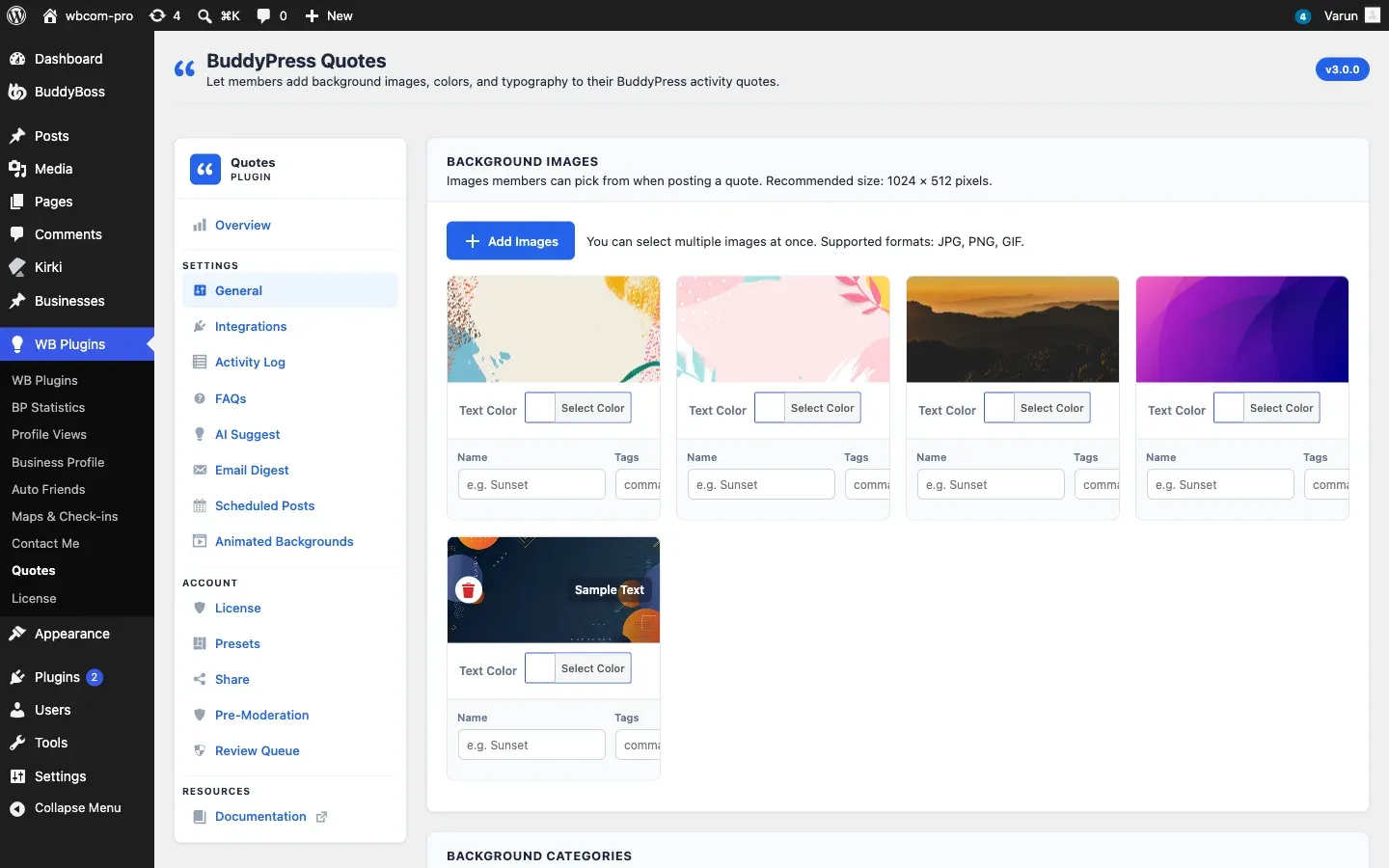
Background Images
Section titled “Background Images”Recommended size: 1024 x 512 pixels. Supported formats: JPG, PNG, GIF.
Add Images
Section titled “Add Images”- Click Add Images.
- Pick one or more files from the Media Library, or upload new ones.
- Each image appears as a card with these fields:
| Field | What it does |
|---|---|
| Text Color | Color of the quote text on this image. The default is white, so pick a dark color for light images. |
| Name | Label for search, for example “Sunset”. |
| Tags | Comma-separated words members can search for. |
| Category | Puts the image under one of your category tabs. “All” means no category. |
Click the trash icon on a card to remove an image, then click Save Settings. The file stays in your Media Library.
Background Categories
Section titled “Background Categories”Categories become tabs in the member picker.
- In Background Categories, click Add category and type a name such as “Motivational”.
- Use the Category list on each image or color to assign it.
- Click Save Settings.
The tabs show only when you define two or more categories. The All tab always shows every background.
Background Colors and Gradients
Section titled “Background Colors and Gradients”Add a solid color
Section titled “Add a solid color”- Choose a Background Color and a Text Color. The preview shows how the text reads.
- Click Auto Contrast to pick a readable text color for you.
- Click Add Color.
Add a gradient
Section titled “Add a gradient”- Click Add gradient.
- Pick Stop 1 and Stop 2, an Angle (0 to 315 degrees in steps of 45) and a Text color.
- Check the live preview and click Save gradient.
Each color or gradient card has Name, Tags and Category fields, the same as images. Click Save Settings when you finish.
Display Options
Section titled “Display Options”Shuffle Background Order: when on, the picker shows backgrounds in a random order each time it opens. When off, they appear in the order you added them. It is on by default.
Typography
Section titled “Typography”These settings style quote text in the activity feed, for every background.
| Option | Default | Notes |
|---|---|---|
| Font Family | Theme Default | Arial, Helvetica, Times New Roman, Georgia, Courier New, Verdana, Merriweather, Lora, Playfair Display, Montserrat, Open Sans, Roboto, Lato, Poppins, Dancing Script or Pacifico |
| Font Size | 18 | 12 to 48 pixels |
| Font Weight | Normal | Normal, Light, Regular, Medium, Semi Bold, Bold, Bold (700), Extra Bold or Black |
| Line Height | 1.4 | 1.0 to 3.0 |
| Text Alignment | Center | Left, Center, Right or Justify |
| Letter Spacing | 0 | -2 to 10 pixels |
| Text Effects | Off | Shadow, UPPERCASE and italic, each its own checkbox |
Fonts that are not on every computer (the last ten in the font list) load from Google Fonts, and only when you choose one of them. The plugin adds the right script set for languages such as Hindi, Japanese, Arabic and Hebrew.
Who Can Post Quotes
Section titled “Who Can Post Quotes”Who Can Post Quote Backgrounds lists your member roles. Tick the roles that may add a quote background, or use Select all and Clear all. Other roles do not see the picker, and a background sent by them is ignored when the update is saved. Administrators always have access. New installs tick every role except administrator.
The Overview tab warns you if you have no backgrounds or no roles selected.