

AI Suggestions
Go to WP Admin - BuddyPress Quotes - AI Suggest to configure the AI suggestion feature.
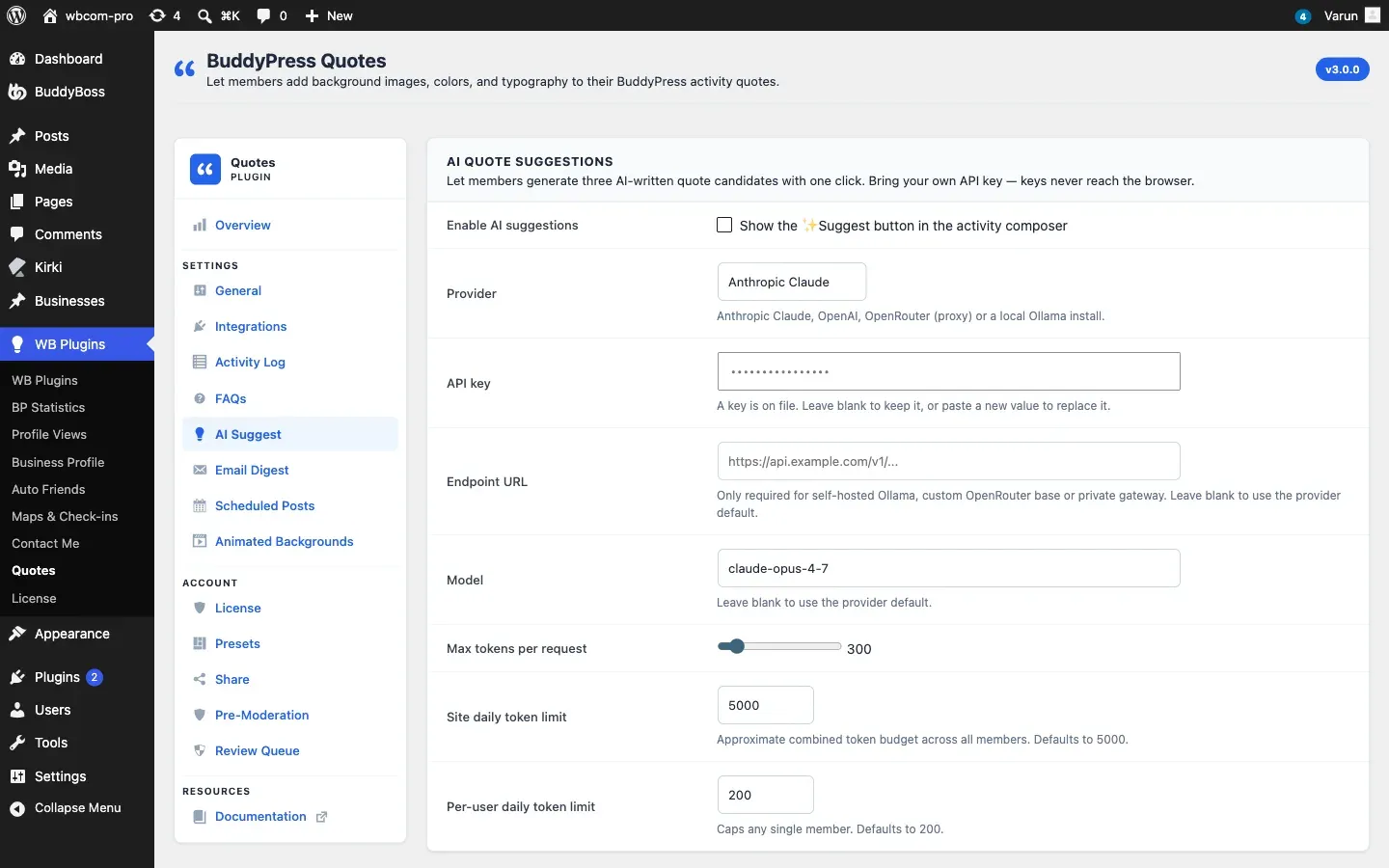
How AI Suggestions Work
Section titled “How AI Suggestions Work”When AI suggestions are enabled, a Suggest button appears in the activity composer for members who are composing a quote. The member types a short prompt (a topic, mood, or theme) and the plugin calls the configured AI provider to generate candidate quote text. Members can pick one of the suggestions or ignore them entirely.
The feature is opt-in and gated behind daily caps to keep API costs predictable. The Suggest button appears only once a provider and API key are configured.
Choosing a Provider
Section titled “Choosing a Provider”BuddyPress Quotes supports four AI providers. You bring your own API key for each.
| Provider | Model family | Notes |
|---|---|---|
| Anthropic | Claude | Strong quality for creative writing; requires an Anthropic API key |
| OpenAI | GPT | Widely familiar; requires an OpenAI API key |
| Ollama | Any locally served model | Self-hosted; no per-request cost; needs Ollama running on a server you control; no API key required |
| OpenRouter | Many models via one key | Useful if you want to switch models without changing API providers |
Select your provider from the Provider dropdown and enter the corresponding API key.
API Key Security
Section titled “API Key Security”Your API key is stored in the WordPress database under the plugin’s integration settings option (bpquotes_mycred_settings) and is used only in server-to-server calls. It is never sent to the browser and does not appear in any REST API response. Members cannot access it. Saving the AI tab with a blank key field keeps your stored key intact rather than clearing it.
Daily Usage Caps
Section titled “Daily Usage Caps”| Option | Default | Description |
|---|---|---|
| Daily requests per site | 100 | Total suggestions the plugin will request from the AI provider per day across all members. |
| Daily requests per user | 10 | Maximum suggestions one member can request per day. |
When a cap is reached, the Suggest button shows a “quota reached” message and no further API calls are made until the counter resets.
Additional Settings
Section titled “Additional Settings”| Option | Default | Description |
|---|---|---|
| Suggestions per request | 3 | Number of candidate quotes returned each time a member clicks Suggest (1 to 5). |
| Request timeout | 10 s | How long the plugin waits for the AI provider to respond before giving up. Filterable with bpquotes_ai_request_timeout. |
Content Safety Reports
Section titled “Content Safety Reports”Members can report an AI-generated suggestion they find inappropriate using a Report control next to each suggestion. Admin-level users can review submitted reports in the reports table on the AI Suggest tab.
To view reports programmatically, use the GET /wp-json/bpquotes/v1/ai/reports REST endpoint. See the REST API Reference.
Disabling AI Suggestions
Section titled “Disabling AI Suggestions”To turn off the feature, clear the provider selection or remove your API key and save. The Suggest button will not appear in the composer when no provider and key are configured.