

Badge Management
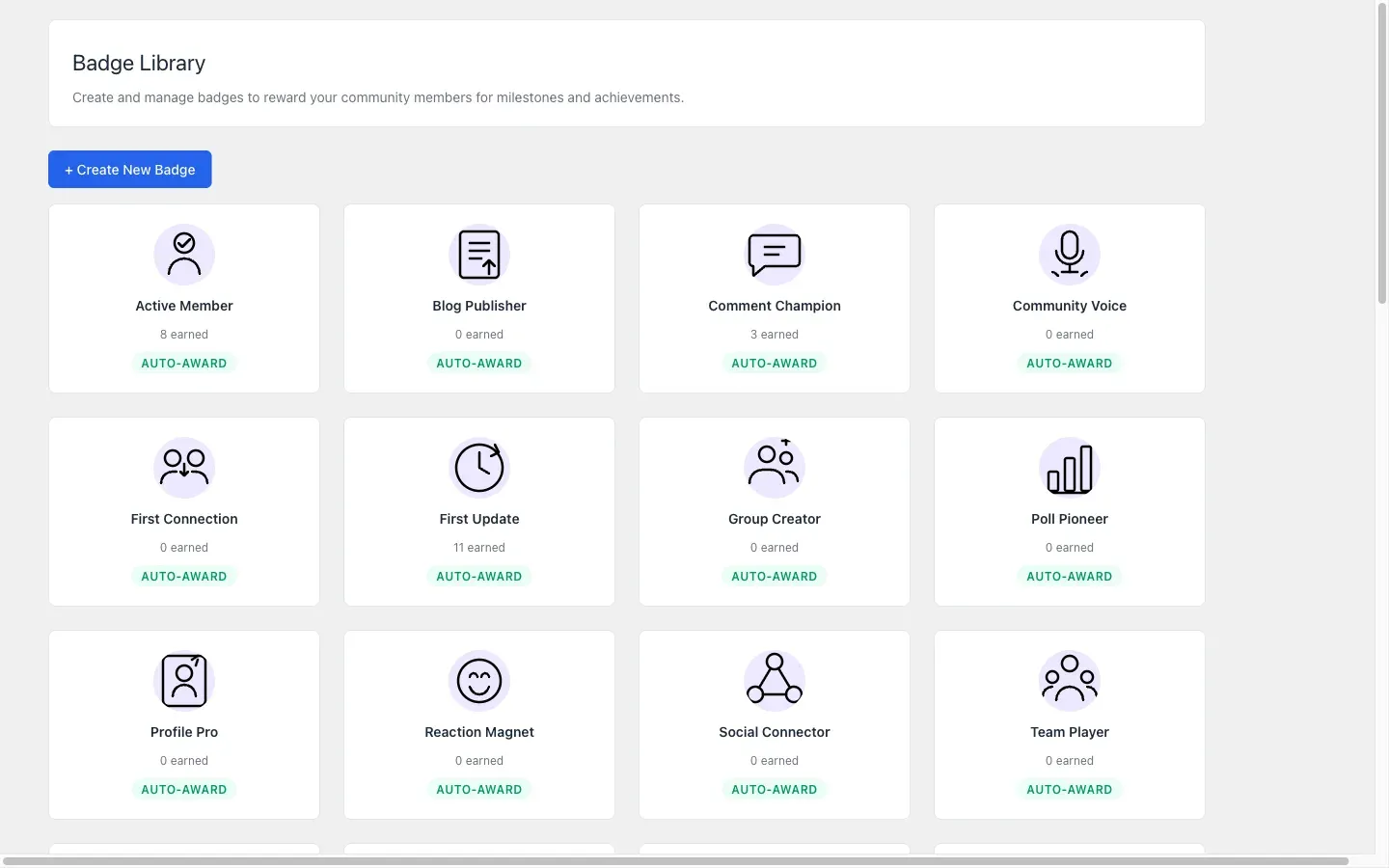
Go to WB Gamification > Badges in your admin menu.
Badges are visual rewards that recognize specific milestones, achievements, or behaviors. Members earn them automatically or receive them from an admin. The badge library shows all badges in a grid. Each card shows the badge icon, name, how many members have earned it, and whether it awards automatically or requires manual granting.
Creating a New Badge
Section titled “Creating a New Badge”Click + Create New Badge in the toolbar. A form appears with two sections: badge details and award condition.
Badge Details
Section titled “Badge Details”| Field | Required | Description |
|---|---|---|
| Badge ID | Yes | A unique machine-readable identifier. Lowercase letters, numbers, and underscores only (e.g. first_post). Cannot be changed after creation. |
| Name | Yes | The display name shown to members when they earn the badge (e.g. “First Post”). |
| Description | No | Explains what the badge is for. Shown on badge cards and the public share page. |
| Icon | No | An image from your Media Library. Recommended size: 128×128 px PNG with a transparent background. Click Choose Icon to open the media picker. Click Remove to clear it. |
| Category | No | Groups badges in the frontend showcase. Options: General, Points, WordPress, BuddyPress, Special. |
| Is Credential | No | Marks the badge as a verifiable OpenBadges 3.0 credential. Members can share a verified badge URL - useful for professional achievements on LinkedIn. |
| Closes at | No | A date and time after which no new members can earn this badge. Leave blank for no cutoff. Displayed in your site’s timezone. |
| Max earners | No | The maximum number of members who can earn this badge. Once reached, the badge stops auto-awarding. Leave blank for unlimited. |
Auto-Award Condition
Section titled “Auto-Award Condition”This section controls how the badge is awarded.
| Condition | When it awards |
|---|---|
| Admin awarded only (manual) | The badge is never awarded automatically. Only admins can grant it via the Award Points page or the Badges page. |
| Reaches a point milestone | Awards automatically when a member’s total points reach or exceed a threshold you specify. Enter the point value in Points Threshold. |
| Performs an action N times | Awards automatically when a member completes a specific action a set number of times. Choose the Action from the dropdown and enter the Target Count. |
Click Create Badge to save.
Editing a Badge
Section titled “Editing a Badge”Click any badge card in the grid to open its edit form. All fields are editable except the Badge ID. Change what you need and click Save Changes.
Deleting a Badge
Section titled “Deleting a Badge”While editing a badge, click Delete Badge. Confirm the prompt. This permanently removes the badge definition and all earned records. Members who previously held the badge will lose it from their profiles.
The 30 Default Badges
Section titled “The 30 Default Badges”The plugin ships with 30 pre-built badge definitions covering common milestones (first post, point milestones, social actions, tenure). They appear in the badge grid on a fresh install. You can edit, delete, or supplement them with your own.