

Points & Actions
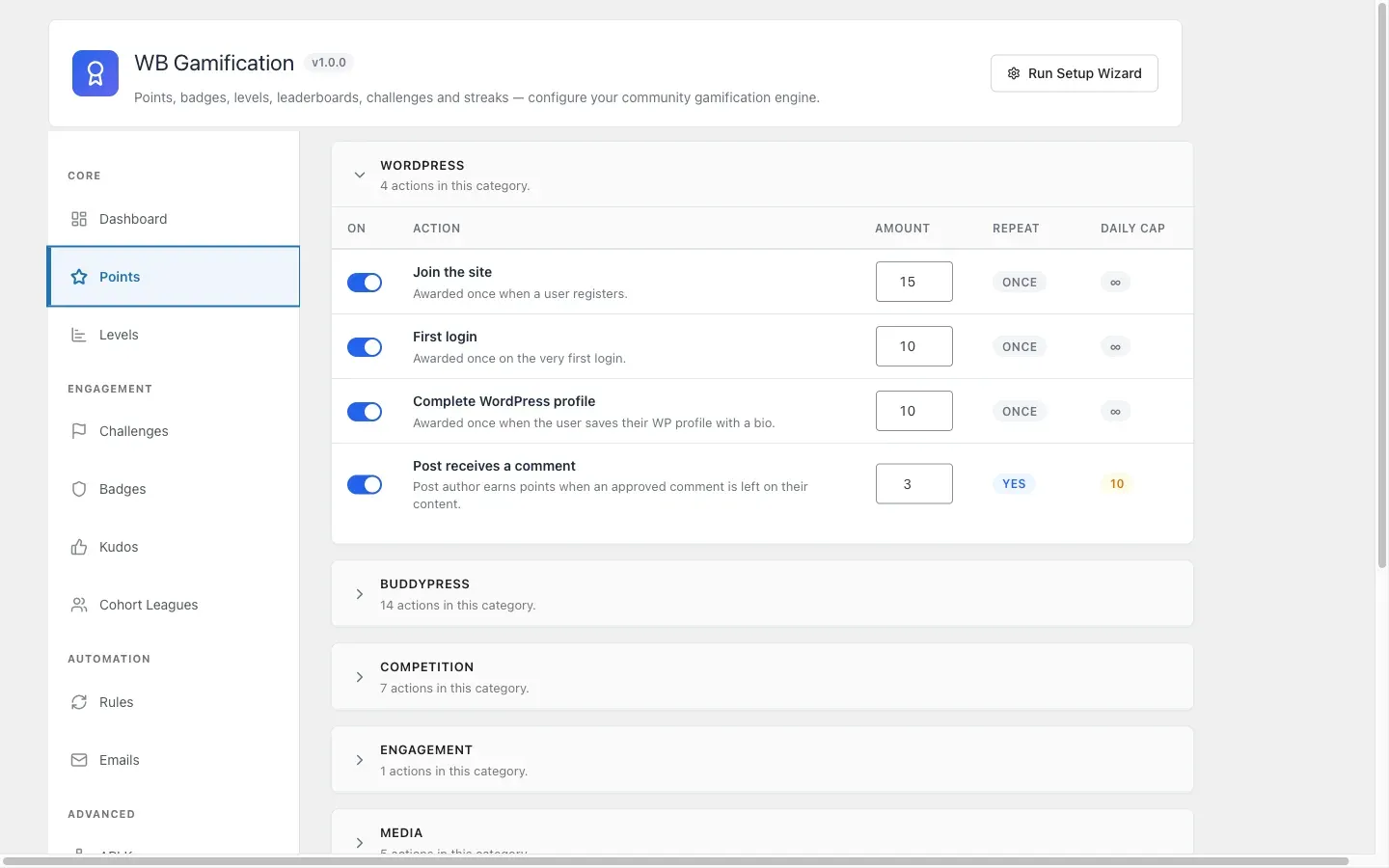
Go to WB Gamification > Points in your admin sidebar.
The Actions Table
Section titled “The Actions Table”Each row represents one user behavior that can earn points. Actions are detected automatically from active plugins - no setup required. You will not see any rows until at least one supported plugin (WordPress core, BuddyPress, WooCommerce, etc.) is active.
The table has five columns:
| Column | What it controls |
|---|---|
| On | Checkbox. Uncheck to disable the action entirely. Disabled actions earn zero points and fire no badges or challenges. |
| Action | The name and description of the behavior, e.g. “Publish a post” or “Upload media.” |
| Points | How many points a member earns each time this action fires. Enter any whole number from 0 to 9999. |
| Repeat | Whether the action can be earned more than once. Yes means every occurrence earns points. Once means the member earns points only the first time. This is set per-action in the manifest and cannot be changed from the admin. |
| Daily cap | The maximum number of times this action counts in a single day. Shows a number or ∞ (unlimited). Like Repeat, this is defined in the manifest and is read-only in the table. |
Changing point values
Section titled “Changing point values”- Find the action row.
- Edit the number in the Points column.
- Click Save Changes at the bottom of the page.
Changes take effect immediately for any future action. Past points are not recalculated.
Enabling and disabling actions
Section titled “Enabling and disabling actions”Uncheck the On toggle next to any action and save. Members performing that action will no longer earn points, badges, or challenge progress from it.
Action categories
Section titled “Action categories”Actions are grouped into cards by category:
| Category | Source |
|---|---|
| WordPress | Core WordPress events - publishing posts, comments, user registration |
| BuddyPress | Social events - profile updates, activity posts, friendships, group joins |
| Commerce | WooCommerce - purchases, product reviews |
| Learning | LearnDash - course completions, quiz scores |
| Social | Reactions, kudos, and other peer-recognition events |
| General | Actions from other integrations or custom manifests |
If a category does not appear, the plugin that provides it is not active on your site.
Understanding “Repeatable”, “Cooldown” and “Daily Cap”
Section titled “Understanding “Repeatable”, “Cooldown” and “Daily Cap””Repeatable: Once - Useful for one-time milestones like “Complete your profile” or “Write your first post.” The member earns the points exactly one time, no matter how many times they perform the action.
Repeatable: Yes - The action counts every time. Use the Cooldown and Daily Cap fields to prevent abuse.
Cooldown (seconds) - Editable in 1.4.0. The minimum gap between two awards of the same action for the same member. Set bp_activity_comment to a 60-second cooldown so a member can not earn points for 50 comments posted in 30 seconds. Set to 0 to disable the cooldown.
Daily cap - Editable in 1.4.0. A hard ceiling on how many times an action can earn points in one calendar day in the site time zone (Settings > General). For example, if commenting has a daily cap of 10, a member who posts 50 comments earns points for only the first 10 each day. Set to 0 to allow unlimited awards per day.
Both Cooldown and Daily cap are editable directly in the actions table. Type a new value and click outside the field - the change saves automatically (no Save button needed). A short green flash confirms the save.
Setting either field to 0 is itself a saved override that turns the limit off - it does not restore the manifest default value. To revert to the manifest default (for example, to put a 60-second cooldown back after you set it to 0), call DELETE /wp-json/wb-gamification/v1/actions/{action_id}/overrides via REST or remove the action’s row from the wb_gam_action_overrides site option.
Overrides are stored in the wb_gam_action_overrides site option, keyed by action ID. The engine merges overrides on top of the manifest values, so the same effective values are used by rate-limit checks, the admin display, and REST consumers.
Log Retention
Section titled “Log Retention”Below the action categories, the Log Retention card controls how long the points history table keeps rows.
| Field | Default | Range |
|---|---|---|
| Keep points history for | 6 months | 1–24 months |
Rows older than this value are pruned automatically by WP-Cron once per day. The events table (the source of truth) is never pruned. This means you can always recalculate totals from events even after the points log is trimmed.
Reduce this value on high-traffic sites to keep the database lean. Increase it if you rely on per-period analytics.
Click Save Changes to apply.