

Sign-in protection (Login security)
Also called: login protection, brute force protection, too many login attempts, locked out, spam trap, honeypot, bot protection.
What this does
Section titled “What this does”Wbcom Essential protects the sign-in forms it provides. The protection is on by default and needs no setup. It stops bots that fill in hidden fields. It also slows down anyone who guesses passwords.
| Protection | How it works |
|---|---|
| Lockout | After 5 failed sign-ins from the same IP address, that address is locked out for 15 minutes. A successful sign-in clears the count. |
| Spam trap (honeypot) | The Elementor Login Form widget and the EDD Account Dashboard login form have a hidden field that people never see. A sign-in that fills it in is rejected with “Login attempt rejected.” |
| Same message for every wrong login | The Elementor Login Form widget says “The username or password is incorrect. Please try again.” for an unknown username and for a wrong password. It does not reveal which usernames exist. |
The lockout covers any sign-in that goes through WordPress’s own login check. That includes wp-login.php, the Elementor Login Form widget, the Login Form block and the EDD Account Dashboard login.
You do not need to do anything. To check that it works:
- Open a sign-in form on your site in a private browser window.
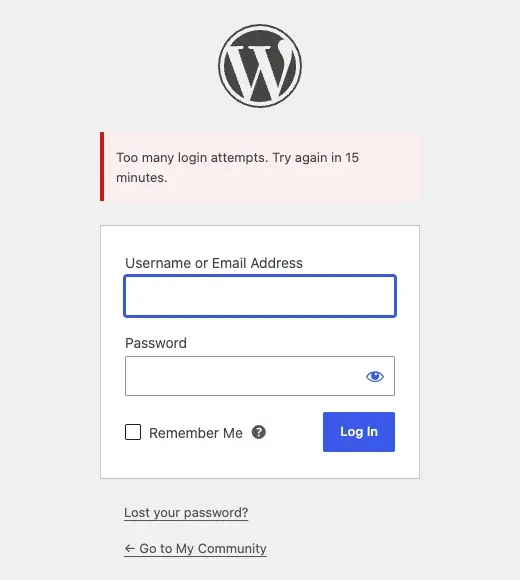
- Enter a wrong password 5 times in a row.
- Try a sixth time.
You’ll know it worked when
Section titled “You’ll know it worked when”You see “Too many login attempts. Try again in N minutes.” The lockout is per IP address, so other visitors are not affected.
Good to know
Section titled “Good to know”How do I get back in after a lockout?
Section titled “How do I get back in after a lockout?”Wait for the time shown in the message. The lockout ends on its own after 15 minutes.
Why does the lockout hit many visitors at once?
Section titled “Why does the lockout hit many visitors at once?”If your site sits behind Cloudflare or a load balancer, every visitor can look like they come from one address. Tell the plugin which proxy addresses to trust, as shown under For developers.
Can I change the limits or turn it off?
Section titled “Can I change the limits or turn it off?”Yes. A developer or site builder can change the number of attempts and the lockout time. You can also switch the protection off if you run a security plugin such as Wordfence or Solid Security. See For developers.
For developers
Section titled “For developers”Sites behind a proxy or CDN
Section titled “Sites behind a proxy or CDN”By default the lockout uses the visitor’s IP address as the server sees it. Headers such as X-Forwarded-For are ignored, because a visitor can fake them.
List your proxy’s addresses so the lockout can read the real visitor address. Add this to a small plugin or your child theme’s functions.php:
add_filter( 'wbcom_essential_login_security_trusted_proxies', function () { return array( '203.0.113.10', '198.51.100.0/24', '2001:db8::/32' );} );Each entry is an IP address or a range in CIDR form, IPv4 or IPv6. Only requests from a listed proxy are read from the forwarded headers (CF-Connecting-IP, X-Forwarded-For, then X-Real-IP). Use the address ranges your proxy publishes.
Change the limits
Section titled “Change the limits”The defaults are 5 failed attempts and a 15-minute lockout. To change them, add these lines to wp-config.php above the line that says “That’s all, stop editing”:
define( 'WBCOM_ESSENTIAL_LOGIN_MAX_ATTEMPTS', 10 );define( 'WBCOM_ESSENTIAL_LOGIN_LOCKOUT_MINUTES', 30 );Turn the protection off
Section titled “Turn the protection off”add_filter( 'wbcom_essential_login_security_enabled', '__return_false' );To change how the IP address is worked out, filter wbcom_essential_login_security_client_ip. See Hooks and Filters.
Related
Section titled “Related”- Design and content widgets for the Login Form widget
- Content blocks for the Login Form block
- Troubleshooting