

Change the settings (Configure settings)
Reign Tutor LMS Addon overviewPremiumGet Reign Tutor LMS Addon →
Also called: add-on settings, Tutor LMS settings in Reign, Integrations tab, save changes, reset to defaults, course page options.
What this does
Section titled “What this does”All the add-on’s options sit on one screen. A new install works without saving anything. The screen is made of cards, one for each part of your course site.
- Go to Reign Settings > Integrations, then Configure on the Tutor LMS tile.
- Find the card you want.
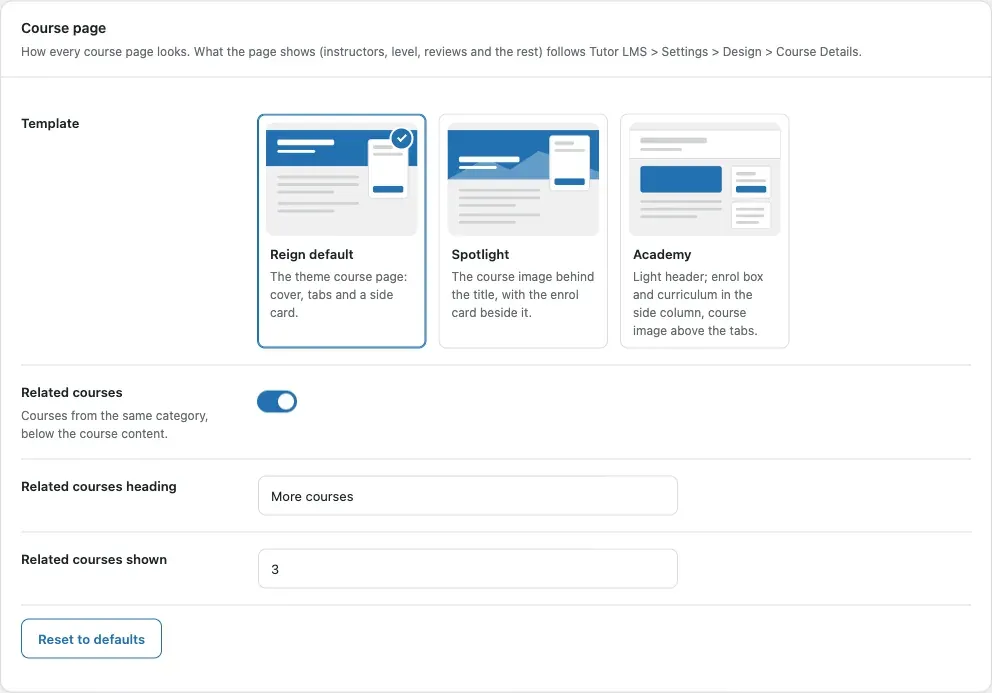
- Change the options.
- Click Save changes. This saves every card on the screen.
- To undo one card, click Reset to defaults on that card. The other cards keep their values.
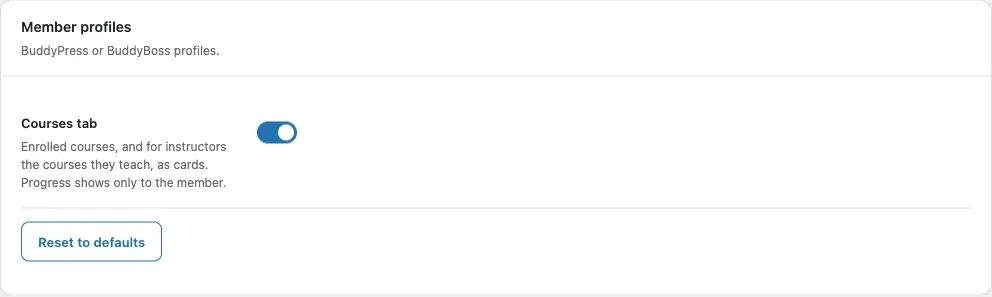
| Card | Shows when | Settings |
|---|---|---|
| Course page | Always | Template, Related courses, heading and count. |
| Course cards | Always | Style and Cards show. |
| Member profiles | BuddyPress, BuddyBoss or PeepSo is active | Courses tab. |
| Shortcodes | Always | Copy-ready examples. No settings. |
| Tutor LMS settings and help | Always | Links to Tutor LMS settings, the docs and support, and a list of outdated template overrides. |
You’ll know it worked when
Section titled “You’ll know it worked when”The screen says “Settings saved.” After a reset, it says “Card reset to its defaults.”
Good to know
Section titled “Good to know”Why is a card missing?
Section titled “Why is a card missing?”A card shows only when its feature can run. The Member profiles card needs BuddyPress, BuddyBoss or PeepSo. A hidden card keeps its saved values for when the plugin comes back.
What if I change nothing?
Section titled “What if I change nothing?”Only values you change are saved. The rest keep following the defaults. If a default changes later, your site gets the new one.
Where are the columns and courses per page?
Section titled “Where are the columns and courses per page?”In Tutor LMS > Settings > Design. The add-on does not repeat Tutor’s settings.