

Course grid and list styles (Course cards)
Reign Tutor LMS Addon overviewPremiumGet Reign Tutor LMS Addon →
Also called: course grid, course list, course archive layout, course tiles, course thumbnails, course loop, courses page style, card style.
What this does
Section titled “What this does”The add-on restyles Tutor LMS’s own course card. It does not replace the card or the course list. The price, cart, wishlist, rating and Tutor’s filter bar keep working.
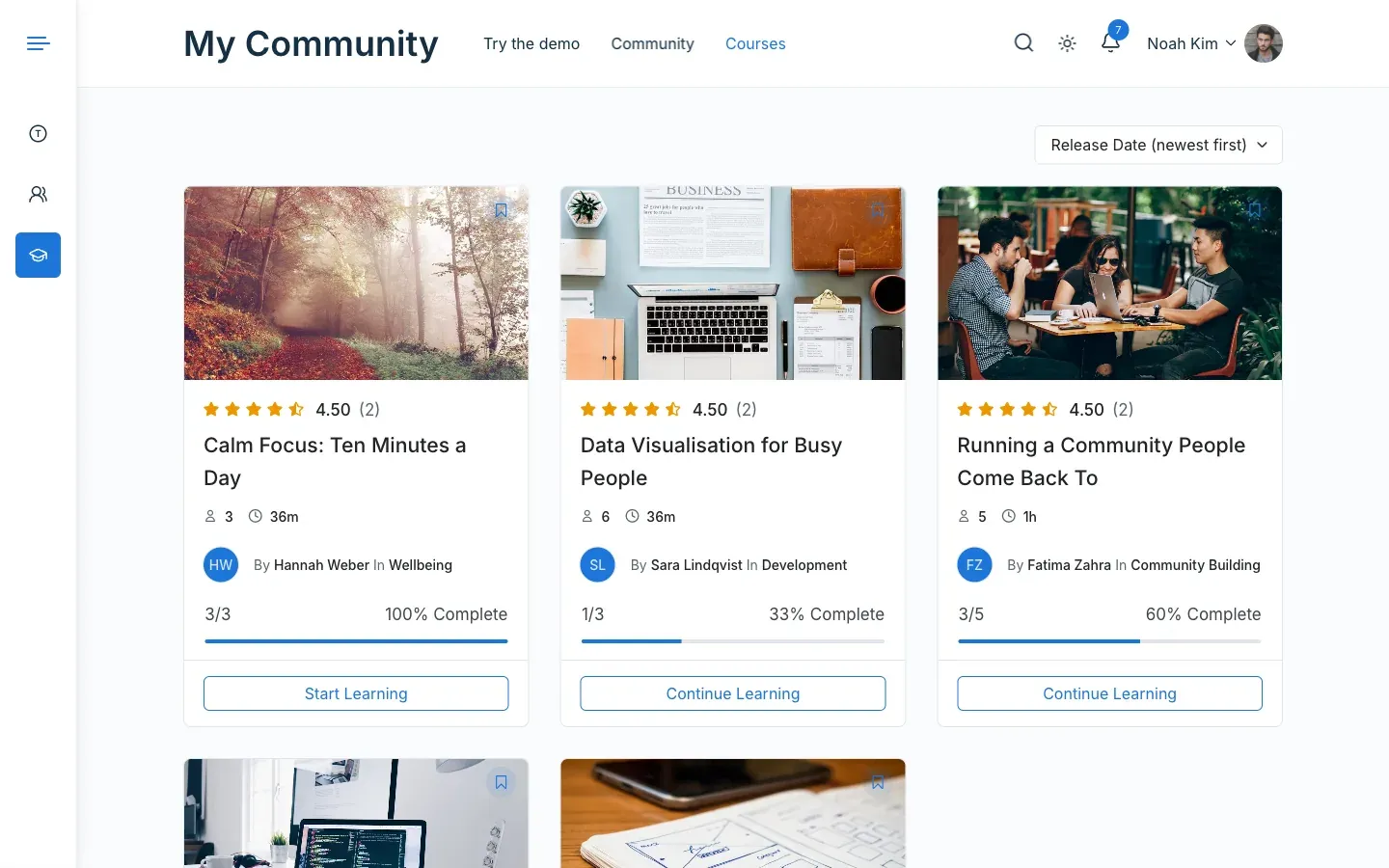
The style applies on the courses page, course category pages, related courses, the profile Courses tab and the [reign_tutor_course] shortcode.
- Go to Reign Settings > Integrations, then Configure on the Tutor LMS tile.
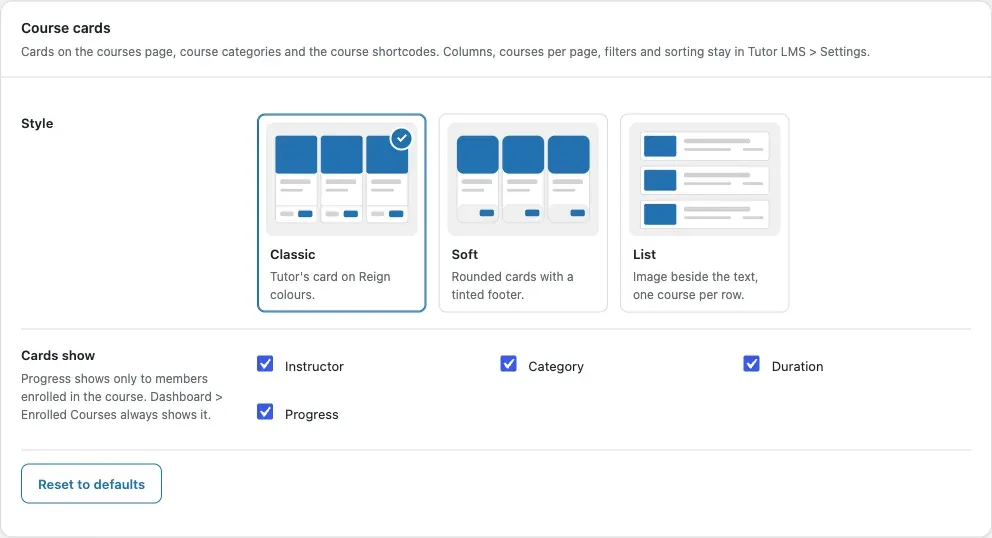
- In the Course cards card, pick a Style.
- Under Cards show, tick what each card shows: Instructor, Category, Duration and Progress.
- Click Save changes.
| Style | Looks like |
|---|---|
| Classic | Tutor’s card in Reign colours. |
| Soft | Rounded cards with a tinted footer. |
| List | The image beside the text, one course per row. On phones it stacks. |
You’ll know it worked when
Section titled “You’ll know it worked when”Open your courses page. The cards use the style you picked and show only the parts you ticked.
Good to know
Section titled “Good to know”Why can’t I see progress on a card?
Section titled “Why can’t I see progress on a card?”Progress shows only to a member who is enrolled in that course. Dashboard > Enrolled Courses in Tutor LMS always shows it. See Troubleshooting.
How do I show or hide the number of students?
Section titled “How do I show or hide the number of students?”The number of enrolled students follows Tutor’s own Total Enrolled switch in Tutor LMS > Settings > Design > Course Details.
Where do I set the columns, courses per page, filters and sorting?
Section titled “Where do I set the columns, courses per page, filters and sorting?”These stay in Tutor LMS. Use Tutor LMS > Settings > Design and Tutor LMS > Settings > Course.
Can I use a different style on one page?
Section titled “Can I use a different style on one page?”Yes. Add layout_style to the shortcode. See Course list shortcode.