

Course page layouts (Course page templates)
Reign Tutor LMS Addon overviewPremiumGet Reign Tutor LMS Addon →
Also called: single course page, course landing page, course details page, course header, enrol box, course sidebar, Spotlight, Academy.
What this does
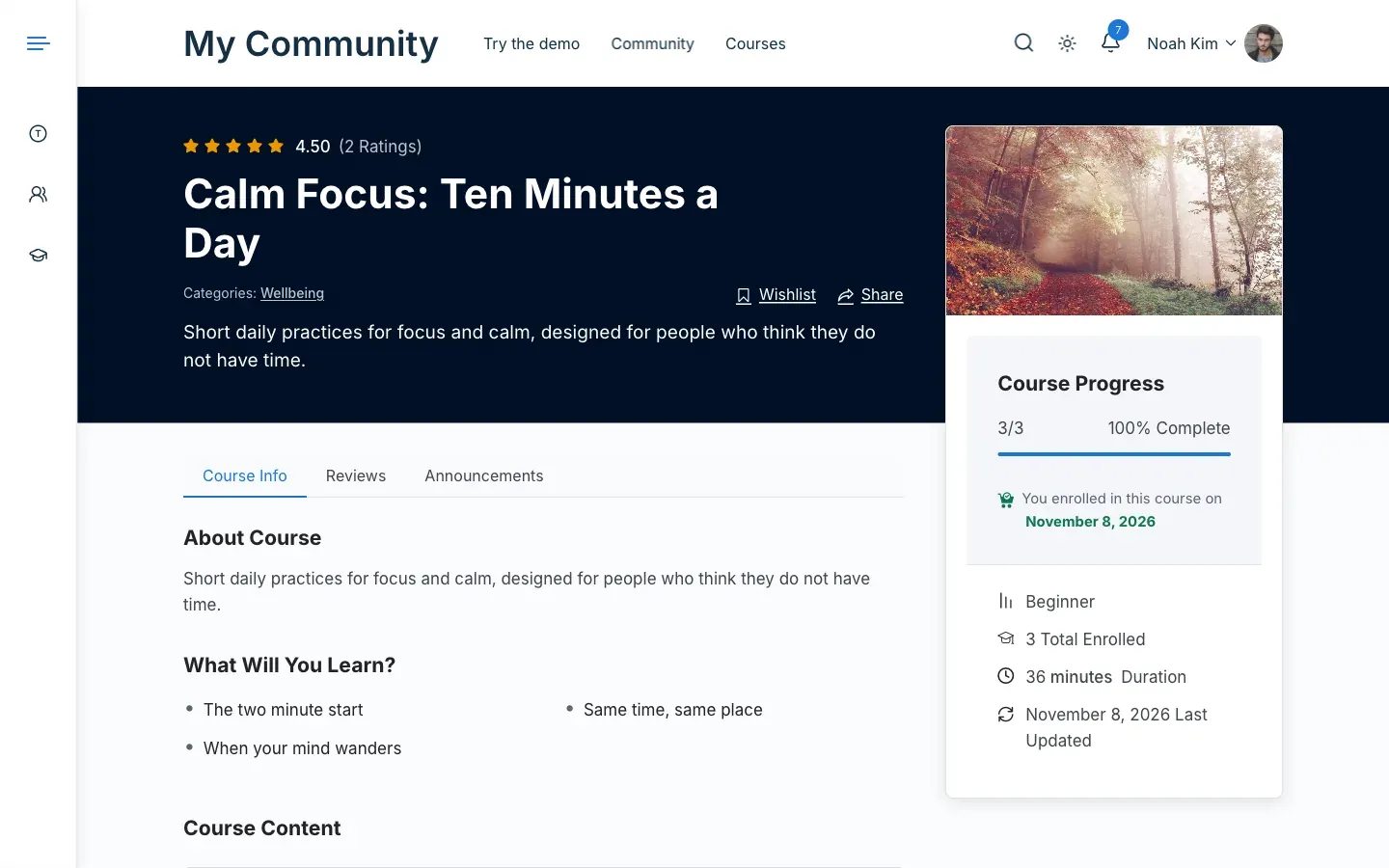
Section titled “What this does”Reign 8.1.0 builds the Tutor LMS course page from sections: cover, tabs, side card, instructors and the rest. Tutor LMS’s own functions fill each section. The add-on gives you three ways to arrange them.
It never copies Tutor’s templates, so Tutor updates and Tutor add-ons keep working.
- Go to Reign Settings > Integrations, then Configure on the Tutor LMS tile.
- In the Course page card, pick a Template. The choice applies to every course.
- Click Save changes.
| Template | Looks like |
|---|---|
| Reign default | The theme course page: cover with the title and course facts, tabs, and a side card with the price and enrol button. |
| Spotlight | The course image fills the header behind the title, with the enrol card beside it. If the course has an intro video, the video stays in the card. |
| Academy | A light header. The enrol box and the curriculum sit in the side column. The course image or video sits above the tabs. |
You’ll know it worked when
Section titled “You’ll know it worked when”Open any course. The page uses the layout you picked.
Good to know
Section titled “Good to know”Why does Academy change the Course Info tab?
Section titled “Why does Academy change the Course Info tab?”Academy changes what Tutor’s Course Info tab prints. It shows the course description, then the benefits list (“What will I learn”). The other layouts leave that tab as Tutor ships it.
How do I show or hide parts of the course page?
Section titled “How do I show or hide parts of the course page?”Use Tutor LMS, not the add-on. Go to Tutor LMS > Settings > Design > Course Details. There you control instructors, level, reviews, Q&A, the Course Info tab and the rest. Switch a part off and it is gone from every layout.
Do Tutor LMS Pro features still work?
Section titled “Do Tutor LMS Pro features still work?”Yes. Reviews, wishlist, certificates and content drip show the way Tutor ships them.
Why does my course page look like plain Tutor LMS?
Section titled “Why does my course page look like plain Tutor LMS?”Reign draws the course page only while its course layout is on. In the Customizer, go to Content Layouts, open Course page and set Course page layout to Reign.
Can one course use a different layout?
Section titled “Can one course use a different layout?”Not from the screen. Tutor LMS 4 edits courses in its own course builder, so there is no box for each course. A developer can do it with a filter. See below.
For developers
Section titled “For developers”To give one course a different template, use the reign_tutor_course_template filter. See Hooks and filters.