

Course page, related courses and course list (catalog)
Reign LifterLMS Addon overviewPremiumGet Reign LifterLMS Addon →
Also called: course page layout, course list, course grid, course catalog, course cards, related courses, student dashboard icons, membership list, courses per row
What this does
Section titled “What this does”These options change how a single course looks, how the course list (the catalog) looks, and how the student dashboard menu looks. They are in the LifterLMS screen of Reign Settings. Every option already has a working default.
Before you start
Section titled “Before you start”Turn on the Reign course layout, or the Spotlight layout does nothing. See Set up LifterLMS for Reign.
- Open Reign Settings > Integrations, then Configure on the LifterLMS tile. Each option has a short help line under its name.
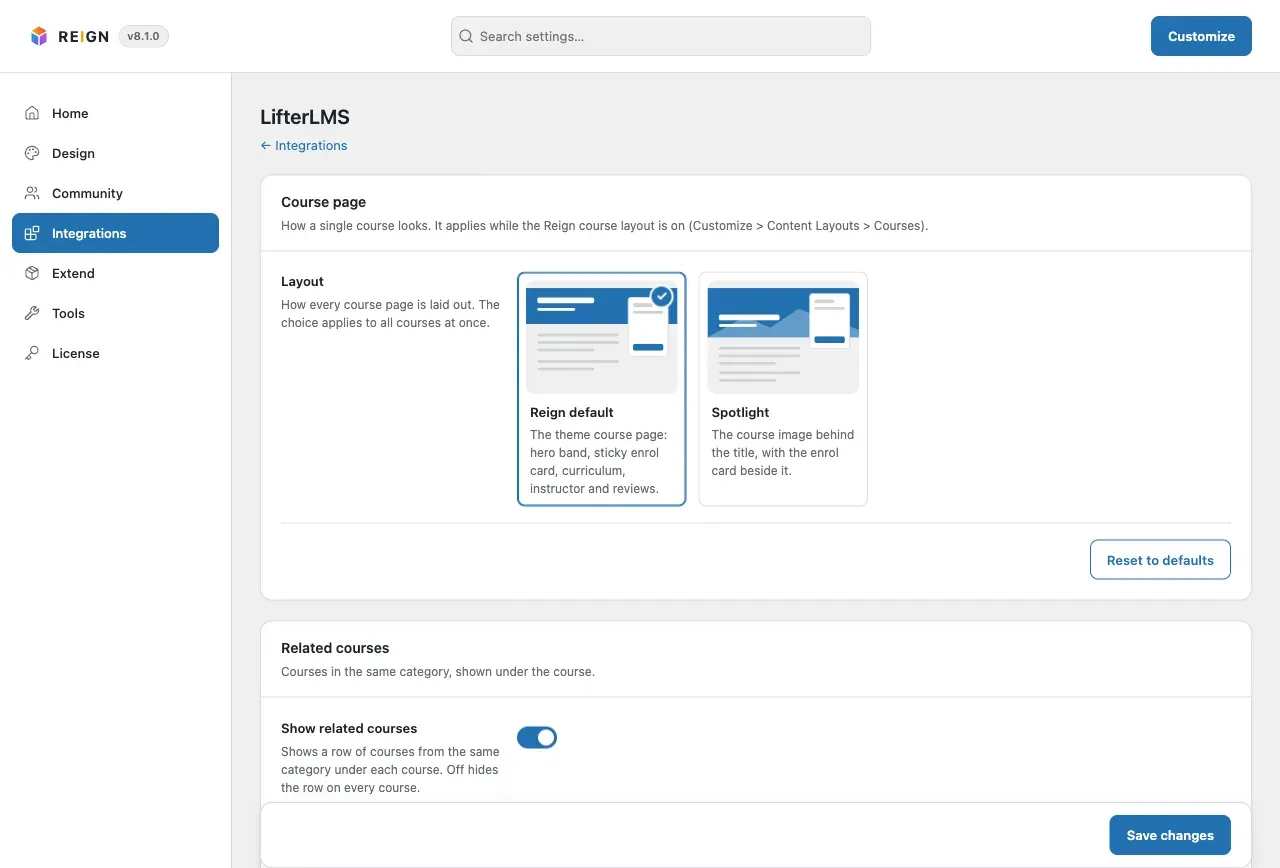
Choose the course page layout
Section titled “Choose the course page layout”- In the Course page card, pick a Layout. The default is Reign default, the theme course page. Spotlight puts the course image behind the title with the enrol card beside it.
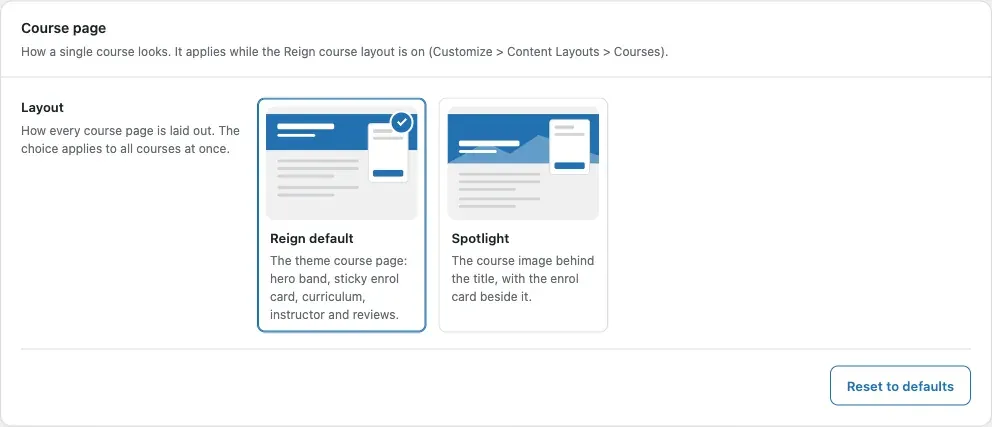
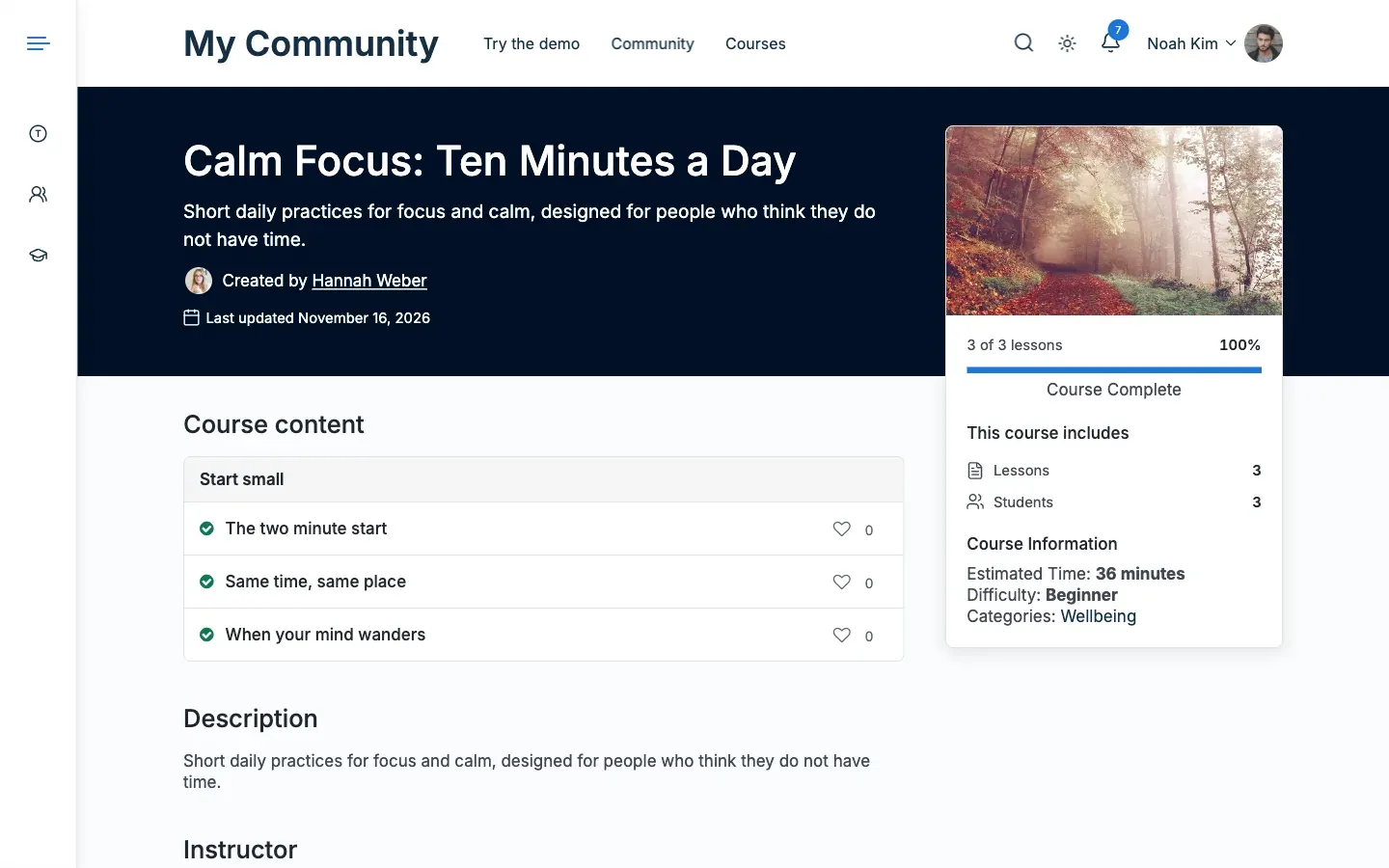
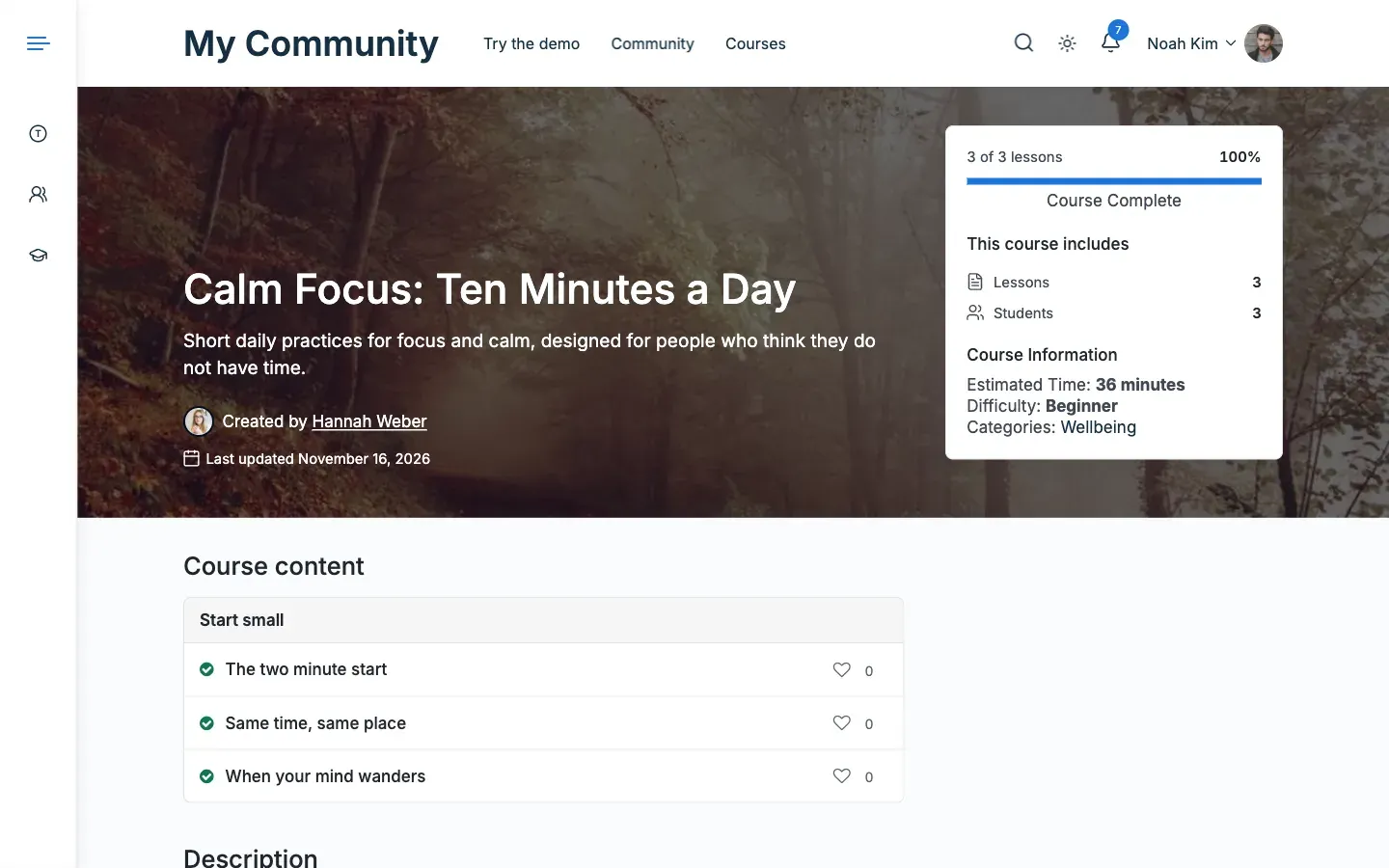
Spotlight moves the image behind the title only for a course with a featured image and no intro video. Other courses keep their normal media. The layout works while the Reign course layout is on, under Customize > Content Layouts > Courses.
Show related courses
Section titled “Show related courses”- In the Related courses card, switch Show related courses on or off. It is On by default.
- Change Heading if you want your own words. The default is Related Courses.
- Set Courses shown, from 1 to 12. The default is 3.
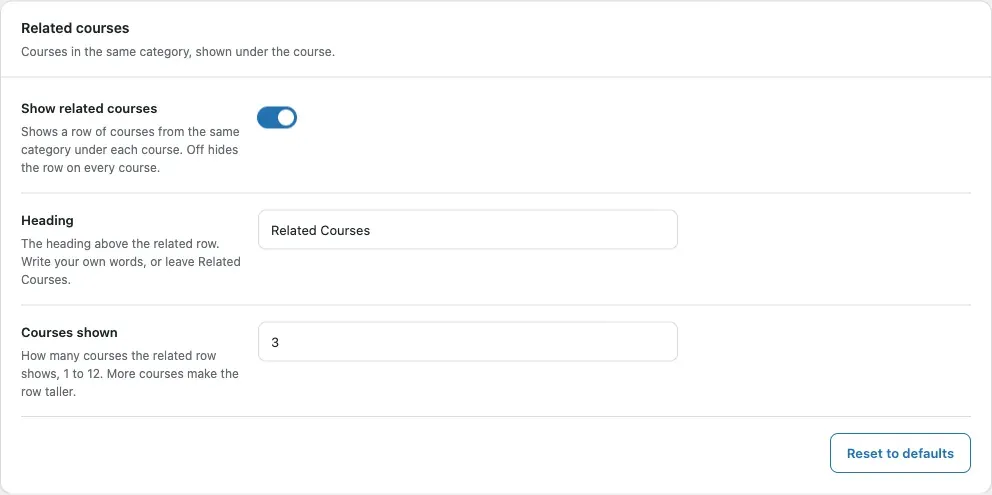
Heading and Courses shown are hidden while Show related courses is off. Courses in the same category come first, then the newest courses. The course itself is never listed.
Change the course list
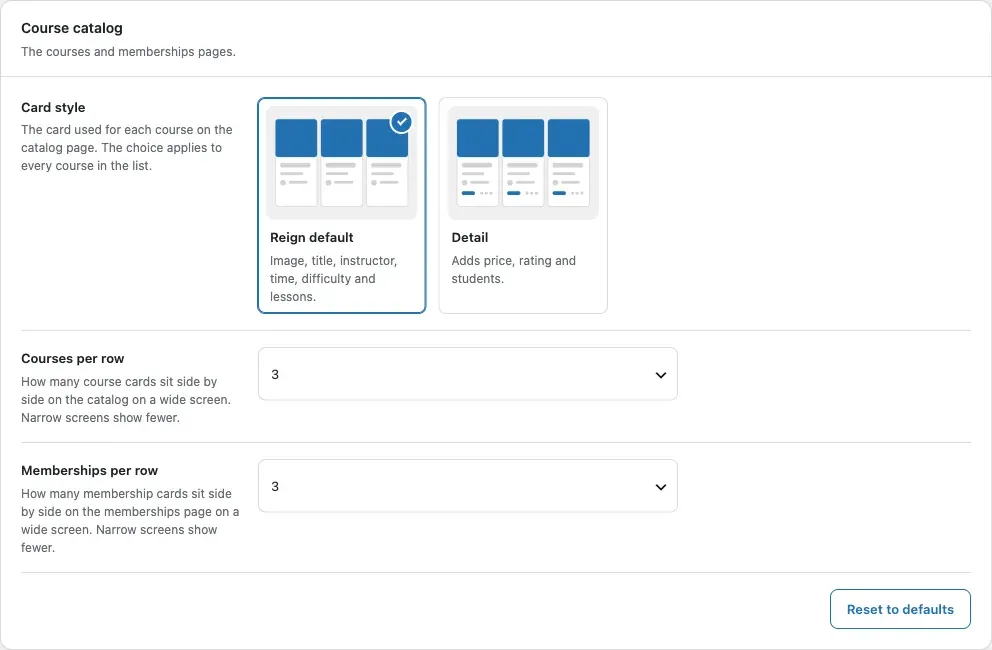
Section titled “Change the course list”- In the Course catalog card, pick a Card style. The default is Reign default. Detail adds the price, the rating and the number of students.
- Set Courses per row, from 1 to 4. The default is 3.
- Set Memberships per row, from 1 to 4. The default is 3.
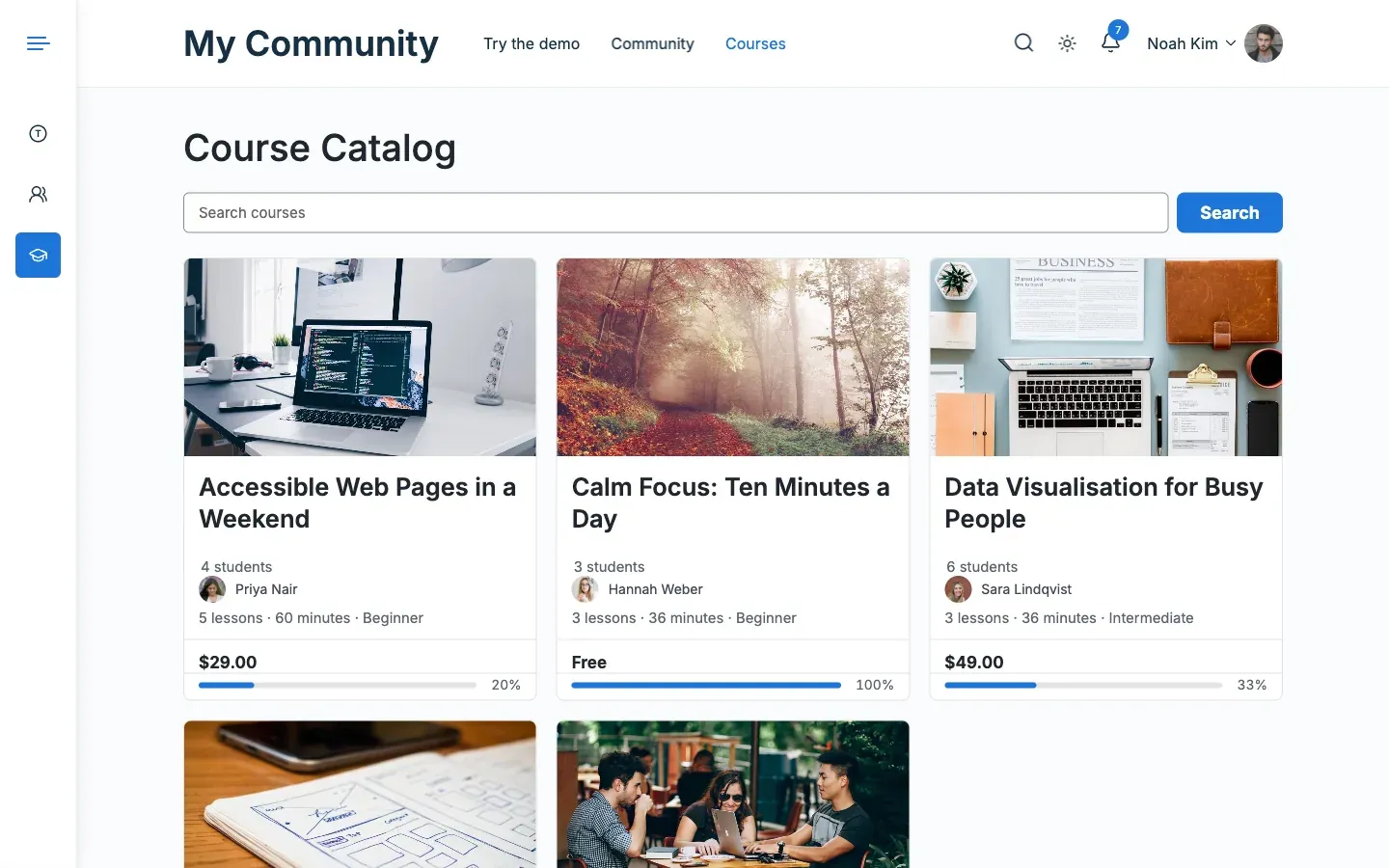
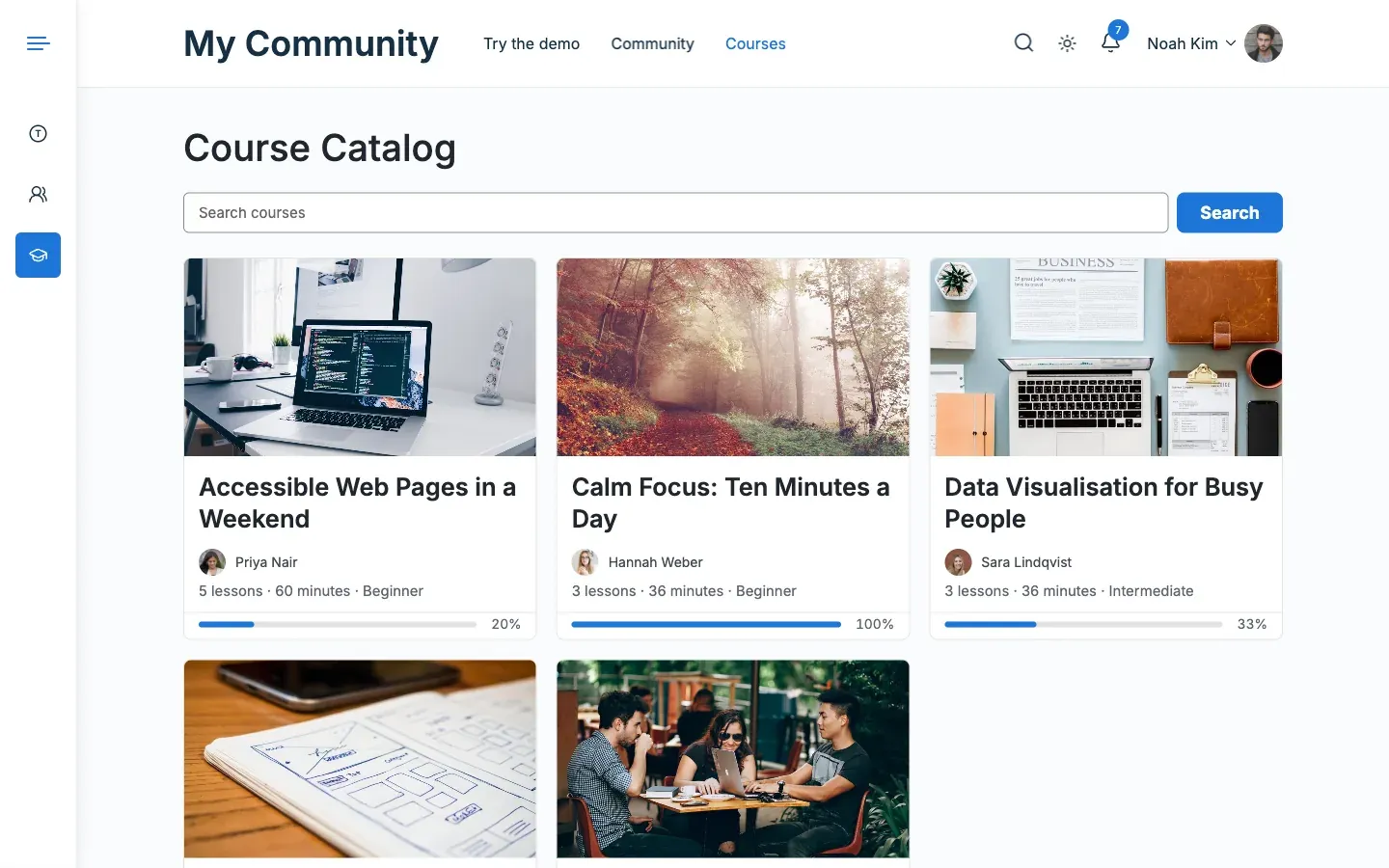
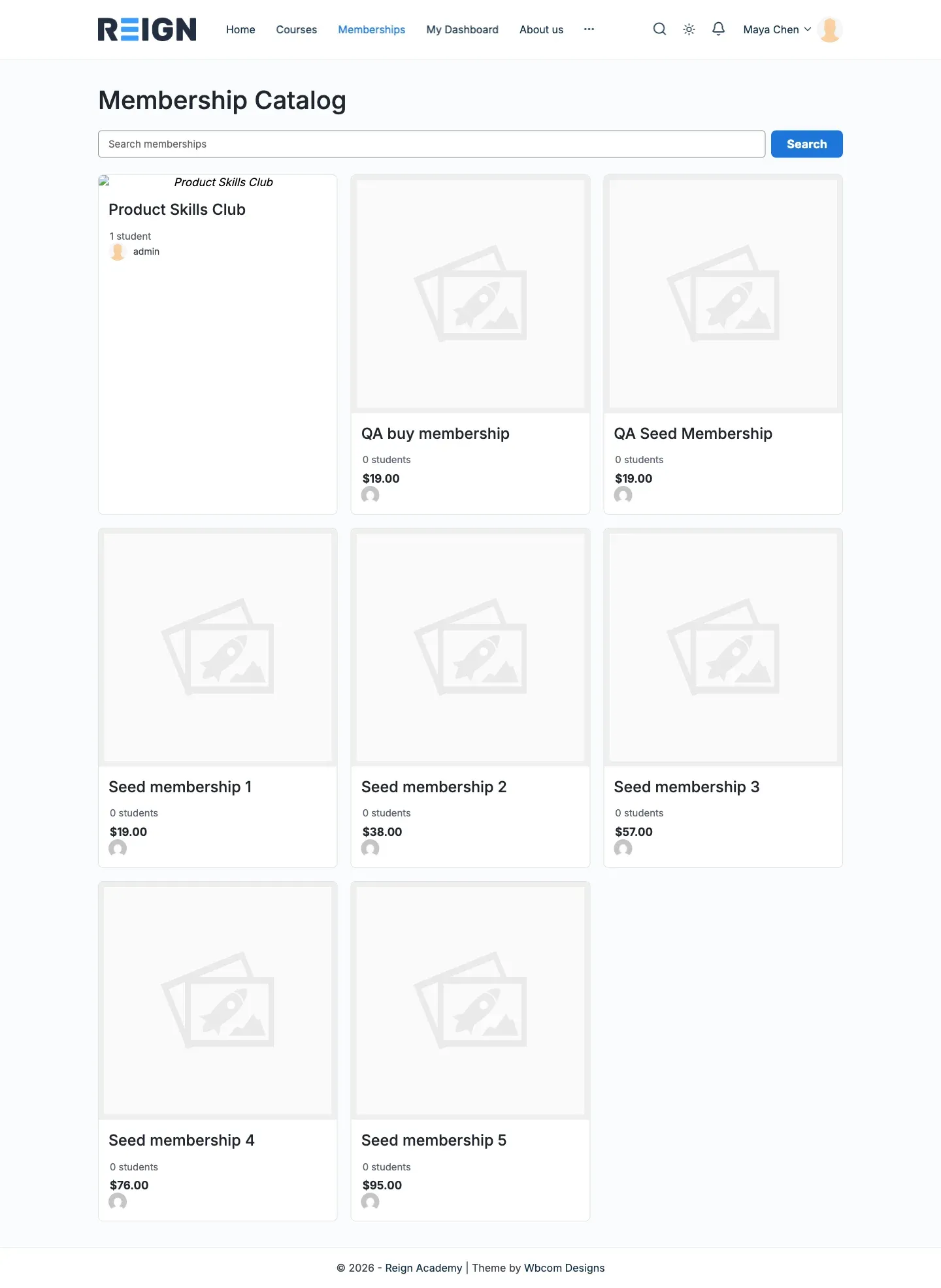
A course with no students shows no student count. The price reads “Free”. When a course has several plans, it reads “From” and the lowest plan price. A search box sits above the catalog, on membership pages and on category and tag lists.
Change the student dashboard
Section titled “Change the student dashboard”- In the Student dashboard card, switch Section icons on or off. It is On by default.
- Set Courses per row, from 1 to 4. The default is 3.
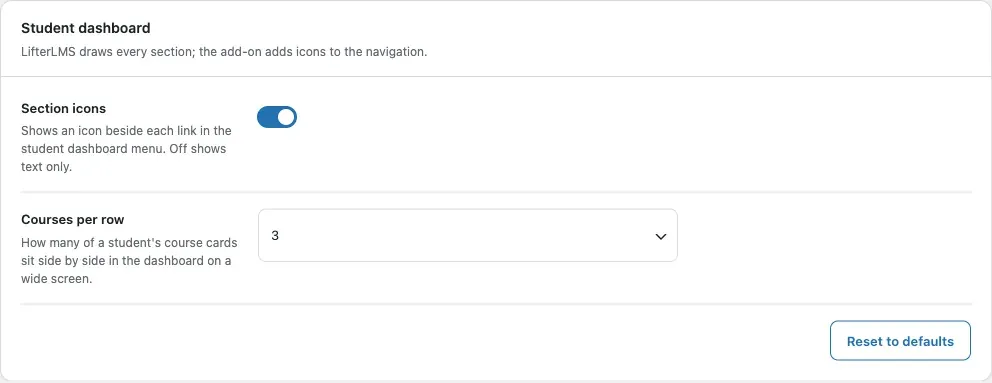
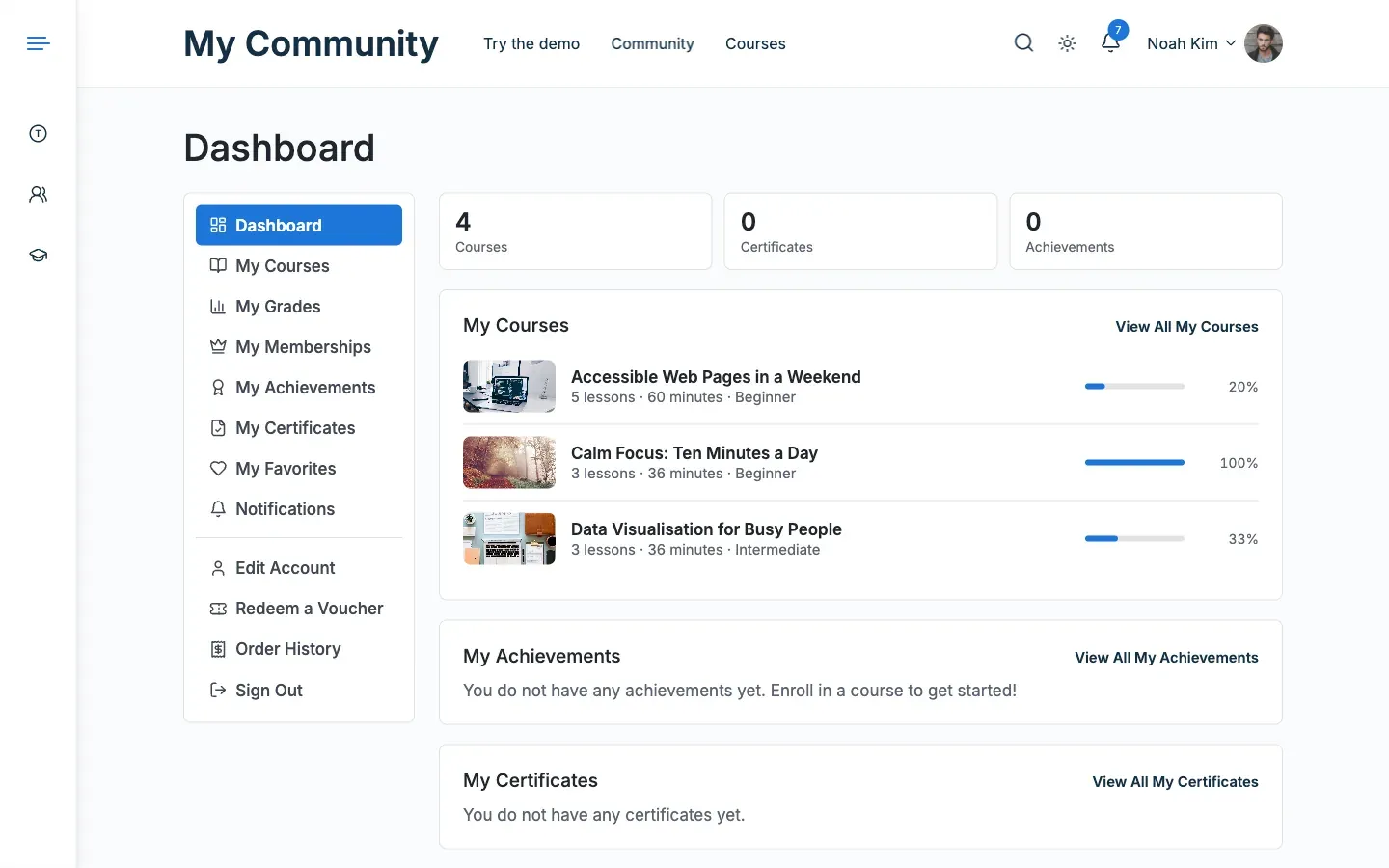
Section icons shows an icon beside each link in the dashboard menu. Tabs added by other plugins get a small dot. Off shows text only. On phones LifterLMS shows a dropdown, which has no icons.
- Click Save changes at the end of the screen.
You’ll know it worked when
Section titled “You’ll know it worked when”- The course page shows the layout you chose.
- The course list shows your card style and the number of cards per row.
- The student dashboard menu shows icons, or text only if you switched them off.
Good to know
Section titled “Good to know”How does the screen save?
Section titled “How does the screen save?”Save changes stores only the cards that were on the page. An unchecked toggle is saved as off. A value equal to its default is not stored. A card hidden because its plugin is not active, such as Community, keeps its saved values.
How do I undo one card?
Section titled “How do I undo one card?”Each card has its own Reset to defaults button. Click it once and the button asks you to click again. The second click resets that card only. Other cards keep their values.
What is the Up next label?
Section titled “What is the Up next label?”An enrolled student sees an Up next label on one lesson in the course outline. It marks the lesson that the Continue button opens, so the two never disagree. Guests and students who are not enrolled see no label. It has no setting.
Does the student dashboard show anything else?
Section titled “Does the student dashboard show anything else?”The dashboard home also shows a row of counts for Courses, Certificates and Achievements above the sections. It has no setting.
Why does the course page show no pricing table?
Section titled “Why does the course page show no pricing table?”The pricing table shows when the course content has the pricing table block. LifterLMS also needs an enabled payment gateway before it treats a product as purchasable.
For developers
Section titled “For developers”- Change the list of related courses with the
reign_llms_related_idsfilter. - The catalog search box uses the
llms_squery variable. - See Settings keys and stored data for every setting key.