

Course page looks (Course page templates and group pages)
Reign LearnDash Addon overviewPremiumGet Reign LearnDash Addon →
Also called: course page layout, course landing page, course header, enrol card, course design, single course page, course template, group page
What this does
Section titled “What this does”The Reign theme draws the course page. The add-on does not copy it or LearnDash’s templates. It switches sections on and off and arranges them in one of four templates.
The four templates
Section titled “The four templates”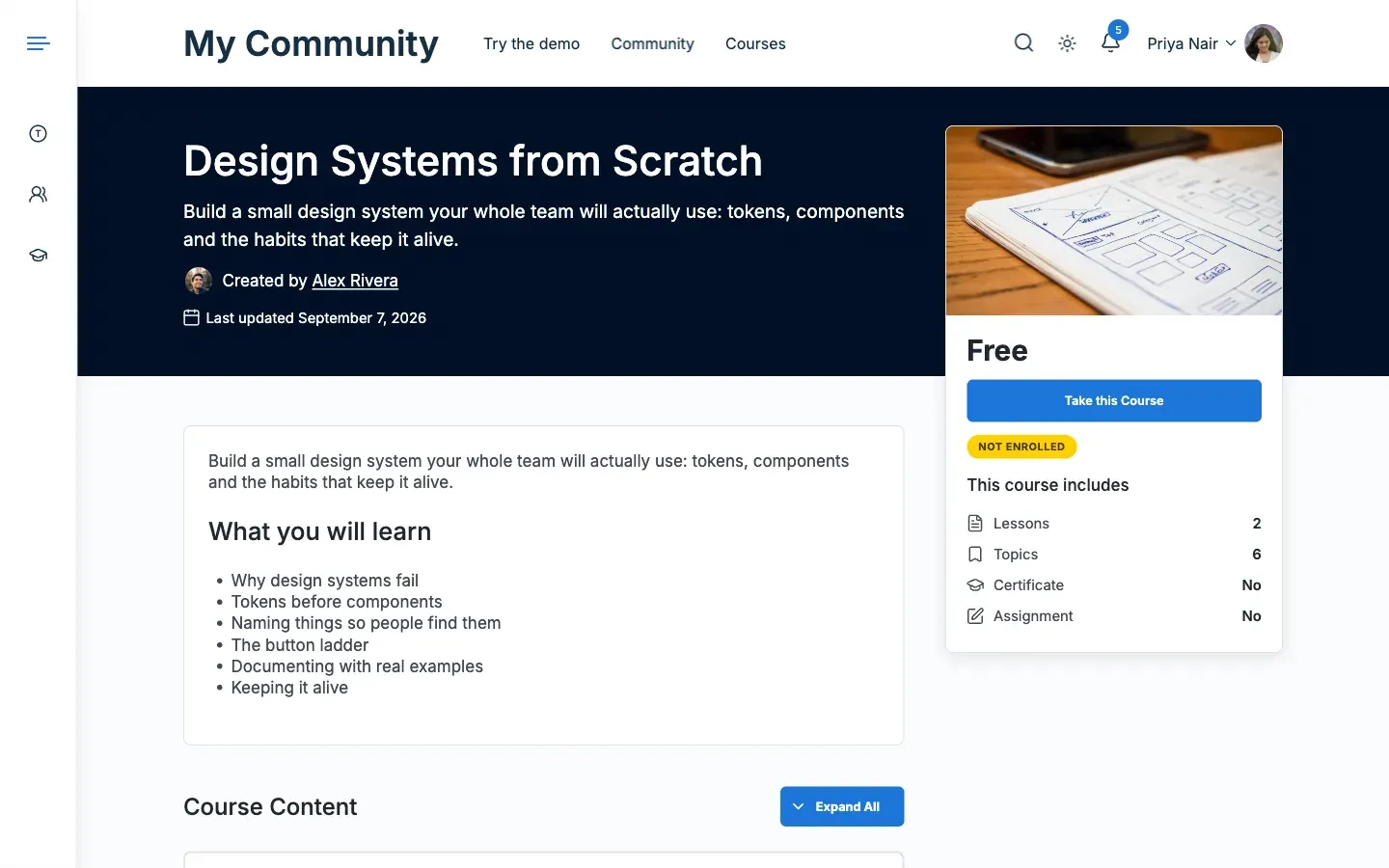
| Template | Look |
|---|---|
| Reign default | The theme course page: cover, status bar, tabs and a side card. |
| Classic | A tall cover with the enrol card floating over it. This is the 5.1.0 page. |
| Spotlight | The course image as the header, with a sticky bar for price and enrolment. One column. |
| Academy | A light header. The enrol box and the curriculum sit in the side column. |
Classic, Spotlight and Academy also show the first course category above the title.
Choose a template for the whole site
Section titled “Choose a template for the whole site”- Go to Reign Settings > Integrations, then Configure on the LearnDash tile.
- In the Course page card, pick a Template.
- Click Save changes.
Choose a template for one course
Section titled “Choose a template for one course”Open the Reign box on the course editor. See Change one course or group. A course’s own choice wins over the site setting.
Choose which sections show
Section titled “Choose which sections show”- In the Course page card, find Sections.
- Tick what each course page shows: Course content, Materials, Instructor, Course features and Related courses.
- Click Save changes.
If you untick Materials, LearnDash’s Materials tab is hidden. Reviews are not in this list. See Course reviews and ratings.
Set the related courses
Section titled “Set the related courses”Related courses show courses from the same category first, then the newest.
- In the Course page card, set Related courses heading.
- Set Related courses shown from 1 to 12. The default is 3.
- Click Save changes.
Write your own “This course includes” list
Section titled “Write your own “This course includes” list”- Open the course editor.
- In the Reign box, tick Own “This course includes” list.
- Add rows with an icon and text, such as “4 hours of video”.
- Click Update.
The list replaces LearnDash’s lesson, topic and quiz counts. Icons come from the theme’s icon set. Icons saved by 5.1.0 still show.
Set a fallback image
Section titled “Set a fallback image”The Images card sets two fallbacks: a Default cover image and a Default course image. They are used when a course has no image of its own.
You’ll know it worked when
Section titled “You’ll know it worked when”You open a course and see the header and layout of the template you picked.
Good to know
Section titled “Good to know”What does each template do with the header?
Section titled “What does each template do with the header?”- Spotlight: the header uses the course’s featured image. If there is none, it uses the course Cover image, then the site’s default cover. LearnDash’s status bar is the enrol bar, and the side card is not shown. Students with access see a Continue button in the bar. “This course includes” moves into the main column.
- Academy: the curriculum moves to the side column, after the enrol box and “This course includes”. The media block is not shown.
- Classic: the header uses the course Cover image. If a course has none, it uses the default cover image from the settings.
What about group pages?
Section titled “What about group pages?”Groups use LearnDash’s own group page and group list, styled by Reign. The add-on adds no group page template. Cards for the [modern_groups] shortcode use the same style as course cards. The Reign box on a group editor holds the cover image and the social group link.