

Link courses to community groups (Community sync)
Reign LearnDash Addon overviewPremiumGet Reign LearnDash Addon →
Also called: community groups, BuddyPress groups, BuddyBoss groups, social groups, course discussion group, enrol and join group, Courses tab, activity feed
What this does
Section titled “What this does”The add-on can link a course, or a LearnDash group, to a community group. Students who get access join that group by themselves. This works only when BuddyPress 14 or newer, or BuddyBoss Platform, is active with the Groups component on. Without them, none of this loads.
Before you start
Section titled “Before you start”- Install BuddyPress 14 or newer, or BuddyBoss Platform, and turn on its Groups component.
- Turn on the Activity component too if you want activity posts.
Link courses
Section titled “Link courses”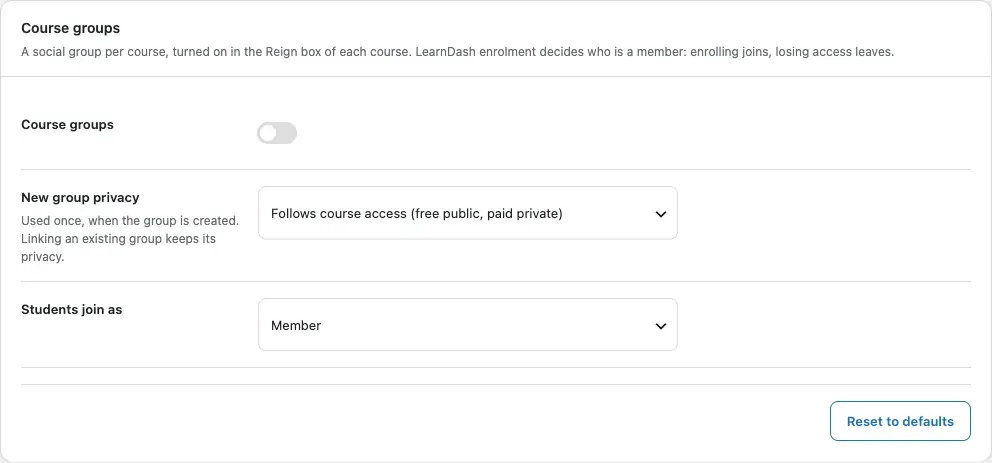
- Go to Reign Settings > Integrations, then Configure on the LearnDash tile.
- In the Course groups card, turn on Course groups.
- Set New group privacy. Choose Public, Private, Hidden, or follow course access (free and open courses are public, the rest private). It is used once, when the group is created. The default follows course access.
- Set Students join as: Member, Moderator, or Administrator (Organizer on BuddyBoss). The default is Member.
- Click Save changes.
- Open a course, tick This course has a social group in the Reign box and click Update. See Change one course or group.
Link LearnDash groups
Section titled “Link LearnDash groups”- In the LearnDash groups card, turn on LearnDash group sync.
- Set New group privacy. The default follows group access.
- Set Leaders join as (default Administrator, or Moderator) and Users join as (default Member).
- Leave Delete the social group with the LearnDash group off to keep social groups when a LearnDash group is deleted. Turn it on to delete the social group, its members and its activity too. A prompt asks you to confirm.
- Click Save changes.
- Open a LearnDash group and tick This group has a social group in its Reign box.
When a LearnDash group gives a course, its users also join that course’s community group. When you add a course to a LearnDash group, the course group syncs in the background.
Add people a group is missing
Section titled “Add people a group is missing”- Find the Existing groups card. It shows when a link type is on.
- Click Sync now.
It adds enrolled students and group users that a linked group is missing. It runs in the background in batches of 200 members per link and is safe to repeat. It never removes members. The card shows how many links are waiting.
Post course progress to the activity feed
Section titled “Post course progress to the activity feed”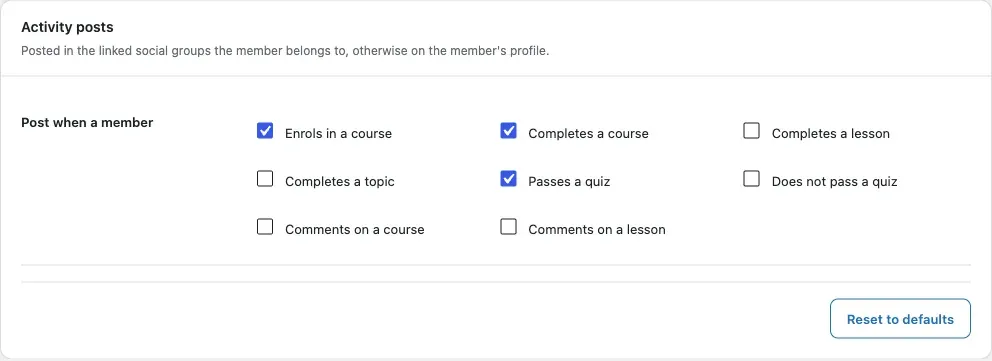
- In the Activity posts card, tick what to post under Post when a member.
- Click Save changes.
The defaults are: enrols in a course, completes a course, passes a quiz. You can also post for completing a lesson or topic, not passing a quiz, and comments on a course or lesson. Only approved comments post. Reviews are not posted.
Show courses on member profiles
Section titled “Show courses on member profiles”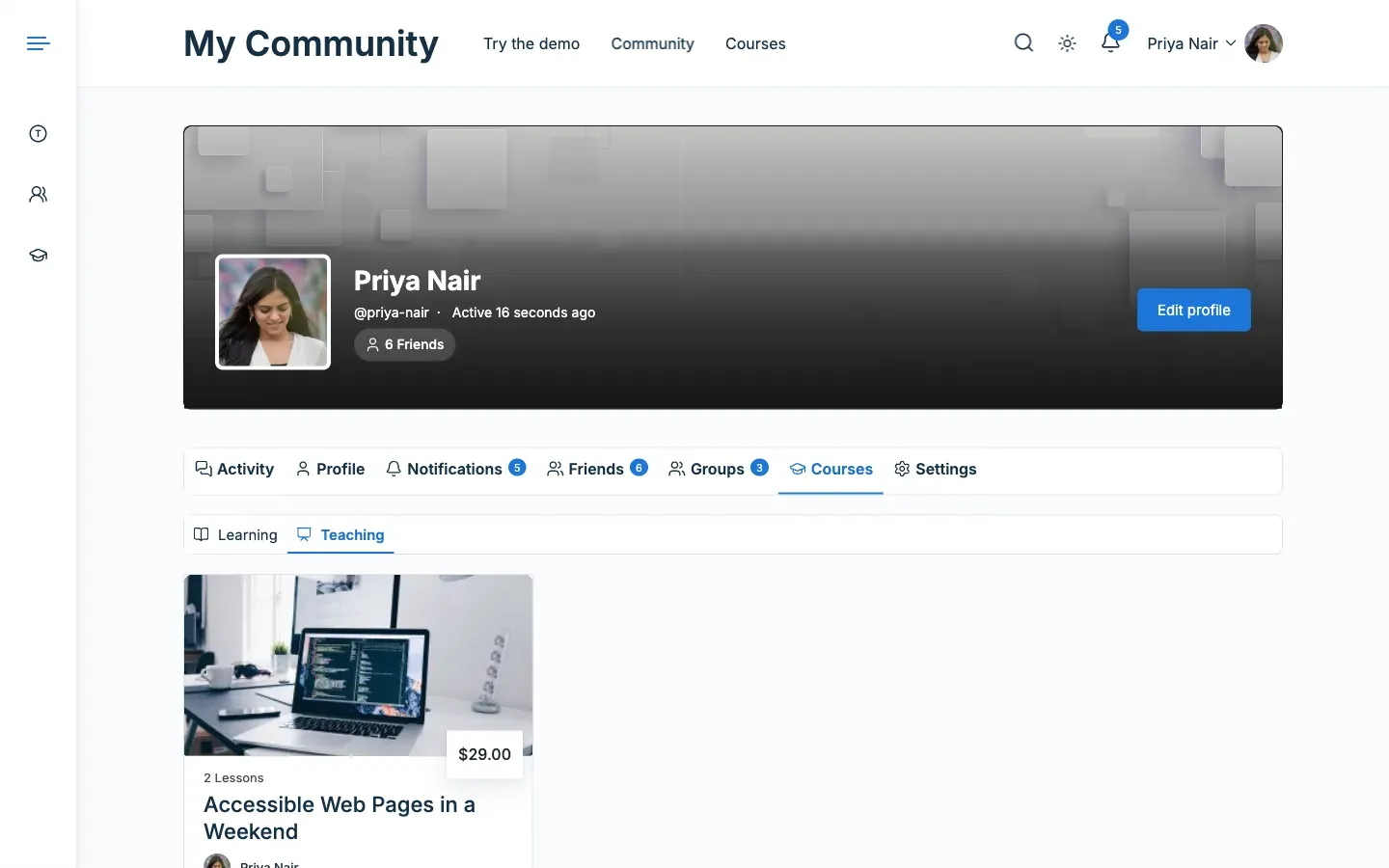
- In the Member profiles card, keep Courses tab on. It is on by default.
- Click Save changes.
You’ll know it worked when
Section titled “You’ll know it worked when”A student who enrols in a linked course appears in its community group. A linked group shows a Courses tab, and member profiles on BuddyPress show a Courses tab.
Good to know
Section titled “Good to know”Who decides who is in the group?
Section titled “Who decides who is in the group?”LearnDash enrolment decides, one way only.
- A student who gets access joins the linked group.
- A student who loses access leaves it. If they still have access another way, such as through a LearnDash group, they stay.
- Group administrators (BuddyBoss: organizers) are never removed automatically.
- A member banned by a group admin is not added again.
- Linking an existing group keeps its members and its privacy. Unlinking keeps the members.
- Deleting a course or LearnDash group removes the link, not the members.
Who can link which group?
Section titled “Who can link which group?”Site administrators can link any community group. Course authors can link only groups they run. A group can be linked to one course or LearnDash group at a time.
What does BuddyBoss do?
Section titled “What does BuddyBoss do?”BuddyBoss has its own LearnDash group sync. Groups it already syncs are left to BuddyBoss. The Reign box says so and shows a link to the community group. BuddyBoss also has its own My Courses tab, so the Member profiles card is hidden there.
What does the Courses tab show?
Section titled “What does the Courses tab show?”- Group tab: a linked group gets a Courses tab listing its courses as cards. On BuddyBoss, groups it syncs show BuddyBoss’s own tab.
- Profile tab (BuddyPress): each profile gets a Courses tab with two sub-tabs of course cards. Learning lists courses the member joined, by enrolment, a group or progress. Open courses they never started are left out. Teaching lists published courses they wrote.
The tab opens on Learning. For a member who teaches but is not enrolled anywhere, it opens on Teaching. On their own Learning list, the member can filter by All, In progress and Completed. They see their status, progress and Continue. Anyone else sees each course as a visitor would, with its price and View course, and no progress.
Visitors see the tab only when it has courses. A member with none sees “You have not enrolled in a course yet.” and a Browse courses link.
Where do activity posts go?
Section titled “Where do activity posts go?”Posts go to each linked group the member belongs to. If there is none, they go to the member’s profile. Posts in private and hidden groups stay out of the sitewide stream. The activity type is “Course progress”.
Why is the Join button missing on a linked group?
Section titled “Why is the Join button missing on a linked group?”Linked groups hide the Join button for non-members, because enrolment adds members.
Why do my group links give a 404?
Section titled “Why do my group links give a 404?”On BuddyPress, LearnDash’s groups archive and BuddyPress’s groups both want /groups/. When BuddyPress has a groups page, the add-on moves the LearnDash archive to /ld-groups/. Go to Settings > Permalinks and click Save Changes. BuddyBoss handles this itself.
For developers
Section titled “For developers”From the command line, run wp reign-ld sync. It is registered only while BuddyPress or BuddyBoss has the Groups component on. See WP-CLI. Background jobs use Action Scheduler when it is installed, otherwise WP-Cron.