

Course list and course grid layouts (Course archive layouts and filters)
Reign LearnDash Addon overviewPremiumGet Reign LearnDash Addon →
Also called: course grid, course list, courses page, course cards, course catalog, filter courses, search courses, grid or list view, course categories page
What this does
Section titled “What this does”The courses page, course category pages and course tag pages can use an add-on layout. The same cards and filter bar also power the [modern_courses] and [modern_groups] shortcodes and the Courses grid block.
Pick a layout
Section titled “Pick a layout”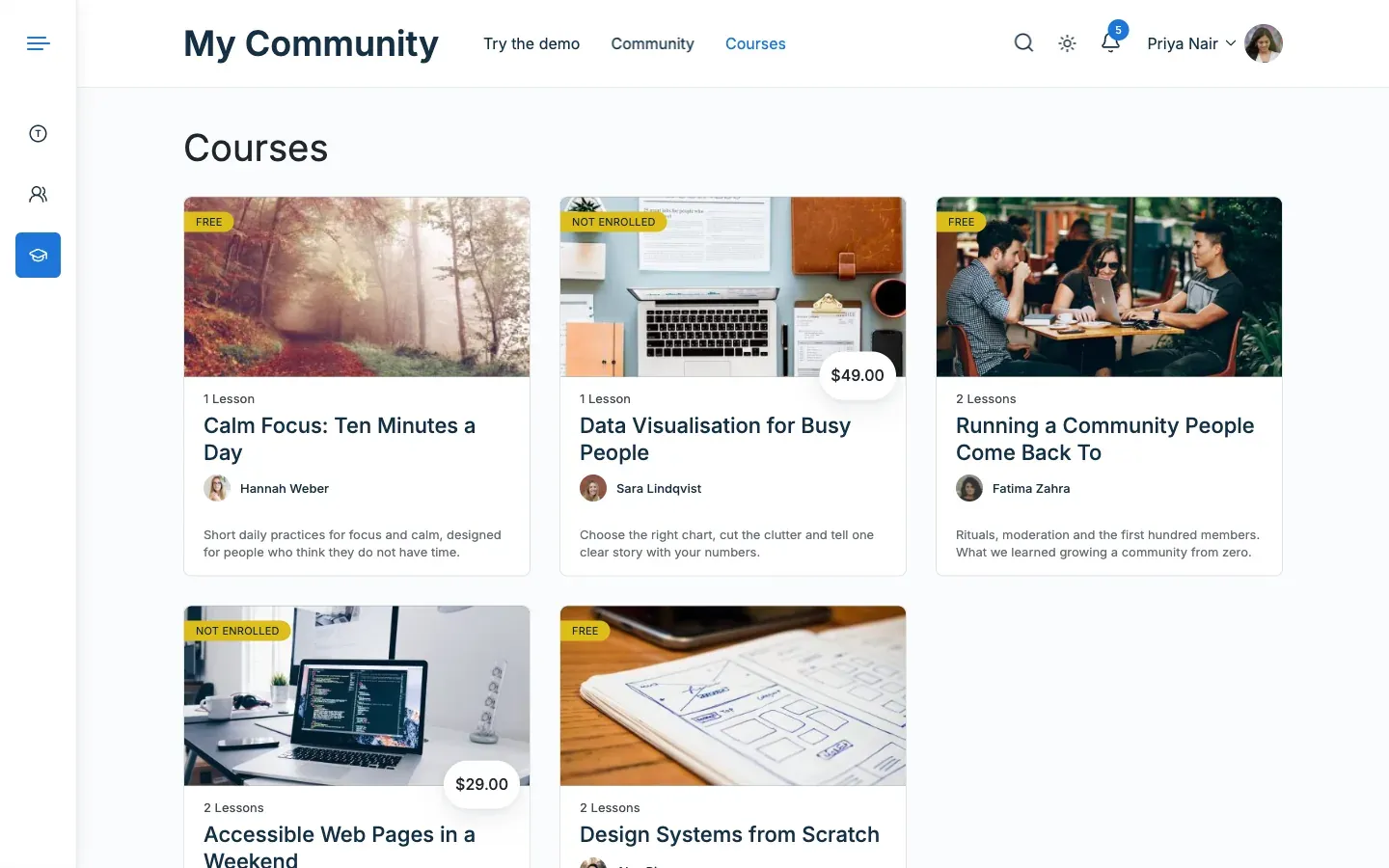
- Go to Reign Settings > Integrations, then Configure on the LearnDash tile.
- In the Course archive card, pick a Layout.
- Click Save changes.
| Layout | Look |
|---|---|
| Reign default | The theme’s course card, on every course list. |
| Classic cards | Image on top, price and button in the footer. |
| Soft cards | Rounded cards with a tinted footer. |
| Catalog | Filters in a side column, courses as rows. |
Choose what each card shows
Section titled “Choose what each card shows”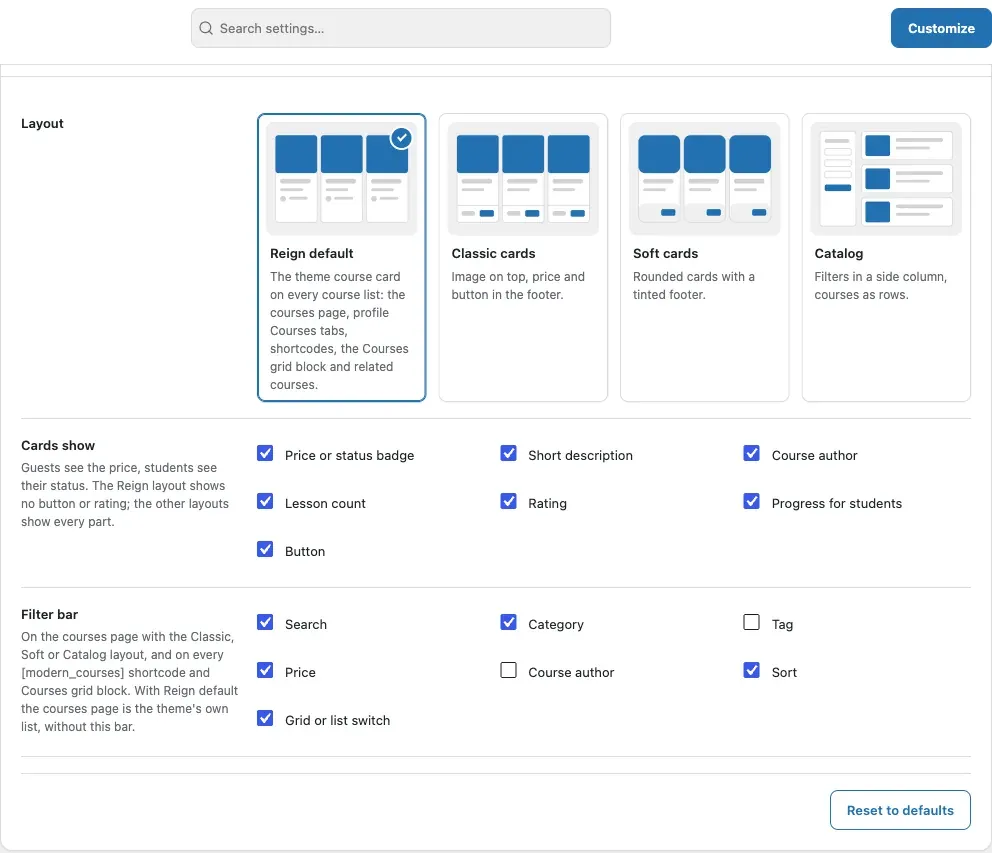
- In the Course archive card, find Cards show.
- Tick the parts you want.
- Click Save changes.
Cards show works on every layout. On the Reign default layout, Button and Rating have no effect, because that card has neither.
| Item | Shows |
|---|---|
| Price or status badge | Visitors see the price, or Free. Students see Enrolled or Completed. |
| Short description | The excerpt. |
| Instructor | The author’s name and photo. |
| Lesson count | The number of lessons, using your LearnDash lesson label. |
| Rating | The average of approved LearnDash reviews. Only if the course has reviews turned on. |
| Progress for students | A progress bar and percent for students with access. |
| Button | The View course button in the card footer. The title always links to the course. |
Choose the filter bar fields
Section titled “Choose the filter bar fields”- In the Course archive card, find Filter bar.
- Tick the fields: Search, Category, Tag, Price, Instructor, Sort and the Grid or list switch.
- Click Save changes.
The defaults are Search, Category, Price, Sort and the switch.
You’ll know it worked when
Section titled “You’ll know it worked when”You open the courses page and see cards in your layout, with the filter bar above them.
Good to know
Section titled “Good to know”Where does the filter bar show?
Section titled “Where does the filter bar show?”It shows on the courses page with the Classic cards, Soft cards or Catalog layout. It also shows on every [modern_courses] shortcode and Courses grid block. With Reign default, the courses page is the theme’s own list, without this bar.
How do the filters work?
Section titled “How do the filters work?”- Price filters free (free and open courses) or paid.
- Sort is Newest, Title A to Z or Most reviewed.
- Instructor and category lists show up to 100 entries.
The filter bar is a plain form with plain page links. It works without JavaScript, and every filtered page has its own address. A visitor can share a filtered page.
Can visitors switch between grid and list?
Section titled “Can visitors switch between grid and list?”Yes, on Classic cards and Soft cards, when “Grid or list switch” is in the filter bar. Reign default has no switch. The visitor’s choice is remembered in their browser. Catalog opens in list view.
Where does my layout apply?
Section titled “Where does my layout apply?”The layout you pick is the one card design for the whole site. It covers the courses page, the Courses tab on member profiles, [modern_courses], the Courses grid block and the related courses on a course page.
With Reign default, the courses page is the theme’s own grid. The other lists draw the same theme card inside the add-on grid, with its filter bar and pages but no Grid or list switch. On another member’s profile the cards show each course as a visitor sees it, with the price and no enrolment status or progress. The card follows Cards show for the price or status badge, the short description, the instructor, the lesson count and progress. It has no button or rating.
What layout do group grids use?
Section titled “What layout do group grids use?”Group grids ([modern_groups]) have no theme card, so with Reign default they use Classic cards. The group grid supports Search, Sort and the Grid or list switch only.
How many courses show on a page?
Section titled “How many courses show on a page?”The courses page uses LearnDash’s own order and page size under LearnDash LMS > Settings. A page never shows more than 48 items.
What do instructor pages look like?
Section titled “What do instructor pages look like?”The instructor name on a course opens that instructor’s courses page. With Classic cards, Soft cards or Catalog, the page shows:
- The instructor’s name as the page title.
- Their profile photo and biography (Users > Profile > Biographical Info). The box is hidden when both are empty. The photo follows Settings > Discussion > Show Avatars.
- Their courses in the chosen layout. The filter bar works, without the Instructor filter.
With Reign default, the theme shows the instructor’s courses in its own grid.
For developers
Section titled “For developers”Filter addresses look like ?rld_cat=design&rld_sort=title. The full list of address names is on Course grid shortcode and block.