

Moderation and Management
SnipShare gives administrators two admin screens for overseeing content, plus a member-facing reporting flow that feeds the moderation queue. All three admin screens require the manage_options capability (administrators, and on multisite super admins).
All Pastes
Section titled “All Pastes”SnipShare > All Pastes (wp-admin/admin.php?page=snipshare-pastes) lists every paste on the site.
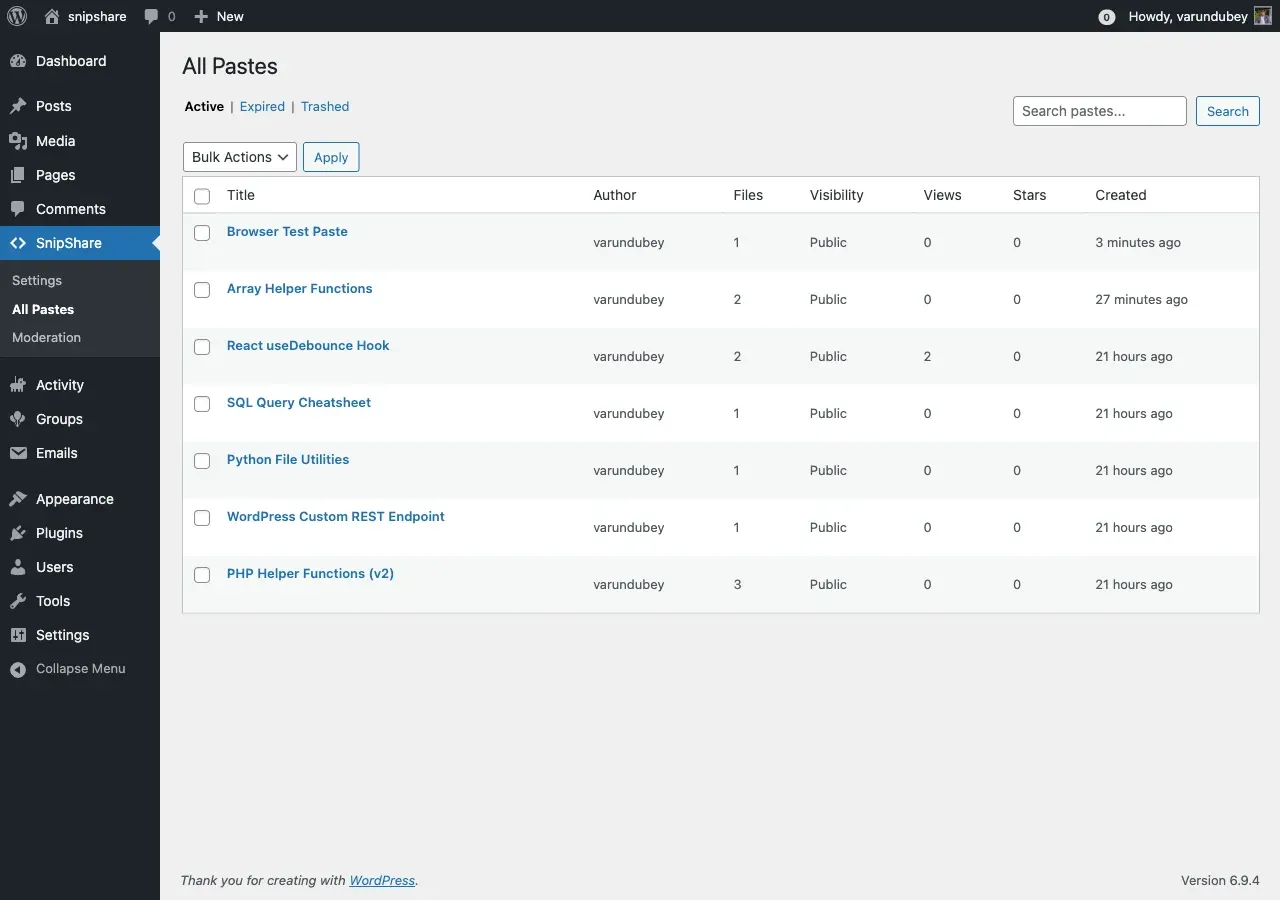
- Status filter — switch between Active, Expired, and Trashed.
- Search — search pastes by keyword.
- Columns — Title (links to the paste), Author, Files, Visibility, Views, Stars, and Created date.
- Bulk actions — select pastes and Trash them. On the Trashed tab you can also Delete Permanently.
- Pagination — 20 pastes per page.
Moderation queue
Section titled “Moderation queue”SnipShare > Moderation (wp-admin/admin.php?page=snipshare-moderation) lists reports submitted by members. A badge on the menu shows the number of pending reports.
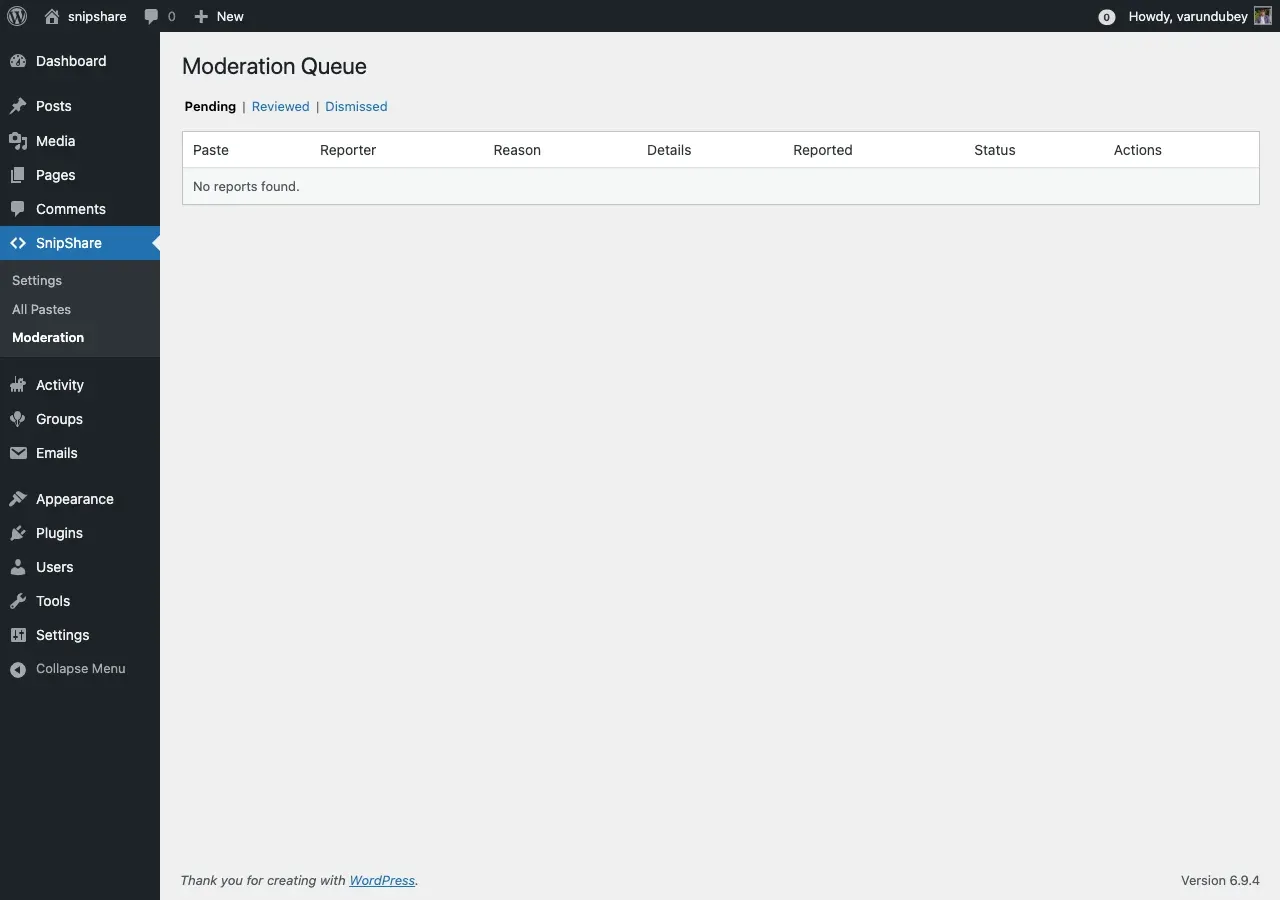
- Status filter — Pending, Reviewed, or Dismissed.
- Columns — Paste (links to it), Reporter, Reason, Details, Reported date, and Status.
- Actions on pending reports:
- Mark Reviewed — closes the report as actioned.
- Dismiss — closes the report with no action.
- Trash paste — tick this before choosing an action to also move the reported paste to the trash.
Reporting (member-facing)
Section titled “Reporting (member-facing)”When the Content Reporting feature is enabled, logged-in members can flag a paste for review. A report captures a reason and optional details. Available reasons:
| Reason | Use for |
|---|---|
| Spam | Unsolicited or junk content |
| Inappropriate | Offensive or off-topic content |
| Malicious | Harmful or dangerous code |
| Copyright | Content that infringes copyright |
| Other | Anything else (add details) |
Submitted reports appear in the moderation queue as Pending.