

Access Tab: Who Can Send and Be Contacted
The Access tab controls every gate around the contact form: where it appears, which roles can send a message, and which roles can receive one.
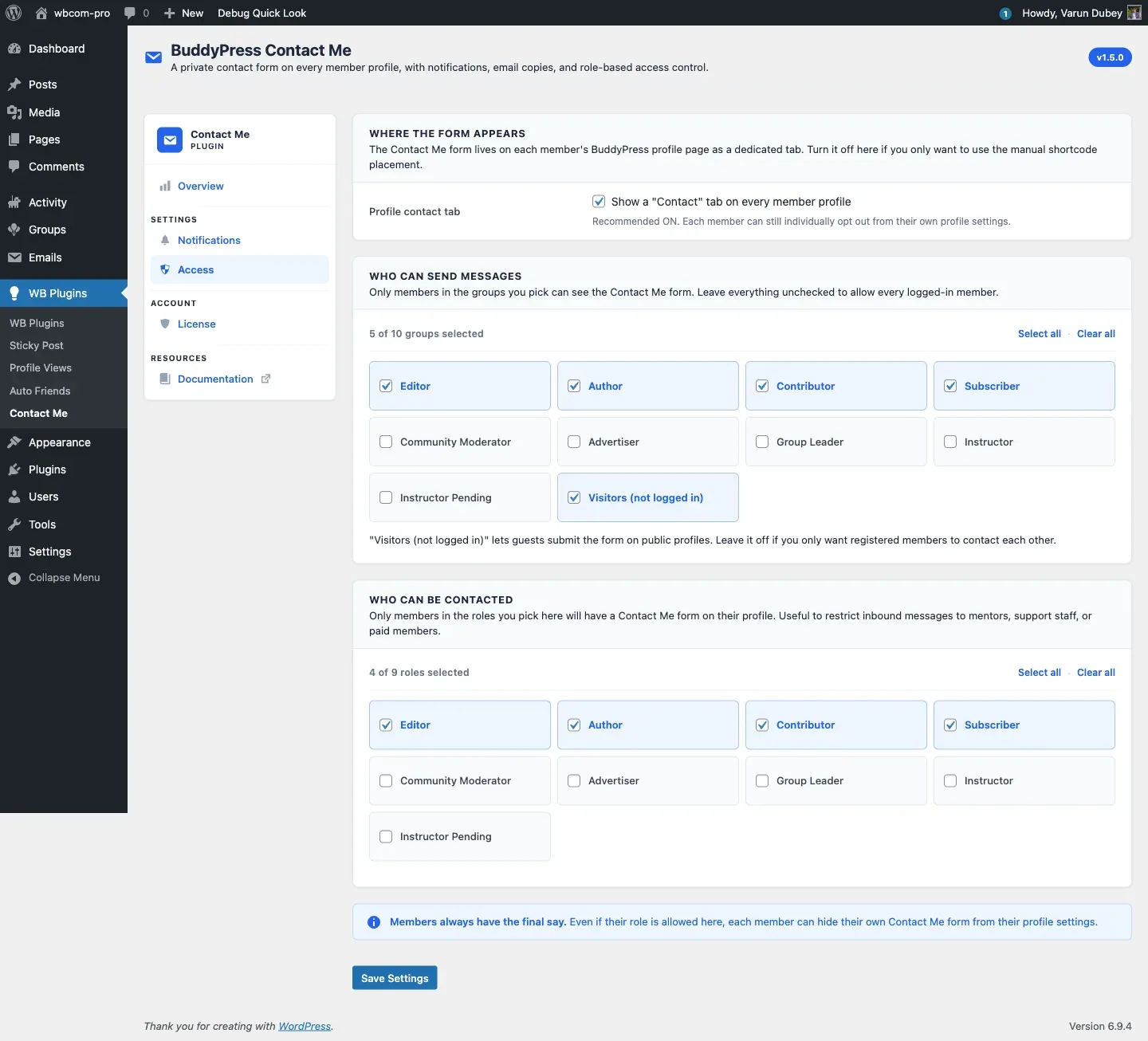
Where the form appears
Section titled “Where the form appears”A single toggle at the top:
- Show a “Contact” tab on every member profile - when off, the profile-tab integration is hidden entirely. Members can still be reached through the
[buddypress-contact-me]shortcode if you want to drive contact through specific landing pages.
Recommended on. Each member can still individually opt out from their own profile settings. See Per-member opt-out.
Who can send messages
Section titled “Who can send messages”A grid of role chips covering every WordPress role on the site except Administrator, plus a special Visitors (not logged in) chip for guest contact. Administrators are always allowed, so they are not listed here.
- Tick the chips for the roles you want to allow.
- Use Select all or Clear all to apply to the whole grid.
- An empty grid is persisted. Note that clearing the entire send grid allows everyone to send, rather than no one. To lock sending down, select only the roles you want.
The Visitors chip controls whether guests may submit. When the grid is non-empty and Visitors is unticked, a guest submission is rejected with “You are not allowed to send messages.” This permission is enforced when the form is submitted, so a disallowed sender may still see the form but cannot complete it.
Who can be contacted
Section titled “Who can be contacted”The same chip grid (again excluding Administrator), applied to the recipient side. A member’s Contact tab renders only if their role is in this list, or they are an administrator (admins are always contactable). Use this to restrict inbound messages to a specific group such as mentors, support staff, or paid members. Members in unlisted roles do not show the Contact tab even when the global toggle above is on.
Members always have the final say
Section titled “Members always have the final say”The notice at the bottom is a reminder: even when a role is allowed, the individual member can still opt out via Profile > Settings > General > Let other members contact me. The plugin never overrides the per-member preference. See Per-member opt-out.
Mobile-friendly chips
Section titled “Mobile-friendly chips”The grid uses chip controls instead of a multi-select dropdown, on purpose:
- Every option is visible at once, with no hidden state behind a click.
- Tap targets are large enough for thumb interaction on mobile.
- Select all and Clear all apply to the whole grid.
Save behaviour
Section titled “Save behaviour”Saving the Access tab touches only the role lists and the Show a Contact tab toggle. Notification preferences on the Notifications tab are preserved. The two tabs save independently, and a “Clear all” on a grid persists as an empty selection rather than reverting on the next load.
What’s next
Section titled “What’s next”Once access is configured, the License tab links your purchase to your site so future updates flow into the WordPress Plugins screen.