

Overview Tab: Stats and Configuration Snapshot
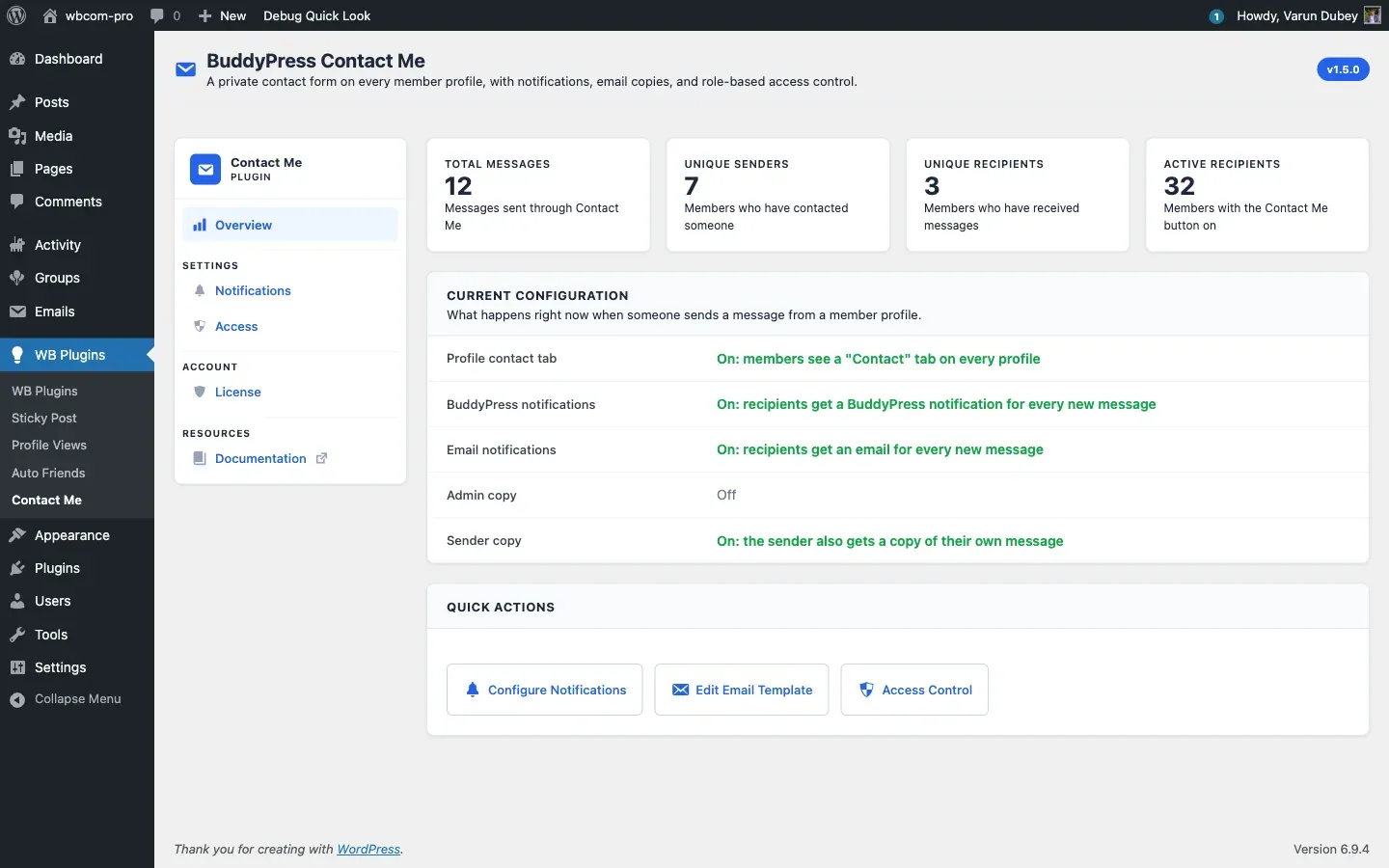
The Overview tab is the landing page when you open WB Plugins > Contact Me. It gives you live counts of activity plus a one-glance summary of the current configuration.
Top stat cards
Section titled “Top stat cards”Four counters appear across the top of the page:
- Total Messages - every row in the
{prefix}contact_metable. This is the all-time count. - Unique Senders - distinct member IDs that have sent at least one message. Guest submissions (stored with sender 0) are excluded from this count.
- Unique Recipients - distinct member IDs that have received at least one message.
- Active Recipients - members whose
contact_me_buttonuser-meta is set toon. This is how many members currently have the Contact Me button turned on.
Current configuration snapshot
Section titled “Current configuration snapshot”The middle card lists five settings with an on/off status for each:
- Profile contact tab - whether the Contact tab is rendered at all.
- BuddyPress notifications - whether recipients get a notification-bell entry.
- Email notifications - whether recipients get a templated email.
- Admin copy - whether site admins get a copy of every message.
- Sender copy - whether the sender gets a receipt.
Change any of these from the Notifications and Access tabs. The snapshot is a quick-confirm view, not editable inline.
Quick actions
Section titled “Quick actions”Three shortcut buttons at the bottom:
- Configure Notifications - jumps to the Notifications tab.
- Edit Email Template - opens the
bcm-contact-messageBuddyPress email post directly in the editor. If that post cannot be resolved, the button falls back to the Notifications tab, which links to the same email. - Access Control - jumps to the Access tab.
Where the data comes from
Section titled “Where the data comes from”The counters query the {prefix}contact_me table and the user-meta table directly with COUNT(*) and COUNT(DISTINCT ...), not cached transients, so the numbers are always current when you open the tab. The message-table counts are fast because the table is indexed by recipient.
What this tab is not for
Section titled “What this tab is not for”The Overview tab is read-only. There is no message-moderation UI, no bulk delete, and no sender block-list. Message moderation happens per message from the recipient’s inbox; admin oversight happens through the Site admin copy option plus your existing email workflow.
What’s next
Section titled “What’s next”Once you have a feel for the numbers, head to the Notifications tab to control how recipients find out about new messages.