

Extra job and resume fields (Salary, Experience and more)
Reign WP Job Manager Addon overviewPremiumGet Reign WP Job Manager Addon →
Also called: job fields, salary range, career level, experience, resume fields, job filters, extra fields on the post a job form.
What this does
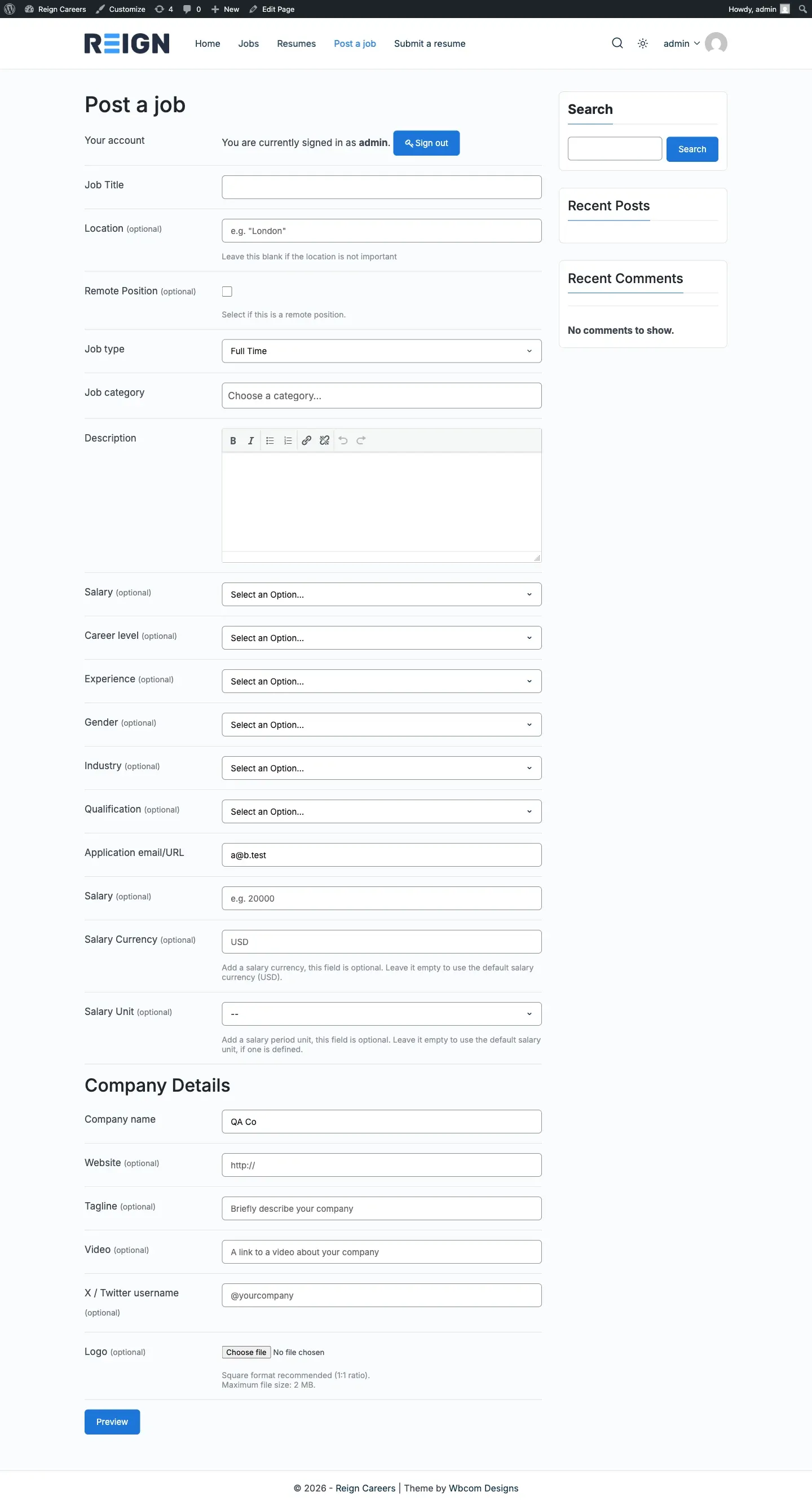
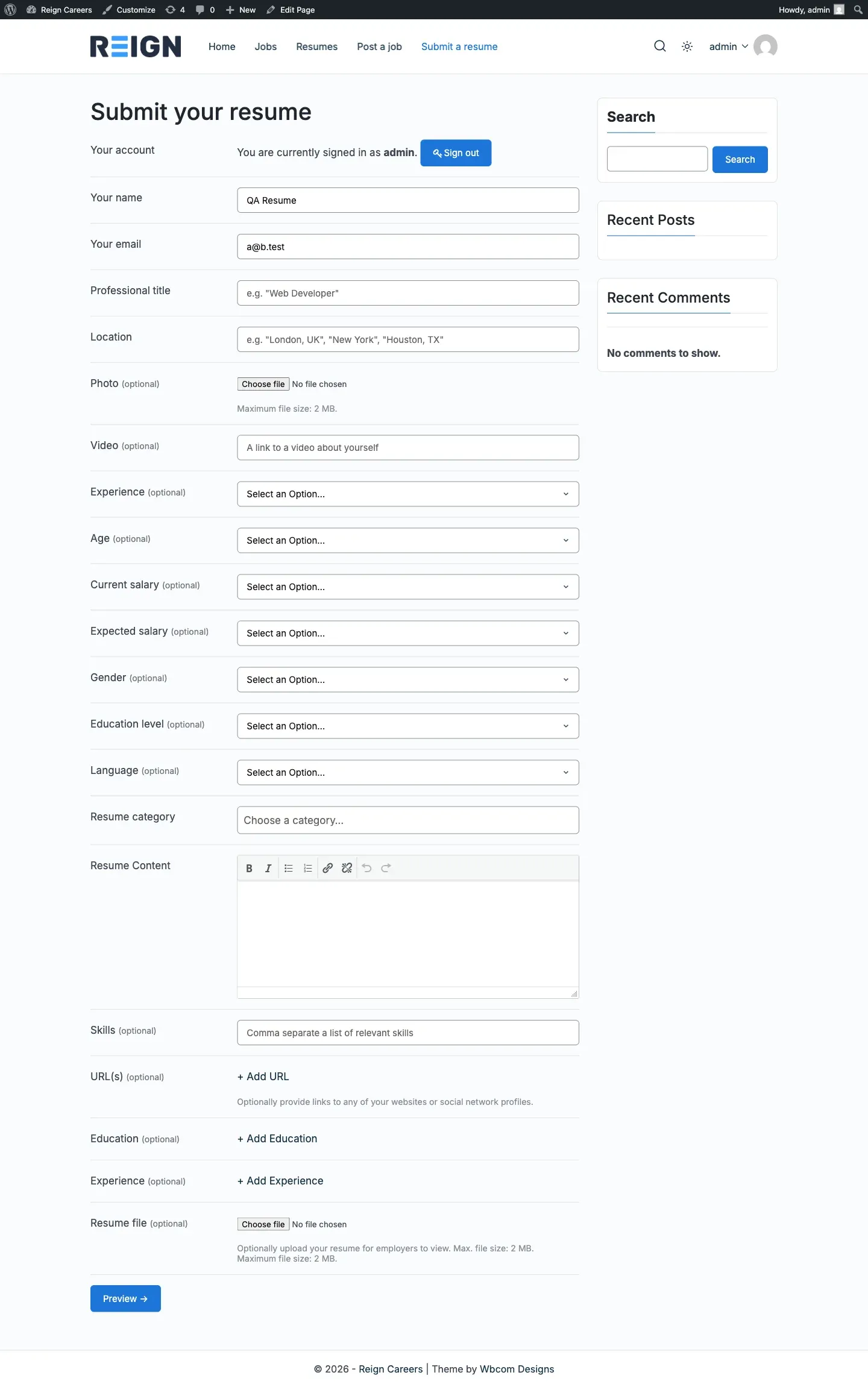
Section titled “What this does”The add-on can add optional choice lists to your job and resume forms. Examples are Salary, Career level and Experience. They show on the form where an employer posts a job and in the details card on the job page.
| Jobs | Resumes |
|---|---|
| Salary, Career level, Experience, Gender, Industry, Qualification | Experience, Age, Current salary, Expected salary, Gender, Education level, Language |
Before you start
Section titled “Before you start”The add-on creates no choices for you. You add the choices yourself, such as the salary ranges, in the Jobs or Resumes menu. A field with no choices is not shown on the form.
- Go to Reign Settings > Integrations, then Configure on the WP Job Manager tile.
- Open the Job fields card. Tick the fields you want and untick the others.
- If you use Resume Manager, do the same in the Resume fields card.
- Click Save changes.
- Open the Jobs menu and click a field name, such as Salary. Add at least one choice, for example “$30,000 - $50,000”.
- Do the same under the Resumes menu for the resume fields.
You’ll know it worked when
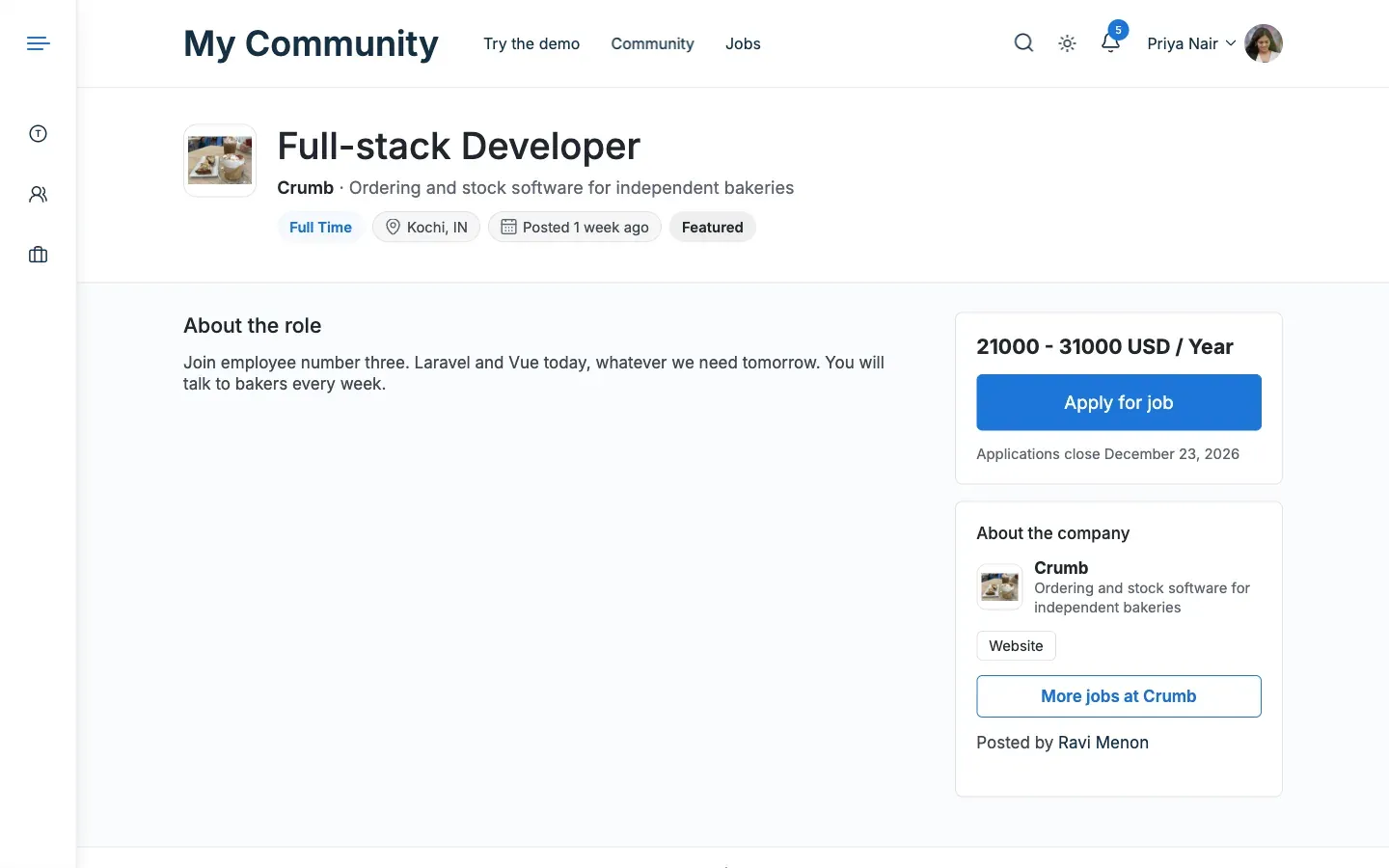
Section titled “You’ll know it worked when”The Post a Job form shows a select for each ticked field that has choices. After a job is saved with a value, the job page shows a row for it in the details card.
Good to know
Section titled “Good to know”Which fields are on by default?
Section titled “Which fields are on by default?”On a new site every field is on, except the two personal ones on resumes. Those are Age and Gender. Tick them in the Resume fields card if you want to ask for them. A site upgraded from 3.1.0 keeps exactly the fields it had, including Age and Gender.
What happens to a field that is on?
Section titled “What happens to a field that is on?”- It shows as a select on the submit form once it has at least one choice. An empty select is not shown.
- WP Job Manager or Resume Manager saves it with the rest of the form.
- It shows as a row in the details card when the job or resume has a value.
What happens when I turn a field off?
Section titled “What happens when I turn a field off?”It is hidden. Its choices stay in your database, and so do the ones already given to jobs and resumes. The field comes back with its data if you switch it on again.
Why is a field missing from my form?
Section titled “Why is a field missing from my form?”Check that it is ticked and that it has at least one choice.
For developers
Section titled “For developers”Each field is a hierarchical taxonomy with a REST route (show_in_rest). You can also manage its terms through the REST API. Managing terms needs the manage_job_listings capability for jobs and manage_resumes for resumes.
| Jobs | Resumes |
|---|---|
job_listing_salary, job_listing_career_level, job_listing_experience, job_listing_gender, job_listing_industry, job_listing_qualification |
resume_experience, resume_age, resume_current_salary, resume_expected_salary, resume_gender, resume_education_level, resume_language |
Each has an archive at {page-slug}/job-salary/{term}, {page-slug}/resume-age/{term} and so on. The page slug is the slug of your jobs or resumes page. It is jobs or resumes when none is set.