

Job and resume page layouts (Page and list layouts)
Reign WP Job Manager Addon overviewPremiumGet Reign WP Job Manager Addon →
Also called: job page layout, job list layout, job grid, job board layout, resume list, single job page, related jobs, poster profile link.
What this does
Section titled “What this does”These choices change how a single job page, a single resume page and the job and resume lists look. They also turn the “Posted by” link on or off. Related jobs, a short list of similar jobs, appears under the description with no setting.
Before you start
Section titled “Before you start”Set up WP Job Manager first, as shown in Set up your job board. The resume cards appear only when Resume Manager is active. Values you saved for resumes are kept while it is off.
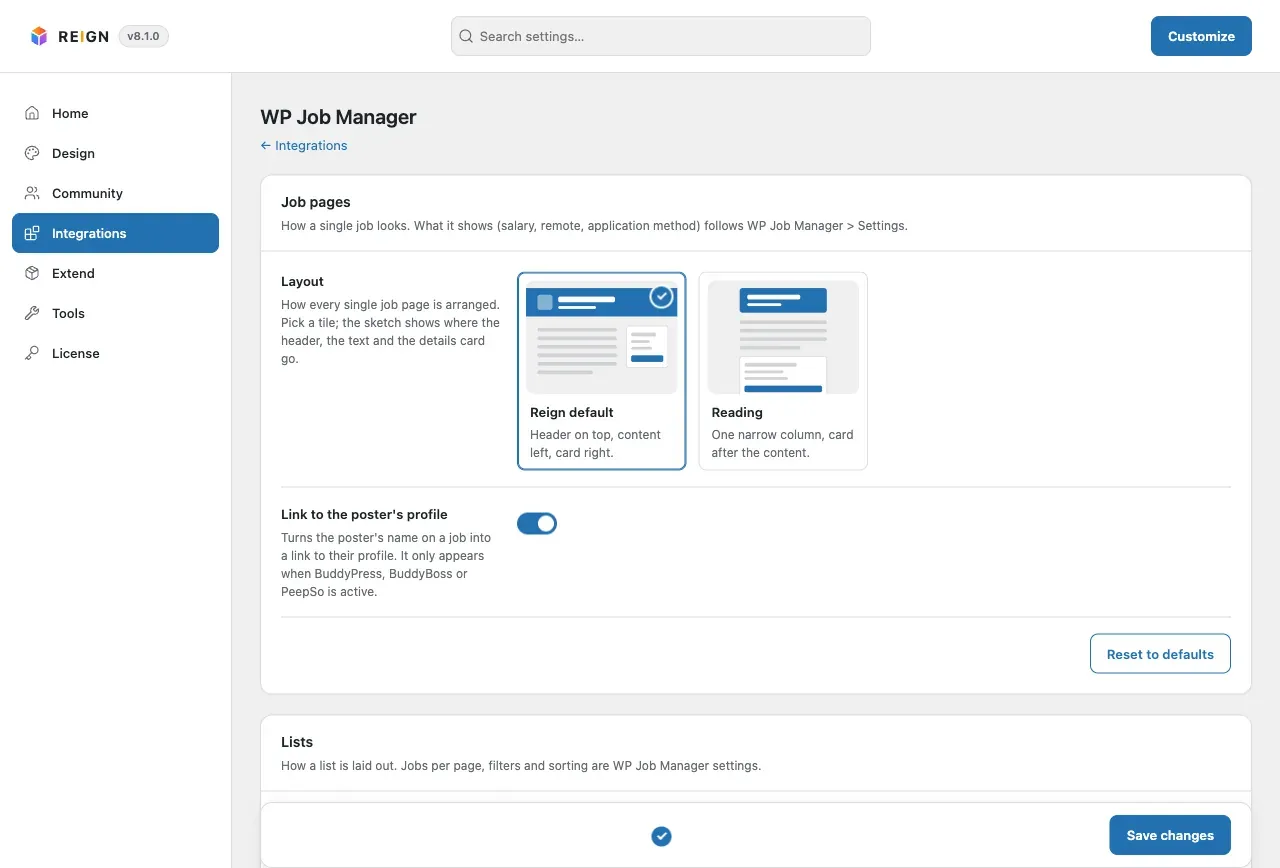
- Go to Reign Settings > Integrations, then Configure on the WP Job Manager tile.
- In the Job pages card, pick a Layout: Reign default or Reading.
- In the same card, switch Link to the poster’s profile on or off. It is on by default.
- If you use Resume Manager, open the Resume pages card and pick a Layout the same way.
- In the Lists card, pick a Job list: Reign default (one row per job) or Grid.
- Pick a Resume list: Reign default (cards) or Rows.
- Click Save changes. One bar at the bottom saves the whole screen.
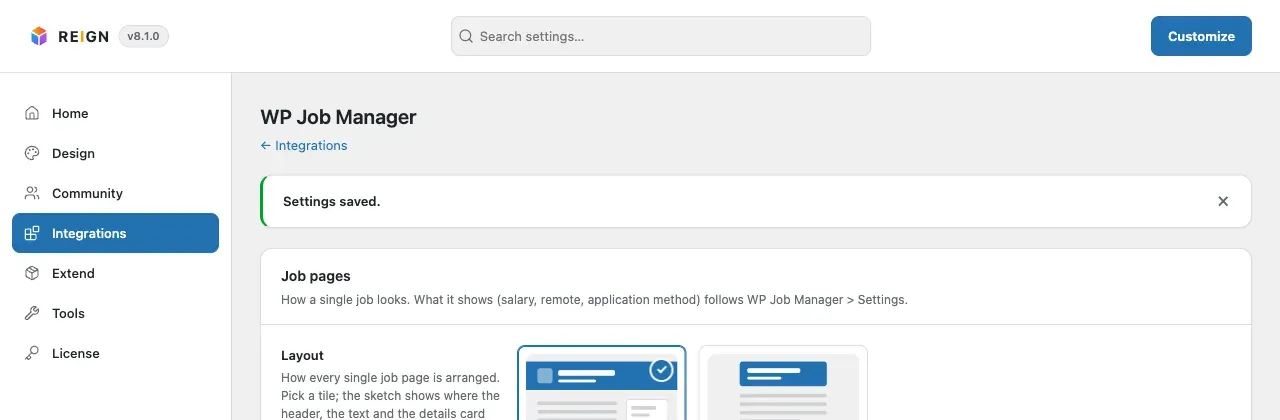
After you save, the tab shows “Settings saved.”
To undo one card, click Reset to defaults on it. Your browser asks “Reset this card to its defaults? Other cards keep their values.” Click OK and the screen shows “Card reset to its defaults.” The other cards keep their values. The browser’s own dialog is not pictured.
The job list as a grid looks like this.
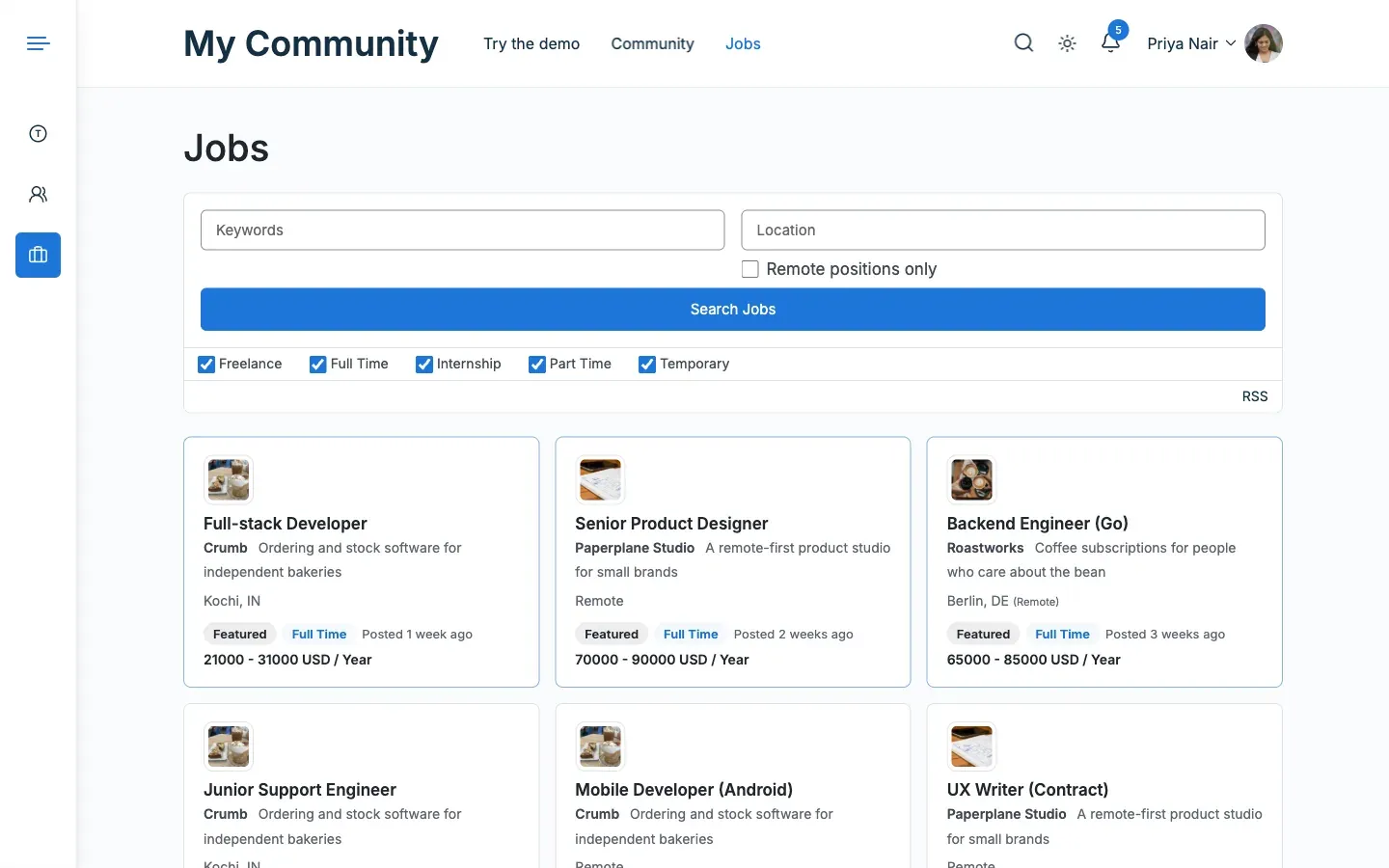
A faded card, like Marketing Intern above, is a job marked as filled in WP Job Manager. It stays in the list, dimmed. WP Job Manager can hide filled jobs instead.
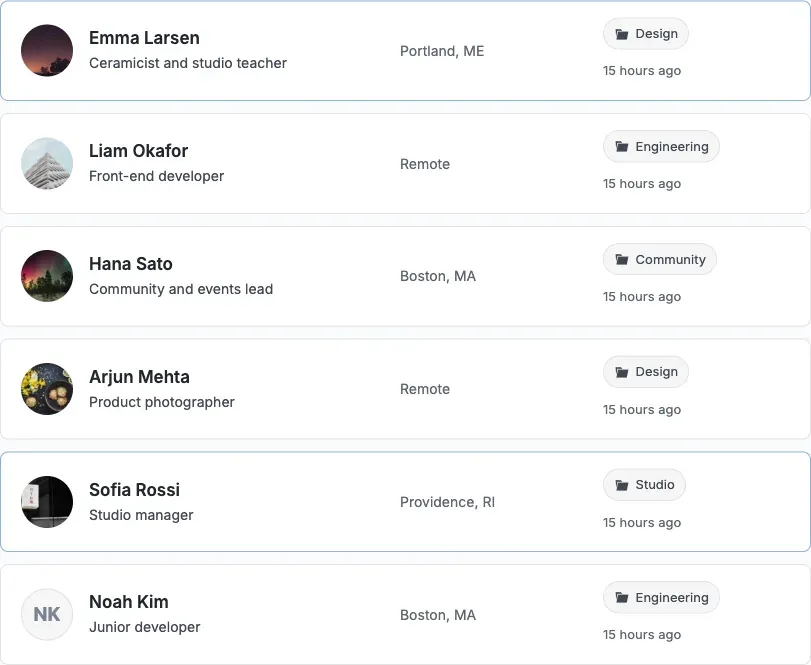
The resume list as rows looks like this.
You’ll know it worked when
Section titled “You’ll know it worked when”A single job opens in the layout you chose. The job list shows rows or a grid, and the resume list shows cards or rows. Under a job description you see up to three Related jobs.

Good to know
Section titled “Good to know”Which pages does the list choice change?
Section titled “Which pages does the list choice change?”It changes the [jobs] and [resumes] shortcodes, the two archives and their category pages. A list put in by a widget or a block keeps the Reign default.
Where do I set jobs per page, filters and sorting?
Section titled “Where do I set jobs per page, filters and sorting?”In WP Job Manager. These are not repeated here.
When does the “Posted by” link show?
Section titled “When does the “Posted by” link show?”BuddyPress, BuddyBoss or PeepSo must be active. The job needs a company name, because the link sits in the About the company card. A member with a profile must have posted it. A job posted without an account shows nothing.
How does Related jobs choose jobs?
Section titled “How does Related jobs choose jobs?”It shows up to three other jobs in the same job category, newest first. Each one shows company, location and the first job type. It prints nothing when there are none. Filled and expired jobs follow your WP Job Manager settings. So “open” holds when WP Job Manager hides filled jobs.
Can I turn Related jobs off?
Section titled “Can I turn Related jobs off?”There is no setting for it.
For developers
Section titled “For developers”The add-on keeps its choices in reign_options['wpjm']. The keys are layout_job, layout_resume, poster_link, columns_job, columns_resume, fields_job and fields_resume. A value equal to its default is not stored. The 3.1.0 key reign_options['reign_job_mate'] is left untouched.