

Course page (Cover layout)
Also called: course page, single course, course header, banner image, cover photo, hero image, course layout
What this does
Section titled “What this does”It sets how one course page looks to learners. You can keep the Reign look, or put a wide picture behind the header at the top of the page. These settings apply to every course unless a course sets its own layout.
Before you start
Section titled “Before you start”The layouts work only on a course that the Reign theme lays out. In the Customizer, Content Layouts must show Course page layout as Reign, not LMS default. See Why the Cover layout does nothing below.
-
Go to Reign Settings > Integrations, then Configure on the Sensei LMS tile.
-
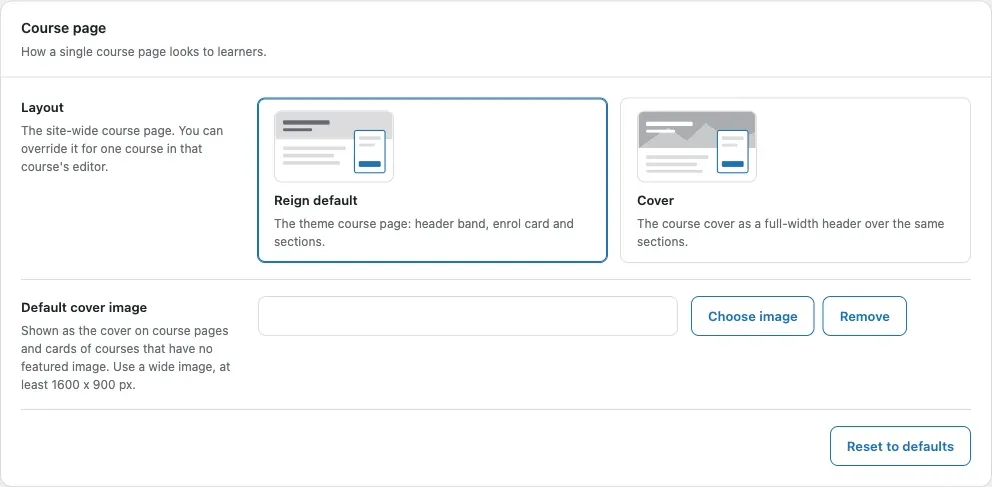
Find the Course page card.
-
Under Layout, pick Reign default or Cover. The default is Reign default.
- Reign default keeps the theme course page, with the photo in the enrol card.
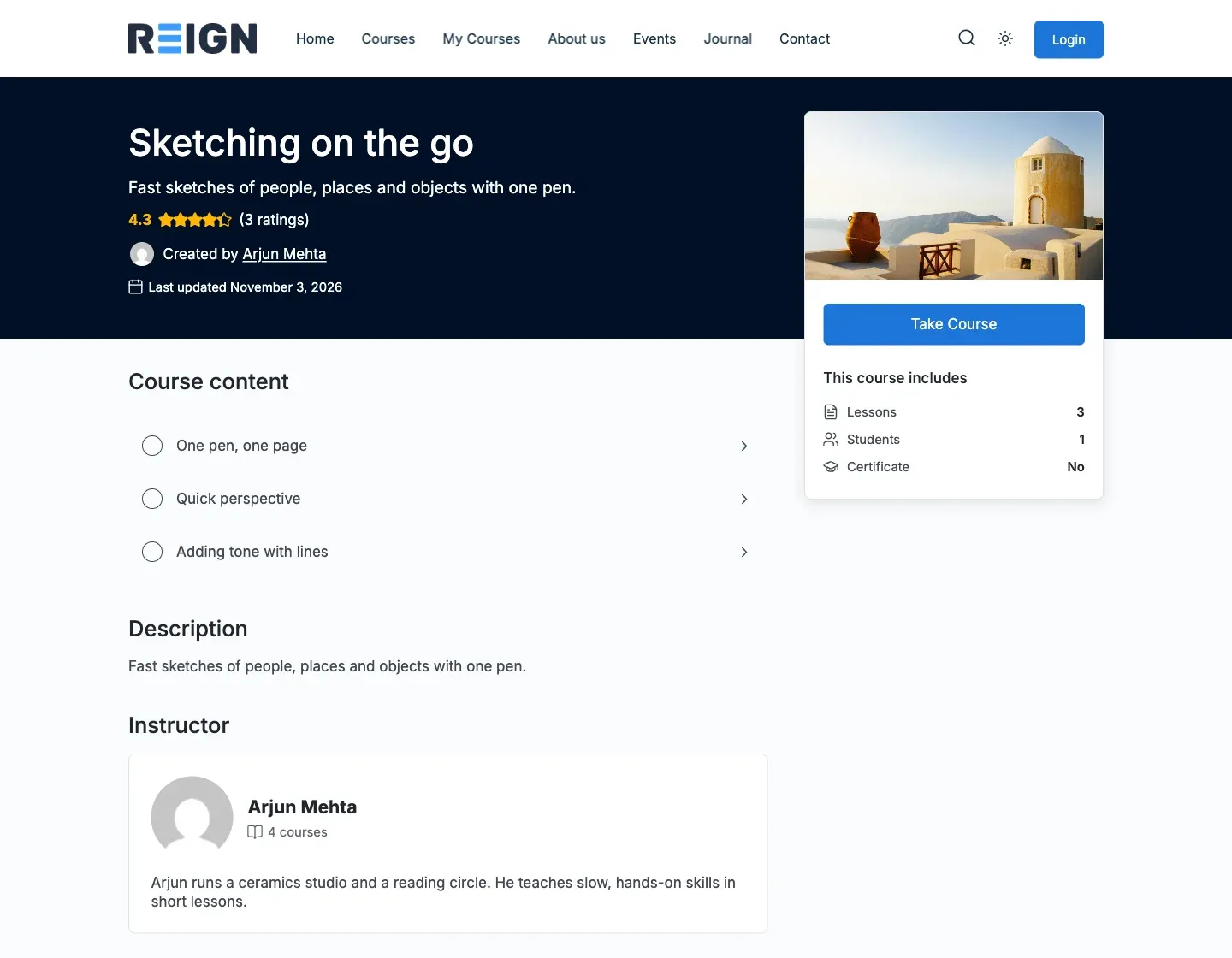
- Cover puts a picture behind the header band. The title, rating and teachers stay on top.
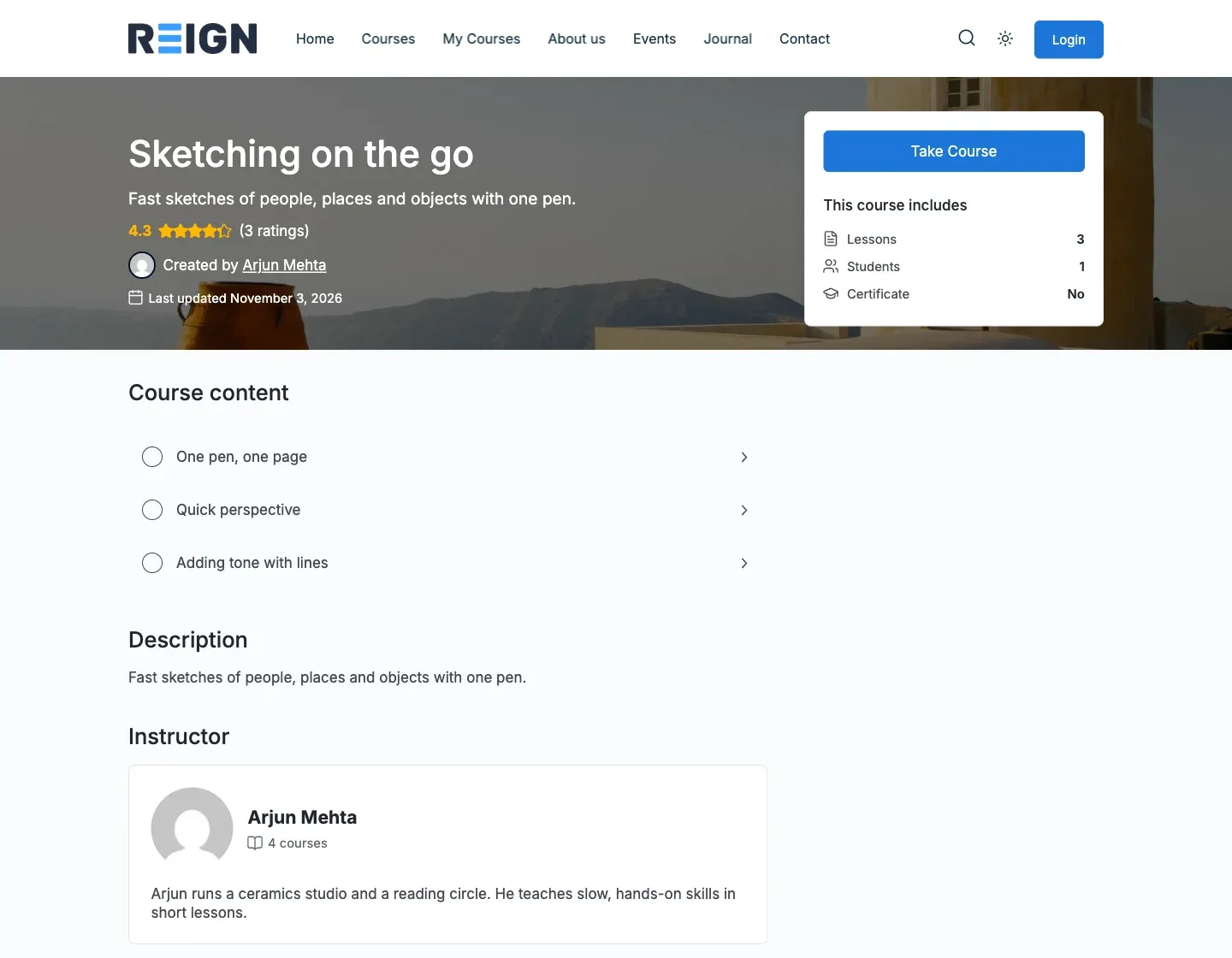
The Reign layout keeps the photo in the enrol card:
-
Under Default cover image, choose a wide picture, 1600 x 900 px or larger. This picture is used when a course has no cover of its own.
-
Click Save changes.
Set a cover for one course
Section titled “Set a cover for one course”- Open the course in the editor.
- Find the Reign box on the side.
- Under Course page layout, pick Follow the site setting, Reign default or Cover.
- Under Cover image, click Choose image. Click Remove to take it away. Use a wide picture, about 1440 x 400 px.
- Save the course.
You’ll know it worked when
Section titled “You’ll know it worked when”With the Cover layout, the picture fills the header band across the full page width. On wide screens it leaves room for the course card. The enrol card no longer repeats the course photo, but a course video still shows there.
Good to know
Section titled “Good to know”Which picture does the Cover use?
Section titled “Which picture does the Cover use?”The course’s own cover image first. If it has none, the featured image. If that is missing too, the Default cover image. A square featured image is cropped to the header shape, so use a wide one.
Why does the Cover layout do nothing?
Section titled “Why does the Cover layout do nothing?”The theme skips a course, and Cover does nothing, in three cases. The Customizer course layout is set to LMS default. Your child theme has its own single-course template. Or code switches the layout off. When the Customizer is the cause, a notice at the top of the Sensei LMS tab says so. Course pages then show neither these layouts nor the Reviews section.

How do I put the settings back?
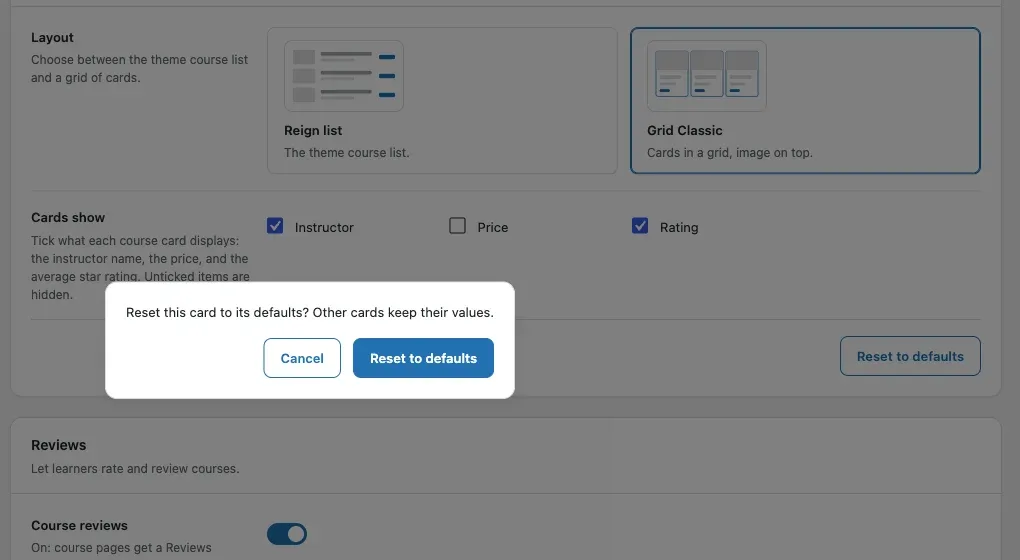
Section titled “How do I put the settings back?”Click Reset to defaults on the card and confirm. A message says “Card reset to its defaults.” Only this card changes. The other cards keep their values. After a normal save you see “Settings saved.”
Does the default picture show anywhere else?
Section titled “Does the default picture show anywhere else?”Yes. In the Grid Classic layout, a course card with no featured image shows the default picture. See Course cards.
For developers
Section titled “For developers”- The course’s own cover is stored in the course meta
_course_cover_image_id. Its cover colour in_course_cover_background_colorsits behind the picture. - The per-course layout is stored in
_reign_sn_template. An empty value follows the site setting. - Return false from the
reign_course_layout_enabledfilter to switch the layouts off for a course.