

Store list card styles (Store cards)
Also called: store list, vendor list, seller cards, vendor shop cards, store grid, marketplace store directory, card look
What this does
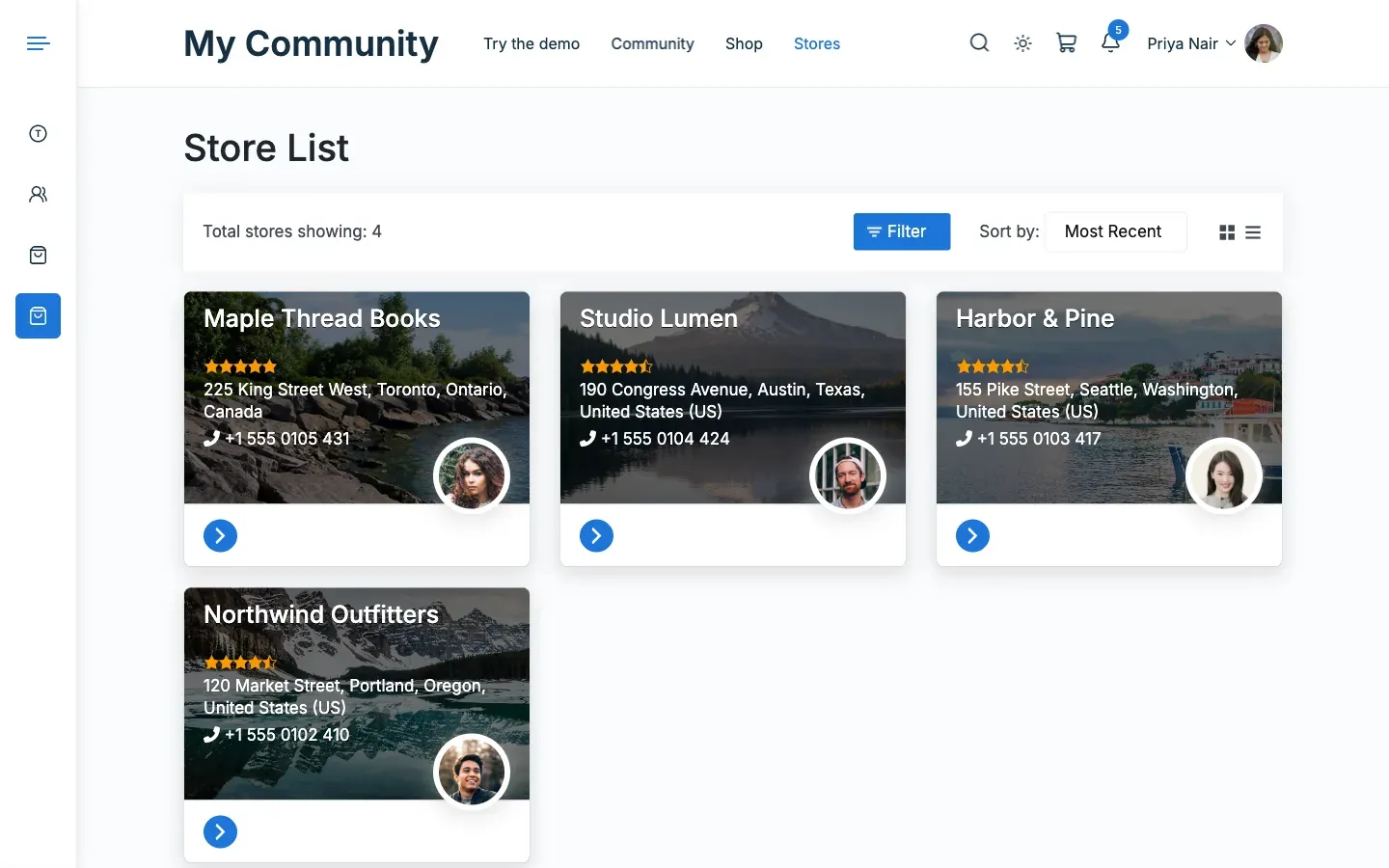
Section titled “What this does”It changes how each store looks on your Dokan store list page. Dokan builds the list. The add-on only restyles each card. Filters, sorting, search, the map and Dokan Pro’s geolocation stay Dokan’s.
- Go to Reign Settings > Integrations, then Configure on the Dokan tile.
- In the Store card, choose a Store card style:
| Style | What you get |
|---|---|
| Dokan | Dokan’s own card, styled by the theme. |
| Centered | The logo sits centred under the banner, with the name, rating and actions below. |
| Soft | A rounded card with a soft shadow. |
- Click Save changes.
You’ll know it worked when
Section titled “You’ll know it worked when”Open your store list page. Each store shows in the style you chose.
Good to know
Section titled “Good to know”How do I show a list of stores on a page?
Section titled “How do I show a list of stores on a page?”Add Dokan’s [dokan-stores] shortcode to any page. Pick the page in Dokan under Settings > General > Page Setup > Store Listing so the style applies.
Is the text on the banner readable?
Section titled “Is the text on the banner readable?”Yes. Text on the banner has a dark layer behind it, so it stays clear on light banners.
Does it work on phones and dark mode?
Section titled “Does it work on phones and dark mode?”Yes. Cards stack to one column on phones. They also follow dark mode and right-to-left languages.
For developers
Section titled “For developers”The shortcode accepts Dokan’s own attributes, for example [dokan-stores per_page="12"].