

Managing quote requests
Woo Product Inquiry & Quote Pro overviewPremiumGet Woo Product Inquiry & Quote Pro →
Every request a customer submits arrives in one place.
WB Plugins > Price Quote > Quote Requests
The same list is also linked from WooCommerce > Quote Requests, and from every figure on the plugin’s Overview tab - clicking “4 Pending” opens this list already filtered to pending.
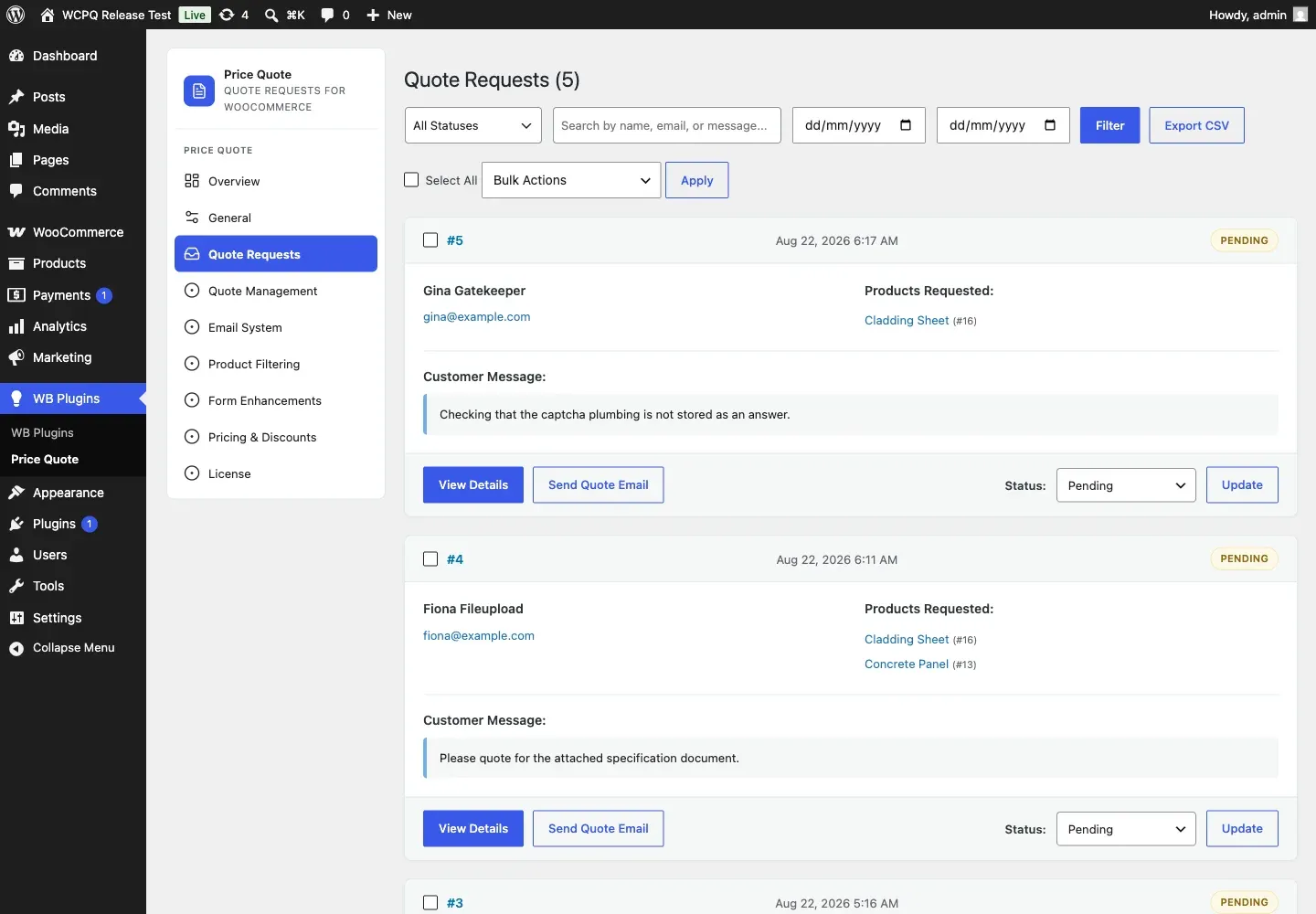
What each request shows
Section titled “What each request shows”One card per request:
- The request number and the date it was submitted.
- The customer’s name and email address, with the email as a mailto link.
- Products Requested, each linking to the product.
- The customer’s message.
- Any extra fields captured by the Pro plugin - company, budget, quote reference - shown under readable labels.
- A status pill in the top right.
Narrowing the list
Section titled “Narrowing the list”Above the list:
- All Statuses - filter to one status.
- Search by name, email, or message - free text across all three.
- Two date fields - restrict to a date range.
- Filter applies whatever you have set; Export CSV downloads the list.
These matter as soon as the list grows. A store taking a few requests a day has thousands within a year, and scrolling is not a way to find one. The list is paginated, so it stays usable at volume.
Acting on a request
Section titled “Acting on a request”Per request:
- View Details opens the full request in a popup. If Pro (or another add-on) captured file uploads, they appear here as download links; the free plugin’s own form has no upload field, so a request submitted through the free form has none.
- Send Quote Email opens the response composer, where you enter your pricing and send it to the customer.
- The Status dropdown plus Update moves the request along.
To act on several at once, tick their checkboxes (or Select All), choose from Bulk Actions, and press Apply.
The statuses
Section titled “The statuses”The free plugin ships three statuses, and they are exactly the ones the Status dropdown offers:
| Status | Meaning |
|---|---|
| Pending | Submitted, not yet answered. |
| Responded | You have sent a quote and are waiting on the customer. |
| Completed | Finished, nothing outstanding. |
Price Quote Pro contributes further statuses - such as Approved, Rejected
and Converted - through the wcpq_quote_statuses filter. They appear in the
dropdown, the filters and the Overview tiles only when Pro is active.
Whichever statuses are active, the Status dropdown, the Bulk Actions and the Overview counts all read from the same registry - so a figure on Overview, a filter here and a bulk action always agree about what a status means.
Emails
Section titled “Emails”Quote emails are sent through WooCommerce’s own email system, so they use your store’s existing template, branding and delivery settings. Configure them under WooCommerce > Settings > Emails:
- Admin new quote - sent to you when a request is submitted.
- Customer quote received - the confirmation sent to the customer.
To change the markup, copy the template into your theme under
woocommerce/emails/, exactly as you would for any other WooCommerce email.