Skip to content
Wbcom Designs – Theme & Plugin Docs
Menu
Menu
Close
MENU
MENU
BuddyPress
Themes
All Themes
Reign Theme
BuddyX Pro Theme
BuddyX Theme
Reign Addon
Reign Dokan Addon
Reign LearnDash Addon
Reign WP Job Manager Addon
Reign WC Vendors Addon
Reign TutorLMS Addon
Reign WCFM Addon
Reign Lifter LMS Addon
Free Plugins
BuddyPress Check-ins
BuddyPress Activity Social Share
BuddyPress Group Review
BuddyPress Favorite Notification
BuddyPress Job Manager
Shortcodes For BuddyPress
BuddyPress Redirect
BuddyPress Birthday
BuddyPress Member Export/Import
BuddyPress Modify Member Header/Directory
BuddyPress Member Review
BuddyPress Post from Anywhere
BuddyPress Activity Link Preview
BuddyPress WooCommerce Integration
BuddyPress WooCommerce Integration
BuddyPress Activity Bump
BuddyPress Member Blog
BuddyPress User To Do List
BuddyPress reCaptcha
BuddyPress Search
BuddyPress Ads
Paid Plugins
BuddyPress Business Profile
WP Stories
BuddyPress Giphy
BuddyPress Resume Manager
BuddyPress Profile Pro
BuddyPress Private Community Pro
BuddyPress Polls
BuddyPress Profanity
BuddyPress Hashtags
BuddyPress Moderation Pro
BuddyPress Quotes
BuddyPress Sticky Post
BuddyPress Auto Friends
BuddyPress Newsfeed
BuddyPress Status
Shortcode for BuddyPress Pro
BuddyPress Member Blog Pro
BuddyPress Friend & Follow Suggestion
BuddyPress Check-ins Pro
BuddyVendor
BuddyPress IdeaPush Integration
BuddyPress Contact Me
Who Viewed My Profile
BuddyPress Stats
Learndash Addons
LearnDash Dashboard
LearnDash Notes
Sell Services
Woo Sell Services
EDD Sell Services
WooCommerce
Woo Audio Preview
Woo Audio Preview Pro
Woo Document Preview
Woo Document Preview Pro
Woo Price Quotes
Woo Open Graph
Woo Open Graph
Woo Pincode Checker
Woo Pincode Checker
WooCommerce Price Enquiry & Quote Pro
WooCommerce Email Customizer
PeepSo
PeepSo WooCommerce Integration
Peepso wpForo Addon
Peepso bbPress Integration
PeepSo LearnDash Integration
Peepso LifterLMS Integration
PeepSo Dokan Integration
PeepSo EDD Integration
PeepSo Activity Social Share
Peepso WC Vendors Integration
Peepso WCFM Integration
PeepSo Activity Bump
PeepSo Member Blog
MENU
MENU
BuddyPress
Themes
All Themes
Reign Theme
BuddyX Pro Theme
BuddyX Theme
Reign Addon
Reign Dokan Addon
Reign LearnDash Addon
Reign WP Job Manager Addon
Reign WC Vendors Addon
Reign TutorLMS Addon
Reign WCFM Addon
Reign Lifter LMS Addon
Free Plugins
BuddyPress Check-ins
BuddyPress Activity Social Share
BuddyPress Group Review
BuddyPress Favorite Notification
BuddyPress Job Manager
Shortcodes For BuddyPress
BuddyPress Redirect
BuddyPress Birthday
BuddyPress Member Export/Import
BuddyPress Modify Member Header/Directory
BuddyPress Member Review
BuddyPress Post from Anywhere
BuddyPress Activity Link Preview
BuddyPress WooCommerce Integration
BuddyPress WooCommerce Integration
BuddyPress Activity Bump
BuddyPress Member Blog
BuddyPress User To Do List
BuddyPress reCaptcha
BuddyPress Search
BuddyPress Ads
Paid Plugins
BuddyPress Business Profile
WP Stories
BuddyPress Giphy
BuddyPress Resume Manager
BuddyPress Profile Pro
BuddyPress Private Community Pro
BuddyPress Polls
BuddyPress Profanity
BuddyPress Hashtags
BuddyPress Moderation Pro
BuddyPress Quotes
BuddyPress Sticky Post
BuddyPress Auto Friends
BuddyPress Newsfeed
BuddyPress Status
Shortcode for BuddyPress Pro
BuddyPress Member Blog Pro
BuddyPress Friend & Follow Suggestion
BuddyPress Check-ins Pro
BuddyVendor
BuddyPress IdeaPush Integration
BuddyPress Contact Me
Who Viewed My Profile
BuddyPress Stats
Learndash Addons
LearnDash Dashboard
LearnDash Notes
Sell Services
Woo Sell Services
EDD Sell Services
WooCommerce
Woo Audio Preview
Woo Audio Preview Pro
Woo Document Preview
Woo Document Preview Pro
Woo Price Quotes
Woo Open Graph
Woo Open Graph
Woo Pincode Checker
Woo Pincode Checker
WooCommerce Price Enquiry & Quote Pro
WooCommerce Email Customizer
PeepSo
PeepSo WooCommerce Integration
Peepso wpForo Addon
Peepso bbPress Integration
PeepSo LearnDash Integration
Peepso LifterLMS Integration
PeepSo Dokan Integration
PeepSo EDD Integration
PeepSo Activity Social Share
Peepso WC Vendors Integration
Peepso WCFM Integration
PeepSo Activity Bump
PeepSo Member Blog
How to configure the settings?
From the ‘
Product
’ menu click on the
Add New.
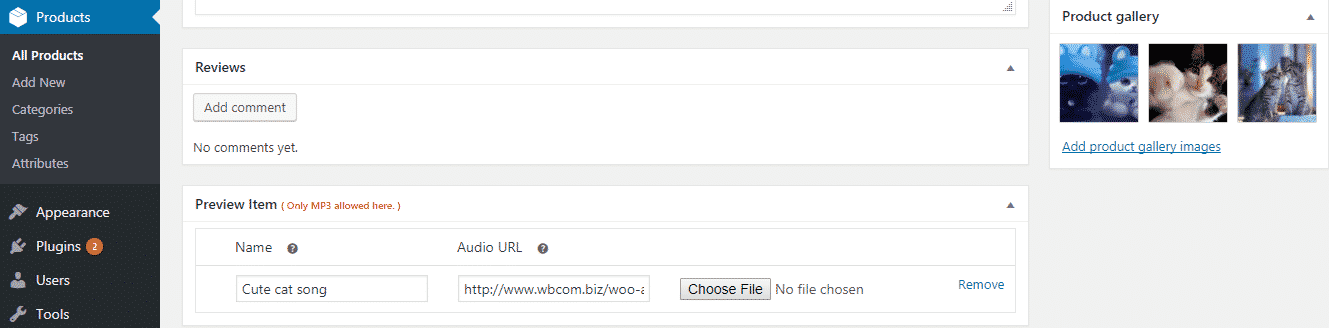
Fill the details of the downloadable products. You will see a new section named ‘
Preview Item
’. Choose the file which you have to show as a preview at the Front-End.
Update on May 25, 2022
Woo Audio Preview
Intro
Woo Audio Preview Features Highlights
WC Audio Preview Introduction
Support
FAQ's
Frontend View
Front-End Display
Plugin Working
How to configure the settings?
Installation
Getting Started With WC Audio Preview
How to install the EDD Sell Services plugin and what are the required plugins?
System Requirement