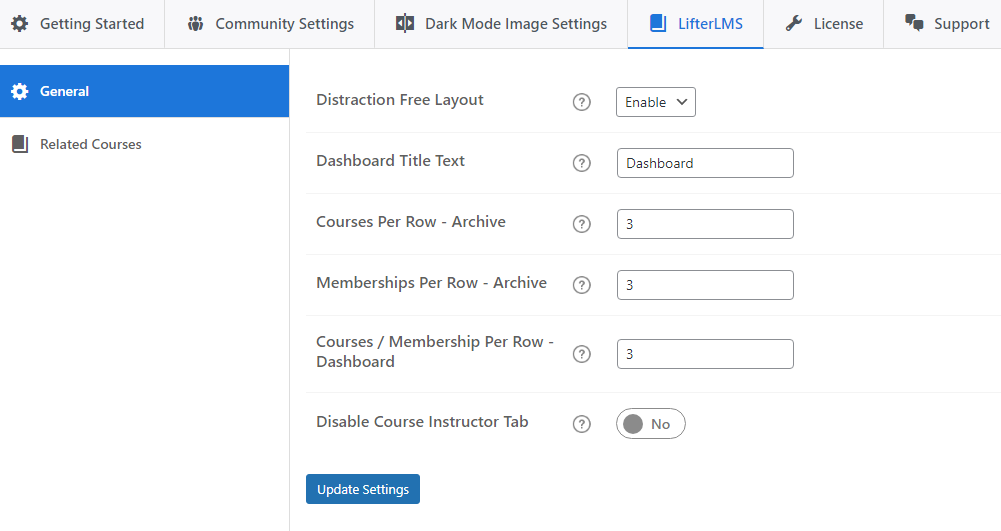
General Setting Options

Get Started

Learnmate provides amazing options for an easy and sleek layout.

Following are general options; for these, simply head towards
Dashboard >> Reign Settings >> LifterLMS >> General


Distraction Free Layout

This setting allows administrators to enable the Distraction-Free Layout as the default mode whenever users access course content. It ensures that learners are automatically presented with a cleaner, focused interface optimized for reading and engagement.

Dashboard Title Text

This setting lets you specify a custom title for the LifterLMS Dashboard page.

Dashboard Navigation Style

This setting customizes how the navigation menus appear in the LifterLMS dashboard, improving the user experience and aligning with the website’s design preferences.

The setting provides two different styles (e.g., Style 1, Style 2, etc.) for the dashboard navigation menus.

  • Style 1

  • Style 2

Courses Per Row – Archive

The Courses Per Row – Archive setting allows administrators to control the number of courses displayed in a single row on the course archive pages. This setting helps organize the layout of the course listings for better visual appeal and user navigation.

Administrators can set a specific number of courses (e.g., 3, 4, or more) to appear in each row.

Memberships Per Row – Archive

The Meberships Per Row – Archive setting allows administrators to control the number of memberships displayed in a single row on the membership archive pages. This setting helps organize the layout of the course listings for better visual appeal and user navigation.

Administrators can set a specific number of memberships (e.g., 3, 4, or more) to appear in each row.

This setting customizes how many courses or memberships appear in a single row on the dashboard, improving the layout and making it easier for users to navigate their enrolled content.

Simplify the single course page by removing the “Instructor” tab from the LifterLMS tabs section.

The “Instructor” tab will no longer be visible on the single course page when this setting is enabled.

Remove the display of the course author’s name from the banner section at the top of the single course page.

Removes the course date from being displayed in the banner section of the single course page.

Remove the course metadata section from the single course page to create a cleaner and more focused layout.

The Disable Course Thumbnail setting allows administrators to hide the course thumbnail image from the LifterLMS single course page. This setting is useful when the course image is not needed or if a cleaner, text-focused layout is preferred.


Last updated: May 26, 2025